

EaseUS Todo Backup
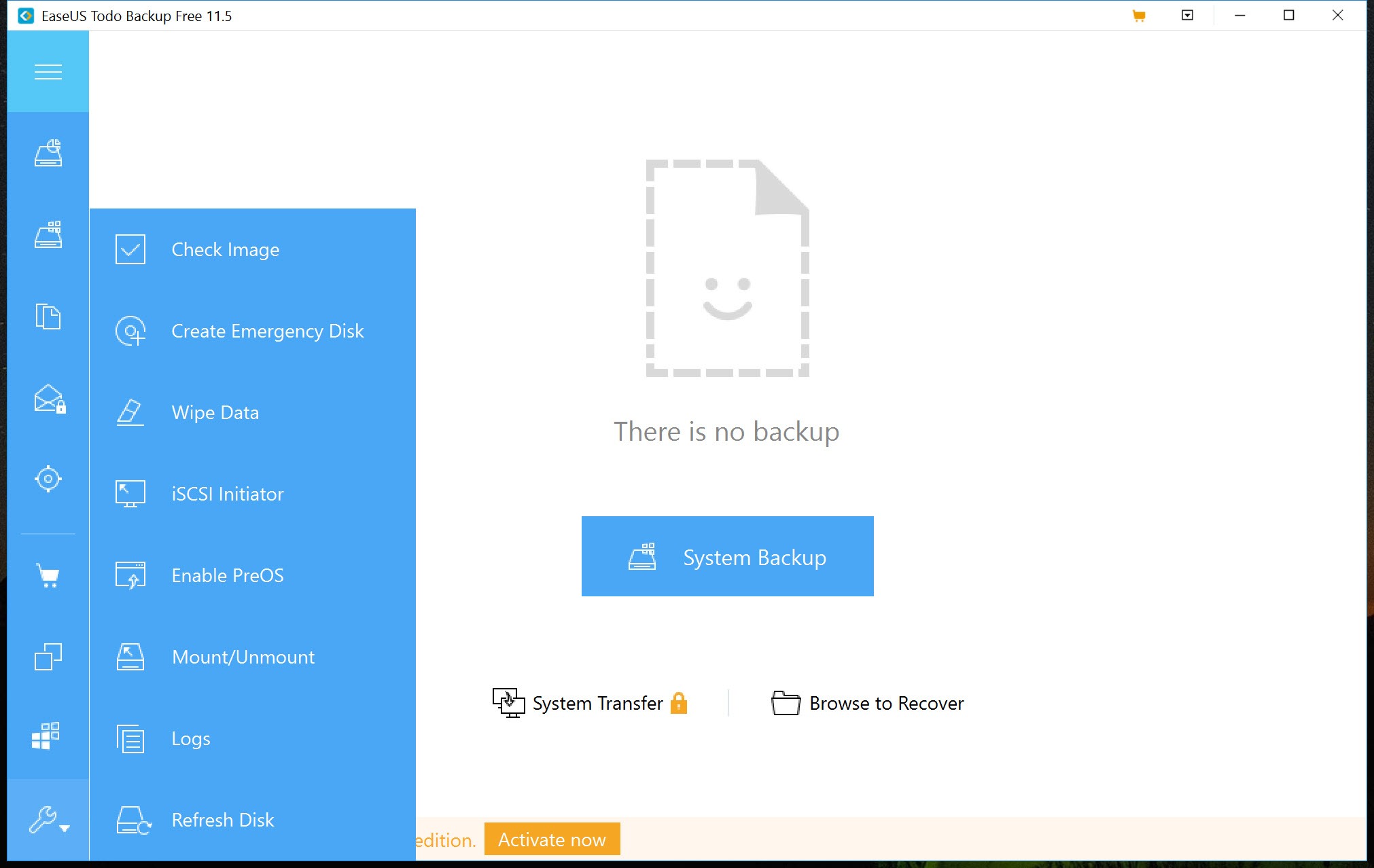

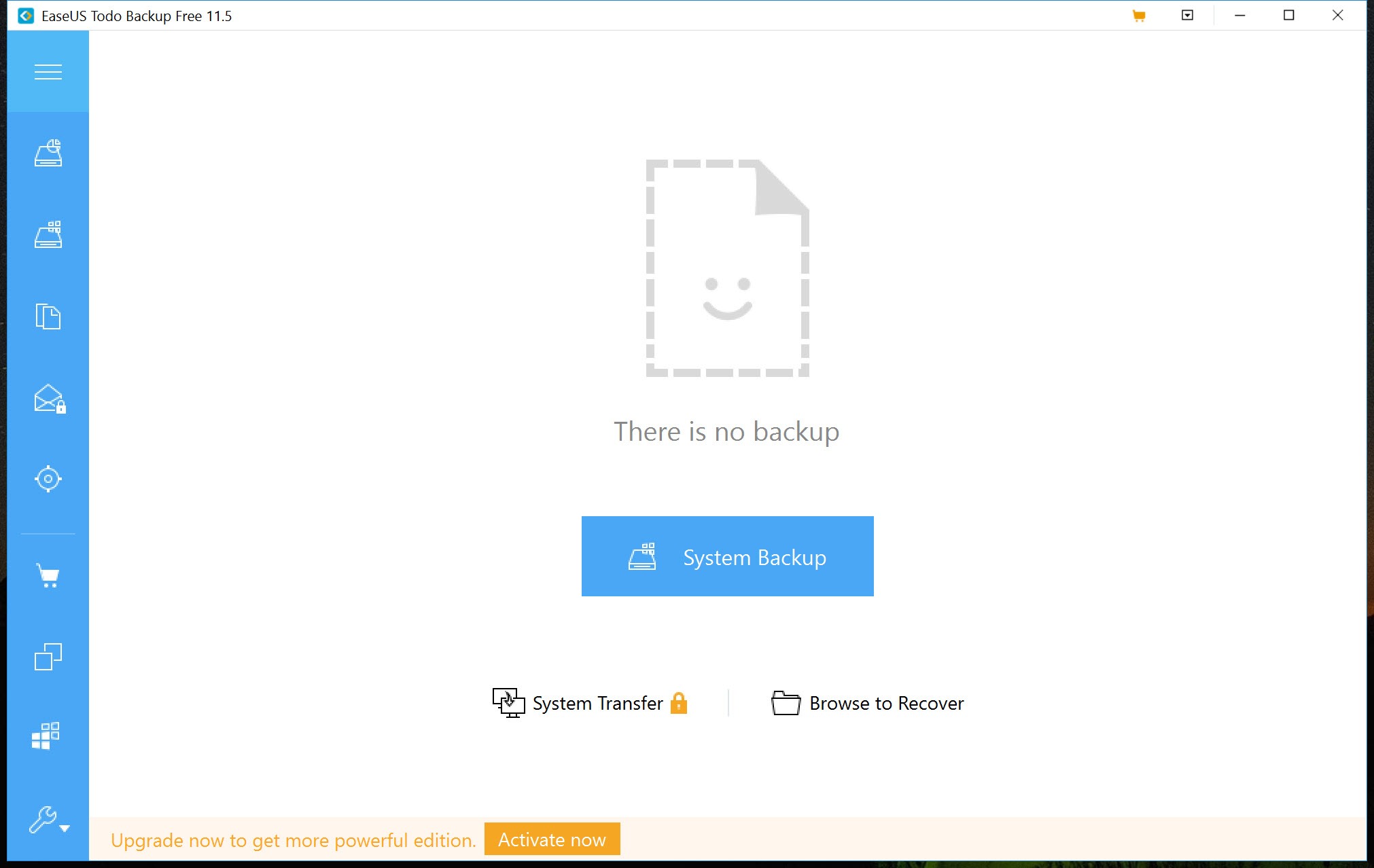
About EaseUS Todo Backup
EaseUS Todo Backup makes a copy of a whole computer that can be put back later. Choose System Backup and it images the system drive, the operating system, the programs, the settings and the files, into one compressed file on an external disk or a network share.
When the drive dies or the system stops booting, you start the machine from an emergency stick the program made earlier and point it at the image. An hour later the computer is exactly as it was on the day of the backup. File backups and drive images, with scheduled runs, sit beside that core, in a window a first-time user can follow.
The basic edition covers all of that, which is unusual for a backup tool and the reason the program appears in so many recommendations. EaseUS Todo Backup keeps its cloning tools, its smart backup mode and a few advanced options for a paid tier, and it leans on the user with upgrade prompts and a heavy installation.
Reviewers who timed it found it among the fastest imaging tools measured. The sections below cover the backup types, the schedule and its modes, the emergency disk, the restore, the extras behind the paid line, and where the program gets in its own way.
The three backup types
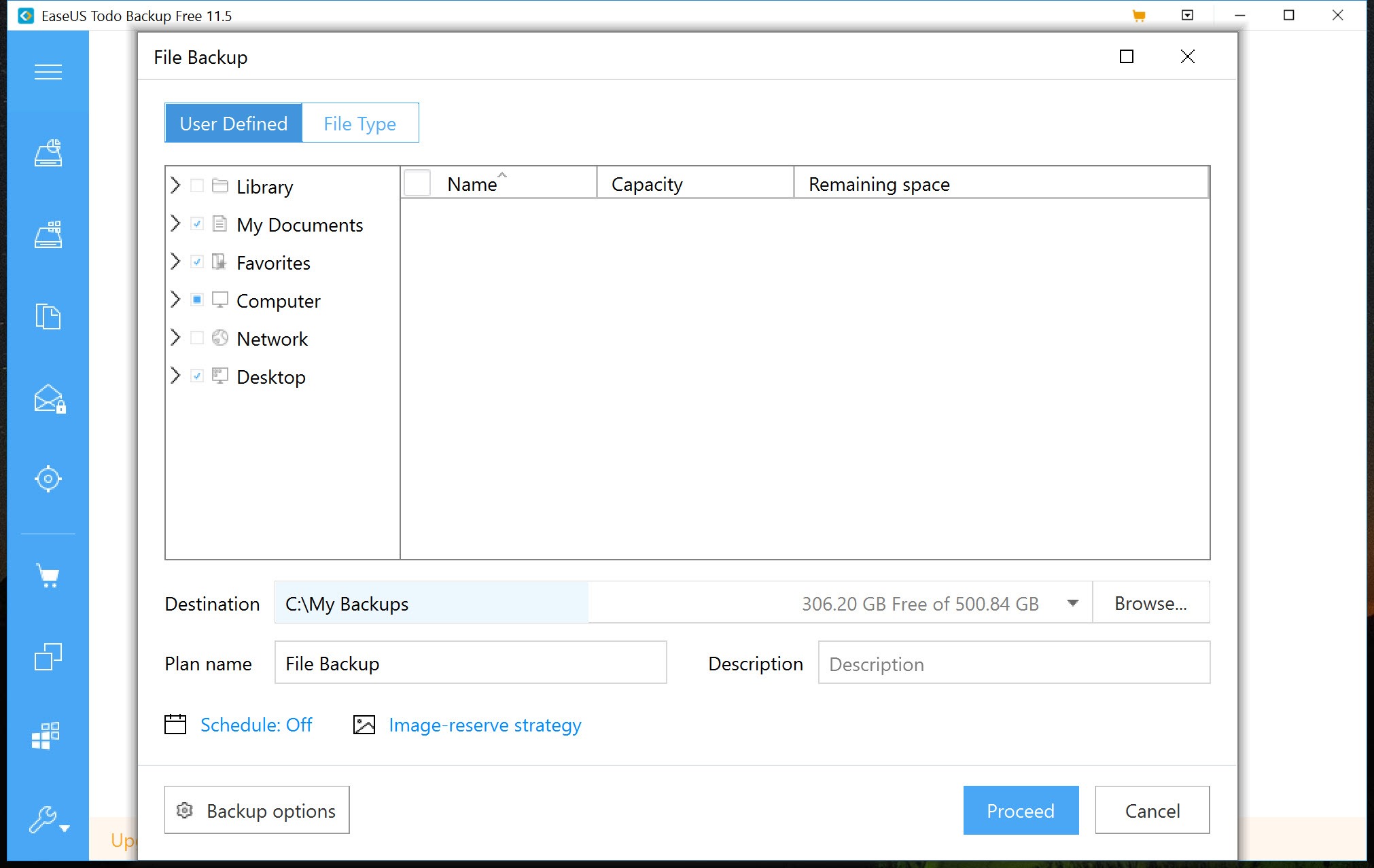
Three EaseUS Todo Backup types cover three questions. System Backup answers “can I get the computer back”, and images the system drive and everything needed to boot it. Disk or Partition Backup answers “can I get this drive back”, and images a whole drive or one partition block by block, so a data drive is protected as a unit. File Backup answers “can I get these folders back”, and copies chosen folders, compressed or as plain files, which is quicker to run and quicker to restore a single document from.
Destinations include an external disk, a second internal drive, a network share and a cloud location, and a backup can be split across media. Images can be encrypted with a password and compressed at a chosen level, trading time for space. A browser inside the program opens an image and pulls out single files, and an image can be mounted as a virtual drive so the file manager browses it like any disk.
Schedules and the three modes
An EaseUS Todo Backup schedule runs a backup daily, weekly, monthly or on an event such as logging in or plugging in a drive. Each run can be full, incremental or differential. A full backup copies everything. An incremental one copies only what changed since the last run of any kind, which keeps each run small and makes a restore depend on the whole chain. A differential one copies what changed since the last full backup, which grows over time but restores from two files.
The choice is a trade between space and simplicity, and the program explains it in its own dialog. A sensible household pattern is a full system image monthly, incremental file backups daily and a differential before any big change. Backups can be verified after they complete, and a log records every job.
Running one alongside a cloud tool such as Arq, which handles the hourly file history, leaves this one to the images.
The emergency disk
An image is useless if the machine cannot boot to restore it, and EaseUS Todo Backup knows it, which is what the emergency disk is for. The program writes a bootable stick or ISO containing a minimal system and its own restore interface. Boot from it when the system drive has failed or been replaced, connect the disk holding the images, and restore the system image to the new drive. Make the stick on the day you set up the backup, not on the day you need it.
For a stick that carries this rescue environment alongside others, Rufus writes the ISO to a drive with a choice of partition scheme, though the program’s own writer suits most people.
Restoring
EaseUS Todo Backup Restore browses the images by date and type. A system image goes back to the original drive or to a new one, including a smaller one if the data fits. A disk image restores a drive or a single partition. A file backup restores folders or single files to their original place or a new one, and the virtual drive mount is the quickest route to one file. Restoring to a different computer, with different hardware, needs the paid tier’s universal restore to adjust the drivers.
Test the restore once on purpose. Mount an image and open a file from it, and boot the emergency stick to confirm the machine starts from it. Both take ten minutes and settle the question early.
What the paid tier adds
Cloning is the main addition in paid EaseUS Todo Backup. Clone Disk copies a drive to another drive directly, with no image in between, which is how a system moves to a new solid state drive in one step. System Clone does the same for the system alone. Smart Backup watches chosen files and backs them up on a short interval automatically. A Security Zone hides backups in a protected partition that ransomware cannot reach, and the image reserve strategy merges and prunes old images to a rule. Mail client backup and universal restore to new hardware round it out.
None of these change the imaging engine. For a clone without the paid tier, AOMEI Backupper offers data disk cloning in its basic edition, with limits of its own.
Where it gets in its own way
The EaseUS Todo Backup installer is heavy and installs more than the backup engine. The program promotes its paid tier and its sibling products inside its own window and through notifications, which is the complaint that recurs in every review. The cloud destination comes with a storage allowance that expires, which should be read as a taster rather than a home for your backups. Universal restore and cloning sit behind the paid line, so a drive upgrade means the paid tier or imaging and restoring the long way round.
Check the drive you are about to image with a drive health monitor first, since a backup of a failing disk should run once and quickly.
Conclusion
EaseUS Todo Backup suits anyone who wants a complete image of their computer that can be put back after a dead drive or a ruined system. Scheduled file backups run alongside, and an emergency stick stands ready to boot from. The basic edition covers that whole job, and it does it fast.
It pushes its paid tier harder than it should, installs more than it needs and keeps cloning behind the line. Make the emergency stick first, test a restore once, and let a monthly image and daily file backups run on their own.
Pros & Cons
- System and drive images plus file backups in the basic edition
- Full and incremental or differential modes on schedules by time or event
- Emergency boot disk that restores a system image to a new drive
- Images mount as virtual drives for pulling out single files
- Encryption and compression on every image, with verification and logs
- Fastest imaging in reviewers' timings
- Cloning, smart backup and universal restore belong to the paid tier
- Heavy installation with upgrade prompts and notifications
- Cloud storage allowance expires
- Incremental chains make a restore depend on every link
Frequently asked questions
Yes. It writes a bootable stick or ISO with a minimal system and its own restore interface, for restoring an image when the machine will not boot.
Incremental copies what changed since the last run of any kind, keeping runs small but chaining them together. Differential copies what changed since the last full backup, growing over time but restoring from two files.
Cloning belongs to the paid tier. The basic edition can image a drive and restore the image to the new drive, which reaches the same result in two steps.
Yes. Mount the image as a virtual drive or browse it inside the program and copy the file out.


