

Voicemod
About Voicemod
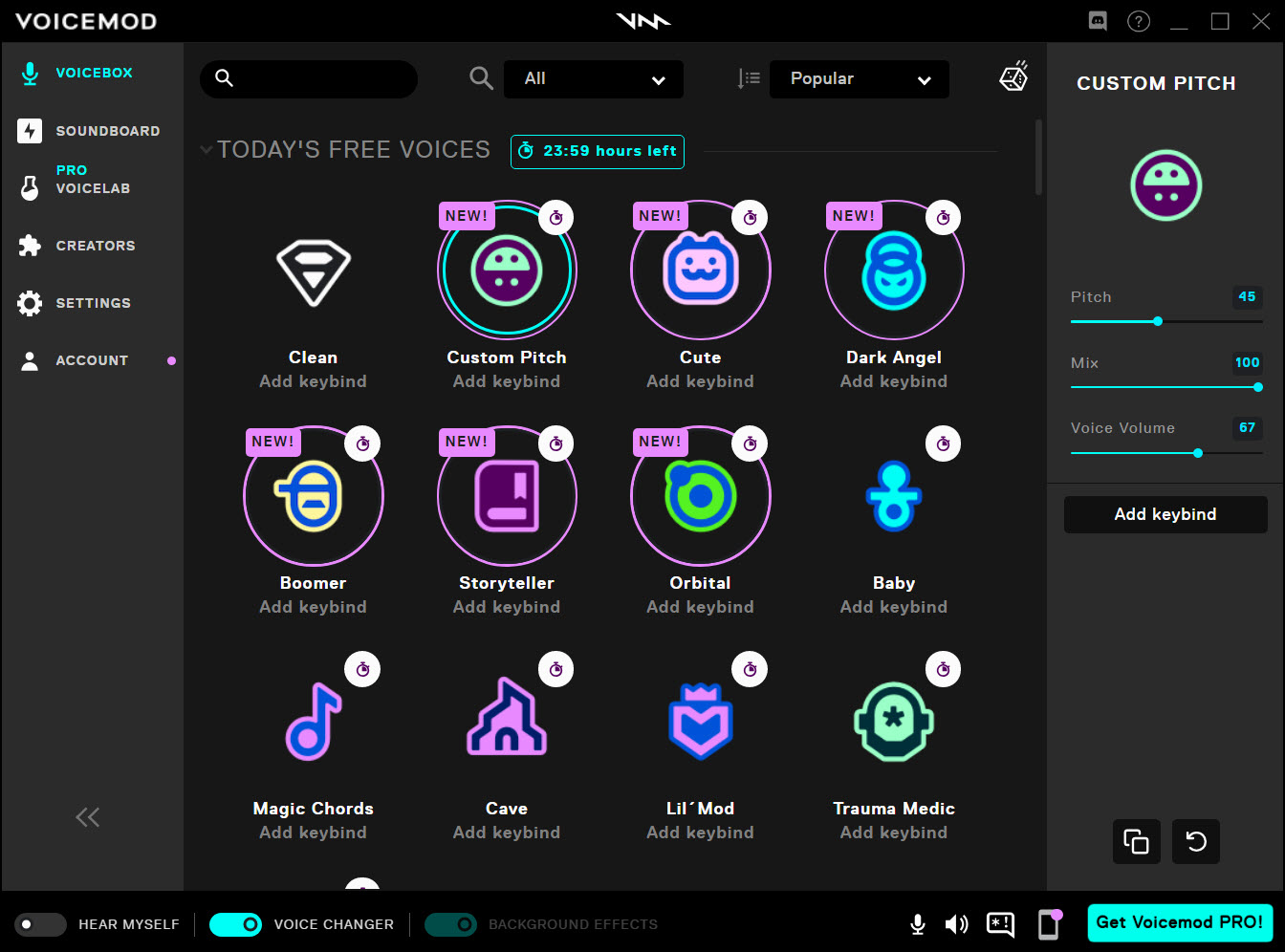
Voicemod is a real-time voice changer that sits between your microphone and whatever application is listening to it. Open the application, choose a voice from the library (robot, demon, alien, baby, woman, man, helium, AI cloned voices, hundreds of others), and your voice gets transformed before reaching Discord, OBS, Twitch, Zoom, Skype, in-game voice chat, or any other application that picks up microphone input.
The transformation happens with low enough latency that conversations feel natural rather than delayed, with the processing handled through a virtual audio device that the operating system treats as a regular microphone.
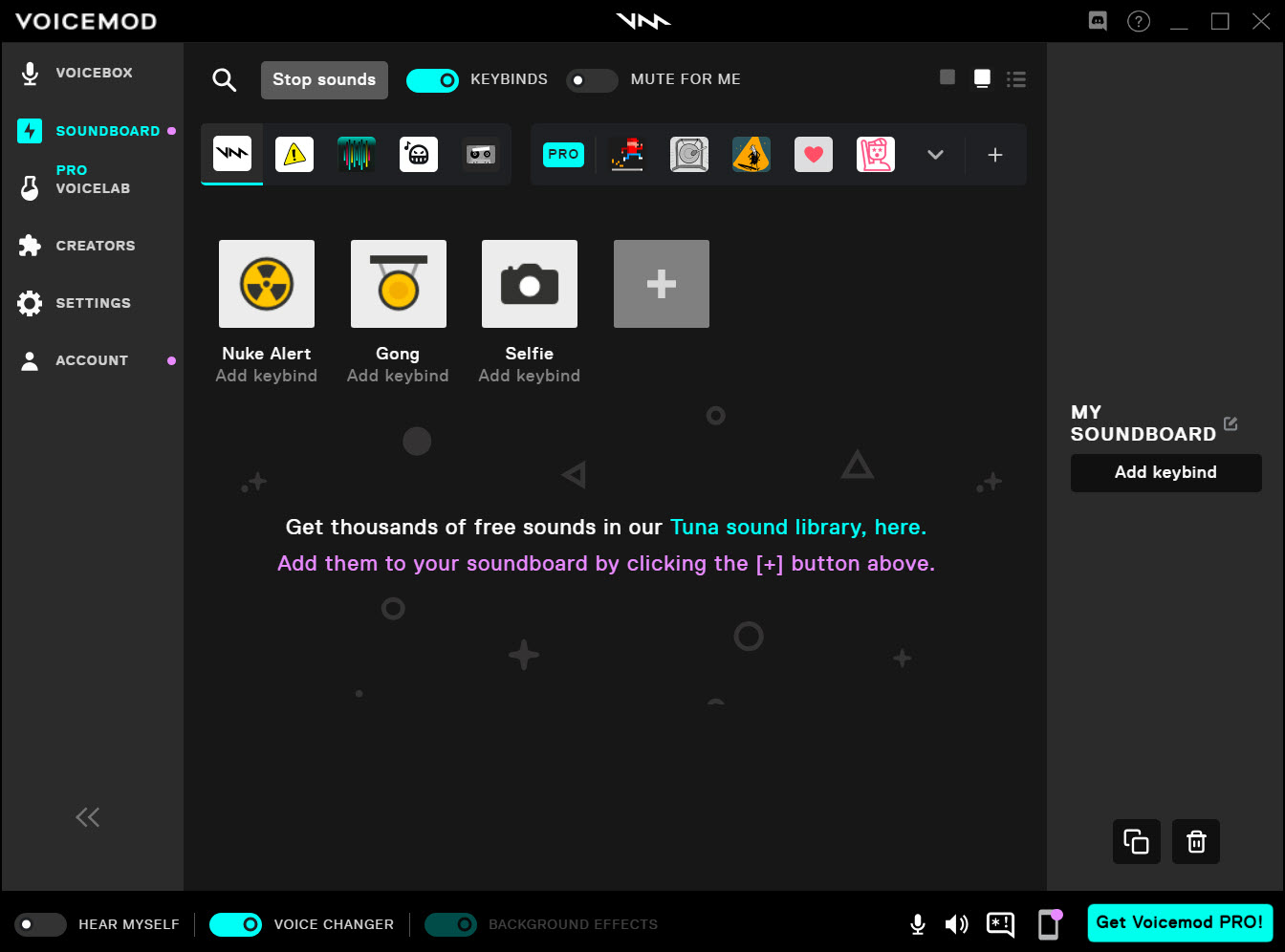
The application bundles three main capabilities into one product. The Voice Changer applies real-time effects to your voice through preset voices and configurable parameters. The Soundboard plays sound effects, music clips, or recorded audio through your microphone channel by triggering them with hotkeys, useful for streamers, podcasters, and online gamers wanting reaction sounds during live communication. The Voicelab lets you build custom voices by combining filters, pitch shifters, equalizers, and various audio effects rather than relying on the preset library.
The standard version is free with a rotating selection of voices and limited soundboard slots, while Voicemod Pro unlocks the entire voice library, expands soundboard capabilities, and removes the rotation that affects the free version’s available voices.
How real-time voice changing actually works
The application creates a virtual audio device on your system that other applications see as a microphone input. When you select Voicemod as the input device in Discord, your gaming client, or any other application, that application captures audio from the virtual device rather than from your physical microphone directly.
The application reads from your real microphone, processes the audio through whatever voice effect you have selected, and outputs the processed audio to the virtual device.
The processing latency depends on your hardware and the specific effects in use. Modern systems typically produce 20-50ms latency, which is below the threshold where conversations feel awkward. Older systems or particularly demanding effect combinations can push latency higher, with the practical effect being noticeable delays between speaking and your conversation partner hearing the result.
For streaming and content creation, slightly higher latency is acceptable. For competitive gaming voice chat, low latency matters more.
The voice transformations themselves combine multiple audio processing techniques. Pitch shifting adjusts the fundamental frequency of your voice (raising it for higher voices, lowering it for deeper voices). Formant shifting adjusts the harmonic characteristics that distinguish different voice types beyond pitch alone. EQ filtering shapes the frequency response.
Various special effects (robot voices, alien voices, distortion) combine these operations with additional processing. The presets package these techniques into named voices that produce specific characters.
The voice library and AI voices
The standard preset library includes dozens of named voices ranging from gender-shifted variants of your own voice through cartoon characters, monsters, robots, and various other archetypes. Each voice has parameters you can adjust to fine-tune the result, with the defaults producing reasonable results for most users without configuration work.
AI voices are the more recent addition and represent meaningful technical advancement over traditional pitch-shifting. Where classic voice changers produce obviously processed audio that sounds digitally manipulated, AI voices can produce surprisingly natural-sounding alternative voices that don’t immediately announce themselves as fake.
The AI processing requires more computational resources than basic pitch shifting, but modern systems handle it without issue.
The voice rotation in the free version means you don’t get permanent access to the full library. A subset of voices rotates daily, with different voices being available on different days. For users who find specific voices that work well for their use case, this rotation produces frustration when their preferred voice isn’t available for several days.
The Pro version eliminates the rotation, providing permanent access to the complete library.
Soundboard for live audio triggers
The Soundboard plays sound effects through your microphone channel when you trigger them with configurable hotkeys. The use cases vary substantially. Streamers use the soundboard for reaction sounds, comedy bits, and audience-engagement sounds during live broadcasts. Podcasters use it for transition stings, sponsor mentions, and atmospheric sounds. Online gamers use it for trolling, communication shortcuts, and reaction sounds during voice chat with teammates.
The implementation supports any audio file you can play through standard audio formats. Drop MP3 or WAV files into the soundboard slots, assign hotkeys, and pressing the hotkey plays the sound through both your speakers (so you hear it) and your microphone channel (so other people hear it through whatever application is receiving your microphone).
The dual playback matters because the user wants to know the sound is playing while ensuring it reaches the other people in the call.
For users wanting community-curated content rather than building their own soundboard from scratch, Voicemod‘s sister site Tuna provides a library of pre-made sound files organized by category (memes, music clips, sound effects, voice clips). Browse the library, click sounds you want, and they import directly into your soundboard slots.
The library is substantial and updated regularly, with new content from community contributors.
Voicelab and custom voice creation
For users who want voices beyond what the preset library provides, Voicelab is the customization tool. The interface presents an audio effects rack where you stack pitch shifters, EQ, distortion, reverb, vocoder, and various other audio effects. Each effect has parameters you can adjust, with the result being a custom voice that responds to your input through your specific configuration.
The depth of customization is substantial. Users have created voices ranging from subtle modifications (slight pitch shift to mask gender) to elaborate productions (multi-stage processing chains producing complex character voices).
The community shares custom voice configurations, with users able to download other people’s creations and import them into their own Voicelab.
For users who don’t want to build voices from scratch but want to modify existing presets, Voicelab also lets you take a preset voice as a starting point and adjust its parameters. Find a voice that’s almost what you want, tweak the specific parts that don’t fit, and save the modified version as a new preset for future use.
This middle ground between fully custom and pure preset usage covers practical scenarios where the standard voices need adjustment for your specific microphone, voice, or use case.
Game and application integration
The application works with essentially any program that accepts microphone input on your system. Discord, TeamSpeak, Skype, Zoom, Microsoft Teams, OBS Studio, Streamlabs, Twitch Studio, in-game voice chat for major titles (Valorant, Fortnite, Call of Duty, Apex Legends, etc.), and various other applications all see the virtual Voicemod microphone as a regular input source.
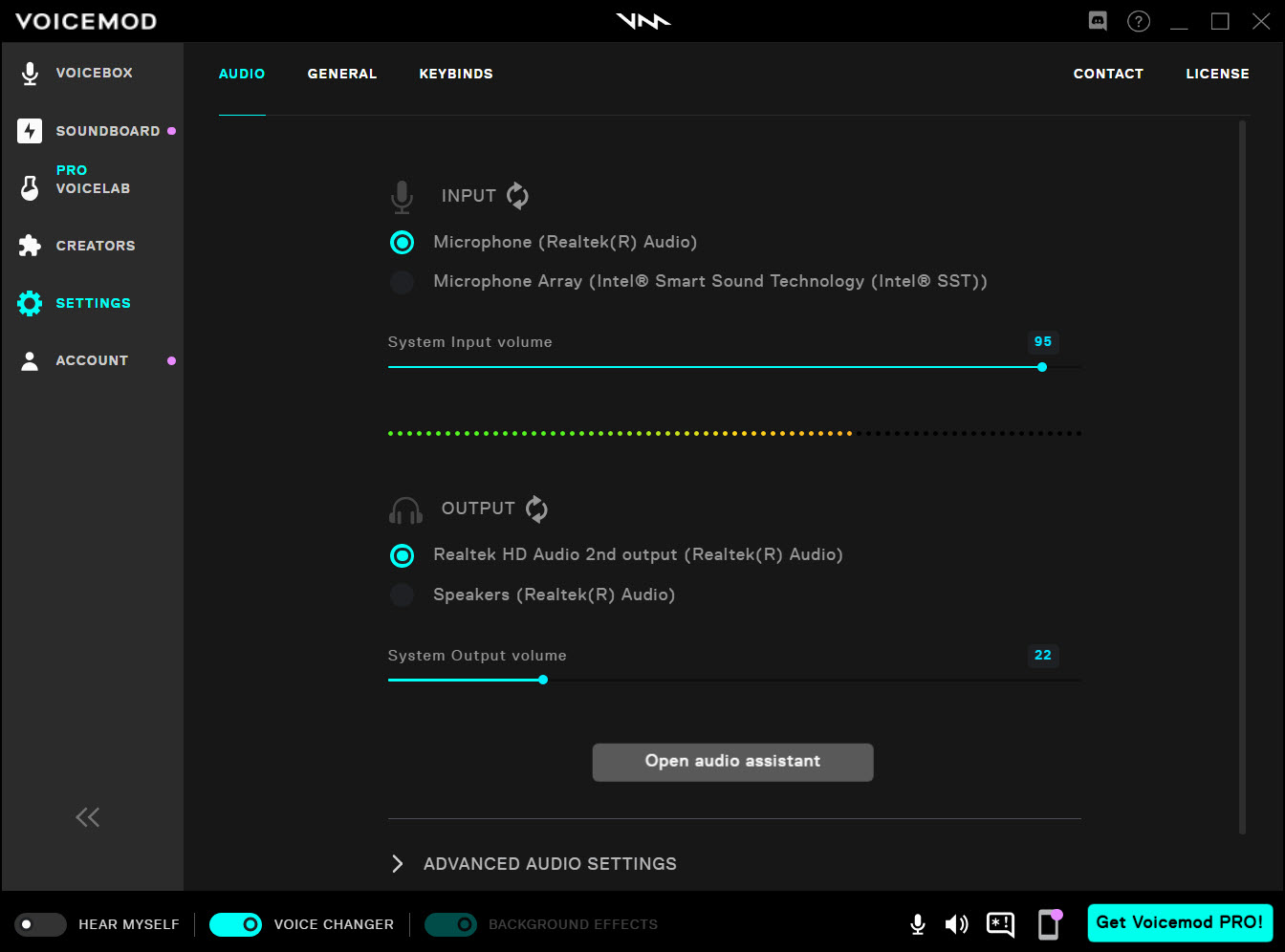
Setup requires selecting Voicemod as the microphone in each application’s audio settings. Most applications have straightforward audio configuration that lets you choose between physical and virtual microphone devices. Once configured, the application picks up the processed voice output and broadcasts it as if you were speaking with that voice naturally.
For Roblox specifically, which has been a frequent question topic, the integration depends on Roblox’s voice chat support and the platform’s policies. Most Roblox experiences using voice chat work fine with this software’s processed audio, with the voice transformations passing through to other players as they would on any other platform.
Specific game policies or anti-cheat systems may flag voice modification, with users responsible for understanding what their target games allow.
Streaming integration with OBS and similar tools
For streamers and content creators, the application integrates well with broadcasting software. OBS Studio’s audio sources can use the virtual Voicemod device as the microphone input for stream audio, which means your stream viewers hear whatever voice transformation you have selected. Streamlabs, Twitch Studio, and similar broadcasting tools work the same way through their respective audio configuration interfaces.
The combination of voice transformation and soundboard creates streaming-specific workflows that wouldn’t be practical without the application. Switch between your real voice for normal commentary, character voices for specific bits or roleplay, and soundboard sounds for reactions or music. The transitions happen through hotkeys without breaking the stream’s audio flow, which is more practical than managing multiple separate audio sources.
For users running multi-person streams (podcasts, group gaming sessions, collaborative shows), each participant can run their own Voicemod instance with their own voice configuration.
The application doesn’t support multi-person voice processing through one installation, but distributing instances across participants works well for collaborative content.
Voice clone and AI features
Recent versions added AI-driven features that go beyond traditional voice modification. Voice cloning technology can analyze a target voice from sample audio and apply that voice’s characteristics to your real-time speech. The capability has obvious applications for content creation (voicing animated characters, dubbing fictional personas, creating consistent voices for podcast personalities) and equally obvious concerns about deepfake voice impersonation.
The application includes safeguards around voice cloning, with user authentication requirements and consent mechanisms aimed at preventing unauthorized cloning of real people’s voices. The implementation isn’t perfect, and the broader societal concerns about AI voice cloning aren’t solved by any single application’s safeguards, but the application’s approach is more responsible than tools that don’t include these protections.
For users wanting to use AI cloning legitimately (cloning their own voice for consistent character work, creating fictional voice personalities, voicing creative projects), the technology produces useful results.
The voices that clone well are those with substantial training audio in clear quality, with poor source material producing rougher results.
Considerations and limitations
Voice changing in competitive multiplayer games sometimes triggers anti-cheat systems or community reporting that affects player accounts. The application itself is legitimate software, but specific games’ policies on voice modification vary, with some explicitly prohibiting it and others permitting it without restriction. Users should understand their target games’ policies before assuming voice changing is acceptable.
Discord and similar platforms have community guidelines around voice harassment and impersonation that voice changers can be used to violate. The technology itself is neutral, but users employing it for harassment or to deceive others about their identity face platform consequences regardless of which specific voice changer they use. The application doesn’t enable behaviors that weren’t possible before, but it can make some bad behaviors easier to execute.
The free version’s voice rotation produces real frustration for users who find specific voices that work well for their setups. The rotation typically replaces good free voices with mediocre alternatives at unpredictable intervals, with no way to lock specific voices to permanent availability without upgrading to Pro.
For casual users this constraint is bearable; for users who develop specific use cases around specific voices, the upgrade becomes essentially required.
Some specific voice transformations sound more natural than others. The cleanest results come from AI voices and well-tuned preset voices used with appropriate microphone setups. The roughest results come from extreme transformations (very high or very low pitch shifting, heavy distortion effects) that produce obviously processed audio.
Setting expectations accordingly helps avoid disappointment when specific voices don’t sound as natural as the demonstrations suggest.
The Pro pricing has changed across recent years, with subscription models replacing the original perpetual license option. Users who paid for early perpetual licenses retained their access, while new users encounter subscription pricing. For users who plan to use the application across years, the cumulative subscription cost adds up substantially compared to the older perpetual model.
Conclusion
For users who want to modify their voice in real-time during gaming, streaming, content creation, or general voice communication, Voicemod delivers serious capability through an interface that doesn’t require audio engineering expertise.
The combination of preset voices, AI alternatives, soundboard functionality, and the Voicelab customization tool covers what most users actually need to transform their voice for entertainment, creative, or practical purposes. Compatibility with essentially every major communication and streaming application means setup is straightforward across whatever software ecosystem you already use.
The reasons to consider alternatives are mostly about specific scenarios this software’s approach doesn’t fit. Users wanting completely free voice changing without subscription pressure may prefer Clownfish or other simpler alternatives despite their reduced capabilities. Users with serious audio production workflows may find DAW-based voice processing through plugins offering more sophisticated control than real-time consumer-focused tools.
Users in environments where voice modification violates platform policies need to use these tools cautiously regardless of which specific product they choose. But for the practical scenario of real-time voice transformation across communication and streaming applications, this software remains one of the most capable options in its category.
Pros & Cons
- Real-time voice changing with low enough latency for natural conversation
- Hundreds of preset voices including AI-generated alternatives
- Soundboard plays sound effects through your microphone channel via hotkeys
- Voicelab lets you build custom voices through layered audio effects
- Compatible with Discord, OBS, Twitch, Zoom, in-game voice chat, and most applications accepting microphone input
- Tuna sister site provides community-curated soundboard content
- AI voice cloning for consistent character work and creative projects
- Active development with regular voice library additions and feature updates
- Free version rotates available voices rather than providing permanent access
- AI voice features benefit from capable hardware and produce variable results
- Some games prohibit voice modification through their policies or anti-cheat systems
- Subscription pricing model replaces older perpetual license approach
- Voice changing can be misused for harassment or impersonation
- Latency varies based on effect complexity and hardware
Frequently asked questions
This software is a real-time voice changer that transforms your voice before it reaches applications listening to your microphone. It includes a Voice Changer with hundreds of preset voices including AI-generated alternatives, a Soundboard for playing sound effects through your microphone channel, and a Voicelab for building custom voices through layered audio effects. The application creates a virtual audio device that Discord, OBS, gaming applications, and other software see as a regular microphone input.
Install the application and configure a voice in the main interface. In Discord, open User Settings, navigate to Voice & Video, and change the Input Device from your physical microphone to "Microphone (Voicemod Virtual Audio Device)." Save the changes, and Discord will pick up the processed voice output instead of your raw microphone. Test the configuration with a friend or in a private channel before using it in important conversations.
Soundboard import works through the Soundboard tab interface. Drop audio files (MP3, WAV, or other supported formats) into the soundboard slots, or use the import function to bring in collections of sounds at once. For community-curated content, browse Tuna (the sister site to Voicemod) and click sounds you want, which import directly into your soundboard slots. Assign hotkeys to each sound for quick triggering during use.
Roblox voice chat generally works with this software's processed audio, but specific issues can arise from Roblox-side configuration, application permissions, or audio device selection mismatches. Verify that Voicemod is set as the input device in both the application and in your operating system's sound settings. Some Roblox experiences may have voice modification policies that affect functionality. Restarting both applications after configuration changes resolves most setup issues.
Clownfish is a free voice changer with simpler functionality and a less polished interface than this software. Both create virtual audio devices that work with applications expecting microphone input. Voicemod offers more sophisticated voice processing including AI voices, a more substantial preset library, the Soundboard and Voicelab features, and active ongoing development. Clownfish is more lightweight and has no paid tier, with the trade-off being substantially less capability per voice transformation. For users wanting basic voice changing without features or polish, Clownfish covers the use case. For users wanting serious voice modification with active development, this software fits better.
Yes, OBS Studio recognizes the virtual audio device this software creates as a microphone input source. In OBS, add an Audio Input Capture source and select the Voicemod virtual device. The processed voice then flows through OBS as part of your stream or recording audio. The same approach works with Streamlabs, Twitch Studio, and other broadcasting applications that allow custom audio source configuration.
Voicelab is the custom voice creation tool. It exposes audio effects (pitch shifters, EQ, distortion, reverb, vocoder, and various others) that you can layer into custom voice configurations. Build a voice from scratch by adding effects and adjusting their parameters, or start with a preset voice and modify specific elements. The community shares custom voice configurations, allowing you to download other users' creations and import them into your own Voicelab for use or further customization.
Recent versions include AI voice cloning that can analyze sample audio and apply target voice characteristics to your real-time speech. The feature requires user authentication and consent mechanisms aimed at preventing unauthorized cloning of real people's voices. For legitimate use (cloning your own voice for consistent character work, creating fictional personalities for content), the technology produces useful results, with quality dependent on the sample audio quality and the source voice's characteristics.


