

SamFirm
About SamFirm
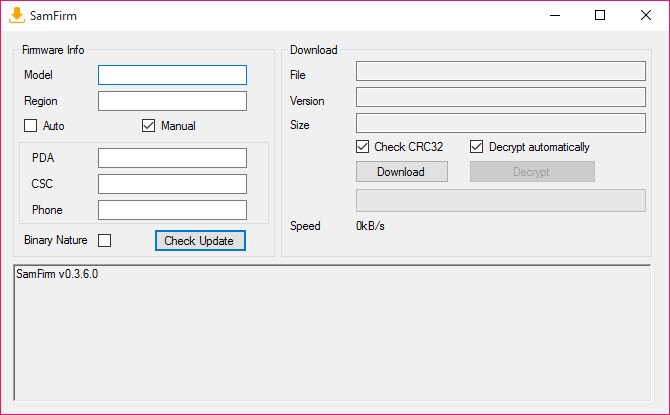
SamFirm pulls official Samsung firmware straight from Samsung’s own servers, which is a far cry from the usual ordeal of hunting stock ROMs across sketchy download sites. Type in your device’s model number and its region code, and the tool talks directly to the source, finds the latest firmware built for exactly that combination, and downloads it.
No throttled mirror sites, no waiting rooms, no wondering whether the file some forum handed you is the real thing or something tampered with. The firmware comes from where it should come from, and that single fact is the whole reason the tool exists.
The workflow is deliberately narrow. SamFirm is a portable utility, so there’s nothing to install, just extract and run, and its window asks for two things that matter. The model number identifies your exact device, and the region code, the CSC, pins down which country and carrier build you need.
Get both right and the tool reports back the full firmware name, version, and file size before you commit to the download, so you know precisely what you’re about to grab.
There’s a clever piece of engineering underneath, too. Samsung transmits its firmware encrypted, and this tool downloads the encrypted package and then automatically decrypts it into the flashable files you actually need, unpacking the protection without you lifting a finger.
That decrypt-on-arrival step is what turns a raw server transfer into something usable, and it’s handled quietly in the background.
Model number and region, the two things that matter
Everything hinges on getting the identifiers right, and it’s worth being precise. The model number is the exact code for your device, the one buried in the settings under device information, and a single wrong character points the tool at different hardware entirely. The region code is the other half, and it’s where people trip up. Samsung builds separate firmware for different countries and carriers, and SamFirm needs the code matching where your device belongs.
This matters more than a formality, because firmware and hardware have to agree. A carrier-branded device fed the wrong regional build can end up bricked, and no tool downloading files can protect you from typing the wrong code.
So the discipline is simple. Confirm the model in your device’s own settings, confirm the region code the same way, and only then download. Done carefully, the tool is reliable. Done carelessly, the mistake is yours to fix.
Auto and manual, two ways to find firmware
The tool offers two paths to the same file. The automatic method takes your model and region and asks Samsung’s servers for the latest firmware available, which is what almost everyone wants, the newest official build with current security patches and fixes. It’s the fast lane, and for keeping a device current or restoring it to a clean recent state, it’s all you need.
The manual method exists for the cases automatic can’t reach. If you know the exact firmware version string you’re after, an older build, a specific one for a particular reason, you can enter it directly and fetch that precise package instead of whatever’s newest.
Most people never touch this, but for technicians matching a specific firmware to a specific situation, it’s the difference between the tool being useful and being a dead end. The tool also remembers your last-used details between sessions, a small mercy when you’re pulling firmware for the same device repeatedly.
What happens after the download
Here’s the boundary worth stating plainly. SamFirm downloads firmware. It does not install it. The tool’s entire job ends when the decrypted, flashable files land on your drive, and getting them onto the phone is a separate operation with a separate program.
The standard companion for that step is Odin3, the flashing tool that takes these files and writes them to a Samsung device in download mode. The two tools form a pipeline, one fetches, the other flashes, and neither does the other’s job.
That division is why the tool feels so focused. It’s a downloader, and it commits fully to being a good one rather than sprawling into a half-baked all-in-one. For most everyday needs, incidentally, you may not need this route at all.
Samsung’s own Samsung Smart Switch handles ordinary updates and recovery through an official channel, and it’s the gentler option when you simply want your device current. This tool is for when you need the raw firmware file itself, for a manual flash, a clean restore, or fixing a device that won’t update normally.
The rough edges
Honesty time. This is a community tool, not a polished commercial product, and it shows in a few places. It leans on the .NET Framework being present, so a machine without it will need that installed first before the tool even opens. The interface is purely functional, a few fields and a couple of buttons, with no guidance whatsoever for someone who doesn’t already know what a CSC code is or why it matters.
The bigger caveat is dependency on Samsung’s servers. Because the tool talks to an official back end it doesn’t control, changes on Samsung’s side can break it, and server errors or the occasional failure to fetch newer firmware are part of the experience. When it works it works beautifully. When Samsung shifts something, the tool sometimes needs an update to catch up, and there can be a gap.
It’s also strictly a Samsung tool, so owners of other brands are in the wrong place entirely, much as iPhone owners would reach for something like 3uTools in a comparable situation.
Conclusion
For Samsung device owners who need the actual firmware file, to restore a misbehaving phone, flash a clean build manually, or recover a device that won’t update through normal channels, SamFirm is the direct, trustworthy way to get it. Pulling authentic files straight from the source, decrypting them automatically, and offering both latest and specific-version fetching, it does its one job well and honestly. Technicians and confident tinkerers are its natural home.
It asks for care in return. Get the model and region right, install its runtime dependency, pair it with a flashing tool, and accept that a community utility riding on someone else’s servers will occasionally hiccup. For casual users who just want updates, the official channel is friendlier.
For everyone who needs the raw firmware in hand, this remains one of the cleanest ways to obtain it.
Pros & Cons
- Downloads official firmware directly from Samsung's servers, bypassing slow mirror sites
- Automatically decrypts the encrypted firmware into flashable files on arrival
- Portable with nothing to install, just extract and run
- Automatic mode fetches the latest build, manual mode targets a specific version
- Shows firmware name, version, and size before you commit to downloading
- Only downloads firmware, requiring a separate flashing tool to install it
- A wrong model or region code can lead to a bricked device
- Depends on Samsung's servers, so their changes can temporarily break it
- Bare interface with no guidance and a runtime dependency to satisfy first
Frequently asked questions
Only download it. The tool fetches and decrypts the firmware files onto your computer, and installing them onto the device is a separate step handled by a dedicated flashing tool. The two work as a pair, not as one.
Directly from Samsung's own servers. That's the core appeal, since the files are the authentic official builds rather than copies re-hosted on third-party sites where they might be slow to download or altered.
It's the CSC, a code identifying the country and carrier your device belongs to. Samsung builds separate firmware per region, so matching it correctly is essential. The wrong code can mean firmware incompatible with your device.
The usual cause is a missing runtime framework the tool relies on. Installing that framework first typically resolves it. If the tool opens but fails to fetch firmware, the issue is more often a change on Samsung's server side.
Yes, through the manual method. Where the automatic mode grabs the latest build, entering a specific firmware version string lets you target an exact older package instead, which is mainly useful for technical situations.


