

Vysor
About Vysor
Mirroring a phone to a computer normally involves installing something on the phone, creating an account, signing both ends in. Vysor skips all of that. Plug the device in, and the helper it needs is pushed across the cable automatically.
That difference sounds procedural and it changes who the tool suits. Somebody handed an unfamiliar phone, or working across several devices, or simply unwilling to create another account, gets a mirrored screen in about a minute rather than after a setup routine.
What arrives is the device screen in a window, responding to your mouse and keyboard, with the phone doing the work and the computer acting as a screen.
The one thing you must enable first
Nothing in Vysor works until the device permits it, and this is where most people stop.
The debugging mode has to be switched on, and it lives in a section of the settings that is hidden until you reveal it by tapping the build number repeatedly. That sequence is deliberately obscure, because the mode grants a connected computer considerable access to the device.
Once enabled, the phone asks whether to trust the computer the first time it connects, and accepting that is what completes the arrangement.
Both steps are reasonable protections rather than obstacles, and understanding why they exist is worth more than following instructions blindly. A computer with debugging access can read from and write to the device extensively, which is exactly why the phone wants you to confirm it.
Dragging things onto the window
The Vysor interaction people find most useful is the simplest. Dropping a file onto the mirrored screen transfers it to the device, and dropping an application package installs it.
That covers the sideloading job without a separate tool, which is convenient when the package is already on the computer. Obtaining such packages in the first place is a different exercise, and APK Downloader fetches them for a device that cannot reach the usual source.
Screenshots and recordings come from the computer side, so capturing what the phone is doing needs nothing on the phone and produces files where you actually want them.
Cable, wireless, and where the line falls
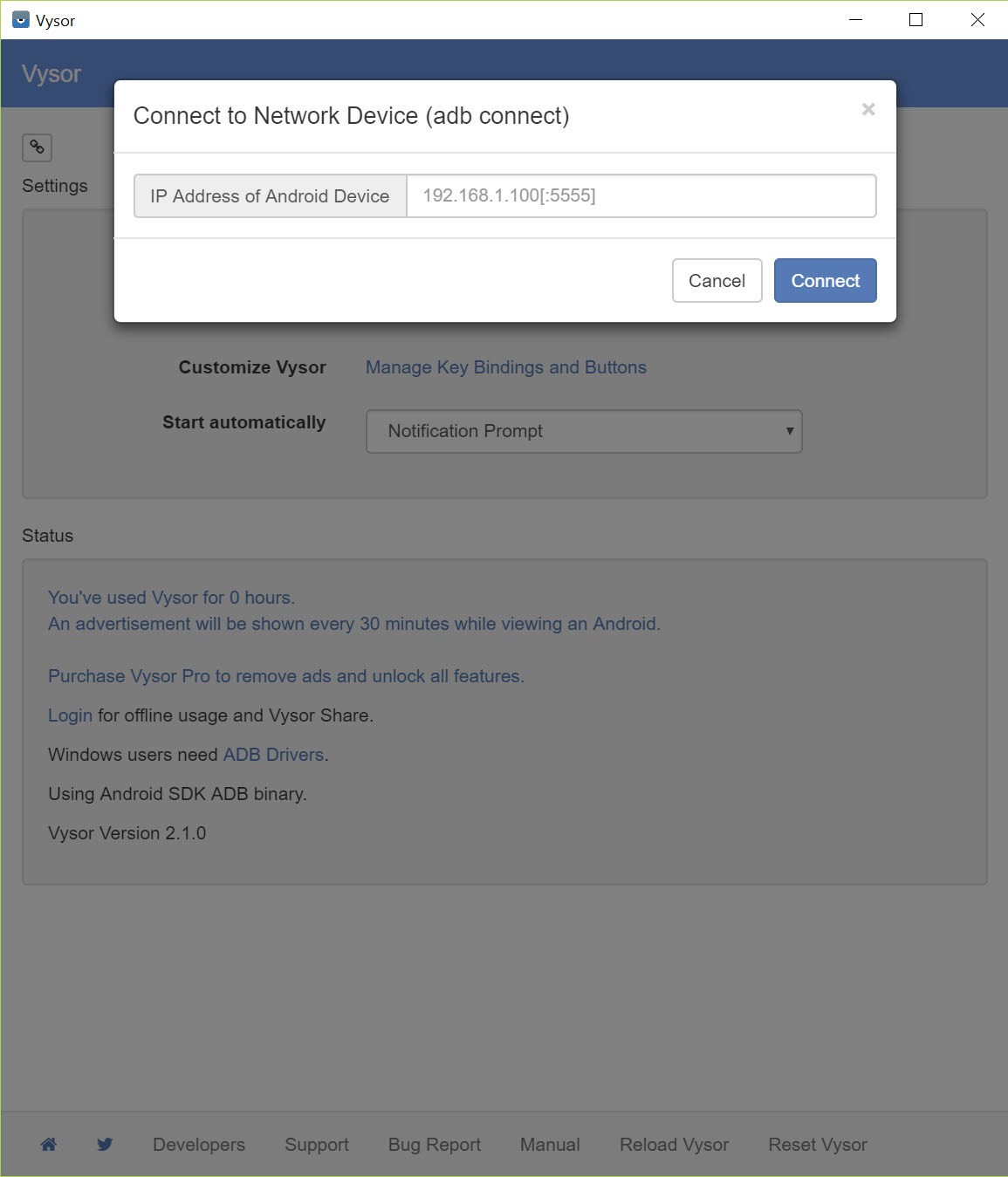
The unpaid Vysor tier covers the cable connection, with control included rather than withheld, which is more generous than several competitors manage.
Wireless mirroring belongs to the paid tier, along with higher resolution, the removal of advertising and connecting to several devices at once.
That division is worth weighing against the alternatives, because the free capability differs between them. Mobizen gates its wireless connection the same way and requires an account and a companion application even for the cable case, which is the trade to compare.
For file transfer and notifications without mirroring the screen at all, a tool that handles messages and files over the network covers that lighter requirement.
What the picture is good for
Vysor quality is adjustable and the trade is the familiar one. Higher resolution looks better and adds delay, lower resolution responds faster and looks softer.
Be realistic about what that delay permits. Demonstrating an application, answering messages, navigating an interface and showing something to a room all work comfortably. Anything requiring timing does not, and games in particular feel wrong regardless of settings, because every frame travels a round trip before you see it.
Where the aim is running applications on the computer rather than viewing a phone, NoxPlayer runs them directly on the machine, which removes both the phone and the delay from the equation.
Working across several devices
The scenario Vysor suits better than its rivals is somebody handling devices that are not theirs.
A repair bench, a testing setup, a support desk or a classroom involves connecting devices repeatedly, and a tool requiring an account and an installed application on each one is unusable in that context. This connects by plugging in, and disconnects by unplugging.
The same property makes it convenient for a device belonging to somebody else who is standing next to you, since nothing needs installing on their phone and nothing remains afterwards beyond the debugging setting they can switch off again.
Conclusion
Vysor wins on the part everybody else makes complicated. No account, no companion application to install by hand, no configuration, just a cable and a device that has been told to allow it. For anybody connecting to different phones regularly, that is the difference between a usable tool and a chore.
Know the boundaries before deciding. Debugging mode has to be enabled and it is a meaningful permission rather than a formality, the wireless connection is on the paid side, and no mirroring tool of any kind makes games playable. Within those limits it is the quickest route from a phone in your hand to a phone on your screen.
Pros & Cons
- Connects by plugging in, with no account and nothing to install on the phone manually
- Control included in the unpaid tier rather than withheld
- Files transfer and applications install by dragging onto the window
- Screenshots and recordings captured from the computer side
- Works across manufacturers rather than one brand
- Suits repeated connections to devices that are not yours
- Debugging mode must be enabled, which is deliberately hidden in the settings
- Wireless connection, higher resolution and multiple devices are in the paid tier
- Advertising appears in the unpaid version
- Delay rules out games and anything requiring precise timing
- Granting debugging access gives the computer considerable reach into the device
Frequently asked questions
Not manually. The helper it needs is pushed across the cable when you connect, which is why setup takes about a minute and why no account is involved.
Almost always because debugging mode is not enabled on the device, or because the prompt asking whether to trust the computer has not been accepted. Both are protections rather than faults.
No, the unpaid tier covers the cable connection. Control is included there, which is more than some competitors offer, and wireless belongs to the paid version along with higher resolution.
No. Each frame is captured, compressed, transmitted and decoded while your input travels the other way, so anything depending on timing feels wrong however the quality is set.
Extensive access to the device for whichever computer you approve, which is why the setting is hidden and why the phone asks you to confirm each machine. Switch it off again afterwards on a device that is not yours.


