

Defraggler
About Defraggler
Defragmentation was once routine maintenance and is now a question with a short answer for most machines. Defraggler does the job properly, and knowing whether you should be doing it at all matters more than any feature it offers.
The short answer first. If the drive is a solid state one, do not defragment it. There is no read head to move, so consolidating files gains nothing, and the process writes a great deal of data to a drive with a finite number of writes available. Current systems handle solid state drives through an entirely different maintenance routine and leave the defragmenting alone deliberately.
On a mechanical drive, where a physical head moves across spinning platters to reach each fragment of a file, consolidation still means fewer movements and measurably faster reads.
Establishing which kind of drive you have takes about ten seconds, and Speccy reports the model and type of every drive in the machine.
Defragmenting one file, which nothing else offers
Assuming a mechanical drive, here is the Defraggler capability that distinguishes it from the tool already built into the system.
Whole drives can be processed, and so can individual folders and individual files. That granularity is the useful part, because whole-drive defragmentation on a large disk takes hours while the problem is usually specific.
A database file that has grown in place, a virtual machine disk, a large video project or a mailbox file accumulates fragments faster than anything else on the drive and accounts for most of the slowdown you notice. Defragmenting that one file takes minutes and addresses the actual complaint.
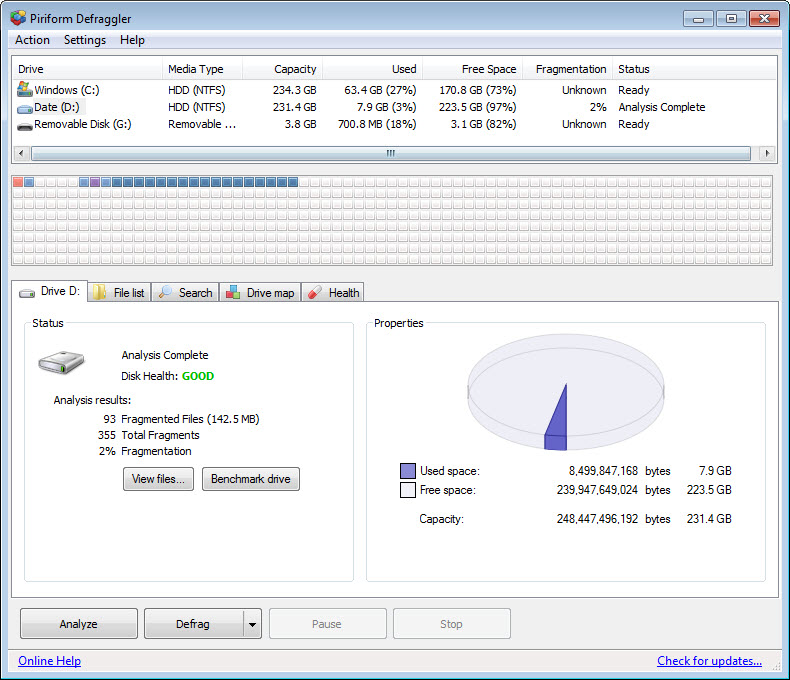
The analysis lists the most fragmented files with their fragment counts, so identifying the culprit is a matter of reading rather than guessing.
The drive map, and what it tells you
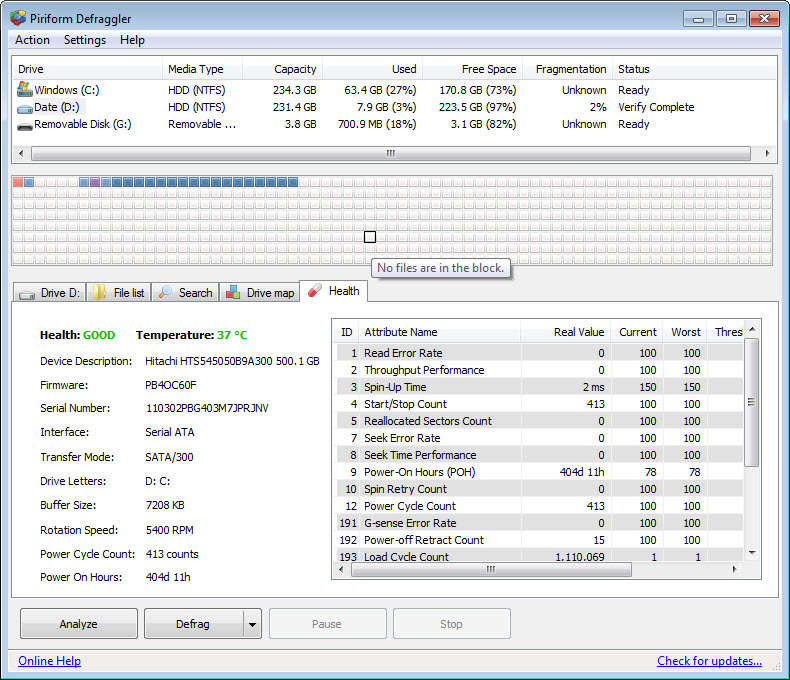
Defraggler shows the drive’s condition as a block-level map, with fragmented areas, contiguous areas and free space distinguished.
That display is more informative than the percentage figure above it. A drive at fifteen percent fragmentation with the fragments spread evenly is in different shape from one at fifteen percent concentrated in a few large files, and the map shows which you have at a glance.
Free space consolidation is available separately, gathering the gaps together rather than the files. That matters because scattered free space is what causes new files to arrive fragmented, so consolidating it reduces the rate at which the problem returns.
Boot-time work for files that cannot be moved
Some files stay locked while the system runs, including the page file and the registry hives, and Defraggler cannot move them during normal operation either.
Defraggler schedules that work for the next start, before those files are locked, which is the only way to address them. On a mechanical drive with a heavily fragmented page file, that operation can make a noticeable difference to general responsiveness.
Scheduling covers the routine case, though current systems already run their own maintenance on mechanical drives automatically, which makes a second scheduler largely redundant unless you want different behaviour.
Health reporting alongside
Defraggler reports the drive health attributes in the same window, which is a sensible inclusion because a fragmented drive and a failing drive can produce similar complaints.
That distinction matters enormously. A machine slowing down because files are scattered is a maintenance problem, and one slowing down because a drive is reallocating sectors is a warning that needs backups rather than defragmentation. Defragmenting a failing mechanical drive puts it under sustained load for hours, which is the worst thing you could do to it.
For the deeper view of those attributes and how they are trending, CrystalDiskInfo shows every value with its history, and checking it before starting is a sensible habit.
When the real problem is space
Frequently the complaint that leads somebody to Defraggler is a drive that is nearly full, and fragmentation is a symptom rather than the cause.
A drive with very little free space fragments everything it writes, because there is nowhere contiguous to put anything. Defragmenting helps briefly and the condition returns immediately, since the underlying problem is that the drive needs emptying rather than tidying.
Finding what is consuming the space is the actual fix, and WizTree reads the file table directly and produces a complete picture of a large drive in seconds.
Conclusion
Defraggler is a well-made tool for a task that has mostly stopped applying. On a mechanical drive it does more than the built-in alternative, particularly through file-level defragmentation and the analysis that names the worst offenders, and the drive map explains a condition that a percentage figure obscures.
Answer the first question before anything else. A solid state drive should not be defragmented at all, most current machines have one, and a mechanical drive in a modern system is already being maintained on a schedule. That leaves a narrow and real use, which is targeting one badly fragmented large file on a mechanical disk, and for that specific job nothing built in comes close.
Features & benefits
Pros & Cons
- Defragments individual files and folders rather than whole drives only
- Analysis lists the most fragmented files, so the real culprit is identifiable
- Block-level map shows the drive's condition rather than only a percentage
- Free space consolidation reduces how quickly fragmentation returns
- Boot-time processing handles files locked while the system runs
- Drive health attributes reported alongside, distinguishing maintenance from failure
- Handles the common file systems without configuration
- Should not be used on solid state drives, which most machines now have
- Current systems already defragment mechanical drives automatically
- Whole-drive processing takes hours on a large disk
- Defragmenting a failing drive puts it under exactly the wrong kind of load
- On a nearly full drive the benefit disappears almost immediately
Frequently asked questions
No. There is no moving head, so consolidating files gains nothing, and the process consumes write endurance the drive has a finite amount of. Current systems maintain such drives differently and deliberately avoid defragmenting them.
Defragments individual files and folders rather than whole drives, shows a block-level map of the drive's condition, lists the most fragmented files by name, and consolidates free space separately from files.
Because the slowdown you notice usually comes from one large file that has grown in place, such as a database, a mailbox or a virtual machine disk. Processing that file takes minutes where a whole drive takes hours.
Barely, and not for long. A drive with little free space fragments everything it writes because there is nowhere contiguous to put it, so the condition returns immediately. Freeing space is the actual fix.
Yes, by scheduling the work for the next start, before those files are locked. That is the only way to address the page file and the registry hives, which cannot be moved while the system is running.


