

Windows Update MiniTool
About Windows Update MiniTool
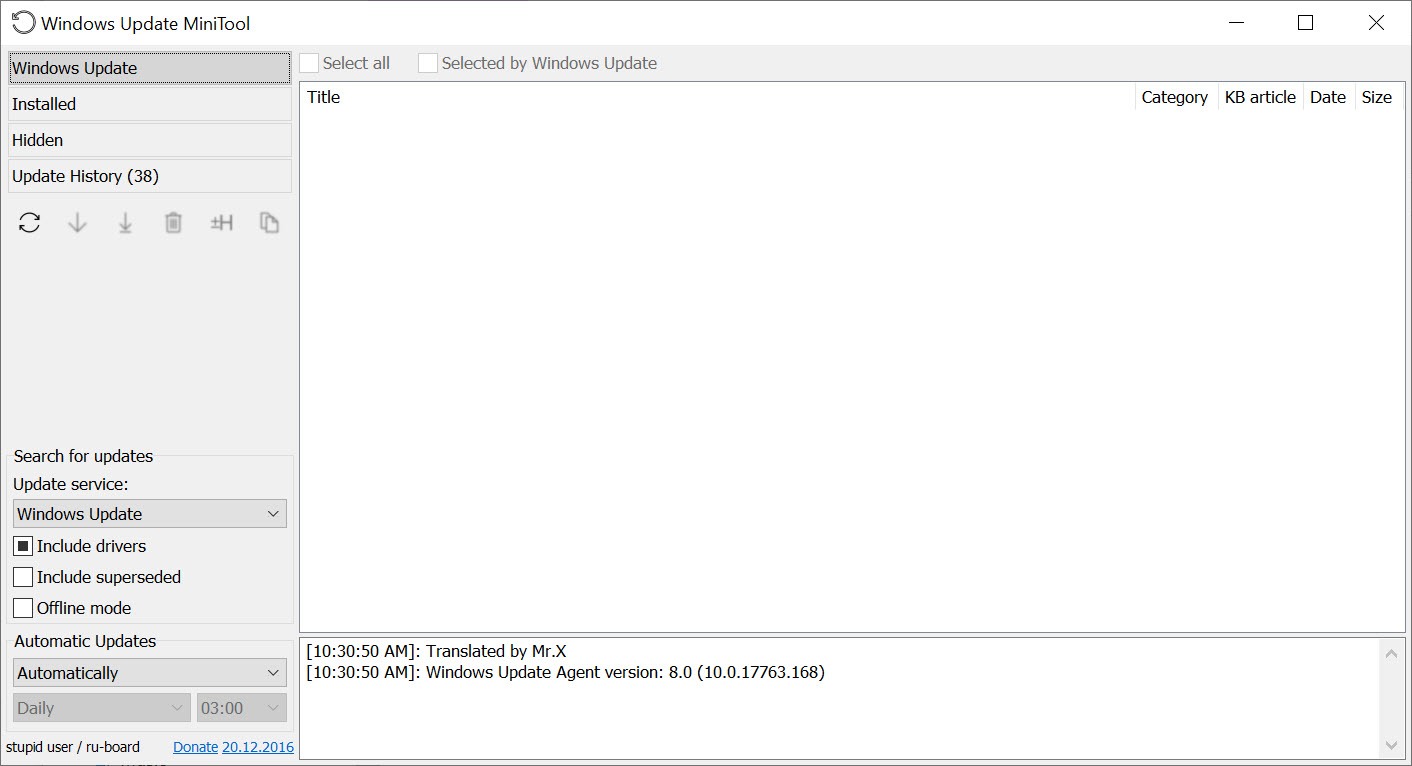
The built-in update panel gives you two choices, which are yes and later. Windows Update MiniTool replaces that with a checklist. It scans using the same update agent the system uses, lists everything on offer with its KB number and download size, and then lets you tick the ones you want, skip the ones you do not, and permanently hide anything you never want to see again.
It is not the only tool in this space. WuMgr does much the same job with scheduling added, and the built-in show-or-hide troubleshooter covers hiding alone. What keeps this one in circulation is that everything sits in one small window, with panes for available updates, installed ones, hidden ones and the history, so a full session of picking through patches takes a couple of minutes.
Picking updates one at a time
The main pane lists what the scan found. Each row carries the title, the KB number, the size, and a description you can expand, plus a link to the support article for that patch. Select a few rows and you can download without installing, or download and install in one action, which is the difference between fetching a patch now and applying it after the weekend.
That per-row detail is the actual value here. When a monthly rollup is sitting next to three driver updates and an optional feature, knowing exactly which KB you are approving beats reading “updates are available” and hoping.
Windows Update MiniTool also has an option to show superseded updates, which is how you find out that the patch you were about to install has already been replaced.
Hiding an update so it stops coming back
The Hidden pane is the function that made this tool popular, and it is the one that works reliably. Hide an update and the system itself skips it during its own scans, because the hide flag lives in the update agent rather than in this application. Close the tool and the update stays hidden.
The usual case is a driver that breaks something. A graphics or audio driver arrives through the update channel, wrecks a working setup, and the system reinstalls it every time you roll it back. Hide it once and the loop ends.
One quirk to watch for. With the superseded option unticked, the available list does not always account correctly for what you have already hidden, so an update you thought was gone can reappear in the listing. Rescan and check the Hidden pane rather than trusting the first result.
Removing a patch and reading what happened
The Installed pane does what the control panel’s update list does, with less clicking. Find the patch, remove it, then hide it so the next scan does not simply bring it back. That two-step sequence is the real fix for a bad update, and doing only the first half is why people end up reinstalling the same broken patch three times.
Not every update can be removed, though. Some are marked permanent and the option is simply absent, and anything involving servicing components wants a restart before the removal completes. The Update History pane sits alongside, logging what was applied and whether it succeeded, which is how you match a fault that started on Tuesday to something that installed on Monday.
When the update stack itself is broken rather than a single patch, a repair utility that resets the update components is the better tool.
Changing automatic update behaviour, with a caveat
A dropdown sets how the system behaves on its own. Disabled, notify before downloading, download but notify before installing, install automatically, or run to a schedule. There is a toggle for the update service too.
Here is the honest assessment. This is the weakest part of Windows Update MiniTool and has been for a long while. On current builds the setting does not always stick, and the system has a habit of quietly reverting it. Experienced users set update policy through group policy or the built-in interface, then use this application purely for searching, hiding and removing.
If your goal is stopping updates outright rather than choosing between them, Windows Update Blocker does that one job properly by managing the service and its dependencies. Do think about what you are giving up first, because a machine that never receives security patches is a machine with a growing list of known holes in it.
Where the updates come from
A source selector switches between the public update service, the broader Microsoft Update catalogue that includes other products, and a WSUS server when the machine is joined to a domain that runs one. Switching between them is one of the safer things to do here, and it is useful on a work laptop where the two sources offer different things.
Separate checkboxes decide whether driver updates and recommended updates appear in the results at all. Untick drivers and the list gets much shorter, which suits anyone who prefers getting hardware drivers from the hardware rather than the update channel.
If that is you, a driver updater that maintains its own database is a more direct route than waiting for a patch to appear.
Conclusion
Windows Update MiniTool suits anyone who wants to read the update list before agreeing to it. Technicians working through a pile of machines, people running software that a particular patch is known to break, and anyone tired of a driver reinstalling itself after every rollback will all find the hiding and removal functions worth the download on their own.
Treat the automatic behaviour controls as a bonus that may or may not hold, and do not read any of this as a reason to stop patching. Used as a filter rather than a wall, Windows Update MiniTool gives you the one thing the built-in panel never has, which is a list you can actually read and argue with before anything installs.
Pros & Cons
- Lists every available update with its KB number and size, plus a description, before you commit
- Hidden updates stay hidden because the flag is written into the update agent, not the application
- Download-only and install actions are separate, so fetching and applying can happen at different times
- Removing an installed patch and hiding it afterwards can both be done from one window
- The superseded option reveals patches that have already been replaced by newer ones
- Update sources can be switched between the public service, the wider catalogue and a WSUS server
- The automatic update mode setting is unreliable on current builds and can revert on its own
- With superseded updates hidden from view, the available list mishandles what you have already hidden
- No scheduling, so every scan is something you start yourself
- Update history is read-only with no way to export it
- Some installed updates cannot be removed at all, with no explanation of why
- Nothing here can bypass what the update agent itself refuses to do
Frequently asked questions
Yes, and this is the most dependable thing the tool does. The hide flag is stored in the update agent, so the system honours it during its own scans whether or not the application is running.
Yes, from the Installed pane, though some updates are flagged permanent and cannot be removed. Hide the update straight after removing it, otherwise the next scan offers it again.
Because current builds increasingly manage that behaviour themselves and overwrite what a third-party tool writes. Set update policy through group policy or the built-in interface, then use this software for the scanning and hiding it handles well.
Two ways. Untick the driver updates option so they never appear in scan results, or let them appear and hide the specific driver that is causing trouble.
It does, behind an option that is off by default. Enable it and the list grows considerably, but you can see which patches have already been replaced instead of installing something that a later release has overtaken.


