

Synkron


About Synkron
Synkron keeps two or more folders the same. Pick the folders, press Analyse to see what it intends to copy, then press Sync and the newer version of every file lands in every folder. Add a third folder, or a fourth, and they all stay in step. A Multisync tab does the reverse job, gathering several source folders into one destination, which is how a backup of scattered folders ends up in one place.
A scheduler runs any of it at a set time or at an interval, and a blacklist keeps the files you never want copied out of every job. A Restore section holds the files a sync overwrote or deleted, in case the newer version was the wrong one.
That last feature is the one that made the program a favourite in its day. Most folder sync tools treat an overwrite as final. Synkron keeps the previous copy and lets you bring it back. Its day was some time ago, though. The project has not released anything in a long time, its build is 32-bit only, and its interface shows its age.
The sections below describe what it does and then say plainly what it is still good for, which is more than nothing and less than everything.
Synchronising two or more folders
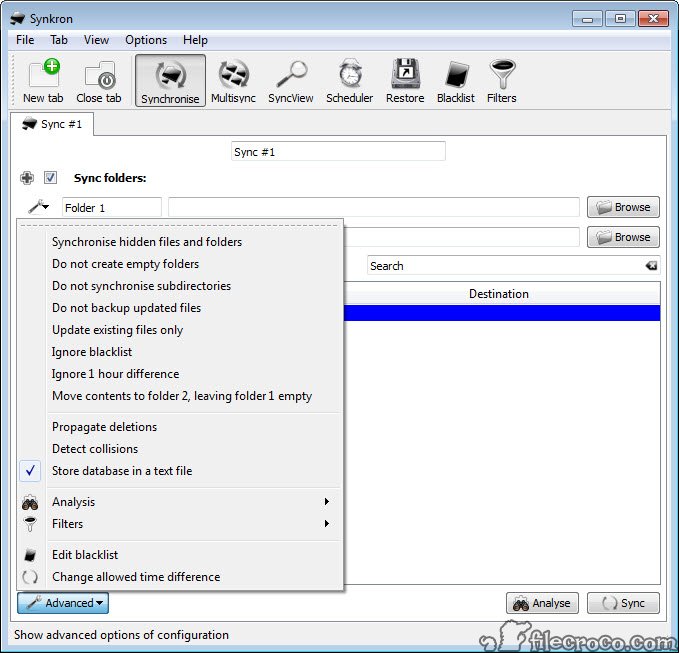
The Synkron Synchronise tab holds a list of folders, and a job can have as many as you like. Analyse compares them and shows what will happen before anything moves, with the files that are missing or older marked folder by folder. Fast Analysis skips the detail for a quick look. Sync then copies in every direction needed until each folder holds the newest version of everything.
Advanced options change the behaviour. Propagate deletions removes a file from every folder when it has been deleted in one, which turns a merge into an exact copy and deserves care. Detect collisions warns when the same file has changed in two places since the last sync, rather than silently picking one.
Hidden files can be included, subfolders skipped, and the whole job saved as a tab so it runs again with a click. Several tabs hold several jobs.
Multisync, for gathering folders into one
Synkron Multisync takes any number of source folders and one destination, and copies each source into its own folder inside the destination. It is a backup pattern rather than a sync, documents and photos landing side by side with a project folder on an external drive, and it runs one source at a time. Analyse works here too, one source at a time.
Multisync does not support the Filters, so a type restriction has to come from the blacklist instead. For a straight one-way backup with versioning folders and a visual comparison of both sides, FreeFileSync is the maintained tool that does the same job with more safety.
Restore, the feature that sets it apart
When a Synkron sync overwrites a file with a newer version, or deletes one because it vanished elsewhere, the program keeps the replaced file. The Restore section lists those files with their folders and dates, and any of them can be put back where it was or removed for good. That is the safety net that most sync tools lack, and it covers the common accident where the “newer” file was an unfinished edit saved by mistake.
The kept copies take disk space, so the section is also where old ones are cleared. Check it after a sync that moved more than you expected. If a folder shrank and you did not mean it to, the files are here.
Blacklists and the scheduler
The Synkron Blacklist is a shared list of files and folders, and of extensions, that no job touches, with wildcards allowed, and each tab can carry a private blacklist of its own. Filters are the opposite, restricting a sync to chosen extensions, so a job copies only documents or only images. SyncView records what each sync did, file by file, for checking afterwards.
The Scheduler runs a tab’s sync or multisync at a time you set or on a repeating interval. The program must be running for the schedule to fire, so it goes in the startup list of a machine used this way. For a scheduler that runs as a service and carries versioning and compression as well, a more complete backup and sync tool is the step up.
What it is still good for
Here is the plain answer. It is still good for syncing a handful of folders between a computer and an external drive or a stick, with the overwritten files kept in Restore, which no simpler tool offers. It is still good for the Multisync pattern, gathering folders onto one drive in one job. And it still runs on old machines, where a small program with no dependencies beyond itself earns its place.
It is not good for large, busy folder sets, where the lack of updates and the 32-bit build show in speed and in the odd file it cannot handle. It has no cloud destinations and no encryption, and nothing is compressed. For a portable bundle that adds archive backups and encryption to folder sync, Toucan covers the ground this one leaves open, and is in a similar state of quiet.
Conclusion
Synkron suits anyone who keeps a few folders in step between a computer and an external drive and wants the one safety net most sync tools lack, a place where overwritten files wait to be restored. The Analyse preview, the blacklist and the Multisync pattern round out a sensible small tool.
It is old, 32-bit and quiet, with no cloud, encryption or compression. Use it for modest folder sets on a local drive, check Restore after any sync that surprised you, and move to a maintained tool when the folders grow.
Pros & Cons
- Syncs two or more folders in every direction, with Analyse to preview the result
- Restore section keeps overwritten and deleted files for recovery
- Multisync gathers several folders into one destination
- Blacklist with wildcards, shared or per tab, plus extension filters
- Collision detection and optional deletion propagation
- Scheduler by time or interval, with a log of every sync
- No release in a long time, and a 32-bit build only
- Program must be running for the scheduler to fire
- No cloud destinations, encryption or compression
- Multisync does not support filters
Frequently asked questions
Yes. The Restore section keeps files that a sync replaced or deleted, and any of them can be put back.
A mode that copies several source folders into one destination, each into its own subfolder, which suits gathering a backup onto one drive.
Yes, through the Scheduler, at a set time or on an interval, as long as the program is running.
Only if Propagate deletions is switched on. By default a deleted file is left in the other folders.


