

SimilarImagesFinder
About SimilarImagesFinder
SimilarImagesFinder looks through your photo folders for pictures that are the same, and for pictures that are nearly the same. The first kind is easy and every duplicate finder does it. The second is the point of this one. A photo saved once as a JPEG and once as a PNG.
A picture and its resized copy for a website. A scan and the same scan with the colours corrected, or five shots of one scene taken a second apart. All count as similar here, and they turn up in the same group for you to look at side by side.
That puts it next to dupeGuru, which has a picture mode that does the same thing with more knobs, and above the plain byte-matching finders, which never see a resized copy at all. SimilarImagesFinder has fewer settings than the first and one job more than the second.
It is a single window, a slider and a results list, and that is the right size for a photo folder that has quietly doubled.
Two modes and one slider
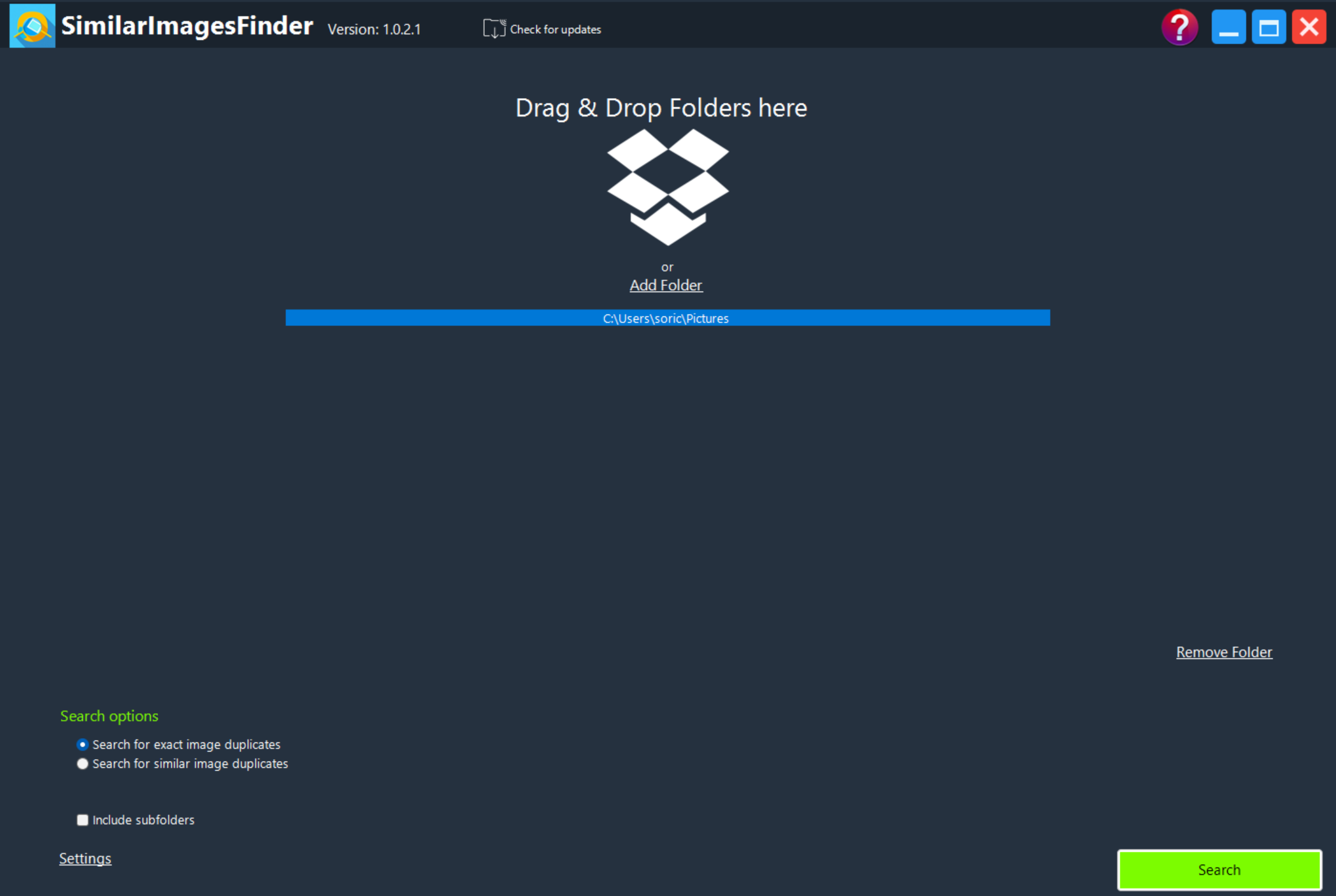
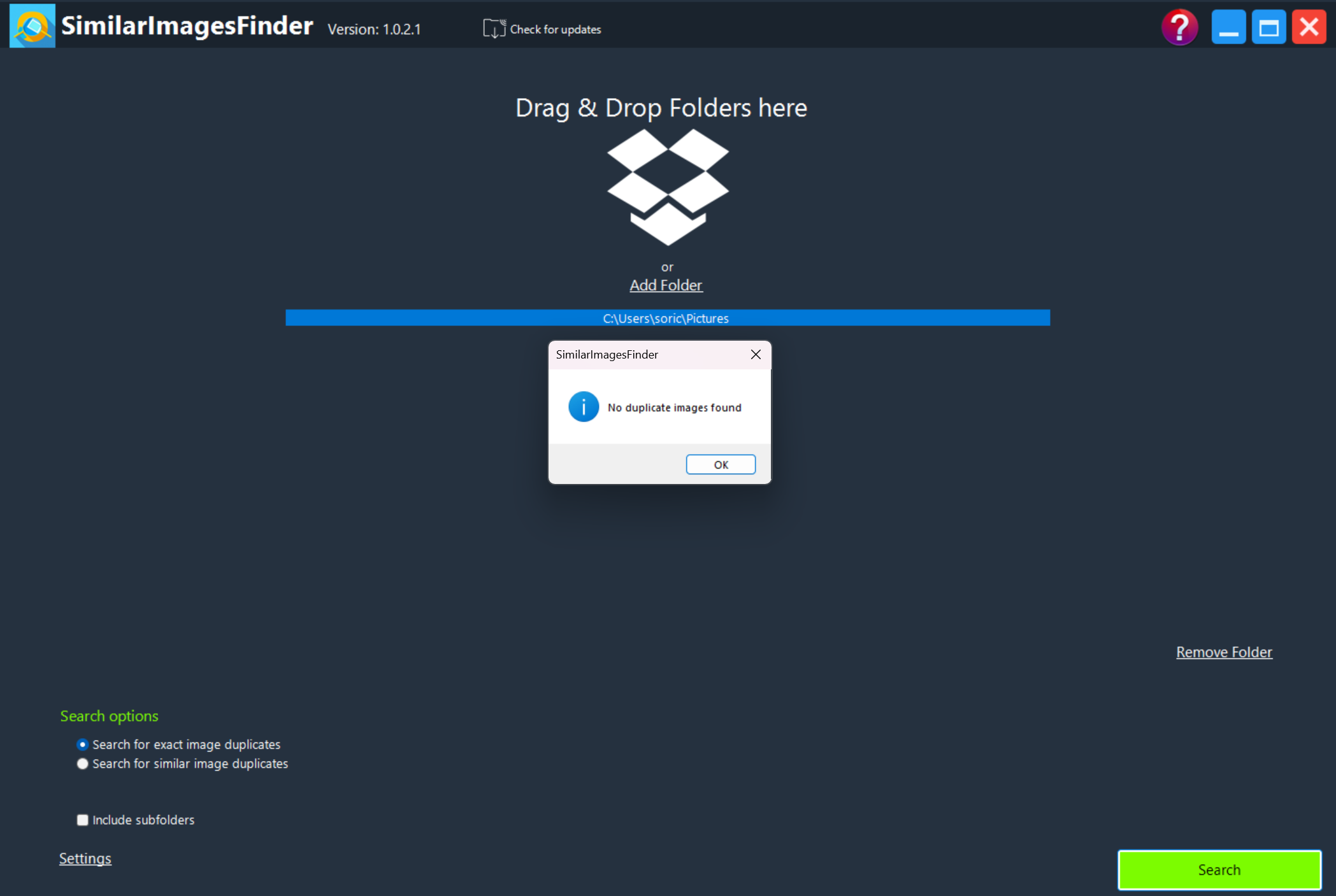
The SimilarImagesFinder search options offer exact duplicates or similar duplicates. Exact mode compares file contents and reports only true copies, so a JPEG and its PNG twin are different files to it. Similar mode compares the pictures themselves, at a tolerance you set with an adjustment level.
Low tolerance finds only near-identical images, such as the same photo at two sizes. Raise it and burst shots and crops start to join the groups, as do colour-corrected variants and the occasional pair that merely looks alike.
Start strict. Run the scan, see what it groups, then loosen the level if the copies you know are there did not appear. Formats are the everyday ones, JPEG, PNG, GIF, BMP and TIFF, and a match across formats works, which is where most real duplicates hide.
Folders, subfolders, exclusions
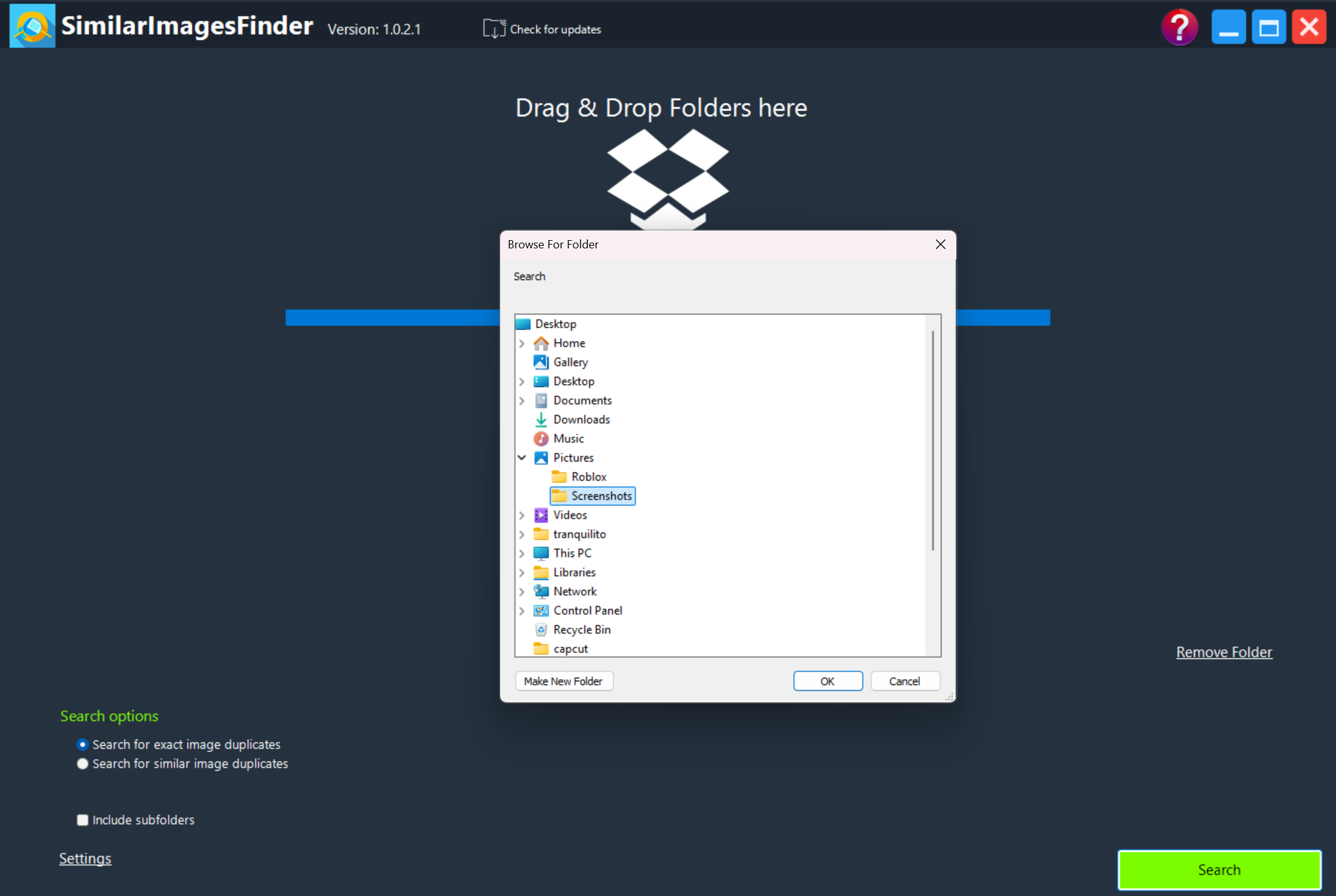
Folders go in by dragging them onto the window or through an Add Folder button. Any number can be scanned together, so a phone backup on one drive and an archive on another are compared in one pass. Include subfolders is a checkbox. Ignore Folder excludes a path from the comparison, which keeps a deliberately kept originals folder from being flagged against everything else.
In similar mode a few thousand photos take a while, since every picture has to be read and reduced to a comparable form. Exact mode is much quicker.
Reviewing groups and deleting
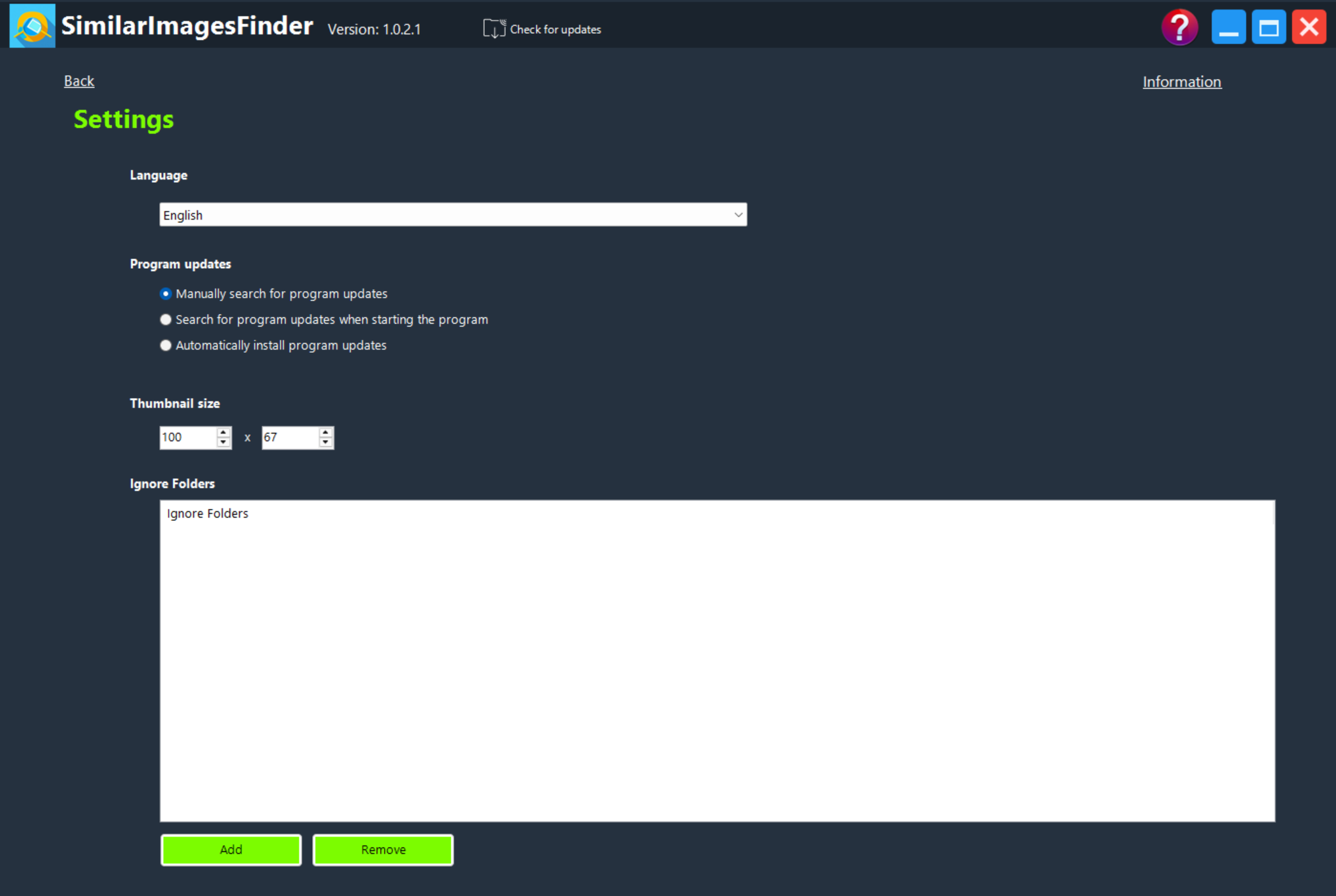
SimilarImagesFinder results come back in groups, each holding one original, the first file the scanner met, and its matches. Thumbnails can be sized in Settings. The list sorts by size, name, creation date, modification date or pixel dimensions, so the largest or the newest copy can be put at the top of each group before deciding. Click a file and a preview shows it large.
The right-click menu does the selecting. Select all, select none or invert, plus the useful one, do not select the first file in each group, which ticks every copy and leaves the original. Then Delete selected files to the trash, or Delete selected files for good, or Remove from list to keep a group without touching it. Open folder jumps to the file’s location. Because the original is simply the first file found, check that the survivor in each group is the one you want before pressing delete, and use the trash option the first time.
Settings and what is missing
The Settings tab holds the interface language, an update check mode and the thumbnail size, and that is the whole configuration. There is no move-to-folder action, no way to prefer the larger or higher resolution copy automatically, no report file and no scheduling.
The comparison is visual, so two photos with different metadata but the same pixels are correctly grouped, while two different pictures with identical file names are correctly left apart.
For a music or document collection, this is the wrong tool, and an exact-match finder for any file type is the right one.
Conclusion
SimilarImagesFinder is for anyone whose photo folders hold the same pictures in different sizes and formats, the usual result of years of phone backups, web exports and edits saved beside originals. The similarity slider and the grouped preview do the one job the byte-matching tools cannot, and do it without a manual.
Collectors who want the tool to choose the best copy for them, or to move rather than delete, will want a bigger finder. For a visual clean-up of a family archive, this one is quick to learn and careful enough with the trash option on.
Pros & Cons
- Finds resized and recompressed copies and format conversions, not only identical files
- Adjustable similarity level from strict to loose
- Groups with thumbnails, large preview and sorting by size, date or dimensions
- One-click selection of every copy except the first in each group
- Delete to trash or permanently, or drop a group from the list
- Original in each group is just the first file found
- No automatic preference for the larger or sharper copy
- No move option, report or scheduling
- Similar mode is slow on large collections
Frequently asked questions
Yes, in similar mode. It compares the pictures rather than the files, so a resized copy, a different format or a colour-adjusted version groups with the original. Exact mode finds only identical files.
The similarity level is set too loose. Lower the adjustment level and scan again. Burst shots of one scene will always group together at moderate settings, which is usually what you want.
Sort each group by size or dimensions so the largest version sits first, then use the option to leave the first file unselected. Check the survivor in the preview before deleting.


