

MediaElch
About MediaElch
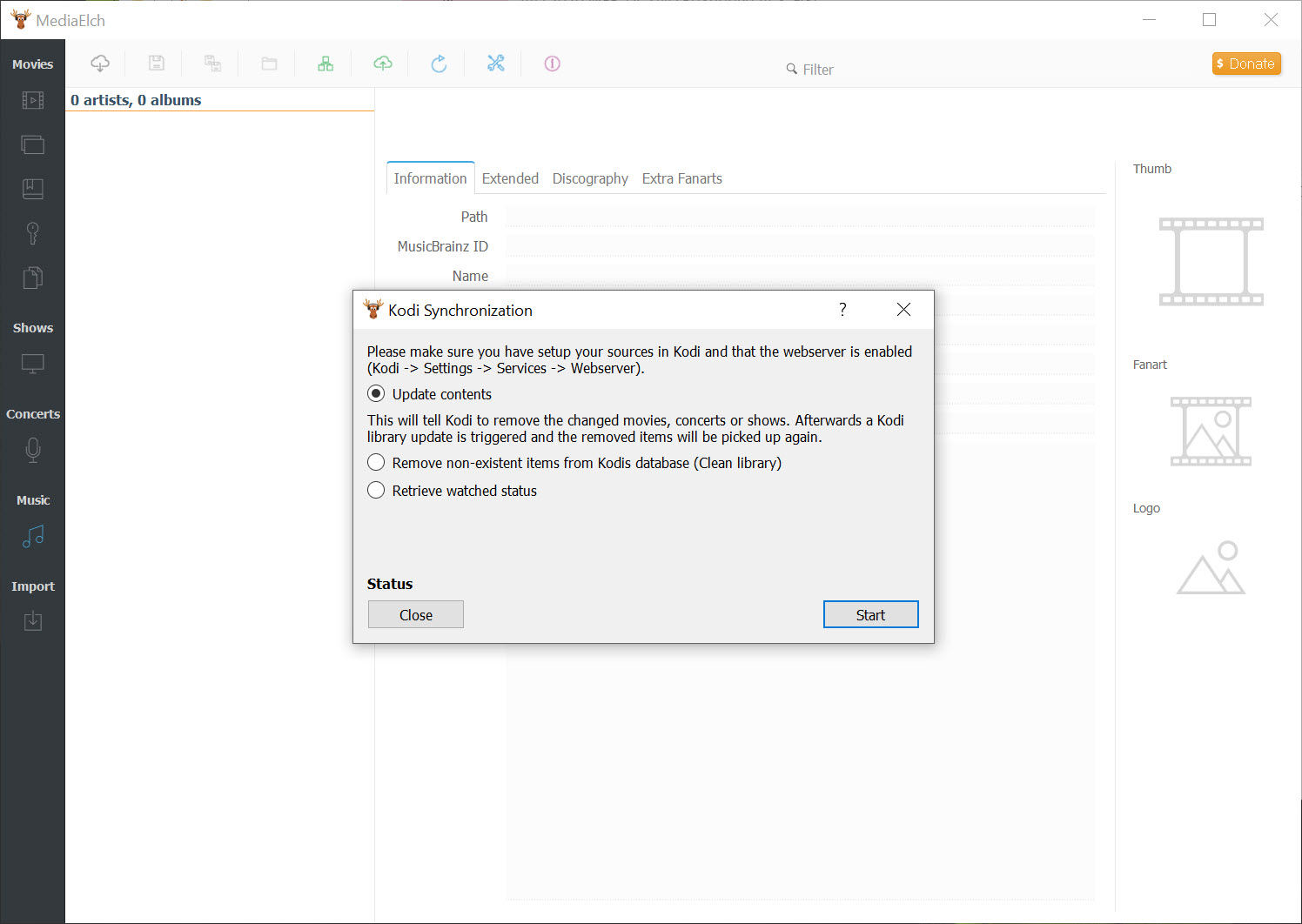
MediaElch gives a folder of video files the information a media centre needs to show them properly. Point it at where the films and series live, and the concerts and music too, and it lists what it finds, marks the items it has never seen with a blue star, fetches a title and plot, the cast and ratings, and artwork for each from the online databases, and writes all of it beside the file as an NFO file with posters and fanart alongside. When Kodi scans that folder afterwards, every entry arrives complete and identical on every device in the house, because the data sits with the files rather than in one player’s database.
That arrangement is the reason people run a media manager at all. A media centre can scrape its own library, but into its own database, so a second player starts from nothing and a wrong match has to be fixed on the television with a remote.
MediaElch moves that work to a desk, with a keyboard, a large preview of every poster on offer and the ability to fix a hundred films in a sitting. It is built for Kodi, and the NFO files it writes are also read by other media servers.
Scraping films, and choosing what you get
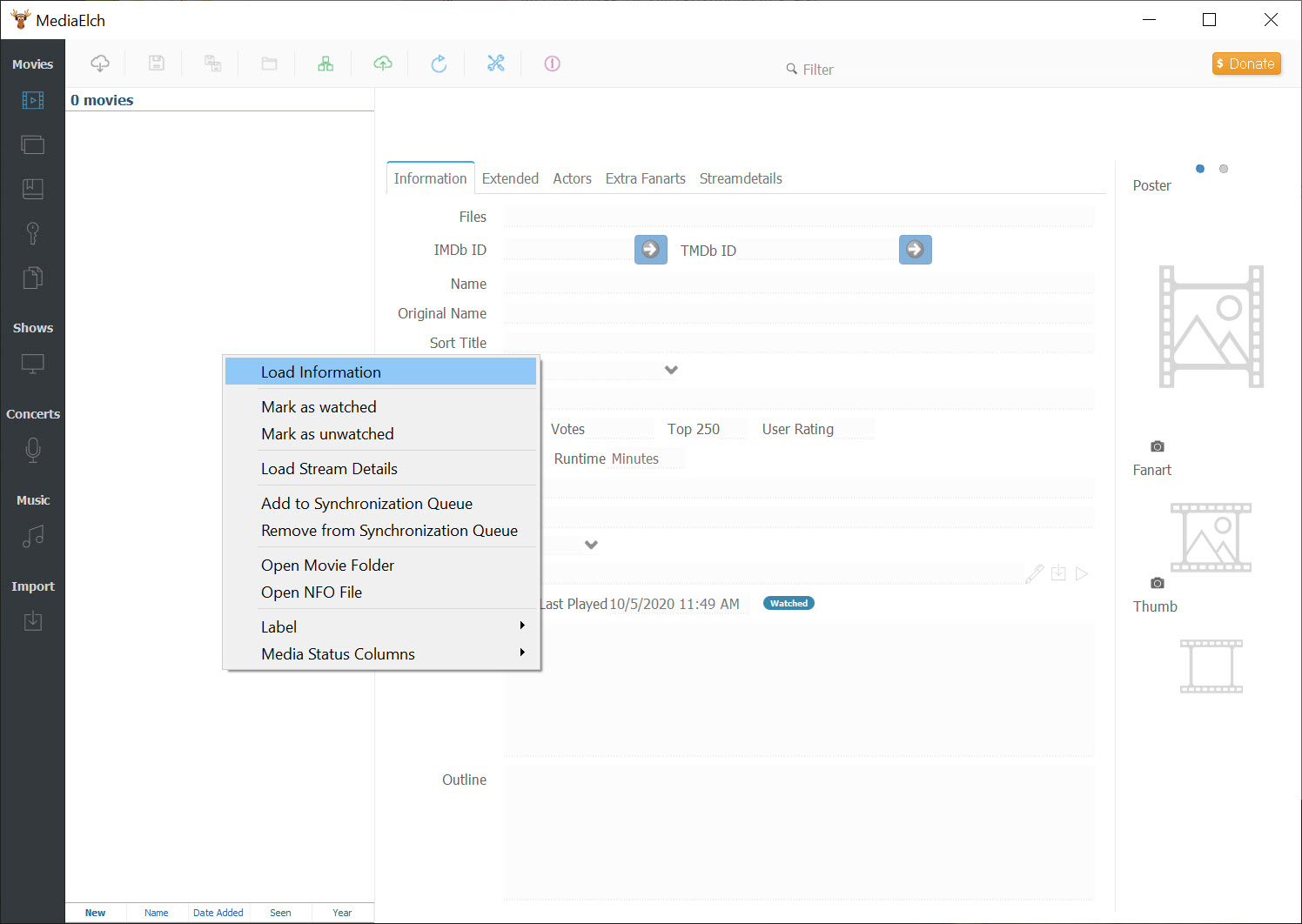
Select one film or the whole list in MediaElch, pick a scraper and press scrape. The Movie DB is the primary source, in more than twenty languages, with IMDb and a few regional databases alongside and fanart.tv supplying the artwork.
A dialog lets you choose which fields to fetch, so a collection that already has carefully edited plots can take only ratings and artwork without overwriting anything. Wrong matches are corrected by searching again or by typing the database identifier.
Movie sets group films into collections with their own artwork, and a bulk edit changes genres and certifications across many films at once. Filters narrow the list to films missing a poster or an identifier, which is how a large library gets tidied in passes rather than one entry at a time. Every field is editable, and Save writes the NFO and the images into the folder.
TV shows and the missing episodes
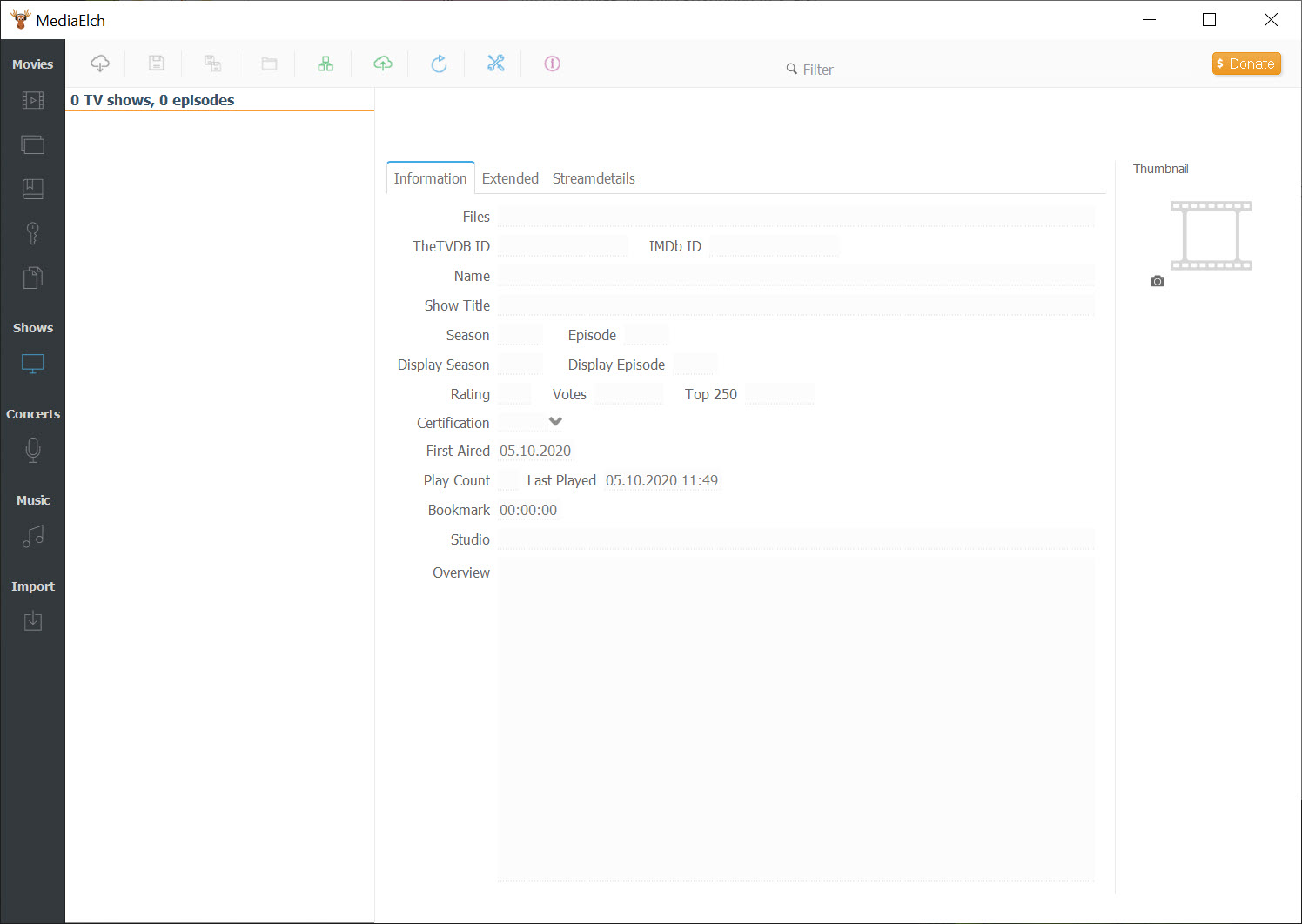
The MediaElch TV show section lists shows with their seasons and episodes beneath, and scraping fills in the show, the season artwork and every episode’s title, plot, air date and thumbnail. The Movie DB handles TV as well, with TVMaze and a specialist database for anything the main one lacks, and a search by database identifier settles ambiguous titles. You can decide per show which source supplies which field, so one database supplies episode titles while another supplies artwork.
Missing episodes are listed against the complete episode guide, which is how you learn that a season has a gap. Episodes can be scraped individually, and specials and multi-episode files are handled. Theme tunes and trailers download for the add-ons that play them.
For the wider job of renaming badly named episode files before they get here, a batch renamer for episode files remains the stronger tool, and the two are often used in sequence.
Choosing artwork from a gallery
Artwork is where the desk beats the remote, and where MediaElch shines. For every film and show, the image dialog shows a gallery of posters, backdrops, banners, logos, clear art, disc art and thumbnails from fanart.tv and the databases, with sizes and languages marked, and a click picks the one you prefer. Several can be chosen for extra fanart, and the download runs in the background. Actor images come down with the cast list.
Artwork files are named to the scheme the media centre expects, and a renaming option converts older naming to the current one. A collection that was scraped by three different tools in the past ends up consistent after a pass through here, and that consistency is what makes a library look finished on the television rather than patchy. The same dialog lets a poster be loaded from a local file when nothing online suits, which covers home videos and obscure releases.
Music and concerts
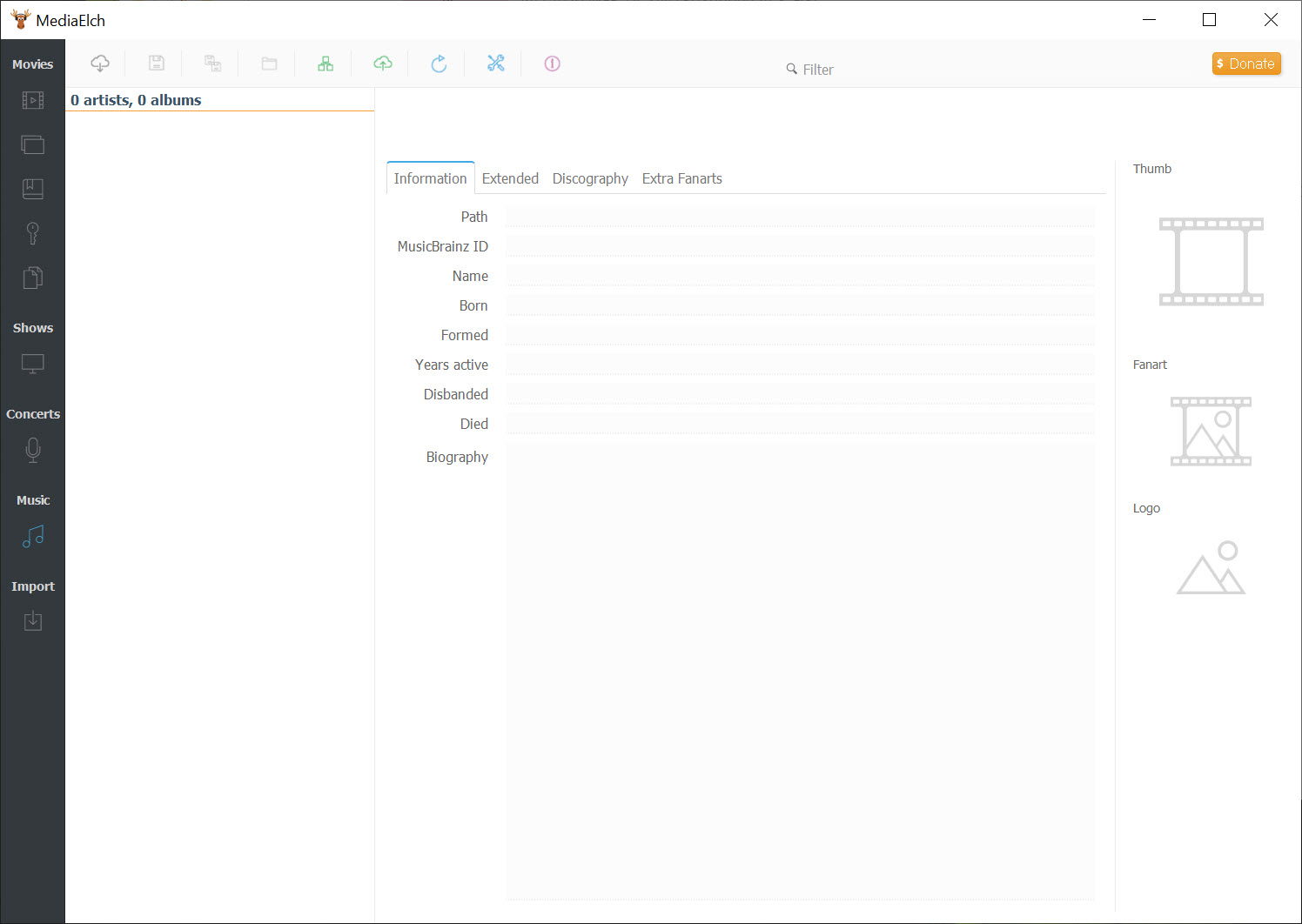
Music gets its own MediaElch section. Artists and albums are scraped from The Audio DB, AllMusic and Discogs, with artist biographies and album reviews, plus fanart and posters, banners and disc art, and the results are written as NFO files and images beside the music folders exactly as for films. Concerts, which the media centre treats as music videos, have their own section too, with several artists per recording.
For tagging the audio files themselves rather than describing them to a media centre, MP3TAG does the inside of the files and this does the outside.
Renaming and the other media centres
The MediaElch renamer rewrites media files and their folders to a pattern you define, with the NFO, the artwork and the subtitle files renamed to match, so a mess of download names becomes a tidy tree. Renaming is optional, and a library whose folders are already right can leave it alone. An export writes the library to HTML pages from a template.
Although Kodi is the target, the NFO files are plain XML that Jellyfin and other servers read, and a generator produces NFO files for media centres with different expectations. Anyone running one of those servers gets the same tidy library, with the caveat that fields the other server does not understand are simply ignored. For a mixed household, that means scraping once at the desk and letting every player read the result.
Where it asks care
The MediaElch interface is dense, with filters and dialogs that assume you know what an NFO file is and why artwork naming matters. Scraping thousands of items takes time and depends on the online databases, whose rate limits occasionally slow a large batch. Adult scrapers are included and disabled by default.
A database changing its interface can break a scraper until an update arrives, and the program writes into your media folders, so a first run on a copy of a few folders is the sensible way to learn it.
Conclusion
MediaElch suits anyone with a media collection large enough that fixing it on the television has stopped being fun, from a household with two Kodi boxes to a collector with thousands of films and whole runs of series. Scraping at a desk with a gallery of artwork and storing the result beside the files is the difference between a library that looks finished everywhere and one that differs on every screen.
It is more than a casual viewer needs, and its density takes a weekend to get comfortable with. Start with a copy of a few folders, settle the artwork naming and the renamer pattern once, and then let it loose on the collection, where it will save far more evenings than it took to learn.
Pros & Cons
- Scrapes films and TV shows, plus music and concerts, into NFO files and artwork beside the media
- Multiple scrapers per type, with per-field control over what is fetched
- Gallery-based artwork selection with posters, fanart, logos, clear art and disc art
- Missing episode detection and bulk editing of genres and certifications
- Renamer that keeps NFO, artwork and subtitles in step with the files
- NFO output readable by other media servers and a generator for different schemes
- Dense interface that assumes familiarity with NFO files and artwork naming
- Large batches are slow and depend on online databases and their rate limits
- A scraper can break when a database changes until an update lands
- Writes into media folders, so mistakes are made on the real collection
Frequently asked questions
Kodi is the target, but the NFO files and artwork it writes are read by other media servers, and a generator produces files for different schemes.
It marks an item the program has not seen before, usually one with no NFO file yet, so new additions stand out for scraping.
Yes. It compares what is on disk against the complete episode guide and lists the gaps for each show.
Only if you use the renamer. It rewrites files and folders to a pattern you set, keeping NFO, artwork and subtitles in step, and it can be left unused.


