

HyperDesktop

 (2 votes, average: 3.00 out of 5)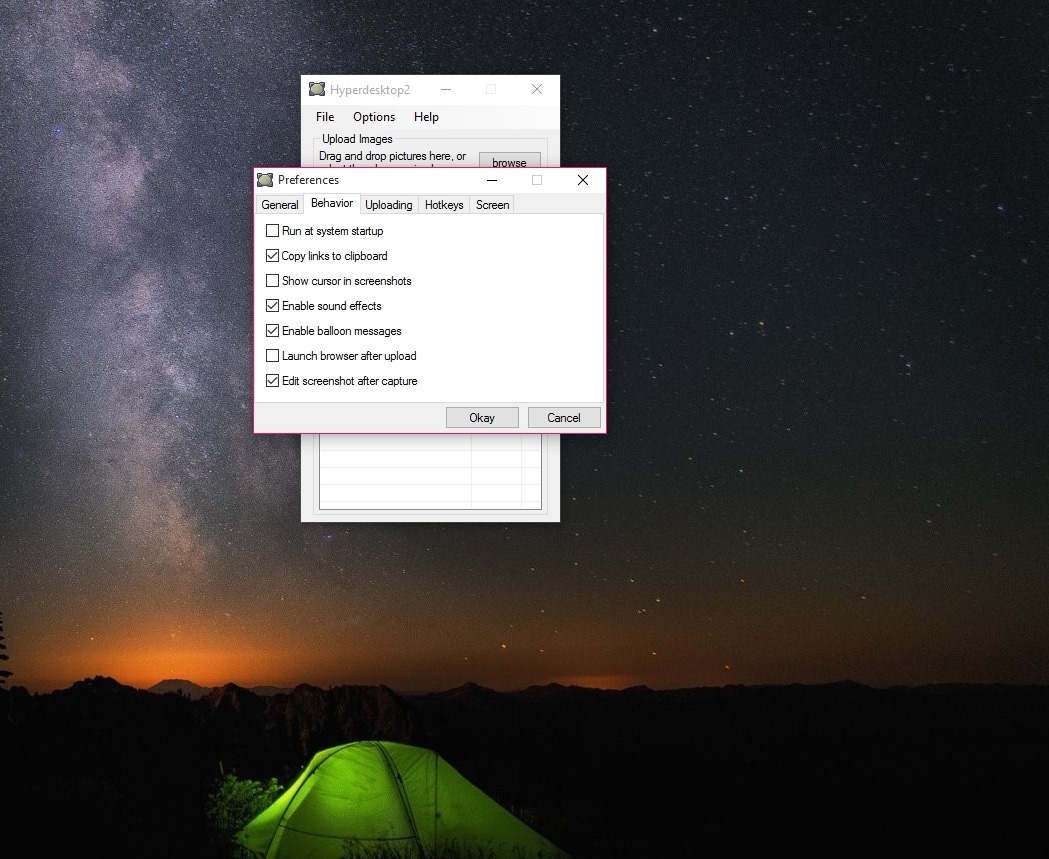
About HyperDesktop
HyperDesktop is a deliberately tiny utility that does exactly one thing. You press a hotkey, drag a selection over part of your screen, and the captured image is uploaded to Imgur. A URL appears, copied to your clipboard, ready to paste into a forum thread or a chat window. That’s the whole loop. The application stays out of the way the rest of the time, lives in the system tray, and doesn’t pretend to be anything more ambitious.
This kind of minimal-scope screenshot uploader was a small but useful category during the era when sharing screenshots online required either an FTP account or laboriously creating an account on an image host and using their web interface. HyperDesktop automated that workflow into two keystrokes.
The category has since been absorbed by more capable tools like ShareX, Greenshot, and LightShot, all of which do what HyperDesktop does and considerably more. Whether the minimalism is still appealing or just a sign of arrested development is the question this review will try to answer honestly.
The one job and how it does it
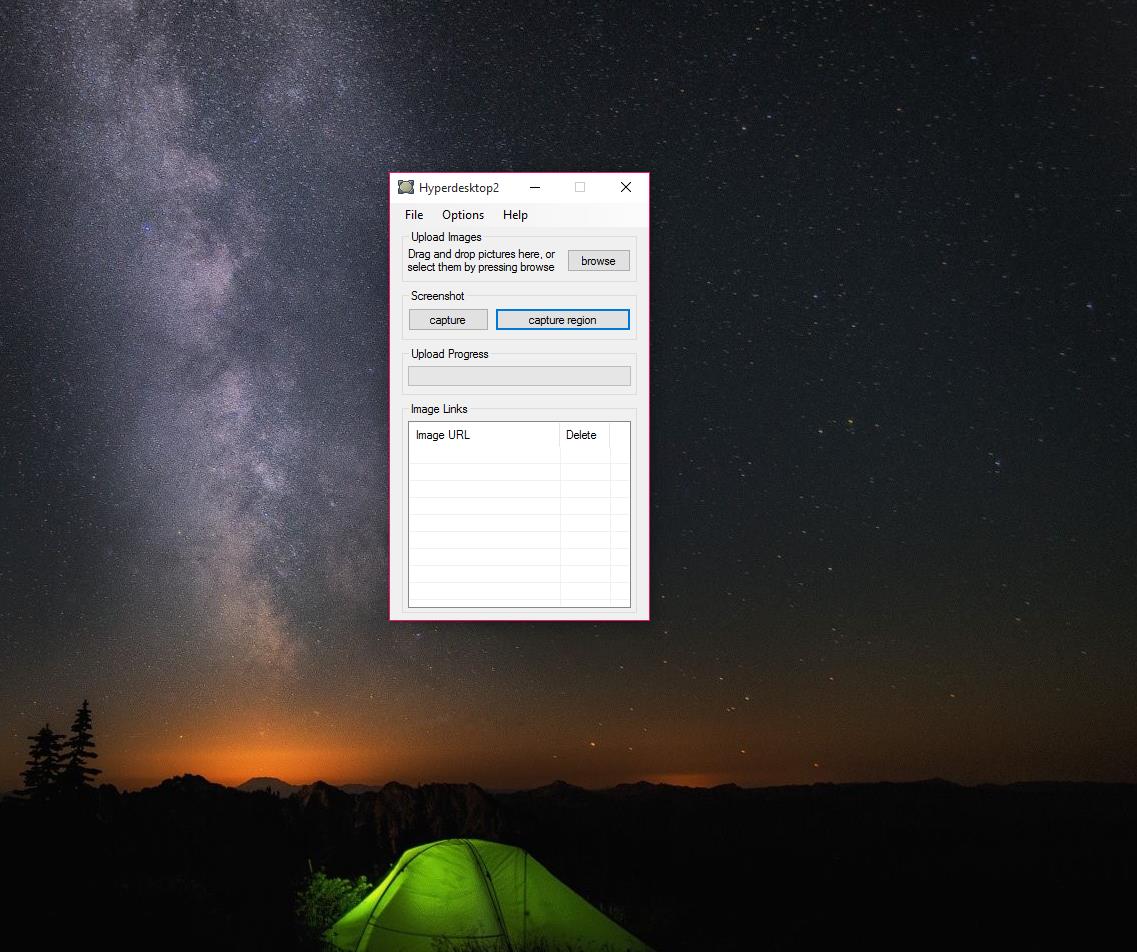
The default workflow is built around two keyboard shortcuts. Ctrl+Shift+3 captures the entire desktop and uploads it. Ctrl+Shift+4 lets you drag a selection over a region of the screen, then uploads what you selected. The shortcuts are a deliberate echo of the macOS screenshot conventions, mapped onto Windows hotkeys. They’re rebindable in preferences if those particular chords conflict with something else you use.
After capture, the image transfers to Imgur over HTTP, and the resulting URL gets copied to your clipboard automatically. Paste anywhere and you have a link to the image. There’s no intermediate “preview before uploading” step by default, though you can enable a quick editor to appear before upload if you want to mark up the screenshot first.
The total time from “I want to share this thing on screen” to “URL pasted into chat” is typically under five seconds on a reasonable connection. That speed is the entire value proposition. The application is faster than opening any general screenshot tool, manually saving the file, and uploading it through a web form. For users who frequently share screenshots in forum or chat contexts, the time saved adds up.
Capture mechanics
The capture options are straightforward and limited. Full-screen captures grab the entire desktop including the taskbar and any secondary monitors (on multi-monitor setups, the result is a wide image spanning everything). Region selection draws a rectangle, with pixel dimensions shown live as you drag, and captures only the area inside.
There’s no scrolling capture for long webpages (the way PicPick handles those), no window-specific capture that snaps to a single application, no freehand selection for irregular shapes, no delayed capture for menus that disappear when you click. The minimalism is total. If your typical screenshot need is one of those edge cases, HyperDesktop won’t cover it and a more capable tool will.
For the common case of “capture this thing on screen and share it,” the two modes are sufficient. The selection rectangle is responsive and snaps cleanly to pixel boundaries. The full-screen capture handles multi-monitor and high-DPI setups correctly, which not every screenshot tool of similar vintage does.
Where the screenshot goes
The default destination is Imgur, anonymous uploads. The image lands in a public-but-obscure URL that anyone with the link can view, but it isn’t indexed in any browseable gallery unless you specifically add it to one. For casual screenshot sharing, this is usually fine.
If you have an Imgur account, you can configure HyperDesktop to upload to that account instead. Uploads then appear in your account history, can be deleted from the Imgur web interface, and can be moved to private albums. For users who care about being able to remove their screenshots later, account-linked uploads are the path that makes that possible.
Beyond Imgur, the application supports uploading to an FTP or SFTP server you configure yourself. You provide the server URL, port, username, password, and remote directory, and screenshots get pushed to your own hosting instead of Imgur. The URL generated for sharing then points to your server. This is useful if you want full control over the hosting (deletion, retention, access control) without relying on a third-party service.
The local save option keeps screenshots on disk in addition to or instead of uploading. You pick the directory, the file format (PNG, JPEG, or BMP), and the JPEG quality if applicable. Filenames use a configurable pattern based on date and time.
The basic editor
If you enable the post-capture editor, the application opens a small annotation window before uploading. You can draw lines and shapes on the screenshot with a pen tool, pick a color, and adjust pen size. That’s about the extent of it. No text tool, no callout balloons, no numbered stamps, no blur or pixelate for redacting sensitive information, no undo button beyond a basic reset.
This is genuinely thin. For quick “draw a red arrow on this thing” annotation it works, but anything more substantive will frustrate you. Modern annotation tools like Greenshot and ShareX include arrows that snap straight, text boxes with formatting, blur tools that follow shapes, and proper undo/redo. HyperDesktop‘s editor is from an era when “you can draw on the image before uploading” was itself a feature, and it hasn’t kept pace.
If annotation matters to your workflow, capture in HyperDesktop and edit in a real image editor before uploading, or use a different screenshot tool. Forcing the built-in editor to do more than basic markup is the wrong approach.
Portability and what it doesn’t install
The application is portable. The executable runs from any folder, doesn’t write to the registry, and doesn’t create permanent system entries. Copy the folder to a USB stick and it runs from there on any Windows machine. Delete the folder and it’s gone, with no trace beyond whatever screenshots you saved locally.
This is one of the genuine strengths and the reason HyperDesktop stays in some users’ toolkits despite its limitations. For technicians, IT support workers, or anyone moving between machines, a tiny screenshot tool that runs from a flash drive without installation is useful. Settings get stored in a config file next to the executable, so your hotkey preferences, upload destination, and account credentials travel with the folder.
The size of the application is small enough that the download finishes essentially instantly. Memory usage is minimal. The process running in the background is quiet enough that you’ll forget it’s there until you press the hotkey.
How it compares to modern alternatives
The honest version of this comparison: HyperDesktop does less than almost every actively-developed screenshot tool. ShareX handles dozens of capture modes, multiple destinations, OCR, color picking, screen recording, and a scriptable workflow system. Greenshot offers richer annotation, plugin support, and tighter integration with Office applications. LightShot covers the same fast-upload workflow with a cleaner editor. Gyazo matches the upload-on-capture model with its own hosting. HolzShots and Jumpshare cover similar quick-share scenarios.
What HyperDesktop has over these is true minimalism. It’s smaller, simpler, and asks less of the system. There’s no learning curve because there’s almost nothing to learn. If you specifically want a tool that does the capture-upload-share loop with no other features competing for your attention, the lack of options is the feature.
The honest counterpoint is that ShareX and Greenshot are both free, both stay out of the way once configured, and both can be set up to do exactly what HyperDesktop does (with the same hotkeys, if you want) while also being able to do other things when you need them.
The “minimalism” advantage of HyperDesktop is real but small. For most users, the modern alternatives are a better fit because they grow with your needs.
When minimal is the right answer
There are scenarios where HyperDesktop is still appropriate. The first is for users who specifically want a portable USB-stick tool for screenshot sharing on machines they don’t own. The portability story is genuinely simple here. The second is for users with very modest needs (full screen or region, upload to Imgur, paste link) who find the configuration surface of larger tools overwhelming. The third is for users on older or low-resource systems where the overhead of a more feature-rich tool starts to matter.
For anyone else, the modern alternatives almost certainly do the same job better. The question worth asking yourself is whether the simplicity is actually serving you or whether it’s just inertia.
If you currently use HyperDesktop and the workflow works for you, there’s no urgent reason to switch. If you’re evaluating it fresh against modern competitors, the competitors are likely the better choice.
Conclusion
HyperDesktop is for a narrow audience that specifically wants a tiny, portable, single-purpose screenshot uploader. Forum users who share a lot of screenshots, IT support workers who carry tools on USB drives, and anyone who finds modern multi-feature applications overwhelming may find it does exactly what they need without competing for attention. The capture-to-clipboard-URL loop is fast and the portability story is genuine.
For users coming to the screenshot category fresh, the honest recommendation is to start with one of the actively-developed alternatives in the catalog. ShareX is the most capable choice for power users. Greenshot and LightShot are friendlier choices for users who want more features than HyperDesktop but less complexity than ShareX.
All of them can be configured to behave essentially like HyperDesktop if minimal-feature use is what you want, while leaving room to grow into more sophisticated workflows later. HyperDesktop still works for what it does, but the rest of the category has moved on, and most users will be better served by tools that kept pace.
Pros & Cons
- Portable executable runs without installation from any folder including USB drives
- Two-keystroke workflow from capture to clipboard URL is genuinely fast
- Imgur anonymous upload works without account creation
- FTP upload option lets you use your own hosting instead of Imgur
- Memory and CPU footprint stays small while running in the background
- Tiny download size and instant startup
- Capture modes limited to full screen and rectangular region only
- Built-in editor is minimal, with no text tool, no shapes, no blur, no proper undo
- No scrolling capture, no window-specific capture, no delayed capture
- Development appears largely dormant, while alternatives continue to add features
- Imgur's policies for anonymous uploads have changed and continue to change
- Outclassed in features by every actively-developed screenshot tool in the category
Frequently asked questions
HyperDesktop is a screenshot capture utility that uploads images directly to Imgur or to a configured FTP server. You press a hotkey, capture the full screen or a selected region, and the resulting URL is copied to your clipboard for sharing.
Two default hotkeys handle the capture. Ctrl+Shift+3 captures the entire desktop. Ctrl+Shift+4 lets you drag a rectangle to capture a selected region. Both shortcuts are rebindable in the preferences if they conflict with other applications.
The default destination is Imgur as an anonymous upload. With an Imgur account configured, uploads can be linked to your account so they appear in your history and can be deleted later. The application can also upload to a custom FTP or SFTP server you configure, in which case the screenshot lives on your own hosting.
Yes. The executable runs from any folder, including USB drives, and doesn't write to the registry or create system entries. Settings travel with the application folder.
Yes, but only minimally. The built-in editor offers a pen tool with adjustable size and color, used for basic drawing on the captured image before upload. There's no text tool, shape tools, callouts, or proper undo. For substantive annotation, capture in HyperDesktop and edit in a separate tool.
No. Capture modes are limited to full screen and rectangular region. For scrolling-page capture, dedicated tools like PicPick or ShareX include that feature.
ShareX covers the same fast-capture-and-upload workflow but adds dozens of capture modes, multiple destinations beyond Imgur, OCR, screen recording, color picking, and a workflow automation system. HyperDesktop does less but stays smaller and simpler. For users who want only the basic upload loop, HyperDesktop is more focused. For users who might want more features over time, ShareX scales further.
Yes. The save-to-disk option keeps screenshots in a configured folder with a customizable filename pattern, in PNG, JPEG, or BMP format. This can run alongside the upload or replace it entirely.


