

HolzShots
About HolzShots
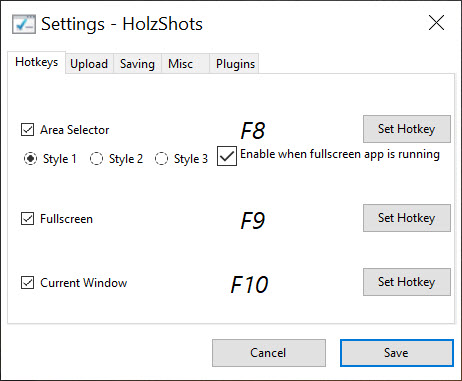
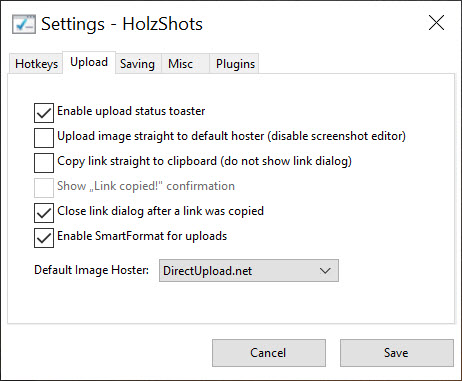
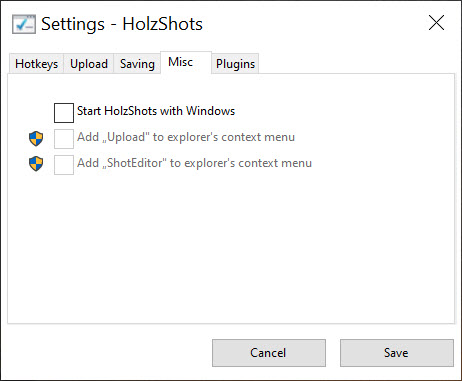
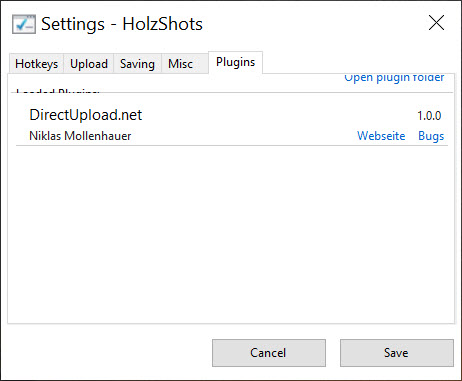
HolzShots takes screenshots and screen recordings and uploads them, and it tries to do only that. There is no dedicated settings window to click through. Every option lives in a JSON file that you open in the text editor you already use, change, and save, and the program picks the change up. For anyone who configures their tools that way, it is a relief. For anyone who expects a preferences dialog with tabs and tick boxes, it is a surprise to understand before installing.
The design is openly minimal. Its own stated aim is to cover the most common screenshot jobs well and to leave the rest to specialist tools, so there is no DNS changer, no file hash checker, no FTP client and none of the dozens of extras that fill the menus of the bigger capture suites.
HolzShots sits in the tray, answers a hotkey, captures what you asked for and gets out of the way.
Capturing, and driving it from the command line
The captures cover the essentials, a selected area or the full screen, triggered by hotkeys set in the configuration file, plus screen recording for when a still image is not enough. For animated GIF work or long, produced recordings it points you elsewhere, which is honest about its scope.
It runs as a single instance, and that instance can be controlled from the command line. Commands capture an area, capture the full screen, open an existing image in the program or upload a file, and each one talks to the running copy or starts one if none is running.
That makes it easy to tie into scripts, launchers or a keyboard macro tool, so a single key can grab and upload a region without the mouse ever touching the tray icon.
Uploaders written like user scripts
Uploading is where the configuration-first approach of HolzShots shows its value. Upload destinations are defined in small config files, the same idea as the custom uploaders in ShareX, so you can point captures at your own server or a hosting service of your choice. The difference is that these files are treated like user scripts, able to stay current rather than being copied once and left to break when a service changes its interface.
For someone running a personal image host or a team file server, that is the main reason to pick this tool. For someone who just wants a screenshot pasted into a chat, the uploader setup is more than they need, and a simpler capture tool will feel more natural.
Configuring in a text file
The HolzShots JSON configuration holds hotkeys, capture behaviour, save locations and upload targets in one place. Editing it in a code editor gives you syntax highlighting and, with a schema, suggestions as you type, which makes it quicker than it sounds once you are used to it. A mistake in the file is also easier to spot and undo than a setting buried three dialogs deep.
The trade is that nothing is discoverable. A new user cannot browse a menu to learn what the program can do, so the configuration file and its comments become the manual.
Anyone who prefers a guided interface will be happier with a screenshot tool with a visual settings dialog and a built-in annotation editor.
What it leaves out
The narrow scope is deliberate, and it means some jobs are simply not here. There is no rich annotation toolset of the sort the bigger suites offer, no scrolling capture of long pages, no text recognition and no video editing. It is open source under a strong copyleft licence and needs a 64-bit system.
For a recorder that captures a whole monitor with audio and trims the result, a simple screen recorder covers that without any configuration at all.
Conclusion
HolzShots suits people who treat their tools like code, who would rather edit a JSON file than hunt through dialogs, and who upload captures to their own servers. For that audience the text configuration, the script-style uploaders and the command-line control make it quicker and cleaner than a sprawling capture suite.
It is the wrong pick for anyone who wants to annotate screenshots heavily or who has never opened a configuration file. Keep a code editor handy, set up one uploader and a couple of hotkeys, and it becomes a quiet tray utility that captures and shares without asking for attention.
Pros & Cons
- No settings window, with every option in a single JSON file
- Uploaders defined like user scripts that can stay current
- Command-line actions control the running instance
- Captures areas, the full screen and recordings from hotkeys
- Deliberately small, with no bundled extras
- Nothing is discoverable without reading the configuration
- No scrolling capture, text recognition or rich annotation
- Uploader setup is overkill for casual sharing
- Requires a 64-bit system
Frequently asked questions
Open its JSON configuration file in any text editor, edit the values and save. There is no separate settings window.
Yes. Upload destinations are defined in config files, much like custom uploaders elsewhere, so you can target your own host or a chosen service.
Yes. Commands capture an area or the full screen, open an image or upload a file, acting on the running instance or starting one.
Yes, alongside screenshots. For animated GIFs or edited recordings, a dedicated tool is the better fit.


