

FotoSketcher


 (5 votes, average: 3.60 out of 5)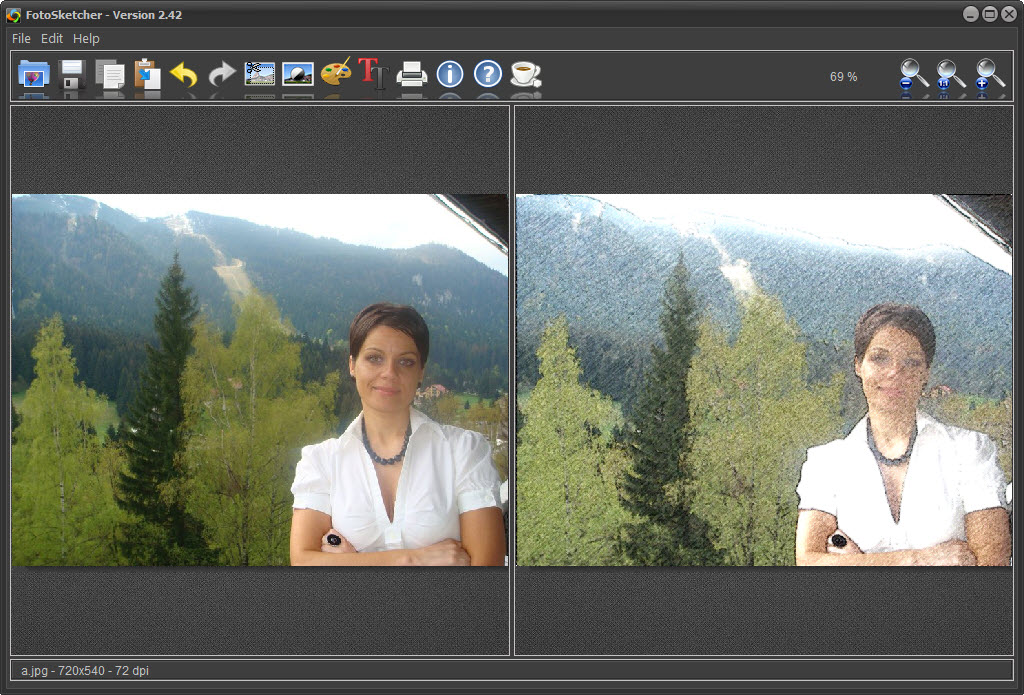
About FotoSketcher
FotoSketcher converts photographs into images that imitate hand-drawn or painted artwork, applying a set of algorithms that mimic pencil sketches, oil paintings, watercolors, pen-and-ink drawings, cartoons, and several other artistic styles.
You load a photo, pick a preset, and the application reprocesses the image to look like it came from a different medium. The output keeps the structure of the original photograph (composition, faces, objects) while replacing the photographic detail with brush strokes, pencil lines, or paint blobs that simulate the chosen style.
The tool occupies a specific niche. It’s not a general-purpose image editor like GIMP or Paint.NET, and it’s not a digital painting application like Krita or Autodesk SketchBook. Those are tools for creating art from scratch.
FotoSketcher sits between photo and finished artwork, transforming one into the other without requiring any artistic skill from the user.
How the conversion algorithms actually work
The application uses traditional image processing algorithms rather than neural networks or AI style transfer. Each preset combines a specific sequence of filters: edge detection, color quantization, blur passes, brush stroke simulation, paper texture overlay, and various blending modes. The pencil sketch presets start by detecting edges and converting them into line drawings, then add subtle shading based on the original luminance values. The oil painting presets work differently, segmenting the image into color regions and applying directional brush strokes that follow the local gradients.
This algorithmic approach has implications. The results are deterministic, meaning the same input with the same settings produces the same output every time. The processing is fast on modern hardware, with most presets completing in a few seconds even on large images. There’s no cloud dependency, no API calls, no GPU requirements beyond what any modern system already has. The trade-off is that the results don’t match the convincing realism of neural style transfer (the kind used by services like Prisma or DALL-E style filters), but they’re consistent, predictable, and instant.
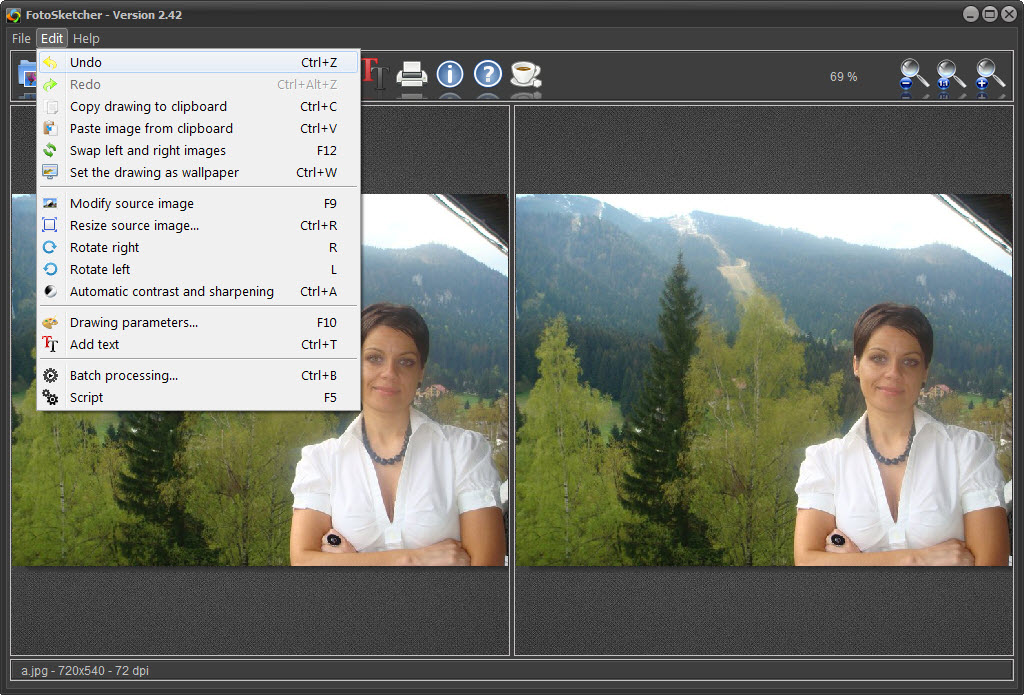
The application includes around 30 built-in presets covering the main artistic categories. Pencil sketches in several variants (soft, hard, colored). Oil paintings ranging from impressionist to more controlled brushwork.
Watercolors with soft edges and color bleeding. Pen-and-ink drawings with crosshatching. Cartoon styles with simplified color regions. Vintage and historical photo treatments. The list covers most styles a user would think to ask for.
Manual control over the presets
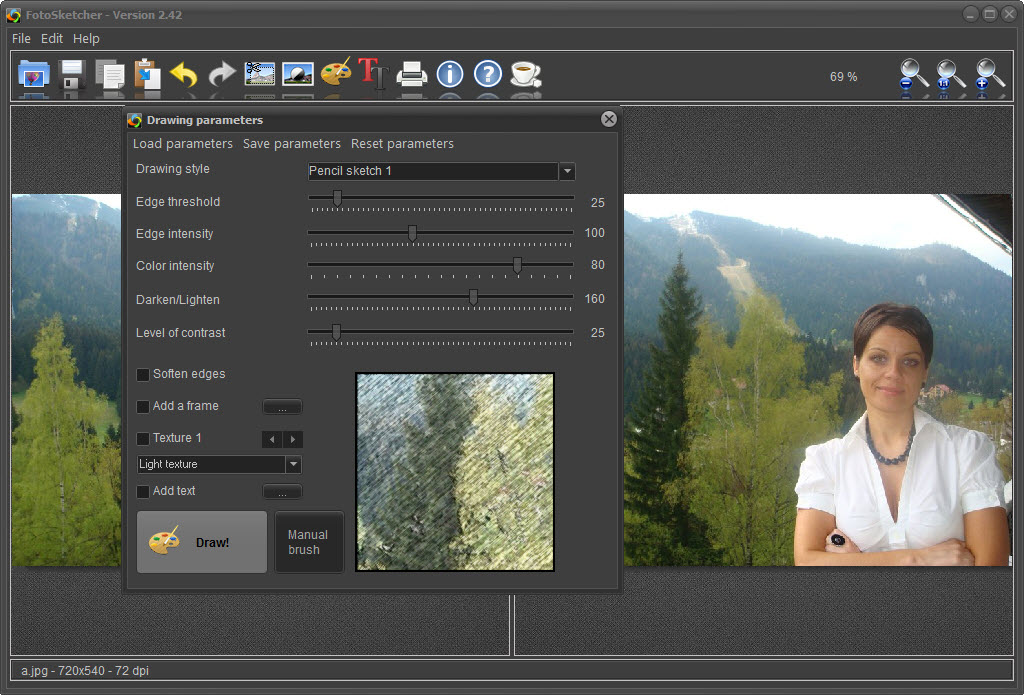
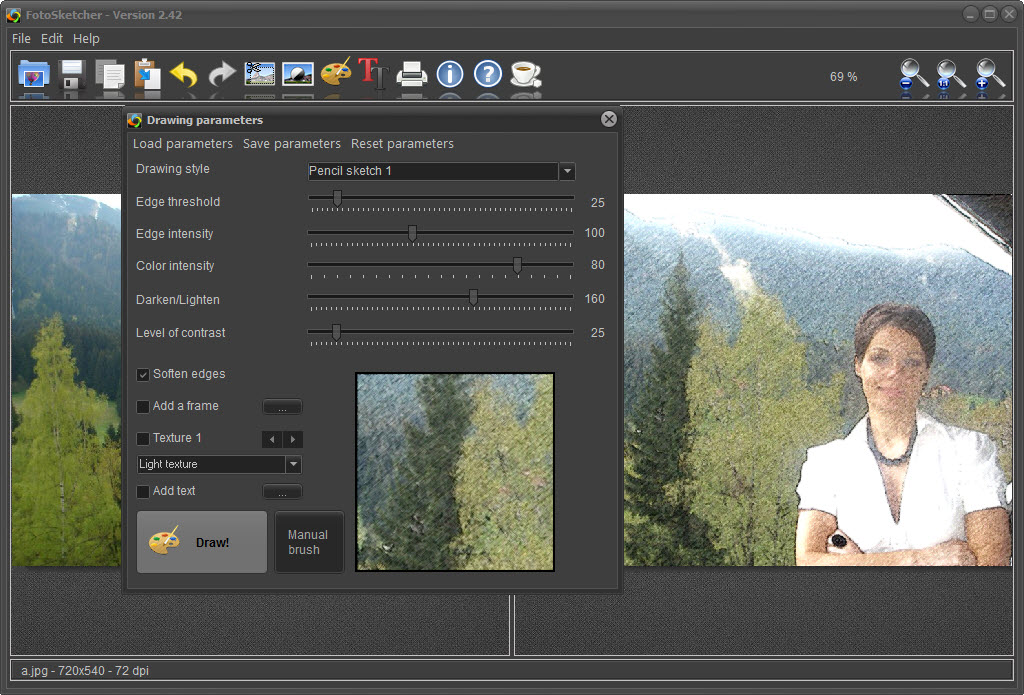
Each preset exposes a set of adjustable parameters. A pencil sketch has controls for line darkness, line density, paper texture intensity, and color preservation. An oil painting has brush size, brush count, color saturation, edge sharpening, and texture strength. The default values produce the showcased look. Adjusting them lets you push the result toward what you actually want for a specific photo.
This is where FotoSketcher earns its place. The presets give you a starting point, but the manual controls let you actually finish the job. A portrait might need lighter pencil lines than the default to keep the face from looking harsh. A landscape might need stronger brush textures than usual to make the sky look painted rather than blurred. The before/after preview updates in real time as you adjust, which makes iteration fast.
The text and frame overlay system adds the kind of finishing touches that turn a converted image into something display-ready. You can add captions, signatures, watermarks, and decorative borders, all with the same painted or sketched aesthetic as the rest of the image so they don’t look pasted on.
The fonts and frame styles are limited but appropriate for the use case.
Batch processing for large image sets
The batch mode applies a chosen preset to an entire folder of photos at once. This matters more than it sounds. The processing time per image is short, but doing 200 images one at a time through the regular interface is tedious. Batch mode reads a directory, processes every supported image with the chosen settings, and writes the results to an output folder.
This is useful for users converting an entire photo album to a consistent artistic style, for photographers who want to deliver a sketched-version pack alongside their regular photos, or for anyone preparing print materials from a large set of images.
The batch dialog doesn’t let you adjust per-image, so the workflow is best when you want the same treatment applied uniformly across the set. For mixed work where each image needs its own tuning, the single-image mode is still the right choice.
Output quality and resolution considerations
The application preserves the input resolution by default. A 6000×4000 pixel input produces a 6000×4000 pixel output, with the artistic processing applied at full resolution. This matters for print work, where downscaled output would lose the detail needed for large-format reproduction.
The downside of full-resolution processing is that some algorithms produce visible artifacts at very high resolutions. Pencil sketch lines that look natural at 1200×800 can appear too thin and broken at 6000×4000. The application includes a brush size parameter that scales with resolution, but tuning it for very large images sometimes requires trial and error. For users planning to print the output at large sizes, doing a test pass at the target resolution and adjusting from there saves time later.
Supported output formats cover the standard set: JPEG with adjustable quality, PNG with transparency support, and BMP for users who need uncompressed output. There’s no native support for layered formats like PSD, which limits what you can do downstream in a full image editor.
For users who want to layer the artistic version with the original photo for partial-effect compositions, exporting as PNG and importing into Paint.NET or GIMP handles that workflow.
Conclusion
FotoSketcher is the right tool for users who want photographs converted to artistic-looking images without learning a digital painting application or paying for cloud-based AI services. The target audience includes hobbyist photographers experimenting with creative output, users preparing gift prints from family photos, scrapbookers and crafters who want consistent artistic treatments across image sets, and anyone curious about what their photos would look like as drawings.
It’s the wrong choice for users seeking photorealistic style transfer (where neural network solutions clearly win), for digital artists who actually want to paint or sketch from scratch, or for professional illustrators whose work requires the layered editing capabilities of full graphics software.
For the specific job of turning a photograph into something that looks artistic and ready to print, the application does it quickly, locally, and with enough manual control to actually tune the output rather than accepting whatever the defaults produce.
Pros & Cons
- Around 30 presets covering pencil, oil, watercolor, pen-and-ink, cartoon, and vintage styles
- Each preset exposes adjustable parameters for fine-tuning the artistic effect
- Batch processing applies a chosen treatment to entire folders of images
- Real-time preview accelerates iteration on settings
- Built-in text, signature, and frame overlays match the artistic styles
- Full-resolution output preserves detail for print work
- No GPU requirements, no cloud dependency, no API costs
- Algorithm-based processing falls short of neural style transfer realism
- Brush and line scaling at very high resolutions sometimes requires manual tuning
- No native PSD or layered output for compositing with the original photo
- Default presets can look heavy-handed on portraits without parameter adjustment
- Interface feels dated compared to modern photo editing software
- Limited font and frame variety for added overlays
Frequently asked questions
It converts photographs into images that look like pencil sketches, oil paintings, watercolors, pen-and-ink drawings, or other artistic styles. The application uses image processing algorithms to mimic the visual characteristics of each chosen medium.
No. The application uses traditional image processing algorithms rather than machine learning. This produces consistent, predictable results with no GPU or cloud requirements, but the realism falls short of neural style transfer.
The application includes around 30 presets spanning pencil sketches (soft, hard, colored), oil paintings, watercolors, pen-and-ink drawings, cartoons, and vintage photo treatments. Each preset can be adjusted further through individual parameters.
Yes. Batch mode applies a chosen preset to an entire folder of images using consistent settings, which suits users converting large photo sets to a uniform style.
The output resolution matches the input by default. Large images (4000+ pixels on the long edge) sometimes need manual brush-size tuning to avoid algorithm artifacts at full resolution.
Yes. The application includes overlay options for captions, signatures, watermarks, and decorative borders, designed to match the artistic styles applied to the main image.
No. The application reads the input file and writes a new output file. The original photograph stays untouched.


