

Electorrent
 (2 votes, average: 5.00 out of 5)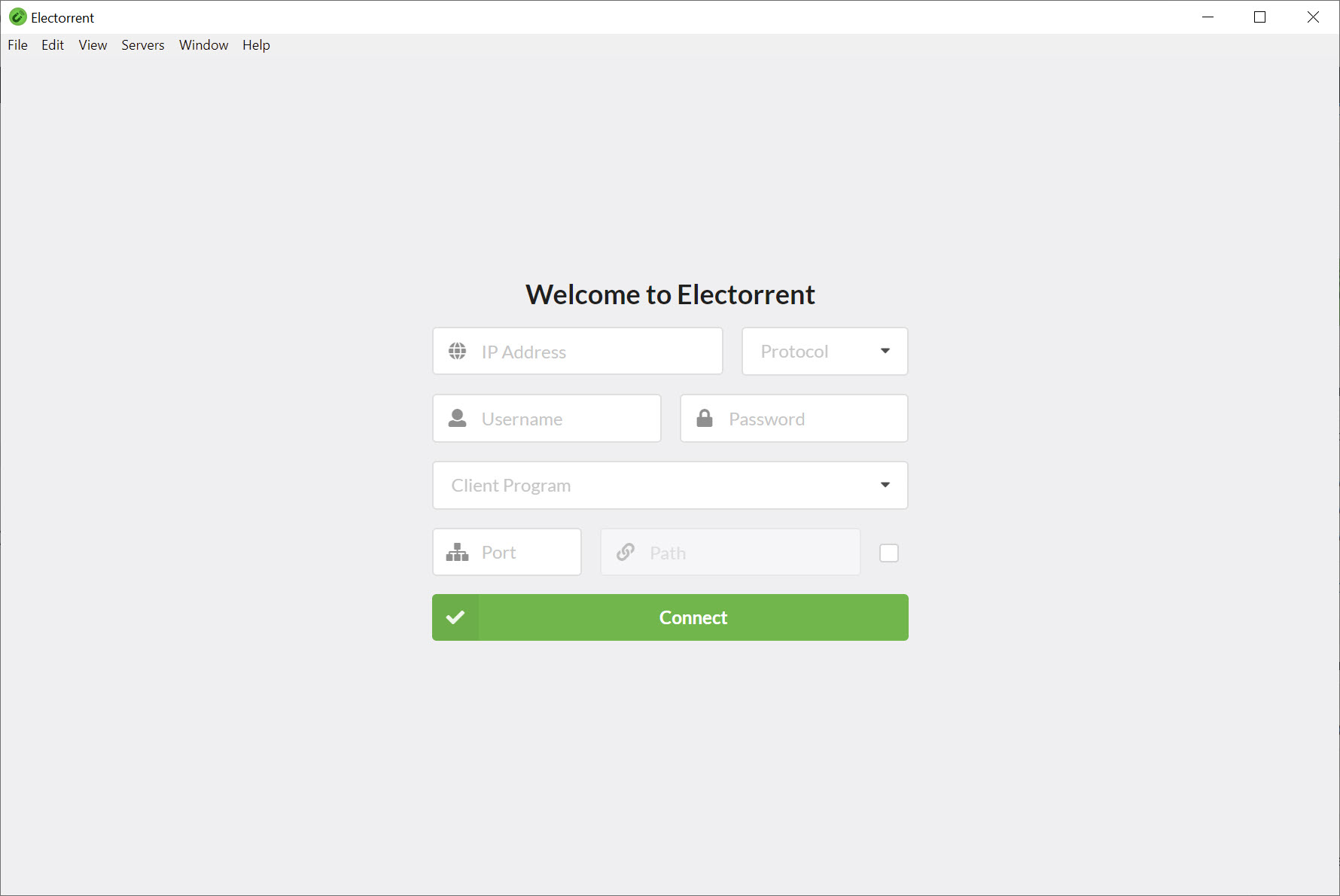
About Electorrent
Electorrent is the desktop application that gives you a proper native interface for managing torrent servers running somewhere else. The application doesn’t download torrents itself, with that work happening on your remote server (a NAS, VPS, seedbox, dedicated home machine, or whatever you’re using to handle the actual torrenting).
Instead, it connects to that remote server through whatever protocol the underlying torrent client exposes, presents the torrents through a native interface that feels like a normal desktop application rather than a web page, and handles the practical workflow of adding new torrents, monitoring progress, managing downloads, and configuring everything without forcing you to keep a browser tab open or copy-paste magnet links into web interfaces.
Click a magnet link in your browser and it gets sent to your remote server. Drag a .torrent file onto the application window and it uploads directly. Paste a magnet link from your clipboard with a keyboard shortcut and your seedbox starts the download immediately.
The application supports the major torrent client implementations that people actually run on remote servers: uTorrent, qBittorrent version 3.2 and above, Transmission, rTorrent, Synology Download Station, and Deluge. Each connection profile stores credentials and connection details for a specific server, with the application supporting multiple profiles for users who manage more than one remote setup.
The implementation uses Electron for the desktop framework, AngularJS for the application logic, and Semantic UI for the visual design, which produces a modern desktop experience rather than the dated web-based interfaces that come built into most torrent clients themselves. The application is free and open source, developed by tympanix as a personal project that addresses a specific friction in remote torrenting workflows. Active development continues with auto-updates that deliver new versions without requiring manual reinstallation.
What problem this actually solves
Running torrents on a remote server is increasingly common because it makes sense for a lot of practical reasons. Seedboxes provide fast bandwidth that consumer connections can’t match, with download speeds limited by the seedbox’s connection rather than your home internet. NAS devices keep torrents running 24/7 without leaving your main computer powered on continuously. VPS torrenting puts the activity on a different IP from your home address. Home server boxes handle torrenting alongside other services like media serving without consuming resources on your work machine.
The friction these setups produce is the management interface. Most torrent clients running on remote servers expose their controls through a web interface. The web interfaces work, but they’re dated, awkward to integrate with browser workflows, and fundamentally feel like web pages rather than applications.
Adding a magnet link means copying it from one browser tab, switching to the torrent client’s web interface tab, finding the add-magnet button, pasting, and confirming. Adding a .torrent file means downloading the file locally, opening the web interface, navigating to the upload form, browsing to find the file, and uploading. The workflow has too many steps for an operation that should be one or two clicks.
Electorrent addresses this friction by sitting between your browser and the remote server. Magnet links registered with the application route through it directly to the remote server. Torrent files dragged onto the window upload immediately. Keyboard shortcuts handle the common operations. The web interface still exists if you want it, but daily use happens through the native application that handles the workflow correctly.
Multi-client support and connection profiles
The supported client list covers the substantial portion of what people actually run on remote servers. µTorrent’s web UI is a common option for people running it remotely. qBittorrent‘s web UI has become increasingly popular as qBittorrent has overtaken µTorrent in many users’ preferences for new installations. Transmission’s RPC interface matches what runs on many NAS devices and Linux servers. rTorrent (typically alongside ruTorrent for the web frontend) covers the more technical users who run command-line torrent clients with web management.
Synology Download Station handles users who use Synology NAS devices and want to keep the included torrent functionality rather than installing alternative clients. Deluge covers another popular open-source option with substantial community usage.
Each connection profile in the application stores the relevant configuration for one specific server. Server hostname or IP address. Port number for the appropriate protocol. Username and password for authentication. Specific path configuration for clients that require it (rTorrent’s HTTPRPC plugin path, for example). Once configured, switching between profiles takes seconds, with the application reconnecting to whichever server you select.
For users with multiple remote setups (a seedbox plus a home NAS, for example, or different VPS instances handling different content categories), the multi-profile support eliminates the need to bookmark and navigate to multiple web interfaces. One application, multiple servers, switching between them through dropdown selection rather than browser tab management.
The connection details get encrypted in the local profile storage rather than stored in plain text. For users connecting to remote servers across the internet, the application handles HTTPS connections including the awkward case of self-signed certificates that many home users deploy. The built-in certificate trust system lets you accept self-signed certificates explicitly rather than getting blocked by browser-style certificate warnings every time you connect.
Magnet link protocol handling
The magnet link integration is where the application’s value becomes obvious. When you install the application and configure it as your default magnet link handler, clicking magnet links in your browser launches the application briefly, sends the link to your active remote server, and closes again. The browser stays where it was. The torrent starts downloading on the remote server. Total elapsed time is a couple of seconds, with no manual copying or interface switching.
Compare this to the standard remote torrent workflow. Click magnet link, browser asks what to open it with, choose application or copy URL. Switch to torrent client’s web interface tab. Find add-magnet button or menu. Paste URL. Click submit. Confirm. The native application reduces six or seven steps to one click, which adds up substantially across the dozens or hundreds of torrents users add over time.
For users running browsers that don’t handle protocol registration cleanly, the application also supports manual magnet link addition through the keyboard shortcut (Ctrl/Cmd+I) that pastes whatever’s currently in your clipboard. Copy a magnet link, switch focus to the application, hit Ctrl+I, and the torrent starts. The shortcut handles cases where the protocol handler approach doesn’t work or where you’ve copied a magnet link from outside a browser context.
The protocol handler also supports the case of multiple installed magnet handlers, with a dialog asking which application should handle the link when multiple options exist. Users running both this software and a local torrent client on their machine can choose per-link which one handles each magnet link, useful when you want most torrents on the remote server but specific ones on your local machine.
File handling and drag-and-drop
The .torrent file workflow is similarly streamlined. Drag a .torrent file from your file manager onto the application window, and the file uploads to your active remote server immediately. The drop target is the entire application window rather than a specific upload area, which means precision isn’t required and the operation completes naturally regardless of where in the interface your mouse releases.
For users who download .torrent files through other workflows (downloading from sites that don’t use magnet links, receiving files through email or chat, working with archived .torrent files), this drag-and-drop support handles the addition without requiring the file to leave your file manager and travel through the upload form structure that web interfaces use.
The Ctrl/Cmd+O keyboard shortcut opens a file picker dialog for users who prefer keyboard-driven interaction. Browse to the .torrent file, select it, and the upload begins. The keyboard option matches the magnet link keyboard option, with the application supporting both interaction styles for users with different preferences.
For torrent files in unusual locations or with specific selection requirements, multiple files can be added through repeated drops or multi-select in the file picker. The application processes each file as a separate addition to the remote server, with the user seeing progress for each as the uploads complete.
Native notifications and the desktop integration
The native desktop notifications use whatever notification system your operating system provides rather than the awkward in-page notifications that web interfaces sometimes try to show. New torrent added. Download completed. Errors occurred during processing. Each notification appears through the standard system notification mechanism, with the appearance and behavior matching what other native applications produce.
For users running multiple desktop applications, the unified notification appearance matters. Notifications from this software look like notifications from any other application rather than feeling like out-of-place web alerts. The integration with system notification settings (do-not-disturb modes, focus modes, custom notification rules) all works because the application uses the standard mechanism.
The notification timing balances usefulness against intrusiveness. Important events (completion, errors) produce notifications. Routine progress updates don’t, with users checking progress through the application’s interface rather than receiving constant notification spam. The default behavior fits most users without requiring configuration, with options available for users who want different notification patterns.
Fuzzy search across torrents
The fuzzy search lets you find specific torrents in your remote server’s library by typing partial matches that don’t have to be exact. Search for “wal” and the application finds “Walking Dead”, “Wallace and Gromit”, “Wall-E”, or whatever else has those characters in roughly that order. The fuzzy matching handles typos, partial memory of names, and various other practical search scenarios where exact text matching would fail.
For users with substantial torrent libraries on their remote servers (seedbox users particularly accumulate hundreds or thousands of historical torrents over time), this search functionality matters substantially. Finding a specific torrent in a list of 500 by scrolling becomes impractical, with search being the practical access path. The fuzzy approach makes search forgiving rather than requiring exact recall of names.
Search filters extend beyond just names to status (downloading, seeding, completed, error), categories or labels assigned to torrents, and various other metadata that the underlying torrent client exposes. For users wanting to focus on specific subsets of their library (active downloads only, completed but still seeding, errored items needing attention), these filters narrow the view to relevant items.
Auto-updates and the development cadence
The auto-update mechanism delivers new versions of the application directly without requiring manual reinstallation. The application checks for updates from the GitHub release feed, downloads new versions when available, and installs them automatically after user confirmation. The Squirrel framework handles the actual update mechanics, with the user experience being similar to how applications like Discord or Slack handle their updates.
For users who want predictable software that updates without intervention, this delivery mechanism removes friction. The alternative of manually checking for updates, downloading installers, and running them produces the kind of update lag that leaves users running outdated versions for extended periods.
For users who want more control over when updates happen, the auto-update behavior is configurable. Disable automatic checks for users who prefer manual update workflows. Disable automatic installation for users who want to choose when updates apply. The flexibility supports different user preferences without forcing one update model on everyone.
Comparison with alternatives
The category of remote torrent management has multiple options with different positioning. Web interfaces (the built-in interfaces of qBittorrent, Transmission, Deluge, and various others) work without additional software but produce the friction that motivates installing dedicated applications. Mobile apps (Transmission Remote, qBittorrent Manager, various others) handle remote management from phones but don’t address desktop workflows.
Other desktop remote clients exist for specific torrent client implementations. Transmission Remote GUI handles Transmission specifically with a more polished interface than the web UI. ruTorrent works well as a web frontend for rTorrent but isn’t a desktop application. Various other client-specific tools cover narrow scenarios but don’t handle multiple torrent client implementations through one application.
Electorrent‘s differentiation is the multi-client support combined with proper desktop integration. Users running mixed environments (a Synology NAS with Download Station plus a seedbox with rTorrent, for example) can manage both from one application rather than maintaining separate tools per server. The desktop integration that web interfaces lack handles the practical workflow concerns. The trade-off is that very specific features of individual torrent clients sometimes don’t fully expose through the unified interface, with users wanting maximum control over a specific client occasionally finding the client’s native web interface exposing more options.
For users running torrent clients locally rather than remotely, this software isn’t the right tool. Local torrent clients like qBittorrent, uTorrent, or Tixati handle their own management directly rather than requiring a separate remote client. The use case for this software is specifically the remote scenario where a separate machine is doing the actual torrenting work.
Considerations and limitations
The application is fundamentally an interface for managing remote servers, which means it depends entirely on having those servers properly configured. Users without remote servers can’t use the application productively, with the entire value proposition assuming you’ve already set up the underlying torrent client somewhere. For users planning their first remote torrent setup, the application doesn’t help with the server-side configuration that has to happen first.
Support for specific torrent clients sometimes lags behind those clients’ own development. New features added to qBittorrent or Deluge may take time to appear in this software, with the underlying API support requiring development effort to expose new capabilities. Most basic functionality stays current, but bleeding-edge features in specific clients may not be fully available through this interface immediately upon release.
The Electron framework that powers the desktop interface produces a larger application footprint than native applications would. Memory consumption and startup time aren’t problematic on modern systems but are noticeably higher than what minimal native applications would produce. For users on constrained hardware, this overhead may matter.
The lack of code signing certificates produces antivirus warnings during installation on some systems. The developer addresses this in the project documentation by noting that the warnings are false positives related to the unsigned binary rather than actual security concerns, but users who are unfamiliar with the situation may find the warnings worrying enough to abandon installation. For users comfortable with unsigned applications from GitHub-released open source projects, the warnings are an inconvenience rather than a barrier.
Some specific torrent client features require client-side configuration that the application can’t help with. rTorrent’s HTTPRPC plugin needs proper installation and configuration on the rTorrent server before this software can connect successfully.
Synology Download Station needs API access enabled in the Synology configuration. Self-signed certificates need acceptance through the certificate trust dialog. These setup steps are documented but require user attention rather than being handled automatically by the application.
Conclusion
For users running torrent clients on remote servers (seedboxes, NAS devices, VPS instances, dedicated home machines) and wanting proper desktop integration rather than the friction of web interfaces, Electorrent delivers a focused tool that handles the common workflows through a native desktop application.
The combination of magnet link protocol handling, drag-and-drop file uploads, multi-server profile support, and unified interface across six different torrent client implementations covers the practical management scenarios that motivate installing dedicated remote management software in the first place. The open-source development model and active maintenance produce confidence that the application stays current as the underlying torrent clients evolve.
The reasons to consider alternatives are mostly about specific scenarios. Users running torrents only on their local machine find dedicated local clients like qBittorrent or Tixati handling their needs directly without the remote-server complexity. Users who only manage one specific torrent client and prefer client-specific tooling find single-client solutions sometimes producing better integration than this software’s unified approach.
Users who don’t mind web interfaces and don’t manage torrents frequently enough to justify dedicated software find the built-in web interfaces sufficient for their actual usage patterns. But for users who manage remote torrent servers regularly and want the workflow improvements that proper desktop integration provides, this software remains one of the more useful options in the remote torrent management category, with the multi-client support and modern interface design covering ground that simpler alternatives don’t reach.
Pros & Cons
- Connects to multiple torrent client implementations through one unified interface
- Handles magnet link protocol for direct browser-to-remote-server workflow
- Drag-and-drop support for .torrent files uploads them to the active remote server
- Multiple connection profiles support managing more than one remote server
- Native desktop notifications integrate with operating system notification settings
- Fuzzy search finds torrents through partial matches and forgiving text comparison
- Built-in certificate trust handles self-signed certificates that home setups commonly use
- Auto-updates from the project release feed deliver new versions without manual reinstallation
- Free and open source without paid tiers or feature restrictions
- Useful only for users with remote torrent servers, narrow audience
- Support for specific torrent client features sometimes lags behind those clients' own development
- Electron framework produces larger memory footprint than native applications
- Lack of code signing certificates produces antivirus warnings during installation
- Some torrent client setup requires server-side configuration that the application can't help with
Frequently asked questions
This software is a desktop remote control client for managing torrent servers running somewhere else. It supports µTorrent, qBittorrent (version 3.2 and above), Transmission, rTorrent, Synology Download Station, and Deluge through a unified native interface, with features including magnet link protocol handling, drag-and-drop torrent file uploads, multiple connection profiles, native desktop notifications, fuzzy search, and self-signed certificate support. The application is built on Electron, AngularJS, and Semantic UI, and is open source.
The application connects to remote torrent clients through their respective remote APIs and presents their controls through a native desktop interface. You can add new torrents (through magnet links or .torrent files), monitor progress of existing downloads, manage seeding behavior, and configure various torrent settings without using the web interfaces that come built into the torrent clients themselves. The native interface handles the desktop integration concerns that web interfaces don't address well.
Configure connection profiles for each remote server you manage, with each profile containing the server address, port, authentication credentials, and specific configuration for the torrent client running there. Select the active profile to connect to that server. The application queries the server's API to display current torrents and their status. User actions (adding torrents, pausing, resuming, deleting) translate to API calls that the remote server executes, with the local interface updating to reflect the changes.
Three main methods work depending on your preferred workflow. Click a magnet link in your browser if you've registered the application as your magnet link handler. Drag a .torrent file from your file manager onto the application window. Use Ctrl/Cmd+I to paste a magnet link from your clipboard, or Ctrl/Cmd+O to browse for a .torrent file. Each method results in the torrent being added to the active remote server's queue, with downloading happening on that server rather than locally.
The supported list includes µTorrent (through its web UI API), qBittorrent (version 3.2 and above through its WebUI API), Transmission (through its RPC interface), rTorrent (through HTTPRPC, ideally with the HTTPRPC plugin installed), Synology Download Station (through Synology's API), and Deluge (through its web interface API). Other torrent clients aren't supported because they don't have remote APIs or because their APIs haven't been integrated into the application yet.
A regular torrent client (like qBittorrent or uTorrent) actually downloads and uploads torrent data, requiring your computer to be running and connected to the network during torrent activity. Electorrent doesn't download or upload anything itself, with that work happening entirely on a remote server you've set up. The application is a management interface for that remote server rather than a torrent client. For users who only want to torrent on their local machine, regular torrent clients are appropriate. For users running torrents on remote servers (NAS devices, seedboxes, VPS instances), this software provides the management interface that the remote setup needs.
rTorrent requires specific HTTP server configuration to expose its RPC interface, with the application's documentation including a guide for proper setup. The HTTPRPC plugin (a community plugin for rTorrent) provides a simpler configuration path through the /plugins/httprpc/action.php endpoint that the application can connect to once the plugin is installed and configured. Without proper rTorrent configuration on the server side, the application can't connect regardless of how it's configured locally.
Connection failures typically come from server-side configuration issues, network connectivity problems, or authentication failures. Verify that the torrent client's remote API is enabled and accessible from your network location. Check firewall rules for both the server (allowing incoming connections to the API port) and your local network (allowing outgoing connections to the server). Confirm that the credentials configured in the connection profile match what the torrent client expects. For HTTPS connections with self-signed certificates, accept the certificate through the application's trust dialog before expecting the connection to work.
Yes, the multi-profile support lets you configure connection details for multiple remote servers and switch between them through the application's interface. Each profile is independent, with separate credentials, settings, and active torrent state. For users running multiple remote setups (separate seedboxes, NAS plus VPS, different servers for different purposes), this multi-server support eliminates the need for separate management tools for each server.
No, the application doesn't download torrents to your local machine. All downloading happens on the remote server you've configured, with the application only providing the management interface. Files downloaded by the remote server stay on that server, with separate steps required to transfer files from the server to your local machine if you want local copies. For users wanting local torrenting, regular torrent clients like qBittorrent or uTorrent handle that scenario directly without this software.


