

DesignDoll


 (72 votes, average: 3.85 out of 5)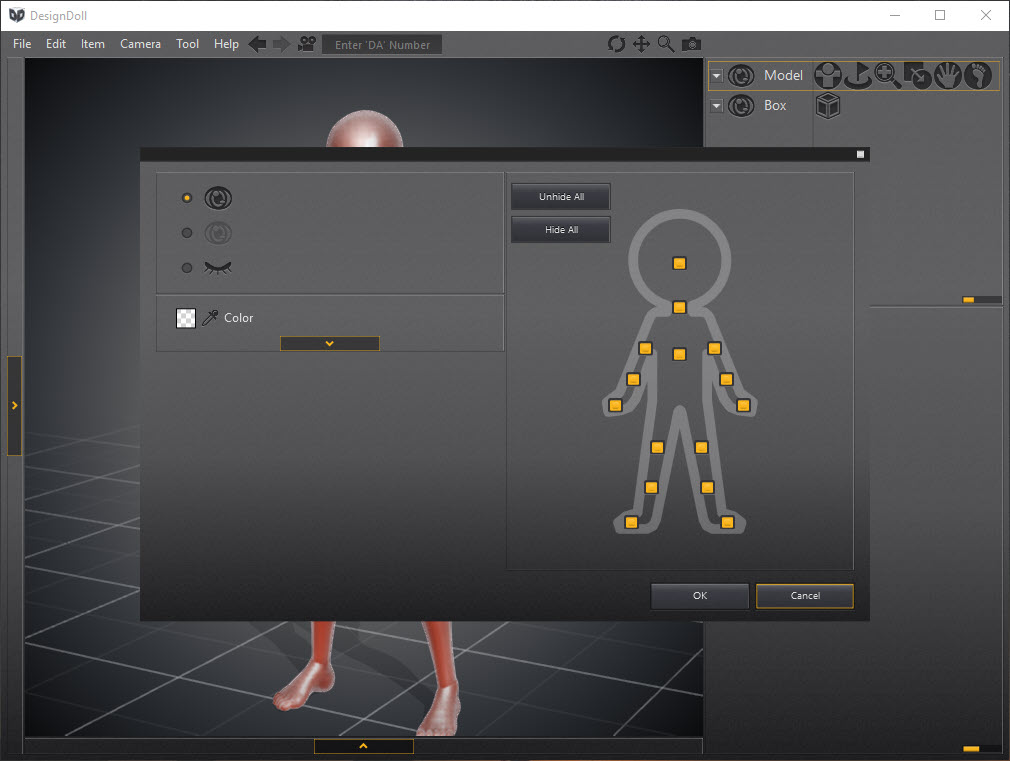
About DesignDoll
Drawing the human figure from imagination is one of those skills that takes years to develop and remains imperfect even after decades of practice. Foreshortening, dynamic poses, unusual camera angles, complex perspective, anatomy that holds up under scrutiny, all of these are easier with a reference in front of you than without one.
DesignDoll is the desktop application that turns the search for that reference into a pose-it-yourself process, providing a fully articulated 3D mannequin you can manipulate to whatever angle and posture your current illustration needs.
The application is purpose-built for artists rather than animators or general 3D users. The interface skips the usual scene-management complexity of full 3D software and focuses on the specific task of producing a usable visual reference from a posable human form.
Manga and comic creators are the primary audience by design, but illustrators across other styles, character designers, animators sketching keyframes, and anatomy students all end up using it for similar reasons.
The articulated model and how you pose it
The core model is a featureless 3D mannequin with joints at every realistic articulation point: shoulders, elbows, wrists, fingers, hips, knees, ankles, neck, spine segments. Click and drag any joint and the connected limbs follow through inverse kinematics, which means you don’t have to manually rotate each bone in a chain. Drag the hand and the elbow bends naturally. Drag the foot and the knee responds.
That direct-manipulation workflow is what separates the application from full 3D software for this use case. In Blender or similar tools, posing a character requires rigging, weight painting, and IK constraint setup before you can pose anything. The application skips all of that, treating the human figure as a domain it has built-in knowledge of, with joint constraints already configured to prevent unrealistic articulations (knees that bend backward, wrists that rotate 360 degrees, and so on).
For finer pose adjustments, individual joints can be rotated through rotation handles that appear when a joint is selected. The gizmo lets you constrain rotation to specific axes when you want a precise change without affecting other angles.
Saving the resulting pose to a library makes it reusable across future projects.
Body proportions and the customization angle
Beyond posing, the application lets you reshape the model itself. Height, limb lengths, head size, torso width, hand size, foot size, muscle definition, body fat, and dozens of other parameters are sliders rather than fixed values. Want a stylized character with exaggerated proportions, six-and-a-half-head-tall manga style, or anatomically accurate adult proportions? All achievable through the proportion controls.
The presets cover common stylistic targets: standard male, standard female, child, athletic build, heroic exaggerated proportions, slim manga proportions. Starting from a preset and tweaking from there is faster than starting from defaults for users who know roughly what they want.
For artists working on consistent characters across multiple drawings, the saved proportion sets let you maintain the same character anatomy from pose to pose without rebuilding the model each time. That continuity matters for comic and manga work where a character appears in panel after panel and needs to look the same throughout.
Multiple models and scene composition
The application supports placing multiple models in a single scene, which is the practical answer to drawing interactions between characters. Pose one figure as the attacker in a fight scene, pose another as the defender, position them in 3D space to match the perspective you want to draw from, and you have a reference for the entire interaction rather than just one isolated figure.
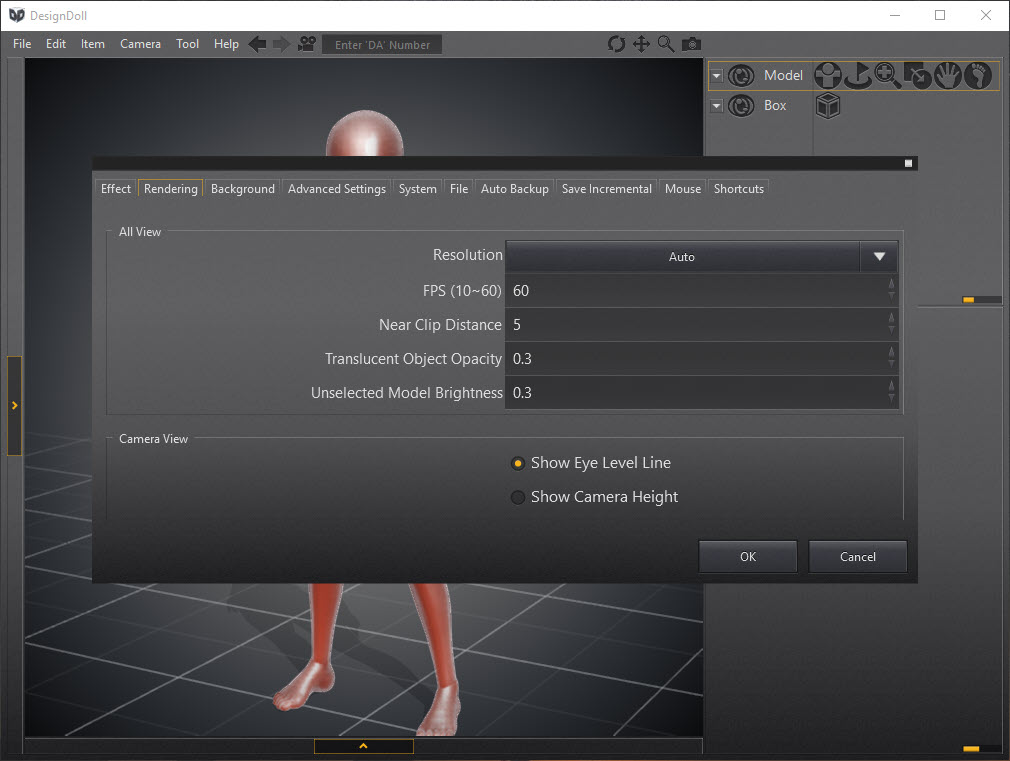
Camera controls let you orbit, pan, and zoom around the scene through standard mouse interactions. The resulting view is what you’d actually use as drawing reference, including perspective foreshortening that’s hard to draw correctly without something to look at.
For artists working on a digital illustration pipeline, taking screenshots of specific camera angles and bringing them into Krita or MediBang Paint Pro as a reference layer is the standard workflow.
Reference image overlay and contour modes
The application includes overlay modes that change how the model renders for reference purposes. Standard solid shading gives you a normal 3D view. Silhouette mode shows the model as a flat black outline against the background, useful for understanding pose readability and overall composition. Contour mode renders the model with line work that emphasizes major form transitions, which is closer to what you’d actually draw.
Reference images can be imported and displayed alongside the model, either as background plates or as overlays. The use case is matching a model pose to a photographic reference, or comparing the 3D model output to a target sketch you’re developing. Layering the reference and the model in the same view simplifies the matching process compared to switching between windows.
For artists wanting to build a finished illustration around a model reference, the export workflow produces PNG images that can be brought into any image editor. Pairing the application with PaintTool SAI for the painting side is a common combination, particularly for users in the manga and anime art tradition.
Custom OBJ import for props and accessories
The model on its own doesn’t carry props, clothing, or environmental elements. The application supports OBJ file import for users who want to add accessories, weapons, furniture, or set pieces to the scene. Drop in an OBJ of a sword and parent it to the character’s hand. Add a chair OBJ for the character to sit on. The accessories don’t articulate the way the main model does, but they provide spatial reference for how objects fit with the figure.
For users wanting more sophisticated 3D scene composition with proper materials and lighting, exporting the posed model to Blender through OBJ export and continuing the work there is the bridge to a fuller 3D pipeline. The application’s strength is the posing, not the final rendering, so handing off to dedicated 3D software for the rendering side makes sense when production quality matters.
Lighting and rendering options
Basic lighting controls let you place light sources, adjust intensity, and shift the lighting direction to match what your illustration will eventually depict. The renderer is not photorealistic, but it produces clear enough shading for understanding how light falls across the figure in the chosen pose.
The rendering is real-time, so you can rotate the camera and see how the lighting interacts with the pose immediately. For artists who care about getting the shadow shapes right in their drawings, this is the practical value: seeing the cast shadows before committing them to ink.
What the renderer doesn’t do is produce finished artwork. The output is reference material, not a final image. Artists who want to use the 3D model as direct artwork end up rendering it in a more capable tool and using the application purely for the posing stage.
Where the application falls short
The free tier is limited in ways that nudge users toward the paid version. Save and export functionality is restricted, custom proportion sliders are partially locked, and the pose library is smaller. The free version is enough to evaluate the application thoroughly but not enough to use it productively over time without an upgrade.
The user interface is dense and the learning curve is steeper than the workflow’s simplicity suggests. New users struggle with the camera controls (which use a specific combination of mouse buttons), with finding specific proportion sliders buried in nested menus, and with the difference between joint rotation and joint translation. The documentation exists but is sparse, and most learning happens through community tutorials rather than the application itself.
The mannequin’s anatomical accuracy is acceptable for reference purposes but not for medical illustration. The model is built around stylized proportions that work well for character art, and accommodates anatomy variations through proportion sliders, but doesn’t expose the underlying skeletal structure or muscle groups in detail. For anatomy study at that level, dedicated anatomy reference tools are more appropriate.
The rendering quality is also limited. The shading model is basic, the textures are minimal (the model is essentially flat-shaded with simple gradient transitions), and there’s no support for clothing simulation or hair beyond what comes with imported OBJ accessories. Treating the application as a posing tool rather than a rendering tool is the correct framing.
Conclusion
DesignDoll occupies a specific position in the digital art tool category, which is the bridge between traditional anatomy reference and full 3D software. For artists who need accurate, posable, customizable human figure reference but don’t want to commit to learning a complete 3D suite, the application is built precisely around that gap and fills it well.
The natural audience is manga and comic artists, illustrators working on character-heavy projects, animators sketching keyframes, and students learning figure drawing. Casual hobbyists who only occasionally draw figures may find the application’s depth more than they need, and finding-pose-online alternatives sufficient for their occasional reference needs. Professional artists working at production volumes get the most from the application, particularly the proportion presets for consistent character work and the multi-model scene composition for interaction reference.
Within that audience, the application has built a reputation as one of the standard reference tools, and its position in the manga and anime art community in particular is hard to replace with any general-purpose 3D alternative.
Pros & Cons
- 3D posable mannequin with realistic joint constraints and inverse kinematics
- Adjustable body proportions across dozens of parameters for stylistic flexibility
- Multiple models per scene support character interaction reference
- Silhouette and contour rendering modes match how artists actually work
- OBJ import allows props and accessories beyond the bundled figure
- Pose library saves and reuses character postures across projects
- Bridges into broader workflows through image export and OBJ output
- Free tier limits save, export, and pose library access in ways that push toward paid upgrade
- User interface is dense with steep camera-control learning curve
- Anatomy is stylized for character art rather than medically accurate
- Rendering is basic, not suitable for finished artwork production
- Documentation is sparse, with most learning through community tutorials
- No built-in clothing or hair simulation
Frequently asked questions
It's a 3D human figure reference tool for artists. You manipulate a posable mannequin into the position your illustration needs, adjust the body proportions to match your character, then use the result as a drawing reference. The application focuses entirely on the reference-creation stage, not on finished artwork rendering.
Yes. The application includes male and female base models, and the proportion sliders allow morphing between them and into any stylized middle ground. Changing the base gender is a single menu option, while adjusting specific proportions is a series of slider edits.
The proportion editor exposes sliders for height, limb lengths, head size, torso width, weight, muscle definition, and many other parameters. Saving the resulting proportion set as a preset lets you reuse the same character across multiple drawings.
Yes, OBJ format files can be imported as props or accessories. The imported objects don't articulate like the main model but provide spatial reference for how objects fit with the figure. Weapons, furniture, and set pieces are common imports.
Yes, the posed model can be exported as an OBJ file for use in tools like Blender. Image export to PNG is the more common workflow for artists, since the application's role usually ends at producing a reference image rather than feeding into a 3D pipeline.
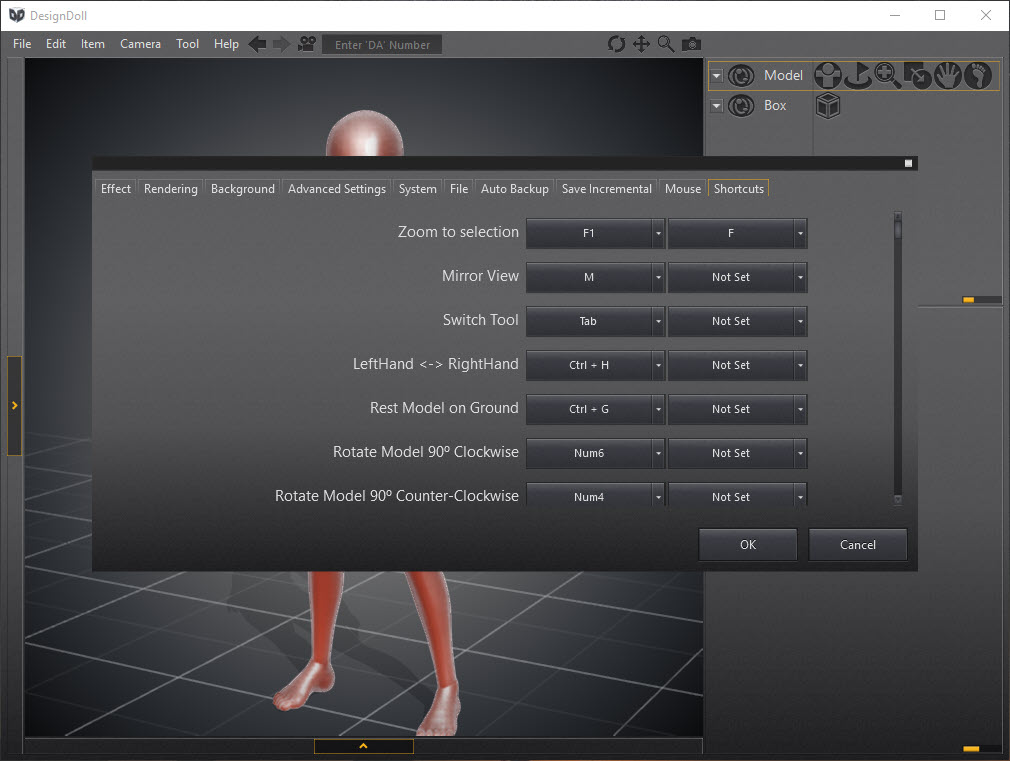
Camera controls use specific mouse-button combinations (typically middle-click drag for orbit, with modifiers for pan and zoom). The exact bindings are configurable, and learning them is one of the steeper parts of the initial learning curve.
Yes. Multiple models can be placed in the same scene, each posed independently. This is the standard approach for drawing fight scenes, conversations, group poses, or any composition involving more than one figure.
No, the application is a reference tool rather than a finished-artwork generator. The renderer produces clear enough images to use as drawing reference, but the output is meant to be drawn over or alongside in a dedicated illustration tool rather than presented as final art.


