

CyberLock
About CyberLock
CyberLock protects a PC by refusing to run anything it has not seen before. Right after installation it takes a snapshot of every program already on the system and turns that list into a whitelist. From then on, a new executable, script or installer has to prove itself before it may start, whether or not any antivirus has heard of it.
That default-deny idea is old, but whitelisting tools have always had one problem. They nag constantly and get switched off within a week. The selling point here is that the lock is dynamic. It tightens when the computer is exposed to the internet and relaxes when you are working offline.
A machine-learning engine and a cloud reputation database decide on unknown files, so you are not asked every time.
A lock that closes when risk goes up
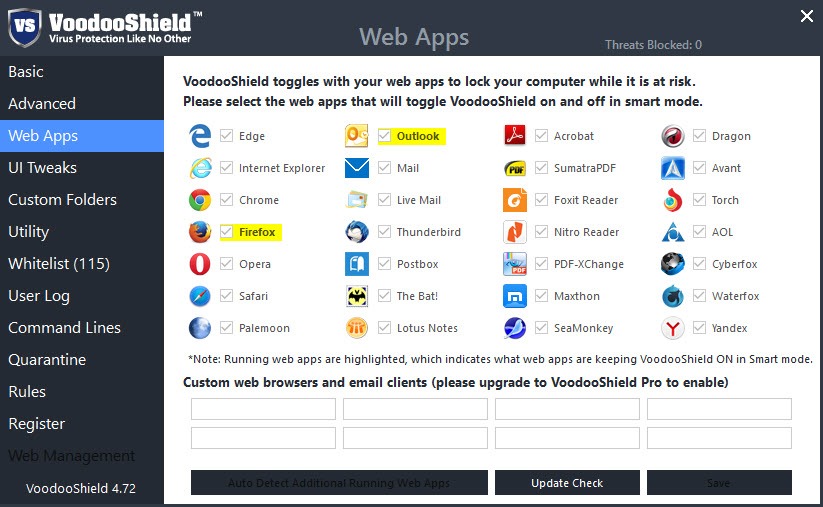
The default Smart mode is what makes the product livable. CyberLock watches which programs are running, and when something web-facing is active, such as a browser or an email client, the lock engages and new unknown files are blocked. Close those programs and the lock opens again, so installing software from a USB stick or running your own scripts does not trigger a fight.
The reasoning is practical. Most infections arrive through a download, a malicious attachment or a compromised web page, which all happen while internet programs are open. Locking exactly then catches the dangerous moment while staying quiet the rest of the day.
Forum users who tested it in default settings report that it stays unobtrusive for normal use, which is the hardest thing for any whitelisting tool to achieve.
Five modes for different levels of trust
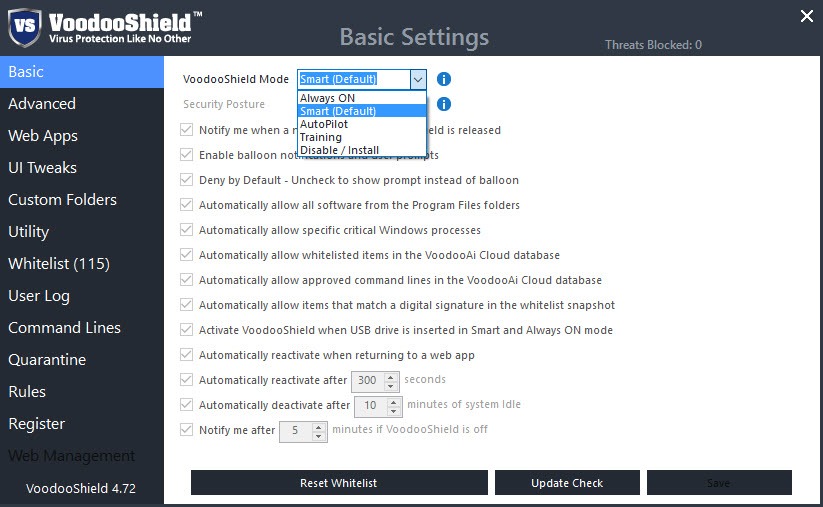
Beyond Smart mode there are four more, each a different trade between safety and convenience. Always ON is the strictest. Every new file is blocked unless it is whitelisted, regardless of what else is running, which suits a machine that should never change.
AutoPilot goes the other way. It checks unknown files with the machine-learning engine and the reputation database, then allows and whitelists anything both consider clean. That removes almost all prompts, but it also means the PC is no longer default-deny, since an unknown threat the engines judge as clean gets through.
Training and Disable/Install switch protection off. Training adds everything that runs to the whitelist, which is useful when setting up a new program with many components. Disable/Install allows new items without whitelisting them, for a one-off installer you do not want remembered.
Neither protects you, so return to Smart or Always ON afterwards.
How unknown files get judged
When a blocked file appears, CyberLock shows a prompt with its verdict rather than a bare “allow or block” question. The local machine-learning engine scores the file, the cloud reputation database reports whether it is widely known and trusted, and installers can also be checked against a set of antivirus scan engines in the cloud.
That combined verdict is what keeps the prompts readable for non-experts. A signed installer from a well-known publisher usually comes back clean on every count, while a random executable from a temp folder is flagged. Blocking happens at kernel level, so a program cannot simply launch before the check finishes.
Command-line operations launched by scripts are inspected too, which closes a route many attacks rely on. If a verdict still leaves you unsure, a second-opinion scan with Malwarebytes settles it before you click Allow.
Whitelist editor and rules
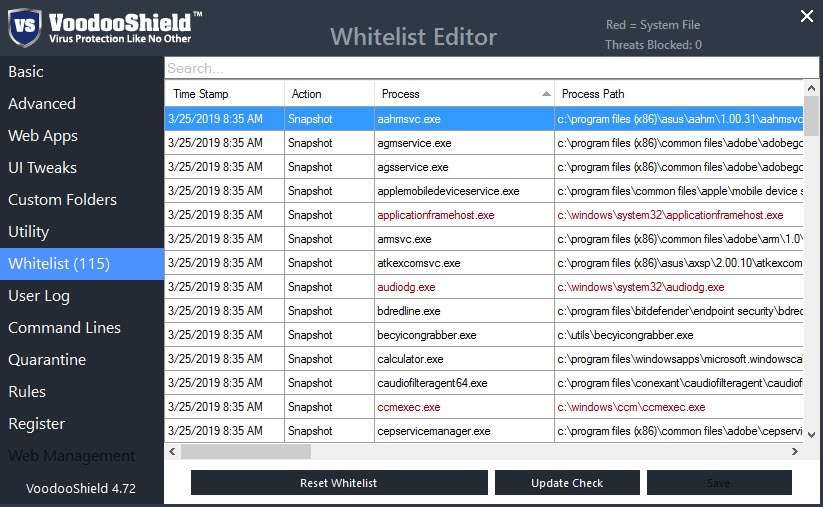
The Whitelist Editor shows everything currently allowed, and you can add or remove entries by file, folder or publisher. Rules extend that, for example permitting a trusted development folder or blocking a specific program even when it is whitelisted. A setting can back up the whitelist snapshot to the cloud and synchronise it, so a reinstall does not mean starting over.
Two related options deserve care. Allowing child processes of whitelisted programs reduces prompts, because an approved application can start its own helpers. An anti-exploit option works in the opposite direction, blocking suspicious child processes of programs often targeted by attacks, like documents spawning a script. Leave both at their defaults unless you know why you are changing them.
For a classic approach that also runs untrusted software inside a container, Comodo Internet Security combines a firewall with auto-sandboxing.
Not a replacement for an antivirus
The program says so itself. It is designed to run next to a traditional antivirus, not instead of one, because it only decides what may start. It does not clean files already on the disk, scan downloads you never run, or filter websites.
So pair it with real-time protection, whether that is the built-in one or a full antivirus suite such as Bitdefender. Keep an on-demand scanner around for second opinions, and remember that the snapshot whitelists whatever exists at install time.
Install CyberLock on a machine you already trust, ideally right after a full scan, so nothing harmful slips into the whitelist on day one.
Conclusion
CyberLock suits users who want an extra layer that stops unknown malware before it runs, without the constant prompts that make most whitelisting tools unbearable. Smart mode’s internet-aware lock is a clever balance, and the verdicts in each prompt make decisions easier for people who are not security experts.
It asks you to understand its modes, especially which ones turn protection off, and it never replaces an antivirus. Set up on a clean system and left in Smart or Always ON mode, it closes the door on the most common infection routes.
Pros & Cons
- Default-deny protection blocks unknown programs regardless of signatures
- Smart mode locks only while internet-facing programs run, keeping prompts rare
- Five modes cover everything from strict lockdown to automatic approval
- Machine learning and cloud reputation explain each verdict in the prompt
- Kernel-level blocking also covers scripts and command-line operations
- AutoPilot drops the default-deny guarantee in exchange for fewer prompts
- Training and Disable/Install leave the PC unprotected until switched back
- Anything already on the system at install time is whitelisted automatically
- Needs a regular antivirus alongside it
Frequently asked questions
Smart mode for most people, since it locks only while browsers and other web-facing programs run. Choose Always ON for a machine that should never change, and AutoPilot only if prompts bother you more than the reduced protection.
Yes. It controls what may run but does not scan or clean files, so it is meant to work alongside real-time antivirus protection.
Switch to Training mode to whitelist the new program and its components, or Disable/Install if you do not want the installer remembered. Return to Smart mode as soon as the installation finishes.
Command-line operations are checked separately, and the anti-exploit option blocks suspicious child processes. Allow the item from the prompt or add a rule in the Whitelist Editor.


