

Acrylic Wi-Fi Analyzer
About Acrylic Wi-Fi Analyzer
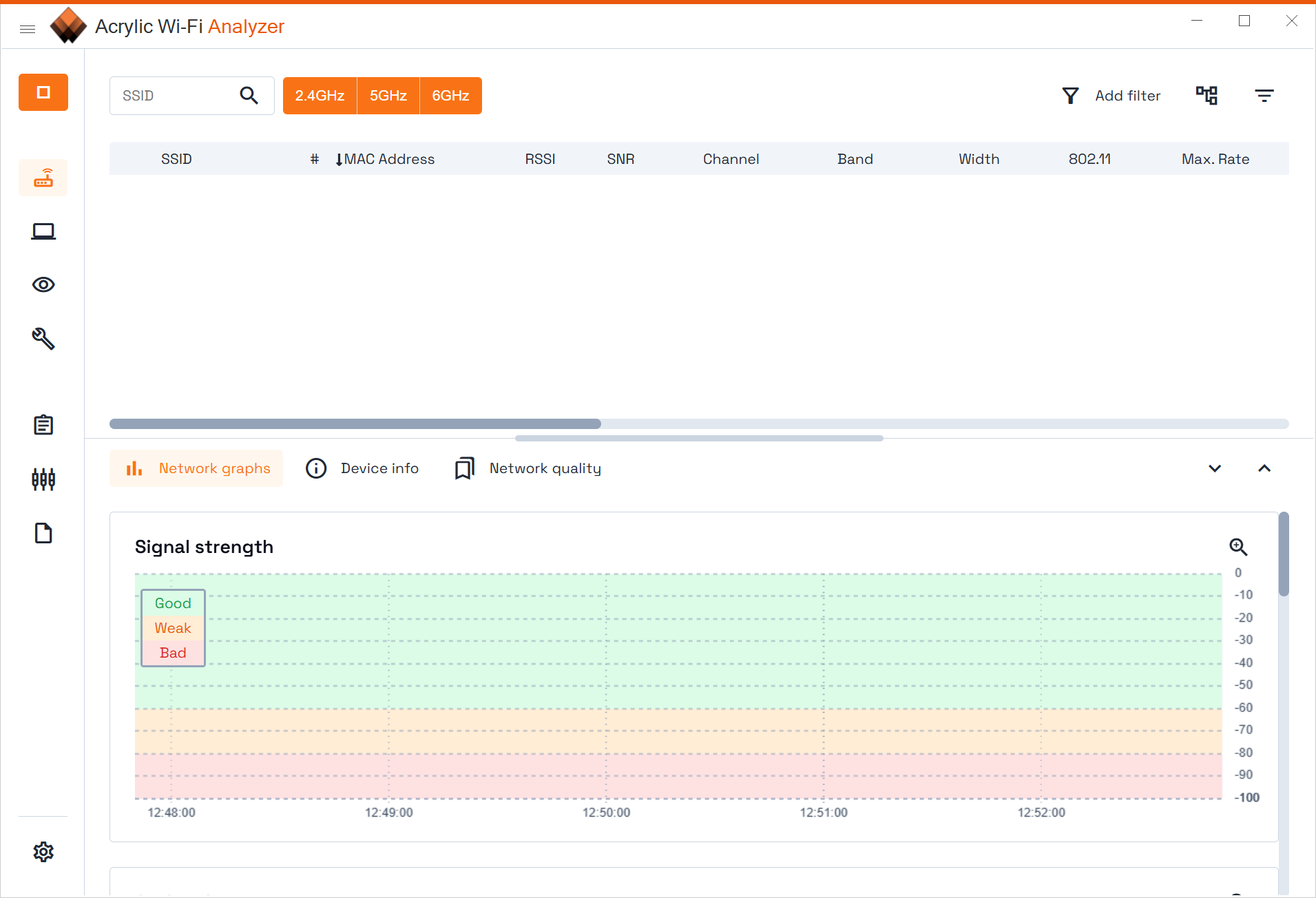
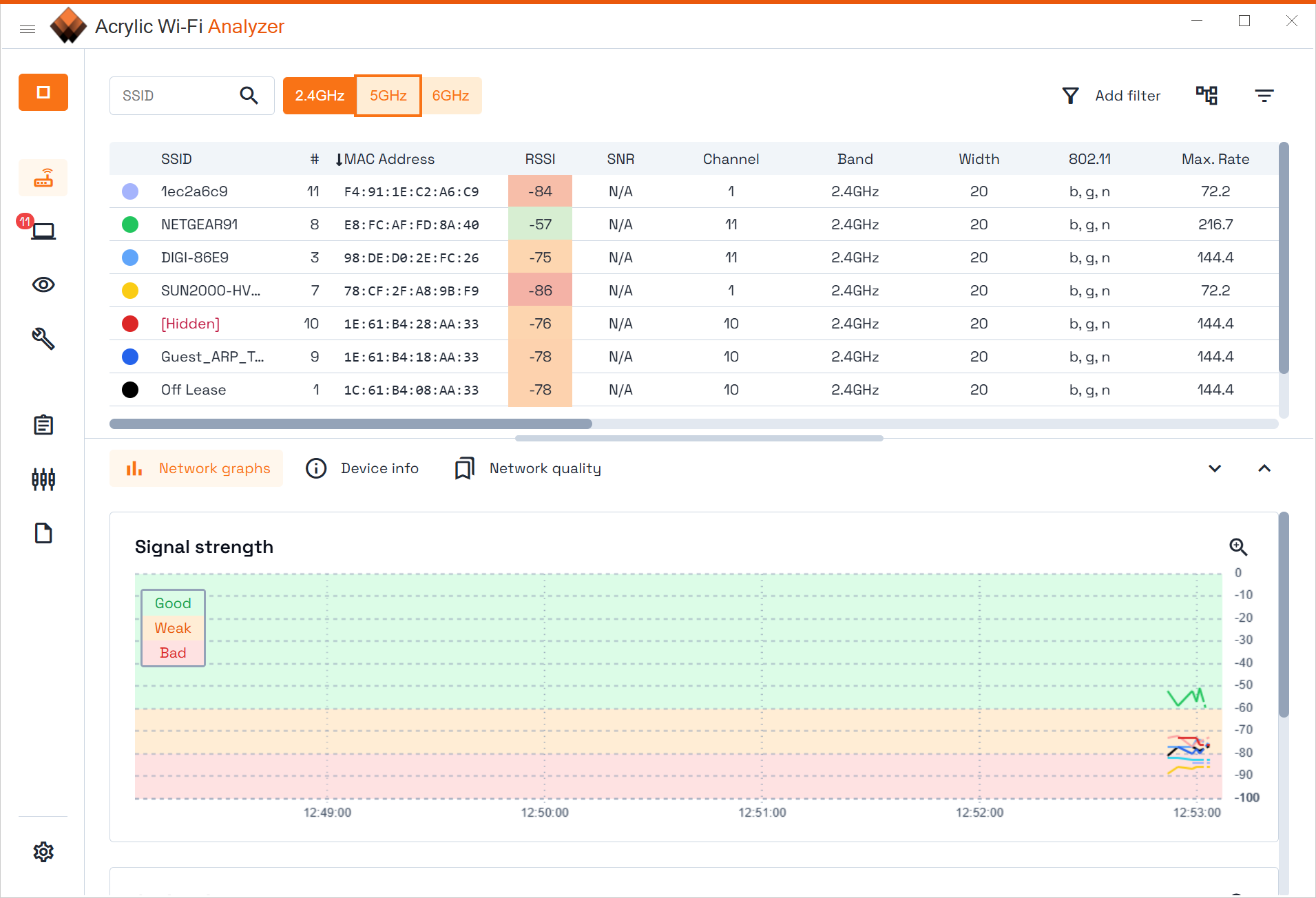
Acrylic Wi-Fi Analyzer listens to every wireless network within range and draws what it hears. The main table lists each access point with its name, hardware address, channel, channel width, security type, signal strength and the standard it speaks, and a graph beneath shows how the signal of each one rises and falls over time.
A second chart lays the networks out across the 2.4GHz, 5GHz and 6GHz bands so overlapping channels are obvious at a glance, which is the picture most people install a Wi-Fi scanner to see. If three neighbours and your own router all sit on channel 6, the chart shows it, and moving your router to a quiet channel is the fix.
The scanner reads the newest standards, including the 6GHz band and the latest generation of equipment, and it works with the ordinary wireless adapter in a laptop, since the basic scan uses the system’s own interface to the card. Beyond that first picture the tiers divide. The unregistered build gives the scanner, the signal and channel charts and an inventory of up to five devices. The paid tiers add troubleshooting, reports, unlimited inventory, saved captures and, at the top, a monitor mode that captures raw frames on compatible adapters.
Acrylic Wi-Fi Analyzer is a serious tool in that top tier and a tidy channel scanner in the others.
Reading the signal and channel charts
The Acrylic Wi-Fi Analyzer signal chart plots strength over time per network, so a connection that drops in the evenings shows as a line that sags when a neighbour’s traffic rises, and walking a laptop around a house with the chart open maps the weak spots room by room, a rough version of the heat-map survey that NetSpot draws properly. The channel chart shows each network as a shape spanning the channels it occupies, with the wide 80MHz and 160MHz blocks of modern routers overlapping several narrow ones.
Those two charts answer the common domestic questions. Which channel is quietest, whether a wide channel is trampling the neighbours, and whether the router’s 5GHz signal reaches the far bedroom. The table adds the detail, including whether a network still uses old security or supports the newer standard, and detailed captions on the charts make the reading quicker than in most rivals.
Inventory and the paid troubleshooting
Devices seen on the network can be added to an inventory with a name and a note, which turns a list of hardware addresses into a list of the printer, the television and the children’s tablets. The unregistered build stops at five entries, and the paid tiers lift that limit.
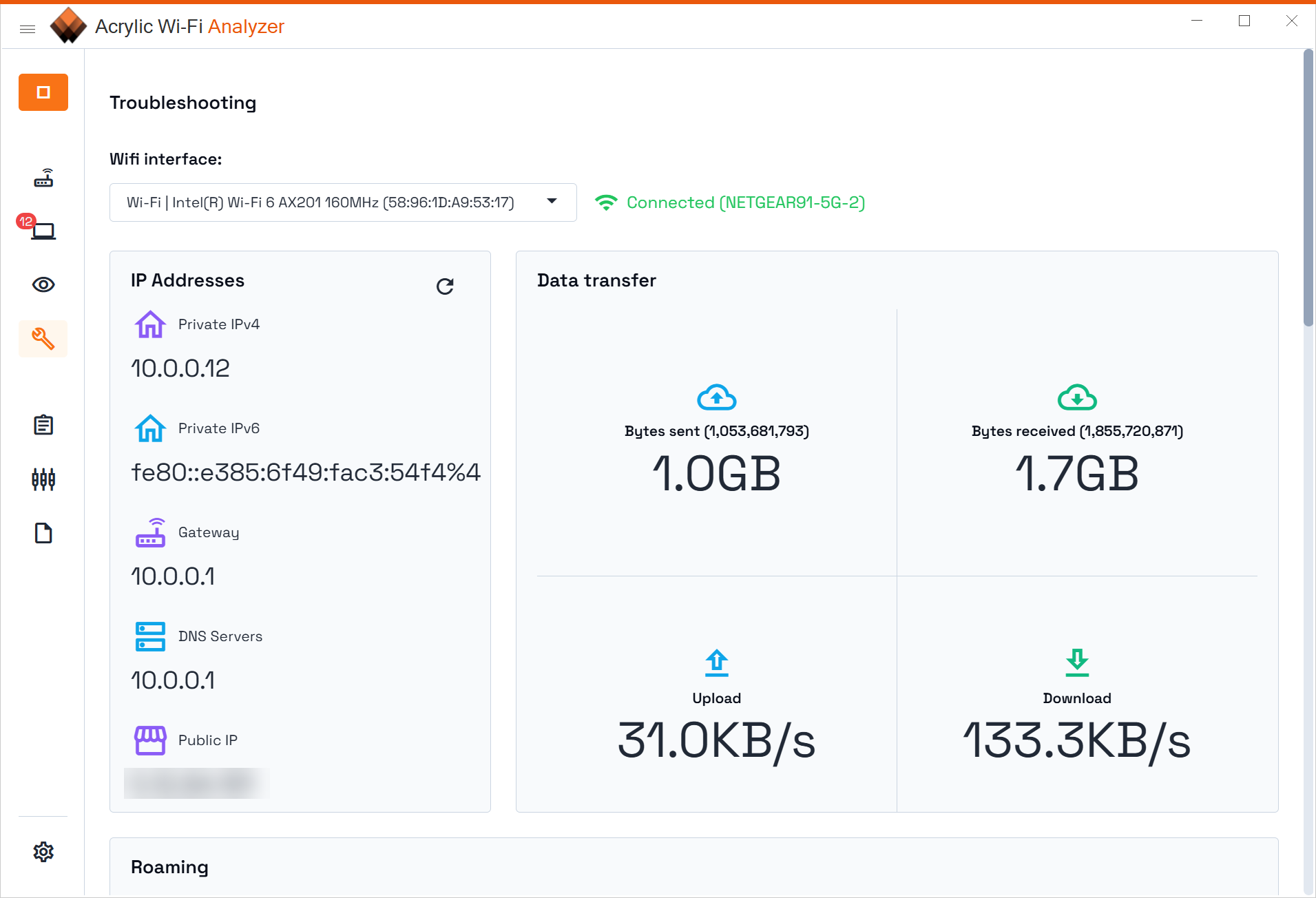
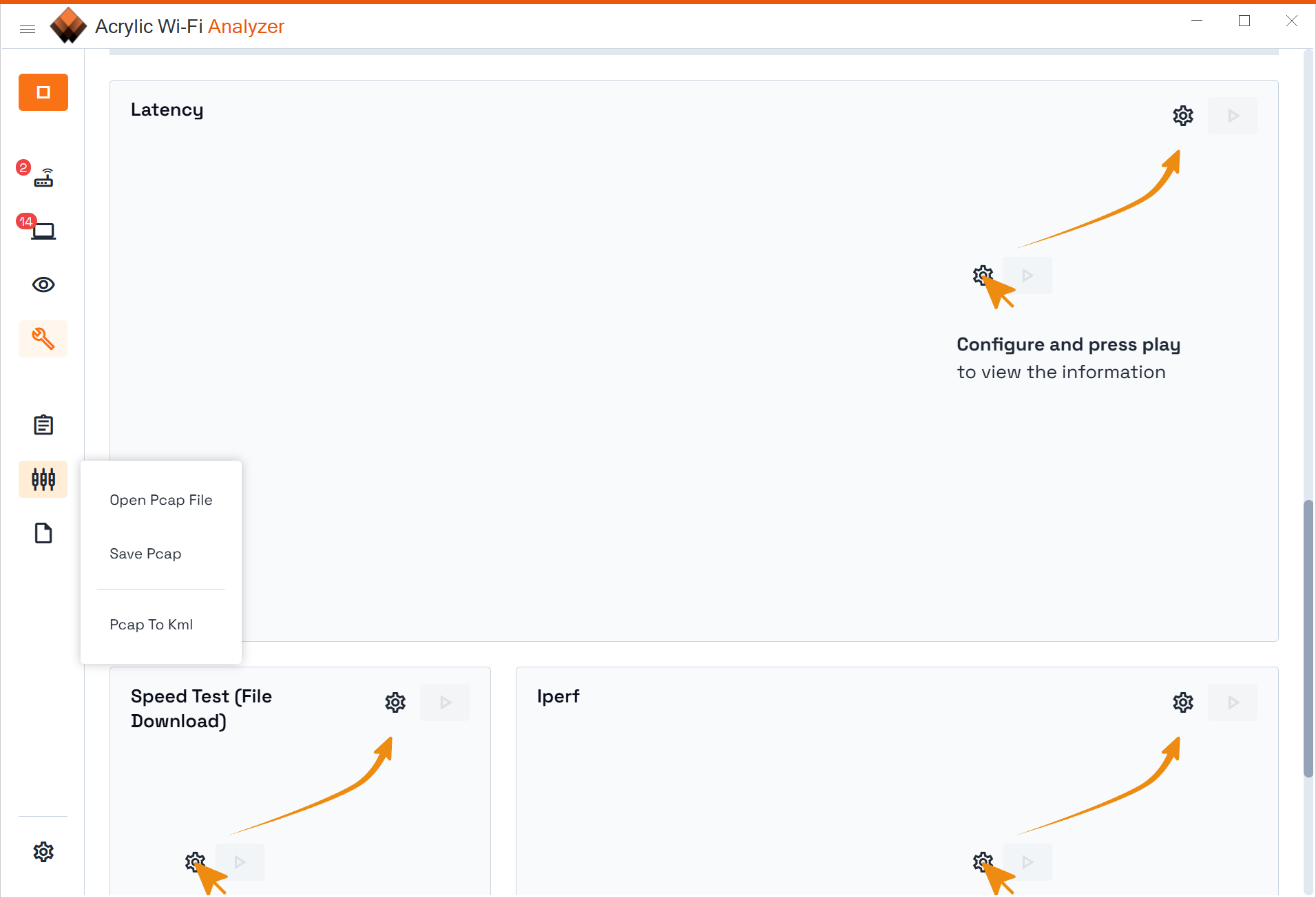
Troubleshooting, in the paid tiers, runs checks on the current connection, measuring latency, packet loss and speed and flagging roaming behaviour, then recommends changes.
Reports and PCAP export
Acrylic Wi-Fi Analyzer exports its findings as HTML, CSV or text reports, and captured data saves in the standard PCAP format that other analysis tools open. For a technician handing a client a written summary after a site visit, the report is the feature that justifies the step up, and for anyone wanting to open a capture in a full packet analyser, the PCAP export is the bridge.
Monitor mode and the top tier
Monitor mode is the reason the professional Acrylic Wi-Fi Analyzer tiers exist. Instead of asking the adapter which networks it can see, it puts a compatible adapter into a listening state that captures every frame in the air, on the 2.4GHz, 5GHz and 6GHz bands and across 20, 40, 80 and 160MHz channel widths. That reveals the clients connected to each access point, the retransmission rate that shows a struggling link, and the signal-to-noise ratio that separates a weak signal from a noisy one. A packet analyser shows the captured frames in a tree with a hexadecimal view.
Monitor mode works only with adapters the tool supports, a list that runs past 250 cards but excludes many built-in laptop chips, and it needs the top tier. Anyone buying in for this should check the adapter list first, since installing the software does not guarantee the mode will work.
Where it stands against the alternatives
As a channel scanner, the unregistered Acrylic Wi-Fi Analyzer build does the job well with clearer charts than most, and it reads the newest bands that older scanners miss. Several rivals offer the same scan without a tier structure, and inSSIDer is the long-standing alternative for the channel chart alone. Where it pulls ahead is the professional tier, since monitor mode on the 6GHz band from a desktop tool is rare at this level.
The interface is clean and modern, with a redesign that reads well on a laptop screen. The limits are the tiers and the hardware. Much of what the marketing describes belongs to the paid editions, and the most interesting part depends on owning the right adapter. For checking a router’s position and channel, nothing else is needed, and a separate latency monitor complements it for tracking a flaky connection over time.
Conclusion
Acrylic Wi-Fi Analyzer suits home users who want to see why the Wi-Fi is slow in one room and fix it with a channel change, and technicians who need captures and reports, with client lists, from a modern network. The charts are the clearest in the category, the newest bands are covered, and the top tier reaches into monitor mode that few desktop tools offer.
It is a channel scanner in its unregistered form and a professional analyser only on the top tier with a supported adapter. Check the adapter list before counting on monitor mode, use the charts to place the router, and step up only when a report or a capture is what the job demands.
Pros & Cons
- Signal and channel charts across 2.4GHz, 5GHz and 6GHz with clear captions
- Reads the newest wireless standards with an ordinary laptop adapter
- Device inventory with names and notes
- Monitor mode on compatible adapters captures clients, retries and SNR
- PCAP export opens captures in standard analysis tools
- Reports in HTML, CSV and text
- Unregistered build limited to scanning and charts, with a five-device inventory
- Monitor mode needs the top tier and a supported adapter
- Many built-in laptop adapters cannot enter monitor mode
- Troubleshooting and reports are paid features
Frequently asked questions
The network scanner, the signal and channel charts and an inventory of up to five devices. Troubleshooting, reports, saved captures and monitor mode need the paid tiers.
For scanning and the charts, yes, through the system's own interface. Monitor mode needs one of the supported adapters, and many built-in chips are not on the list.
Yes, for scanning on hardware that supports it, and in monitor mode on the top tier with a compatible adapter.
Open the channel chart, look for the channels with the fewest overlapping networks in your band, and move the router there.


