

7-Zip Next
About 7-Zip Next
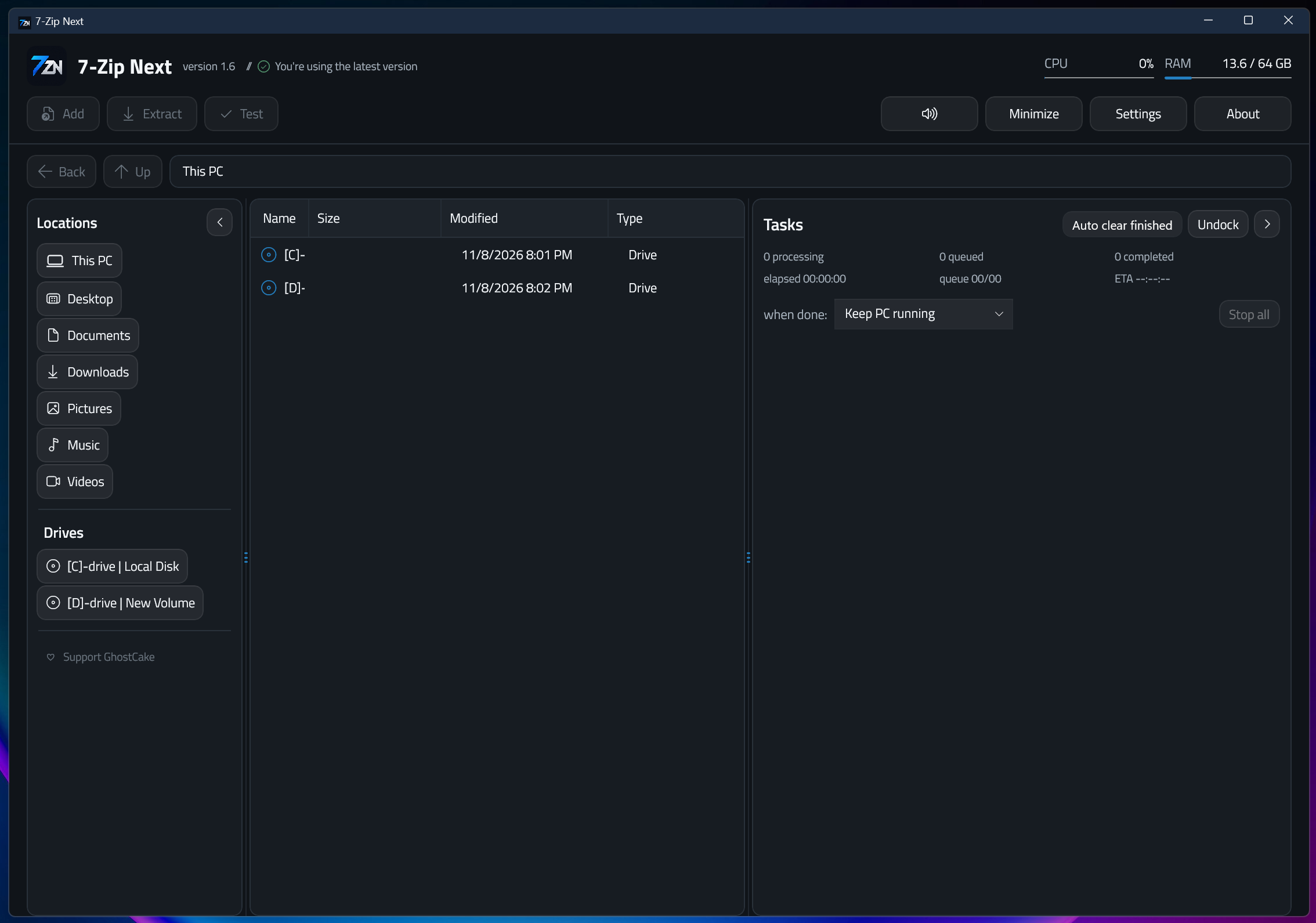
Start three large extractions in 7-Zip and you get three progress dialogs and three jobs fighting over the same disk. 7-Zip Next exists to fix that one habit. It keeps the 7-Zip compression engine untouched underneath and wraps it in a new front end whose centrepiece is a task queue.
Every archive or extraction you launch lines up behind the previous one, runs when its turn comes, and reports progress in a single panel, with an option to shut the PC down once the last job finishes.
Around that queue sits a file browser with a dark theme and dialogs that expose the handful of settings most people actually change. It belongs in the same conversation as PeaZip, Bandizip and NanaZip, the modern faces people put on 7-Zip’s algorithms, but it is the only one of the four that treats job scheduling as the main event rather than a footnote.
The trade-off shows from the first launch. 7-Zip Next carries a far heavier runtime than the original, runs on 64-bit systems only, and leaves out a few things 7-Zip veterans reach for by reflex.
The task queue, and why serial beats parallel
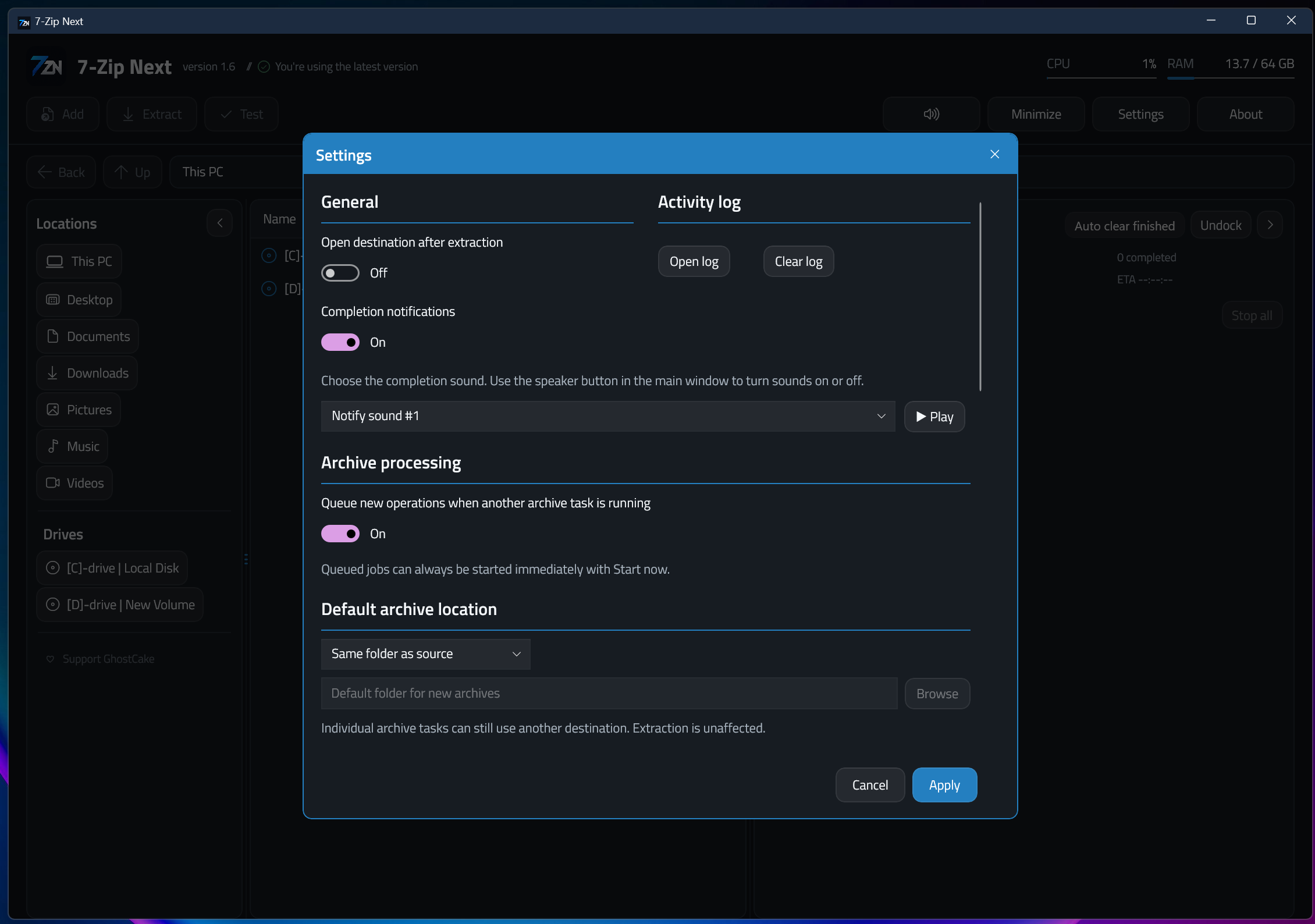
The Create Archive dialog ends in two buttons. Start now runs the job immediately, Add to queue parks it behind whatever is already running, and a setting called Queue new operations when another archive task is running makes queuing automatic, so you select a folder, press Add, select another, press Add, and walk away.
By default, jobs in 7-Zip Next run one at a time, because two extractions writing to the same mechanical disk or USB stick finish slower together than apart. The default is not a cage, though. Press Start on any queued task and it begins immediately alongside whatever is already running, which makes sense when the two jobs sit on different drives. Each entry shows percentage, elapsed time and an estimate of what remains.
You can pause and resume the active task, cancel one entry while the rest carry on, move a job to the top or nudge it up and down, or hit Stop all, which asks for confirmation before clearing everything.
The queue also detaches into a compact window of its own, which we ended up parking in a corner with the main window closed.
Shutdown, hibernate or just close when done
The When done menu offers Keep PC running, Close 7-Zip Next, Hibernate or Shut down PC, and the shutdown shows a countdown you can cancel if you walked back in at the wrong moment. Cancel the whole queue with Stop all and the When done action is suppressed, which sounds obvious until you remember how many tools happily power off a machine after an aborted job.
PeaZip offers a partial version of this and 7-Zip offers nothing. For anyone compressing a video archive overnight, this alone justifies the switch.
What the compression dialog gives you, and what it hides
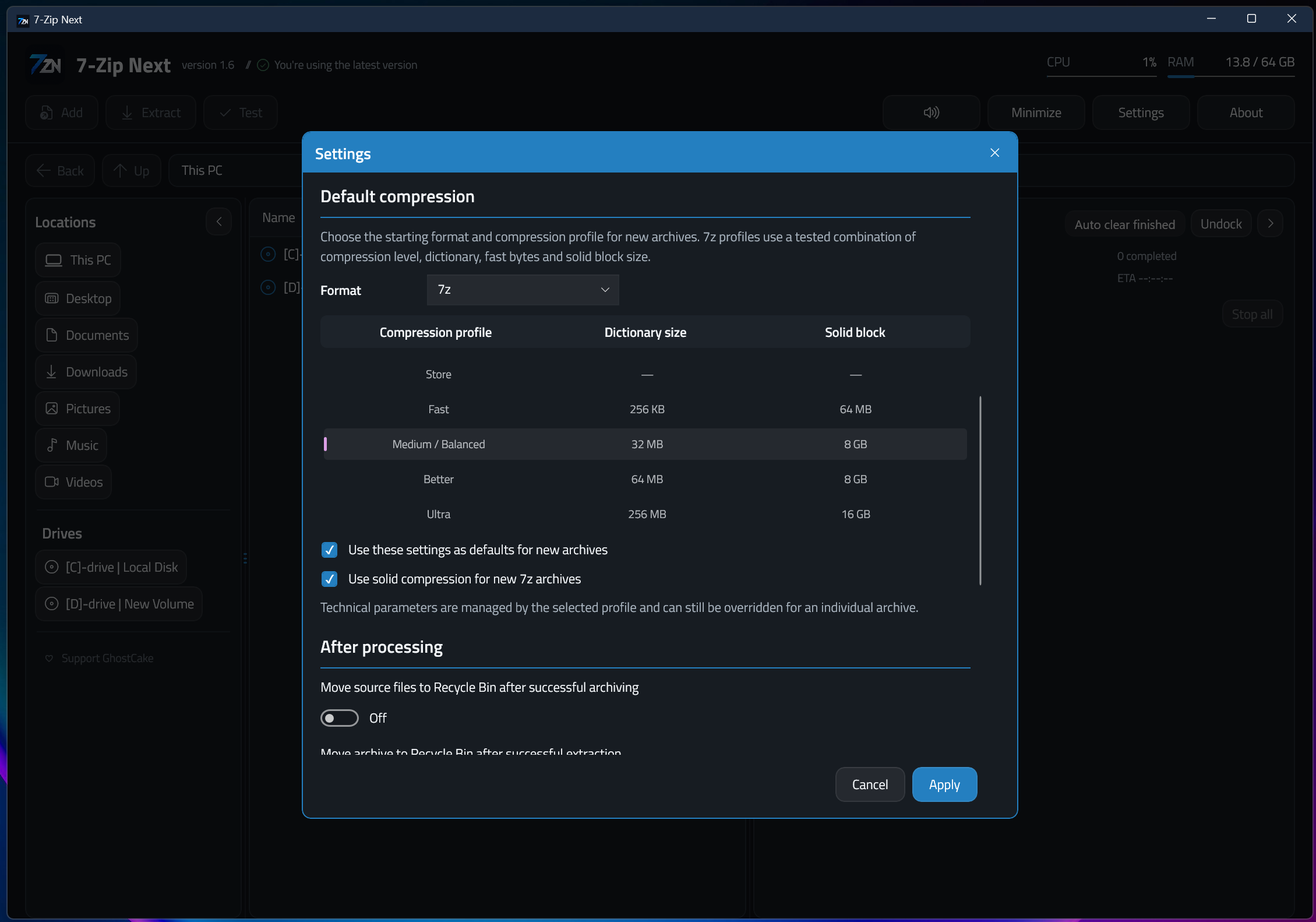
7-Zip Next writes 7z, ZIP or TAR. Compression is Store, Fast, Normal or Maximum. Dictionary size is adjustable, solid compression is on when the application thinks it will help, and the Encryption field sets a password with a separate tick to encrypt file names where the format allows it. Create separate archives turns a selection of ten folders into ten archives, each queued as its own task, and Move source files to Recycle Bin after successful archiving does exactly what it says.
Now the omissions. There is no compression method selector, so no choosing PPMd for text or BZip2 for compatibility, and no Ultra level above Maximum. Split volumes are absent, which rules out breaking a backup into DVD-sized or mail-sized chunks. There is no self-extracting archive option. For any of those you keep 7-Zip installed alongside, which is painless since both read each other’s output identically.
Smart compression runs underneath. The application detects files that are already compressed (video, photos, other archives) and stores them rather than running them through LZMA2 a second time.
On a folder of holiday footage this cut our archive time by more than half with no size penalty, since those files were never going to shrink anyway.
Extraction and the file browser
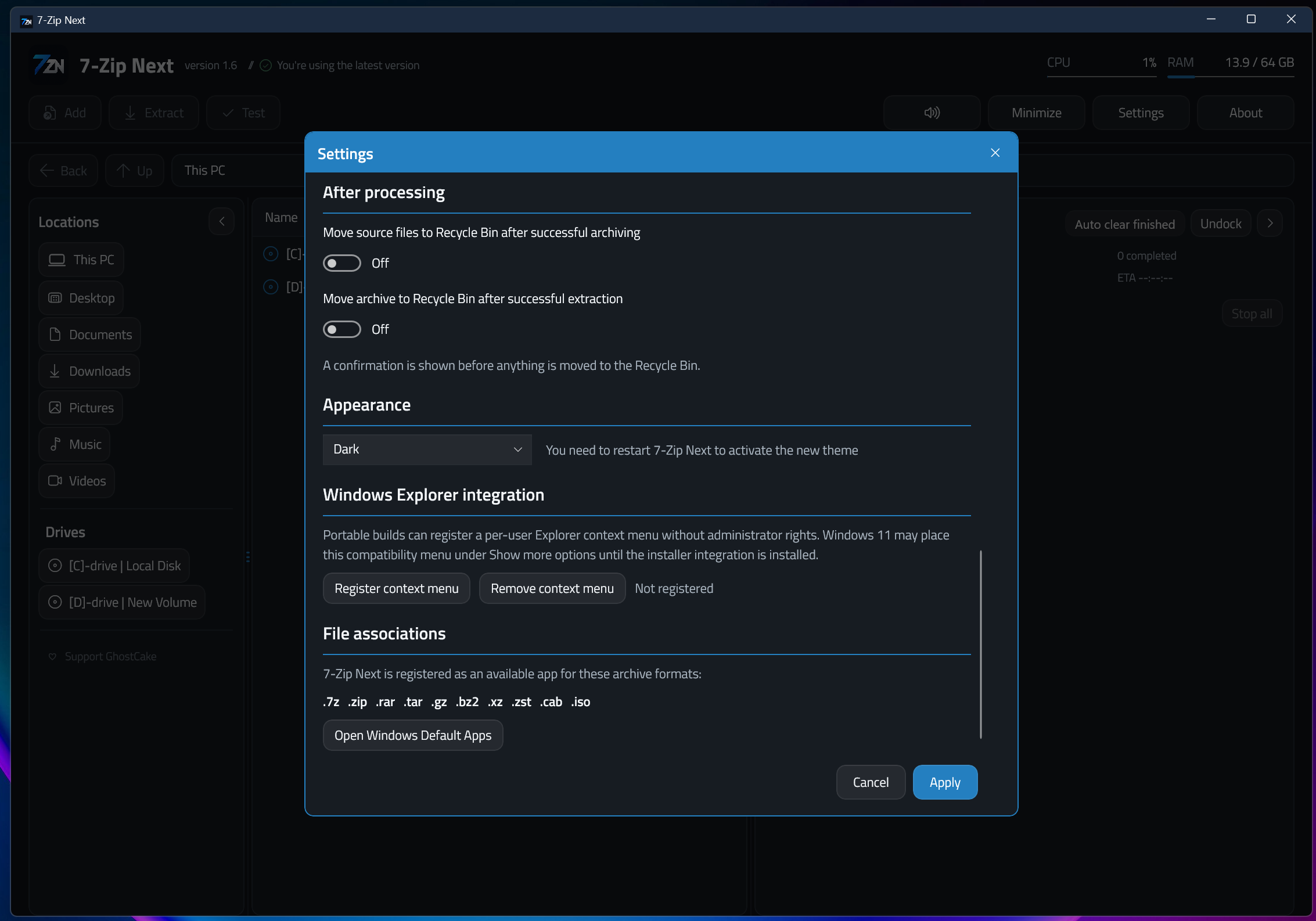
The Extract dialog asks for a destination, remembers previous folders in a Destination History, and lets you pick Ask per conflict or an automatic rule when files already exist. Open destination when complete and Move archive to Recycle Bin after successful extraction are both one tick. RAR archives extract fine, as do the other read-only formats the 7-Zip engine supports.
The browser is a plain two-pane affair, with a drive and folder tree in Locations and Add, Extract and Test buttons that appear only when the selection supports them. Type the first letters of a name and the selection jumps there.
Right-click integration in the system file manager is off until you register it from the settings of 7-Zip Next, after which the context menu gains Add to archive, which opens the full dialog, plus one-click Add to 7z, Add to TAR and Add to ZIP entries.
Turn it on during the first run, because without it every job starts from inside the application.
Settings that fit on one page
Appearance offers Dark, Light or System. Notifications arrive as system toasts, sound alerts for longer jobs toggle from the main window, progress shows on the taskbar button, and Minimize to tray hides 7-Zip Next while the queue keeps grinding. Finished tasks can clear themselves or stay until you sweep them. For a tool built around unattended jobs, that brevity suits it.
Conclusion
7-Zip Next is the most useful thing to happen to the 7-Zip engine’s front end in a long while. The task queue, the detachable progress window and the When done actions are not bolted on, they are the reason the program exists, and every detail around them, from the cancellable shutdown countdown to the suppressed power-off after a Stop all, shows someone who has sat through a lot of overnight compressions and thought about what goes wrong. Smart compression quietly halves the time spent on media folders, and the archives that come out are plain 7z and ZIP that open anywhere.
Anyone who batches archive work, backs up a photo library folder by folder or wants the machine off when a long job finishes should install it today and will wonder why the original never did this. Power users who split archives or build self-extracting packages will keep 7-Zip alongside for now, and the public roadmap suggests the gap is closing.
For a project this young to beat PeaZip, Bandizip and NanaZip on workflow is a strong start.
Pros & Cons
- Unified queue for compression and extraction with pause, reorder and Stop all
- Shutdown or hibernate after the final task, with a cancellable countdown
- Detachable queue window that works with the main window closed
- Smart compression stores already-compressed media instead of recompressing it
- Same engine as 7-Zip, so every archive it writes opens anywhere 7z and ZIP do
- No split volumes, no self-extracting archives and no compression method selector
- Context menu entries stay off until you register them in settings
- 64-bit systems only
- Far heavier runtime than the original for the same compression results
Frequently asked questions
Alongside, in practice. It uses the same engine and produces identical archives, but lacks split volumes, SFX and the method selector, so most people keep both installed.
Yes. By default the queue processes jobs one after another to avoid disk contention, but pressing Start on any queued task launches it immediately, so several compressions or extractions can run at the same time when you choose.
Yes. Pick Shut down PC or Hibernate from the When done menu and it fires after the last task completes, with a countdown you can cancel. Stopping the whole queue cancels the action too.
It recognises files that are already compressed, such as video, photos and other archives, and stores them without running them through LZMA2 again, which saves time without changing the archive size meaningfully.
7z, ZIP and TAR. It extracts everything the 7-Zip engine reads, RAR included.


