

Driver Signature Enforcement Overrider
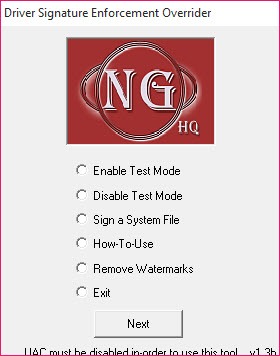
About Driver Signature Enforcement Overrider
Driver Signature Enforcement Overrider (commonly called DSEO) is a small Windows utility that disables the kernel’s requirement for digitally signed drivers, letting you load unsigned ones that the operating system would otherwise refuse.
The application is small, portable, and free, with no installer or background service to worry about. You run it, pick whether to enable Test Mode or to sign a specific driver with a self-generated certificate, restart Windows, and unsigned drivers load like any other. The whole interaction takes less than a minute once you know what you’re clicking. What the tool doesn’t do, and what you should think through carefully, is bypass any of the modern hardware-enforced protections Microsoft has layered on top of basic signature checking in the years since this utility was first released.
What driver signing actually protects against
A driver runs in kernel space, which means it has the same level of access as Windows itself. A malicious or buggy driver can read all memory, modify any file, intercept network traffic, hide processes from antivirus, and brick the system if it crashes. Microsoft introduced mandatory driver signing on 64-bit Windows Vista specifically because the consequences of letting unsigned code run at that privilege level are severe.
The signing process is supposed to provide accountability. A driver signed by a trusted certificate authority traces back to a specific publisher who has identified themselves to Microsoft and agreed to certain conduct rules. If something goes wrong, there’s a paper trail. If a driver turns out to be malicious, the certificate can be revoked and the driver stops loading on machines that check revocation lists.
Unsigned drivers have none of that. They might be perfectly fine (a homebrew project, an older legitimate driver that was never signed because signing wasn’t required when it was written, a custom build of an open-source driver). Or they might be malware that hides in the kernel because no defense layer is checking who wrote them. The mandatory signing requirement assumes the worst case and refuses to load anything without credentials.
Driver Signature Enforcement Overrider turns this off. Be honest with yourself about whether that’s appropriate before doing it.
The two modes the tool offers
The application gives you two distinct paths to load unsigned drivers, and they have different security implications.
The first is Enable Test Mode. This sets a system flag that tells Windows to accept any driver, signed or not. While in Test Mode, the desktop displays a “Test Mode” watermark in the bottom corner as a permanent reminder that you’ve lowered the security posture. This is the simplest path, and the one most users pick because it doesn’t require touching individual driver files. Anything you install while Test Mode is on will load.
The second is Sign a System File, which lets you generate a test certificate, sign a specific .sys driver file with it, and tell Windows to trust that certificate. This is more surgical (only the specifically signed driver loads, everything else still has to be properly signed) but it requires identifying the driver file first and accepting the test root certificate into your trust store. For users with one or two specific drivers to handle, this is the cleaner option.
The third option in the menu, Disable Integrity Checks, is a more aggressive variant that does what Test Mode does but with slightly different mechanics under the hood. In practice for most users it behaves equivalently to Test Mode.
Where this gets used today
The original use case (loading unsigned 64-bit drivers on Vista and Windows 7) is mostly historical. Modern hardware ships with WHQL-signed drivers, and the practical need to override signing has dropped sharply.
What keeps the tool alive in 2026 is a specific set of edge cases. Retro hardware enthusiasts running old scanners, capture cards, or PCI devices from manufacturers that went out of business and whose drivers were never signed. Hobbyists writing their own drivers for development and testing without paying for the kernel-mode signing certificate process. Users running modded games, emulators, or system utilities that ship with custom drivers (some controller wrappers, certain low-level monitoring tools, anti-cheat workarounds in legitimate contexts) where the developer hasn’t signed the kernel component.
It’s also occasionally used to revive ancient consumer hardware on newer Windows installs. A 2008-era graphics tablet, a legacy printer driver, a USB device that hasn’t been updated in 15 years. None of these are dangerous in themselves, but they fail to load on default Windows configurations.
The modern Windows landscape limits things
Here’s what’s changed since this tool was originally written, and it matters. Modern Windows 10 and Windows 11 systems with Secure Boot enabled, with HVCI (Hypervisor-protected Code Integrity) turned on, or with Microsoft Vulnerable Driver Blocklist active, won’t actually let you load unsigned drivers even after running this tool. The hardware-enforced protections sit below the software signature check and ignore the override flags.
What this means in practice is that on a stock modern Windows 11 install on Secure Boot hardware, Test Mode might enable but unsigned drivers still won’t load until you also disable Secure Boot from your UEFI firmware. On business or enterprise machines with HVCI active, even disabling Secure Boot isn’t enough. The signing enforcement has moved further down the stack into the hypervisor.
For a Windows 7 or older Windows 10 machine without these protections, the tool works as advertised. For a current Windows 11 install with default security settings, you may find it appears to succeed while drivers still refuse to load.
Test Mode versus the bcdedit alternative
Many users who land on Driver Signature Enforcement Overrider could accomplish the same Test Mode toggle with a single bcdedit command at an elevated command prompt. Running bcdedit /set testsigning on and rebooting puts the system in the same state. The reverse command bcdedit /set testsigning off turns it back off.
So why does this tool exist when a built-in Windows command does the same thing? Two reasons. First, the GUI makes it accessible to users who don’t want to touch a command line. Second, the per-driver signing workflow (generating a test cert, signing a specific .sys file, installing the cert as trusted) involves a longer chain of operations that the tool wraps into a few clicks. For users handling one specific driver, this is genuinely easier than the manual signtool.exe pipeline.
For users comfortable with the command line, bcdedit and signtool from the Windows SDK do everything this tool does, with more transparency about what’s actually happening. The application is a convenience wrapper, not a magical capability.
Reversing the changes
This is the part to know before you start. Test Mode persists across reboots until explicitly turned off. To get back to normal driver signature enforcement, run the tool again and pick Disable Test Mode, or use bcdedit /set testsigning off at an elevated prompt and reboot.
Test certificates installed during the per-driver signing workflow stick around in your trust store. You can remove them through certmgr.msc by browsing to Trusted Root Certification Authorities, finding the test certs (they’ll have generic names indicating they were self-issued), and deleting them. Leaving them installed isn’t immediately dangerous, but it’s clutter and a small surface that you should clean up if you’re not using the signed drivers anymore.
The watermark in the bottom corner of the desktop is your visual reminder that something is off about the security configuration. If you see it and don’t remember why, that’s a signal to investigate and restore default settings.
Security implications, stated honestly
Disabling driver signature enforcement removes a meaningful protection. The protection isn’t a guarantee against malicious drivers (sophisticated attackers can obtain valid certificates and have done so historically), but it does block a wide category of low-effort attacks and accidental rootkit infections.
If you turn off driver signing because you have a specific unsigned driver you want to load, install only that driver and turn the enforcement back on afterward. The per-driver signing approach is better here than Test Mode because it limits the exposure to exactly the file you signed.
If you turn off driver signing as a general convenience and leave it off, you’ve made a meaningful trade. Don’t pretend you haven’t. Especially don’t combine Test Mode with downloading drivers from sketchy sources, because the combination is genuinely how systems get rootkit infections. The mandatory signing requirement exists because of real attacks. For users handling drivers in a security-aware way, Driver Booster and similar tools focus on keeping signed drivers current, which is the safer general workflow when you don’t have a specific unsigned-driver need.
Conclusion
Driver Signature Enforcement Overrider is a niche tool for a niche situation, which is loading an unsigned kernel driver on a Windows system that would otherwise refuse it. For legacy hardware enthusiasts, driver developers testing their own code, and hobbyists working with custom or modified system drivers, it provides a faster path than learning the manual bcdedit and signtool workflow. The tool itself is small, portable, and reverses its changes cleanly when you’re done.
The reasonable approach is to use it for a specific known driver, complete the install, then turn driver signature enforcement back on. Leaving Test Mode active indefinitely on a daily-driver system trades real security for a convenience most users don’t actually need. On current Windows 11 hardware with Secure Boot and HVCI active, the tool’s reach is also limited by protections that sit below where it operates, so check whether your system actually allows unsigned drivers before assuming this is the missing piece.
For everyone whose use case doesn’t specifically involve unsigned drivers from a trusted source, leaving the default signing enforcement in place is the right call.
Pros & Cons
- Quick GUI for enabling Test Mode without command-line work
- Per-driver signing workflow handles the certificate generation and signing in a single tool
- Small, portable executable with no installer or persistent service
- Free with no premium tier or feature gating
- Useful for legacy hardware whose drivers never got signed
- Reverses cleanly through the same interface that enabled the changes
- Modern Windows protections (Secure Boot, HVCI) can override the tool's changes regardless of what it does
- Test Mode disables a real security protection across the entire system
- Watermark on desktop is a constant reminder you've lowered the security posture
- Original use case is largely obsolete for current-generation hardware
- bcdedit can do the same Test Mode toggle without third-party software
- Per-driver signing leaves test certificates in your trust store that need manual cleanup
Frequently asked questions
The application toggles the Windows kernel's requirement that drivers be digitally signed before loading. With the override active, drivers without valid Microsoft-recognized signatures can load into the system. The tool also provides a workflow for signing specific drivers with a self-generated test certificate.
Test Mode is one of the options the tool offers, and it's the most common path users pick. The Enable Test Mode action sets the same flag that bcdedit /set testsigning on would set from a command prompt.
The tool can enable Test Mode on Windows 11, but Secure Boot, HVCI, and other modern protections can still block unsigned drivers from loading even after the override is active. On machines with these protections, additional UEFI firmware changes may be needed for unsigned drivers to actually load.
The watermark is a built-in Windows feature that displays when the system is in a non-standard signing configuration. It's there to ensure you don't forget that driver signing enforcement has been disabled, which is relevant for security.
Run the application again and pick Disable Test Mode, or run bcdedit /set testsigning off from an elevated command prompt. Reboot afterward for the change to take effect. Driver signature enforcement returns to its default state once Test Mode is off.
Not recommended. Test Mode disables a security check that exists to prevent malicious or unstable drivers from loading. Keep it off except for the specific period when you need to install an unsigned driver, and use the per-driver signing approach when possible to limit exposure.
No. HVCI uses hardware virtualization features to enforce code integrity below the level the tool operates at. Systems with HVCI active will continue blocking unsigned drivers regardless of Test Mode status.


