

UltraViewer
About UltraViewer
Remote support is one of those things that everyone needs eventually but nobody plans for. A relative calls because their printer mysteriously stopped working, a small business owner needs help with a software issue at three in the afternoon, an IT contractor is troubleshooting a client machine across the country.
The traditional answer was TeamViewer, which dominated the space for years until its commercial licensing got aggressive enough to push a lot of users toward alternatives. UltraViewer is one of those alternatives, and it has built a substantial following particularly across Asian markets, where it competes seriously with both TeamViewer and AnyDesk for the same use cases.
This software focuses on the specific scenario of remote technical support rather than trying to be a full collaboration platform. The design centers on quick connections between a helper and a person needing help, with a workflow optimized for the back-and-forth of “share your ID, accept my connection, let me see what’s wrong”. For users who do this kind of support work regularly, the focused approach pays off in actual daily use.
How the connection model actually works
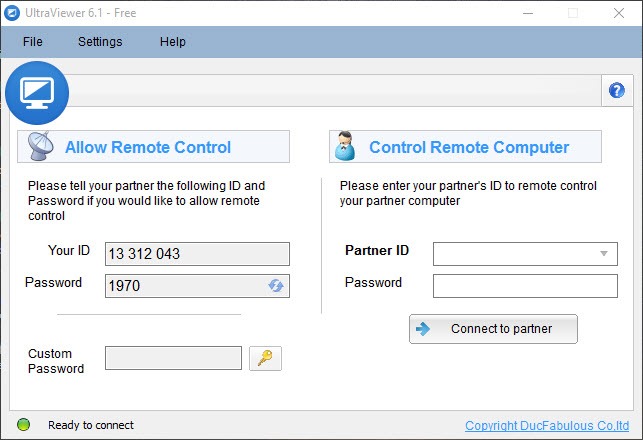
The connection mechanism is essentially identical to what TeamViewer popularized. Each computer running UltraViewer generates a unique ID and a password, with the password regenerating periodically for security. To connect to a remote machine, you ask the person on the other end to read off their ID and password, type them into your client, and the connection establishes within a few seconds.
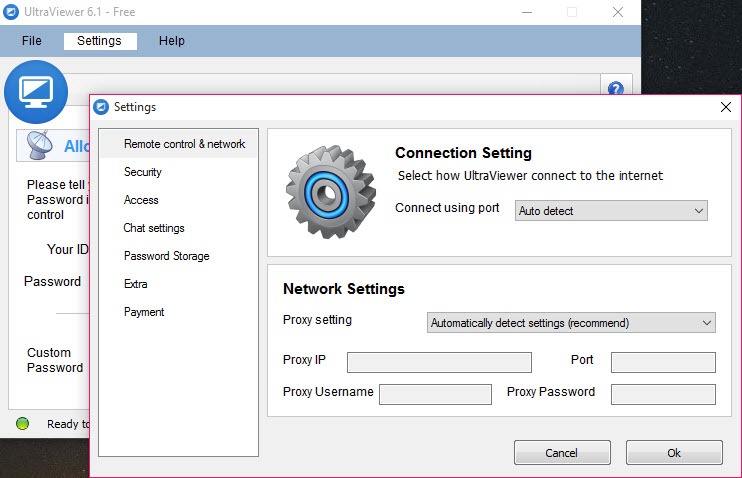
This model works without any router configuration, port forwarding, or VPN setup, which is the whole point. The connection traverses NAT boundaries through the developer’s relay infrastructure when direct connection isn’t possible, falling back to peer-to-peer when both ends have appropriate network conditions.
For the typical home or small business user who has no idea what NAT traversal means, the practical effect is that connections just work without any setup beyond installing the application.
Multi-session support for handling multiple connections
A particularly useful feature for IT support workers is the ability to maintain multiple simultaneous remote sessions. You can have three or four customer machines connected at once, each in its own tab, and switch between them while different things run on each. This matters when you’re managing parallel troubleshooting sessions or when one machine is doing a long operation while you work on another.
For solo IT contractors managing multiple clients, this multi-tab approach turns what would otherwise be sequential work into something closer to actual multitasking. You initiate a Windows update on one customer machine, switch to another to investigate a different issue, come back to the first when it needs your attention again.
The interface keeps all the sessions visible and clearly labeled, which prevents the confusion that comes from juggling multiple remote desktops in separate windows.
File transfer that works the way you’d expect
Moving files between the local and remote machine is built directly into the connection. You can drag-and-drop files into the remote desktop view, use a dedicated file transfer window, or copy-paste between the two systems.
The transfer happens through the same connection as the screen sharing, so there’s no separate setup or additional services to configure.
For technicians who frequently need to push diagnostic tools, log files, or replacement utilities to customer machines, this integrated transfer eliminates the awkward dance of “email me the file, no wait, that’s too big, let me upload it to a sharing service.”
Everything happens through the existing remote session, with reasonable transfer speeds and no file size limits beyond what the network connections can sustain.
Built-in chat for talking through problems
While voice communication isn’t native to this software, the built-in chat covers the equally important scenario of typed exchange during a remote session. Users on both ends can send messages back and forth without needing a separate chat application open, and the chat window stays alongside the remote desktop view rather than competing with it for attention.
For situations where the customer is on a phone call simultaneously, the chat provides a way to share specific text strings (passwords, error messages, URLs) that would be tedious to read out loud. For situations without phone communication, the chat handles the entire conversation.
Either way, having it integrated rather than depending on external tools keeps the workflow contained within a single application.
Permission model and security considerations
When somebody connects to your computer through this tool, the connection requires explicit acceptance on the receiving end. The remote viewer can’t connect silently; the person being helped has to confirm the connection, and they can disconnect at any time by closing the application.
For temporary support scenarios where someone helps you once and never connects again, this manual acceptance model provides reasonable security.
For ongoing support relationships, the application supports unattended access through pre-configured passwords, which lets a designated technician connect without requiring the user to be present. This is appropriate for managed IT relationships but obviously requires trust in whoever holds the unattended access password.
The tool clearly distinguishes between these two modes rather than blurring the line, which helps users make appropriate choices about who has what level of access.
Performance compared to TeamViewer and AnyDesk
This software exists in direct competition with TeamViewer and AnyDesk, and honest comparison requires acknowledging where each tool sits. AnyDesk generally wins on raw performance, with its DeskRT codec producing exceptionally smooth sessions even on modest connections.
TeamViewer has the broadest feature set and longest track record, but its commercial licensing has driven away many users who occasionally use it for personal purposes.
UltraViewer sits in the middle of these alternatives, offering performance that’s good enough for typical support scenarios without quite matching AnyDesk’s smoothness, and a feature set that covers the essentials without TeamViewer’s depth. The killer differentiator is the licensing approach, which is genuinely friendly to personal users and small business support workers in ways that TeamViewer increasingly isn’t. For users who got pushed away from TeamViewer by aggressive commercial-use detection, this software has been a popular landing point.
Considerations and limitations
The software is developed in Vietnam and primarily marketed in Asian markets, with English documentation that’s functional but occasionally awkward in phrasing. For users who care about polished communication from their software vendors, the rough edges on the documentation may be off-putting, although the actual application interface translates cleanly enough.
The user base skews heavily toward Asia (with India, Indonesia, Vietnam, Malaysia, and Bangladesh dominating the geographic distribution), which means community resources and troubleshooting discussions are spread across forums and language barriers that may be less accessible to Western users.
The core functionality works regardless of where you’re connecting from, but expect to do your own troubleshooting if unusual issues arise.
Conclusion
UltraViewer is a capable remote support tool that occupies a useful middle ground between the dominant commercial options and the various open-source alternatives. For users who need straightforward remote desktop access without the licensing friction that has pushed many away from TeamViewer, it offers a practical landing point with the essential features handled competently.
It’s not the absolute best option in any single dimension, since AnyDesk wins on performance and TeamViewer wins on feature depth, but the combination of friendly licensing, adequate performance, and focused functionality makes it genuinely useful for the support scenarios that most users actually encounter.
For helping family members troubleshoot their computers, providing client support as a small IT business, or managing a few remote machines for personal use, UltraViewer delivers what’s needed without the complications that the bigger commercial alternatives increasingly add.
Pros & Cons
- Quick ID-and-password connection model with no router configuration
- Multi-session tabs for managing several remote connections simultaneously
- Integrated file transfer through drag-and-drop and dedicated transfer dialog
- Built-in chat for typed communication during sessions
- Unattended access support for ongoing IT relationships
- Free for personal use without aggressive commercial-use detection
- Lightweight installer and modest resource usage on both ends
- Established alternative to TeamViewer for users who want a simpler licensing model
- Performance doesn't quite match AnyDesk's smoothness in demanding scenarios
- English documentation occasionally awkward due to translation roughness
- Community resources concentrated in Asian markets, less accessible elsewhere
- Feature set narrower than TeamViewer for advanced collaboration scenarios
- Voice communication requires external tools rather than being integrated
Frequently asked questions
This software lets you remotely view and control another computer over the internet, primarily for technical support scenarios. The remote technician sees the customer's screen and can take control of mouse and keyboard input, allowing direct troubleshooting without being physically present at the machine.
The two tools serve essentially the same purpose with similar connection models, but the licensing approach differs significantly. TeamViewer aggressively detects commercial use and pushes users toward paid licenses, while this software has historically been more permissive about personal use. The feature sets are comparable for typical support scenarios, with TeamViewer offering more depth for advanced collaboration use cases.
Yes, the software is free for personal use without artificial session limits or feature restrictions. Commercial use technically requires a paid license, but the enforcement has historically been less aggressive than competitors, which has contributed to its popularity among casual support workers and small businesses.
No, the connection model handles NAT traversal automatically through the developer's relay infrastructure. Standard installations work without any router or firewall configuration in essentially all common network environments, including home internet connections, office networks, and most corporate setups.
The connection uses encryption to protect the session against eavesdropping, and the manual acceptance model on the receiving end prevents unauthorized connections to your computer. For ongoing access scenarios, the unattended access mode requires pre-shared passwords that should be kept private and changed if compromised.
Yes, file transfer is integrated into the connection through both drag-and-drop and a dedicated transfer dialog. Files of essentially any size can be moved in either direction during an active session, with transfer speeds limited primarily by the network connection between the two computers.
The software was developed in Vietnam and the company has focused marketing efforts on Asian markets, which has built a strong user base across India, Indonesia, Vietnam, Malaysia, and Bangladesh. Western users discover it primarily as an alternative to TeamViewer when looking for a simpler licensing model, but the community center of gravity remains in Asia.


