

iCloud Control Panel
About iCloud Control Panel
iCloud Control Panel brings an iPhone’s cloud onto a desktop computer. Sign in with the account the phone uses and tick the services you want. The photos taken on the phone appear in a folder and in the system’s photo app. The files from iCloud Drive show up in the file manager beside your local folders.
The passwords saved on the phone fill in on websites through a browser extension, and the calendars and contacts land in the classic desktop version of Outlook. Changes flow both ways. Drop a document into the iCloud Drive folder and it is on the phone a minute later.
The name has drifted over time, and the control panel of old is now distributed simply as the iCloud app, with the same job and a broader reach. iCloud Control Panel is the bridge for anyone who lives with an iPhone in one hand and a desktop in the other. It is also a program with a reputation for sign-in trouble and sync that stalls. The sections below cover each service it syncs, the one that only works with a particular mail client, and the fixes for the problems that fill its support forums.
Photos
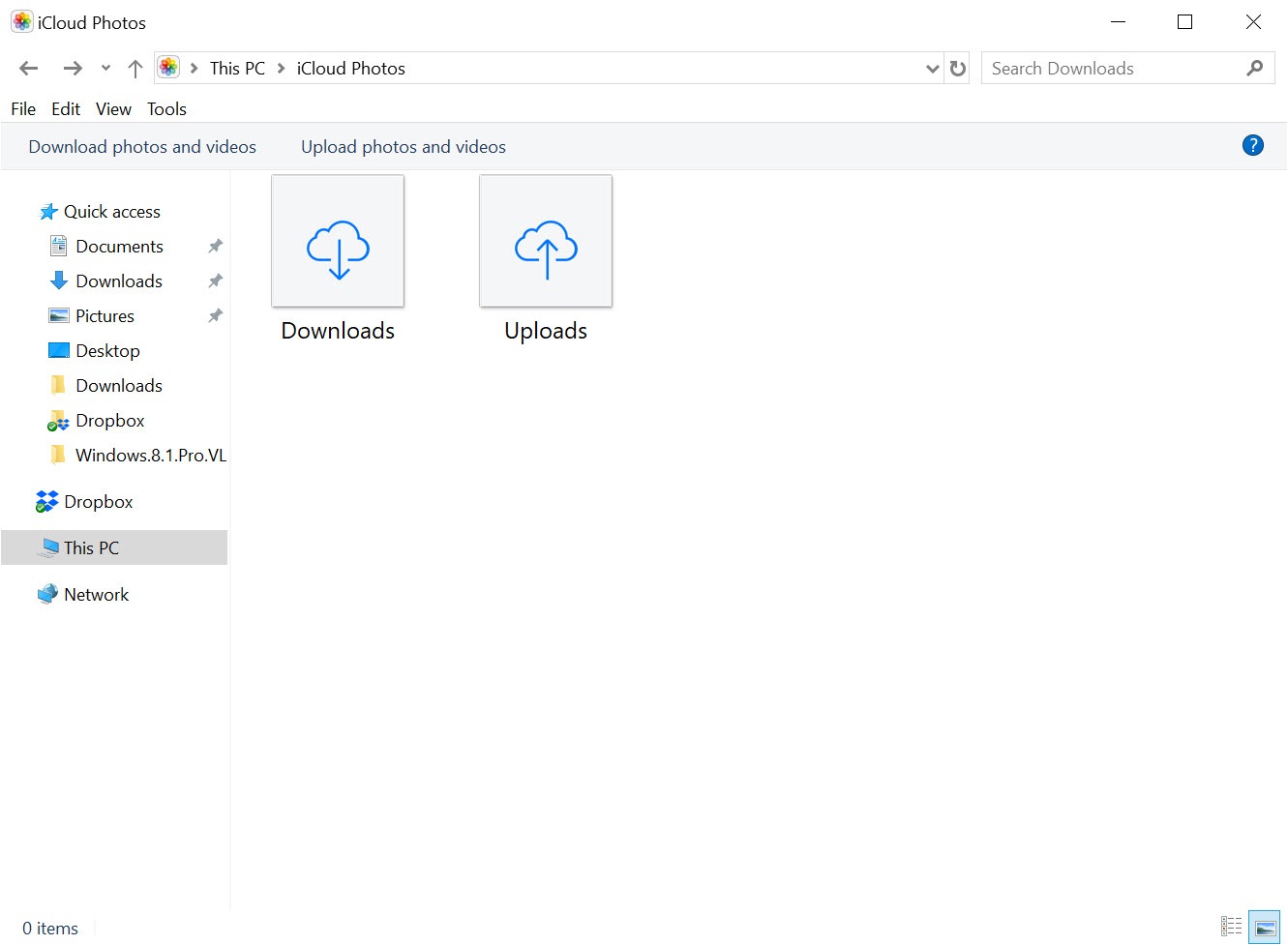
Turn on iCloud Photos in iCloud Control Panel and the whole library downloads as space allows, with new shots arriving as they are taken and edits made on the phone appearing on the desktop. The photos show in the system’s photo app and in an iCloud Photos folder, and photos added on the desktop upload back to the phone. Shared Albums and the shared library appear in their own folders, so a family’s pooled photos sit beside your own.
The first sync of a large library takes hours and a great deal of disk, which is the point at which many people discover how big their photo library has become. A setting keeps full-resolution originals or lets the desktop fetch them on demand. On a metered connection, Shared Albums deserve switching off, since they pull in other people’s uploads in the background.
iCloud Drive in the file manager
With iCloud Control Panel running, iCloud Drive appears as a folder tree in the file manager. It holds every folder and file from the phone, including the documents from the office apps and the folders other apps keep in the cloud. Files download when opened and can be pinned to stay on the disk with a right-click, which is the same files-on-demand approach the other cloud drives use. Save anything into the tree and it syncs up.
Sharing a file or folder by link works from the same right-click menu. Against Dropbox, the drive is thinner on collaboration and version history. It is also the only one that holds the files an iPhone’s apps create natively, which is why people who already live in that cloud choose it.
Passwords in the browser
The passwords saved on the phone become usable on the desktop through two parts of iCloud Control Panel. The extension for the common browsers fills saved logins into websites and offers to save new ones. A Passwords app shows the whole list, lets you search and edit it, and generates the verification codes that sites ask for as a second step. Together they make the phone’s keychain a working password manager on the desktop.
The limits are the browsers the extension supports and the fact that the vault lives in the account rather than in a file you control. For a vault that stays in a local encrypted file and works in any browser, KeePass is the opposite approach, and plenty of people run both.
Mail and calendars, with the Outlook catch
Calendars and contacts can sync into Outlook, along with the iCloud mail account, so an appointment added on the phone appears on the desktop calendar and a contact edited on the desktop updates on the phone. This is the iCloud Control Panel service with the sharpest condition attached. It works with the classic desktop Outlook, not with the newer Outlook that has replaced it on many machines, and not with any other mail program.
Notes do not sync at all, and reminders arrive only as far as Outlook takes them. Anyone who uses a different mail client, such as an independent mail client, reaches the same mail and calendars by setting up the account in that client directly, which works without this program at all.
Bookmarks and the small things
A bookmarks extension from iCloud Control Panel merges the phone browser’s bookmarks with the desktop browser’s, in both directions, so a site saved on the sofa is on the bookmarks bar at the desk. A storage view shows what is using the account’s space and lets you clear old device backups from the desktop. A tray icon reports sync state and offers quick routes to the folders and the web version.
The web version remains the fallback for everything the desktop app does not cover, including notes and the find-my-device map, and it is often the quickest way to grab one file when the sync is misbehaving.
When it will not sign in or sync
The iCloud Control Panel support forums are full of two complaints. The first is a sign-in loop, where the app accepts the password and the verification code and then asks again, which usually traces to the account’s two-factor settings or to a stale sign-in on the desktop. Signing out everywhere and back in clears most cases. The second is a sync that stalls, with photos that never finish downloading or a drive folder that shows a spinning icon for hours. Pausing and resuming, checking that the system’s media components are installed, and making sure the disk has room cover most of those.
Outlook integration has its own habit. The add-in it installs can be disabled by Outlook after a slow start, and the calendars vanish until it is re-enabled in Outlook’s add-in settings. None of these are exotic, and all of them come with a program that bridges two ecosystems that were not designed to meet.
Conclusion
iCloud Control Panel suits anyone with an iPhone who works at a desktop and wants the photos and files from the phone, and its passwords and calendar, to be there without a cable. The photo sync, the drive folder and the password extension are the parts that earn their place.
Its calendar and mail sync is tied to one version of one mail client, notes stay on the phone, and its sign-in and sync hiccups are the known downside of bridging two worlds. Tick only the services you use, give the first photo sync a night to finish, and keep the web version handy for the rest.
Pros & Cons
- Photos sync both ways into a folder and the system's photo app, with shared albums
- iCloud Drive in the file manager with files on demand and link sharing
- Passwords extension and app that fill logins and generate verification codes
- Calendars and contacts, plus mail, into the classic desktop Outlook
- Bookmarks merged both ways between phone and desktop browsers
- Storage view and tray icon for keeping an eye on space and sync state
- Mail and calendars, like contacts, work only with the classic Outlook
- Notes do not sync, and reminders only through Outlook
- Sign-in loops and stalled syncs are common support complaints
- First photo sync is slow and heavy on disk
Frequently asked questions
No. Mail and calendar sync, like contacts, works only with the classic desktop Outlook. Other clients can reach the same data by adding the account directly.
Yes. A browser extension fills saved logins and saves new ones, and the Passwords app shows the full list and generates verification codes.
The first sync of a large library takes hours and needs disk space. Pause and resume, check free space, and make sure the system's media components are installed.
No. Notes are not synced to the desktop. The web version of the service shows them.


