

Logi Tune
About Logi Tune
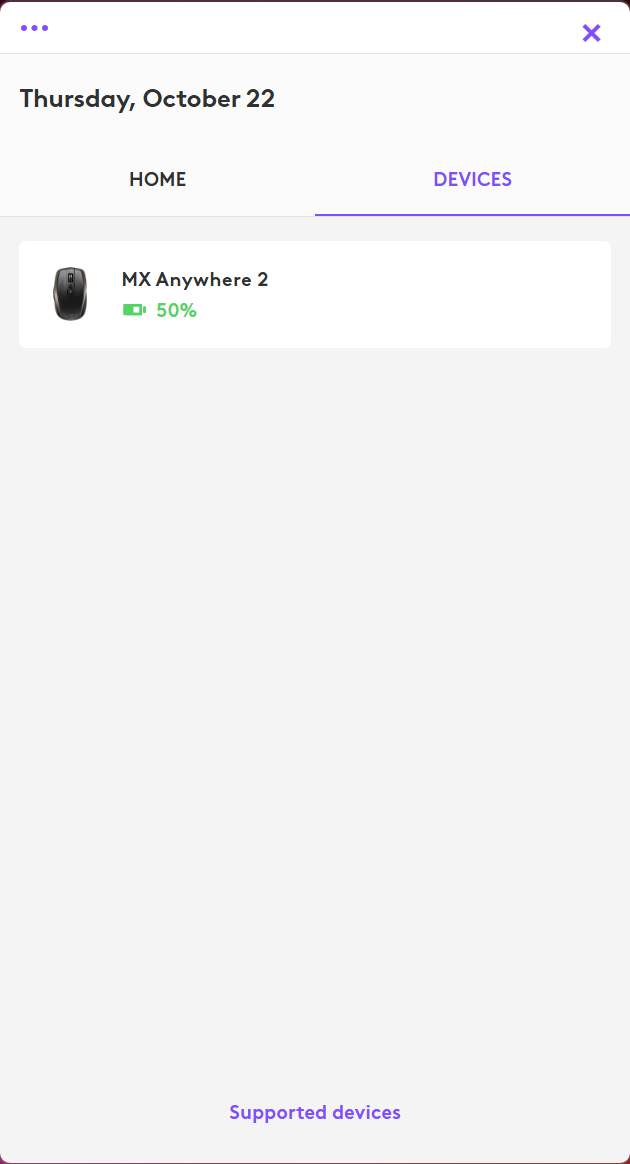
Logi Tune is the settings program for Logitech headsets and webcams, plus the docks and lights in the same work-from-home range. It shows each connected device on a dashboard and opens the controls the hardware has but the operating system never exposes.
On a webcam, that is field of view, zoom, pan, an auto-framing mode that keeps you centred as you move, and image adjustments down to shutter speed and colour temperature. On a headset, it is a five-band equaliser, sidetone so you hear your own voice, and the level of noise cancelling. Microphone gain and a test call to check all of it sit beside them. Firmware updates for every device happen from the same window.
It is a companion rather than a general tool. Plug in a webcam from another maker and Logi Tune shows nothing for it. Other utilities such as Logitech Capture or the gaming-oriented Logitech G HUB serve different parts of the same maker’s catalogue.
Owners of the office range, the Zone headsets and Brio webcams above all, are the audience. For them it is the difference between a device at its defaults and one set up for their desk.
Webcam framing and image
Select a webcam in Logi Tune and a live preview appears with the controls beside it. Field of view switches between the lens’s angles, wide for a group at a table and narrow for one face at a desk. Zoom and pan move within the frame, so a camera that sits off to one side can still centre on you. RightSight, on the webcams that support it, does the centring for you, following as you lean or stand and reframing when a second person joins. It can be turned off for anyone who finds the movement distracting.
The image controls run deeper than the usual brightness slider. Exposure, ISO and shutter speed are set by hand or left automatic, and white balance is a temperature and a tint. Saturation and sharpness each have their own slider, as do contrast and vibrance. A handful of filters give a preset look.
Autofocus can be locked to stop the lens hunting when you gesture. A low-light mode trades frame rate for a cleaner picture in a dim room. Everything is saved to the camera itself, so the settings survive switching between meeting programs.
Headset sound and sidetone
Select a headset and the Logi Tune dashboard shows battery and connection and mute state, then the audio controls. The equaliser has five bands and presets for voice, bass boost and a flatter podcast profile, plus your own saved curves. Sidetone feeds your own voice back into the earcups at a level you choose, which stops the shouting that comes from hearing nothing of yourself on a call. On headsets with active noise cancelling, the strength is a slider or a set of levels, and a transparency mode lets the room back in.
Microphone settings cover gain and, on some models, a noise suppression setting for the outbound voice, so the far end hears less keyboard. A test call records a few seconds and plays it back so you hear what others hear, which is the single most useful button in the program.
Button assignments on the headset’s own controls can be changed where the hardware allows. A personal name can be written to the device so it shows up in the meeting client with your label.
Firmware updates and the other devices
Every device Logi Tune supports shows its firmware version and offers an update when one exists, applied from the dashboard with progress shown. For a headset that has developed a connection quirk, the update is the first thing to try, and here it is a click rather than a hunt. The Logi Dock and the video bars in the range appear with their own pages, the dock’s speaker and microphone getting the same equaliser and test treatment as a headset.
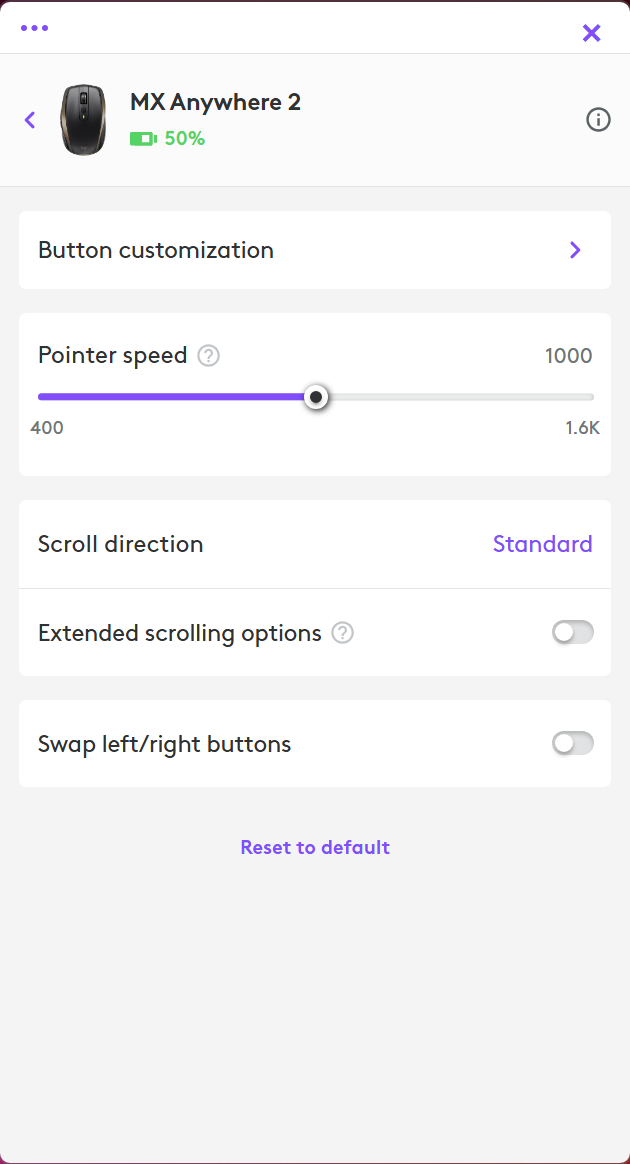
Lighting and input devices from the office line have started appearing in the dashboard as well. A Smart Activation setting turns a desk light on when the camera goes live, and the button and scroll settings that a separate program used to hold are moving here. The scope keeps widening, and the program is on its way to being the single settings window for the maker’s whole work range.
Calendar reminders and desk booking
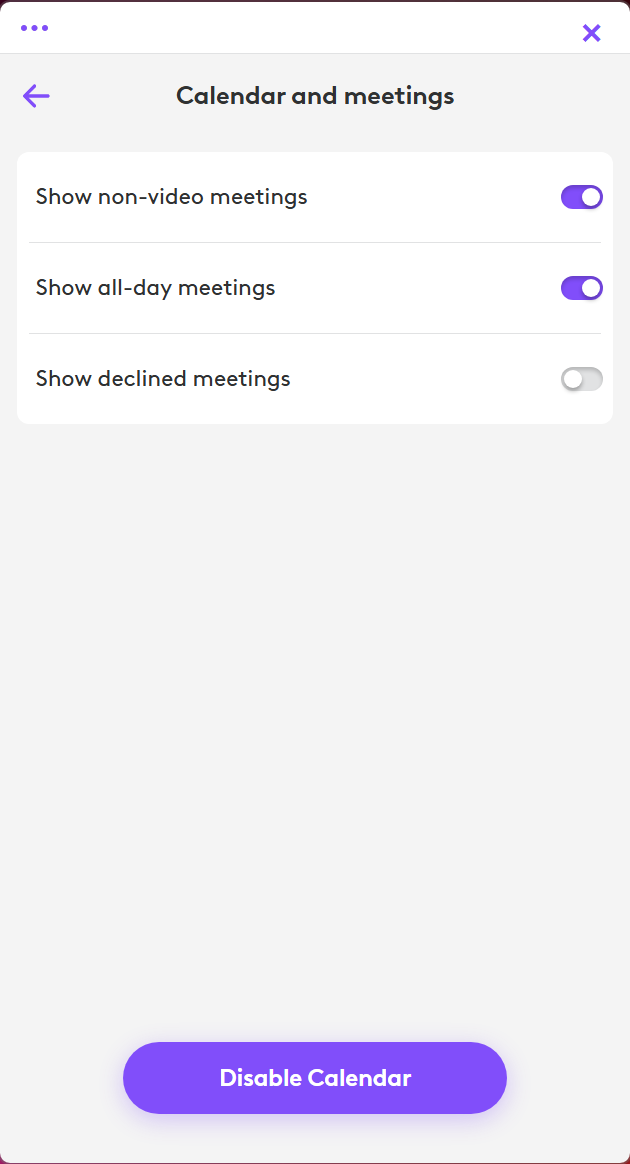
A Logi Tune calendar connection to a Google or Microsoft account puts the day’s meetings on the dashboard and raises a notification a few minutes before each with a join button. It works whether or not a supported device is connected, which makes it a small meeting reminder in its own right. Teammates can be grouped so you see their status. For offices using the maker’s room and desk booking system, the same window books a desk equipped with the hardware you need.
These features are the part of the program that some home users find beside the point, and every one of them is optional and off until connected. The device controls work with no account and no calendar.
Where it stops
The program controls the maker’s office devices and nothing else. A gaming headset from the same maker belongs to G HUB. A webcam from another brand gets nothing. The image settings, deep as they are, are device settings rather than a video pipeline. There is no virtual background, no recording and no streaming, which a recording tool for the same webcams handles.
And the program runs in the tray and checks for updates and calendar events, which the notifications need, but it is one more thing running.
Conclusion
Logi Tune is for anyone with a Zone headset or a Brio webcam who wants the camera framed, the image right and the headset tuned before the next call. None of it touches the meeting program. The test call and the sidetone slider alone fix the two commonest complaints about working from home, and the webcam controls go deeper than any built-in camera settings.
Owners of other brands have no reason to install it, and gamers with the same maker’s headsets have their own program. For the office range it is the settings panel the hardware always needed.
Pros & Cons
- Field of view and zoom, with panning and auto-framing, for the maker's webcams
- Image controls down to shutter speed, ISO and colour temperature, saved to the camera
- Five-band equaliser, sidetone, noise cancelling level and a test call for headsets
- Firmware updates for every device from one dashboard
- Calendar notifications with a join button
- Controls only the maker's office range, with gaming devices in a separate program
- No virtual background, recording or streaming
- Runs in the tray for notifications whether you use them or not
- Calendar and booking features are irrelevant to many home users
Frequently asked questions
Only the maker's supported office models appear. Gaming devices use a different program, and webcams from other makers are not supported at all. Check the supported device list for your exact model.
Turn off RightSight on the webcam's page. The camera then holds the field of view and zoom you set.
Select the headset and raise the sidetone slider. Your voice is fed back to the earcups at that level, which makes it easier to speak at a normal volume.
Yes. The settings are written to the camera itself, so the field of view and framing and image adjustments carry over to whichever program uses the camera.


