

AntiMicroX
About AntiMicroX
AntiMicroX turns a gamepad into a keyboard and mouse, so a controller can drive software that never had controller support to begin with. Map the A button to Enter, the left stick to mouse movement, a trigger to a left click, and suddenly a game built for keyboard-only input, or an emulator, or even your media player on the couch, answers to the pad in your hands. The application sits between the controller and the system, translating button presses and stick movement into the keystrokes and clicks Windows already understands.
The reason it exists is simple: plenty of programs ignore gamepads entirely. AntiMicroX bridges that gap without asking the program to change anything. As far as the game or app is concerned, the input is coming from a keyboard and mouse, because functionally it is. Every button, trigger, and stick direction becomes a slot you can assign to whatever key, mouse action, or sequence you want.
Mapping every input, not just buttons
The mapping goes deeper than swapping one button for one key. Each control on the pad, including the analog sticks broken into directions and the triggers as either buttons or analog ranges, gets its own assignment. You can bind a single key, a mouse click, mouse movement, or a whole sequence of keystrokes to one input.
Analog sticks are handled with actual care. A stick can act as mouse movement with adjustable sensitivity and a dead zone you set yourself, or it can be split into directional zones that each fire a different key, which is how you’d map a stick to WASD for an old game.
The dead zone control matters more than it sounds. A drifting or oversensitive stick is the usual reason mappings feel sloppy, and being able to tune the threshold per stick fixes most of that.
Profiles and sets for switching on the fly
A single mapping is useful. Being able to keep dozens and swap between them is what makes the tool practical. AntiMicroX saves your configurations as profiles, so you keep one layout for a platformer, another for a strategy game, another for navigating the desktop from the sofa, and load whichever you need.
Then there are sets, which are layers within a single profile. You can assign a button to switch the active set, so holding or tapping one control instantly remaps every other button to a different function. It’s effectively a shift key for your whole controller, and it doubles the number of actions you can reach without adding buttons. For anyone who has run out of inputs on a pad, this is the feature that buys back room.
How it differs from the controller remappers
This is a crowded space, and the distinction worth drawing is between key emulation and controller emulation. AntiMicroX emulates a keyboard and mouse. A tool like DS4Windows does something different, presenting a DualShock pad to the system as an Xbox controller so games that only speak Xbox will recognize it. Different problems, different tools. If a game already supports controllers and just won’t accept your specific pad, that’s a controller-emulation job, not this one.
Among the key-mapping crowd, JoyToKey and Xpadder cover similar ground. JoyToKey is famously lightweight and gets the job done, while Xpadder leans on a visual controller layout. What AntiMicroX brings is being free and open, with the analog handling and the set system landing on the more capable end without a price tag.
The paid reWASD goes further with deep macros and native controller emulation combined, so if you want everything in one paid package, that’s the heavyweight. For free key-and-mouse mapping, though, this holds its own.
Macros and timing
Beyond single keys, you can build sequences: a button that types a string, fires several keys in order, or holds one key while tapping another. There’s control over timing between steps, which matters for anything that needs a beat between presses rather than a machine-gun burst. It’s not a full scripting environment, and if you need genuine logic and conditionals, a dedicated tool like AutoHotkey is the better hammer. But for “press this button, send this sequence,” the built-in macro support is enough and far easier to set up.
The interface and the rough edges
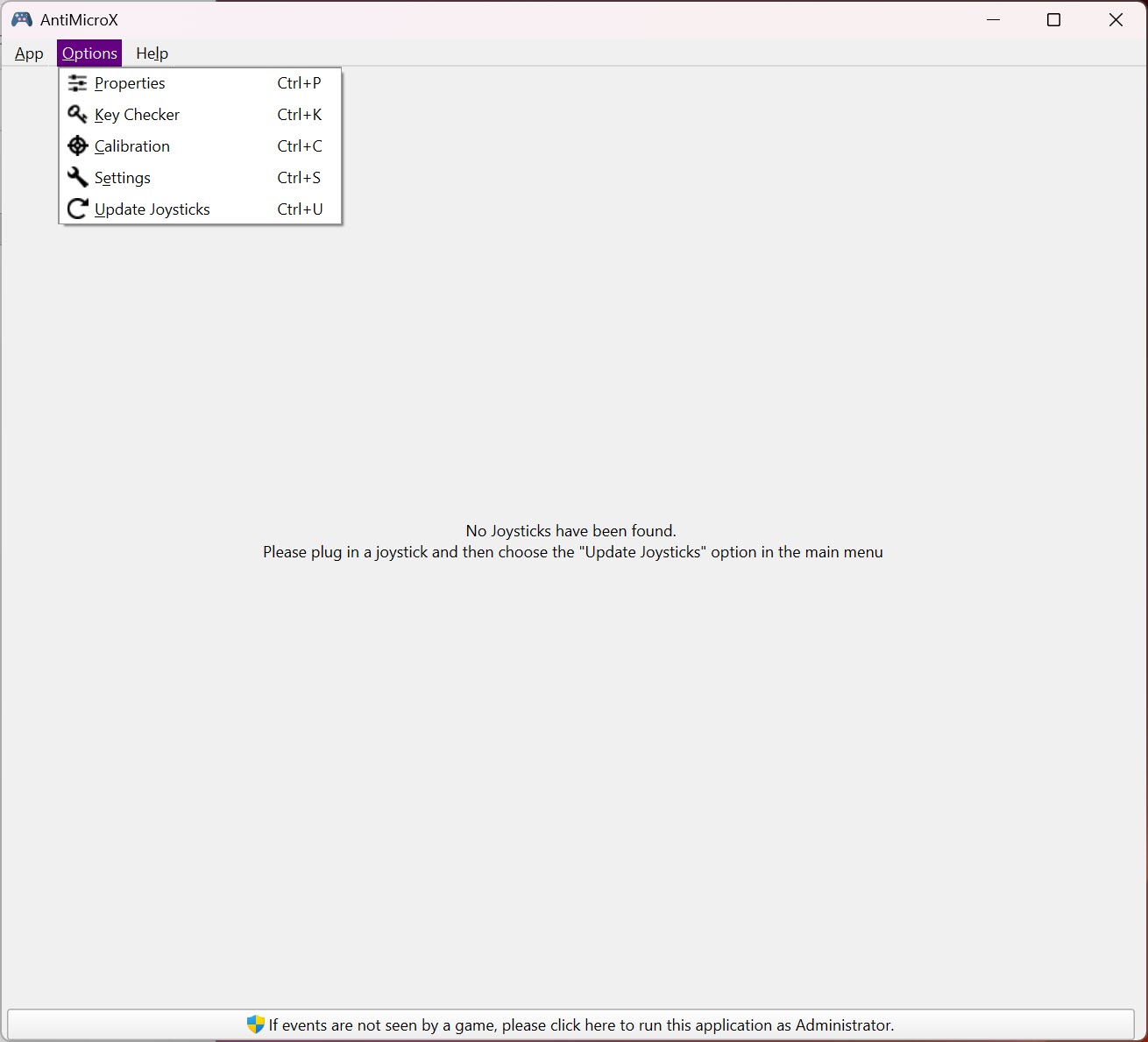
The layout shows you the controller’s inputs as a list of slots, and you click each one to assign it. It’s clear enough once you’ve done it a couple of times, though it isn’t the prettiest interface and the sheer number of options can feel busy at first. The visual approach is more functional than slick.
Detection is generally good, picking up standard pads without fuss, but oddball or off-brand controllers occasionally need a nudge before every input registers correctly. And because the tool emulates keyboard and mouse rather than a controller, a handful of games with anti-cheat systems may flag emulated input, so it’s worth knowing the boundary before relying on it online.
Conclusion
AntiMicroX is the tool to grab when you want a controller to run something that wasn’t built for one, whether that’s an old keyboard-only game, an emulator, or just steering the desktop from across the room. The detailed analog handling, the per-game profiles, and the set system that layers extra functions onto a limited number of buttons are what lift it above the simplest mappers, and it does all of it for free.
It won’t help if your problem is a game that needs genuine controller input rather than keyboard emulation, where a controller emulator is the right answer, and the busy interface asks for a little patience up front. But for free, flexible mapping of a gamepad to keyboard and mouse, with real control over how the sticks behave, this is one of the strongest options you can install.
Pros & Cons
- Maps every button, trigger, and stick direction to keys, mouse actions, or sequences
- Analog sticks support mouse emulation with adjustable sensitivity and a custom dead zone
- Profiles let you keep separate layouts per game and switch between them
- Sets act as a shift layer, multiplying available actions without more buttons
- Free and open with no paid tiers gating core features
- The interface is busy and takes some getting used to
- Emulates keyboard and mouse, not a controller, so it won't help games that need true controller input
- Some anti-cheat systems may flag emulated input in online games
- Off-brand controllers occasionally need manual tweaking to register every input
Frequently asked questions
It maps gamepad and joystick inputs to keyboard keys, mouse clicks, mouse movement, and key sequences. This lets a controller operate programs and games that don't natively support gamepads, because the system sees keyboard and mouse input rather than a pad.
Yes. A stick can drive the mouse cursor with sensitivity and dead zone you set yourself, or be split into directional zones that each send a different key. The dead zone control is what keeps a drifting stick from producing sloppy input.
A profile is a complete mapping you save and load, typically one per game. A set is a layer inside a profile that you switch to with a button, instantly remapping the rest of the controls. Sets work like a shift key for the whole controller and roughly double how many actions you can reach.
DS4Windows presents a pad to the system as an Xbox controller for games that need real controller input. This tool instead emulates keyboard and mouse for programs that don't support pads at all. reWASD is a paid tool that combines deep macros with controller emulation, so it covers more but costs money.
It works in many, but some titles with anti-cheat systems may detect emulated keyboard and mouse input and flag it. For single-player games, emulators, and desktop use it's reliable; for competitive online play, check the game's stance first.
Yes, you can assign sequences of keystrokes to a button with control over the timing between presses. It's not a full scripting language, so for complex logic a dedicated automation tool fits better, but for ordered key sequences it handles the job.


