

Samsung PC Studio
About Samsung PC Studio
There is a drawer in most houses containing a phone from before touchscreens, and on it a few hundred text messages and some photographs nobody ever copied off. Samsung PC Studio is the tool for emptying that drawer, a desktop suite for the generation of Samsung handsets that came before smartphones and cloud accounts.
It belongs to a category that has almost entirely disappeared. Every manufacturer shipped one, Nokia Suite being the best remembered, and they all did the same jobs, moving files, copying contacts, archiving messages and turning the phone into a modem when the house had no other connection.
Understanding it as a museum piece with one remaining use is the right frame. Almost everything it does has been replaced. The messages have not.
Four ways to connect, one that works
Connection options cover a USB cable, Bluetooth, infrared, a serial cable, which tells you roughly when this was designed. USB is the fastest and by far the most reliable, and it is what you should use unless the handset predates it.
Model-specific drivers are the usual obstacle. Samsung PC Studio talks to the phone through a driver package matched to that model, and a handset that charges without appearing in the software almost always means the driver is missing rather than the phone being unsupported.
Bluetooth is worth a mention because pairing code from that era expects a particular stack rather than whatever the machine happens to be running now. Where a modern adapter refuses to cooperate, an older Bluetooth stack sometimes bridges the gap that nothing else will.
A separate window for every job
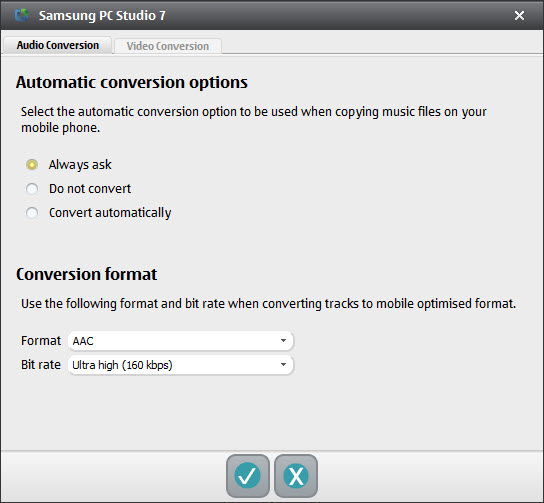
The design is modular to a degree that feels strange now. A file browser, a message manager, a message composer, a synchronisation module, a media manager, a converter and a networking wizard, each opening in its own window rather than as a panel inside one application.
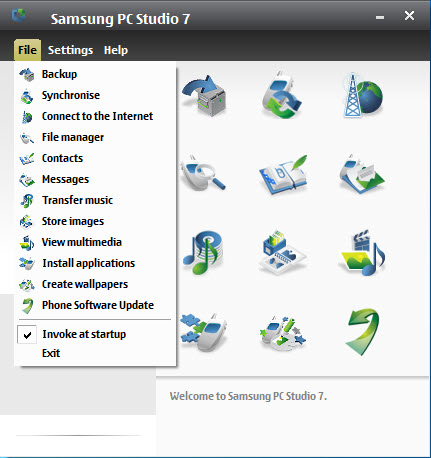
That has the advantage of clarity once you know what each one does, and the launcher makes learning it harder than it needs to be. Icons sit there without descriptive labels, so the first session involves clicking things to discover what they are, and every function is duplicated in a menu as though the designers were not confident about the icons either.
For a phone manager with a comprehensible interface that also handles handsets from several makers, a brand-agnostic phone manager is the better tool for anything it supports.
Messages on a proper keyboard
This is the module that still matters. Messages stored on the handset can be viewed, edited, organised on the computer, copied or moved in either direction, and new text or multimedia messages can be composed on a keyboard and sent through the connected phone.
Anyone who has tried to preserve a conversation from a phone with no cloud backup will understand why that is the feature to install this for. A handset from that era stores messages in its own memory with no export function worth the name, and once the phone stops charging they are gone. Getting them onto a computer while it still works is the whole exercise.
The multimedia composer belongs to the same era and the same logic, building picture messages from photographs, video, sound, text on a real screen instead of thumbing through a phone menu.
The file browser, and what it can see
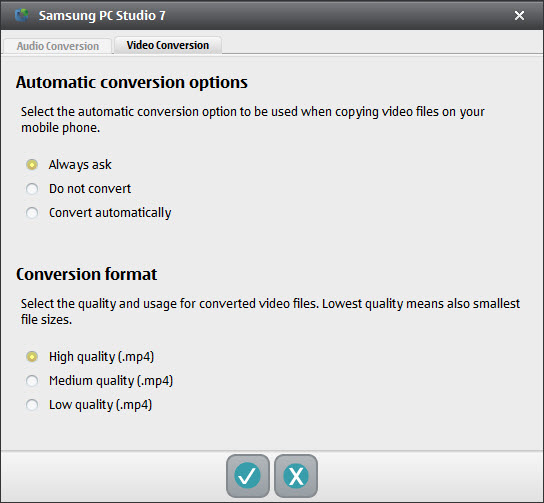
Browsing the handset’s storage in Samsung PC Studio works as you would expect. A media manager and video converter sit alongside it, turning imported video into the couple of formats and the single small resolution these phones could actually play. Files copy, move, delete, drag and drop functions, and application packages for those phones install by dropping them onto the window.
There is a documented failure to check before you rely on it. On some handsets the browser only sees the memory card and not the internal storage, which means the photographs you actually wanted stay exactly where they were.
If that happens, a card reader and the memory card itself will get the card contents faster, and the internal storage may need the phone’s own transfer menu instead.
Sync, the modem trick and what replaced it
Contacts, calendar entries and tasks synchronise against desktop information managers, with support for the mainstream mail client and several of its contemporaries, so a phonebook could be maintained on a computer and pushed to the handset.
The networking wizard turned the phone into a modem, which for a while was how people connected a laptop to the internet away from home. It still works if the handset and a data plan cooperate, and it is now a curiosity rather than a feature.
One real limitation to note. Samsung PC Studio does not handle more than one phone gracefully, because data from every handset lands in the same folders, so managing two devices means untangling them afterwards.
For handsets from the generation after this one, Samsung Kies is the suite that took over and covers early smartphones this cannot see.
Anything current belongs to Samsung Smart Switch instead, which handles device-to-device transfers and backups for modern handsets and has nothing to do with this software beyond the brand on the box.
Conclusion
Samsung PC Studio has one job left, and it does that job better than anything else available. If there is an old Samsung handset in a drawer holding messages or photographs somebody wants to keep, this is the software that gets them onto a computer, and nothing modern will talk to a phone of that age.
Approach it with the right expectations. The interface will not help you, the drivers are the hardest part, it dislikes being used with two phones, and on some handsets it will only show you the memory card. Install it for the archive job, get what you need off the phone, and then let the suites that replaced it handle anything you actually use day to day.
Pros & Cons
- Archives text and multimedia messages from handsets that have no other export route
- Messages can be composed on a keyboard and sent through the connected phone
- File browser copies, moves, deletes on the handset with drag and drop support
- Converter turns video into the few formats older handsets could actually play
- Contacts, calendar, tasks synchronise with desktop information managers
- Connection by cable, Bluetooth, infrared or serial covers a wide span of old hardware
- The phone can serve as a modem where no other connection exists
- Launcher icons carry no descriptive labels, so the first session is guesswork
- On some handsets the file browser sees only the memory card, not internal storage
- Data from multiple phones lands in shared folders, making two devices awkward
- Model-specific drivers are needed, and a missing one looks like an unsupported phone
- Superseded twice over, so nothing newer than feature phones is covered
- Most of what it does has no purpose on a current handset
Frequently asked questions
The generation of Samsung phones that came before smartphones, meaning feature phones connected by cable, Bluetooth, infrared or serial. Early smartphones need the suite that replaced it, and current handsets need the transfer tool that replaced that.
By USB cable where the handset supports it, since it is both fastest and most stable. The model-specific driver has to be installed first, and a phone that charges without appearing in the software is nearly always a driver problem.
Yes, and it is the best reason to still install it. Messages can be viewed, organised and moved in either direction, which is the only practical way to preserve conversations from a handset with no cloud backup.
Because on some handsets the file browser cannot reach internal storage, which is a documented limitation rather than a setting. A card reader gets the card contents faster, and internal storage may need the phone's own transfer menu.
Badly. Data from every connected handset is written into the same folders, so using it with more than one device means sorting out whose files are whose afterwards.


