

VidCoder
About VidCoder
VidCoder is a video transcoder and disc ripper built for one job, taking video from almost any source and turning it into a clean MP4, MKV, or WebM file. Feed it a video file, a ripped DVD folder, an ISO, or a Blu-ray folder, and it re-encodes the contents into a modern, compact format that plays anywhere.
If your drive is full of bulky or awkward video files, or you want your DVD collection as files on a hard drive, this is the tool that does the converting.
Here is the thing that defines it, and it is worth understanding up front. VidCoder uses the HandBrake encoding engine under the hood. That is the same proven encoder that powers one of the most respected transcoders around, so the quality and capability are not in question. What this program adds is a different, more polished interface wrapped around that engine. You get HandBrake’s encoding muscle with a layout many people find easier to navigate.
And because it calls directly into the encoding library rather than bolting onto a separate program, you do not need HandBrake installed for any of it to work.
It is one self-contained application, and the whole encoding pipeline runs in a single process with no giant temporary files spilling onto your disk mid-conversion.
Why the HandBrake connection matters
This relationship shapes the whole experience, so it is worth dwelling on. The encoding itself, the part that actually determines how good your output looks and how small it gets, is handled by a mature, widely trusted engine. That means VidCoder is not some lightweight knockoff. It produces output every bit as capable as HandBrake itself, because it literally is the same encoder doing the work.
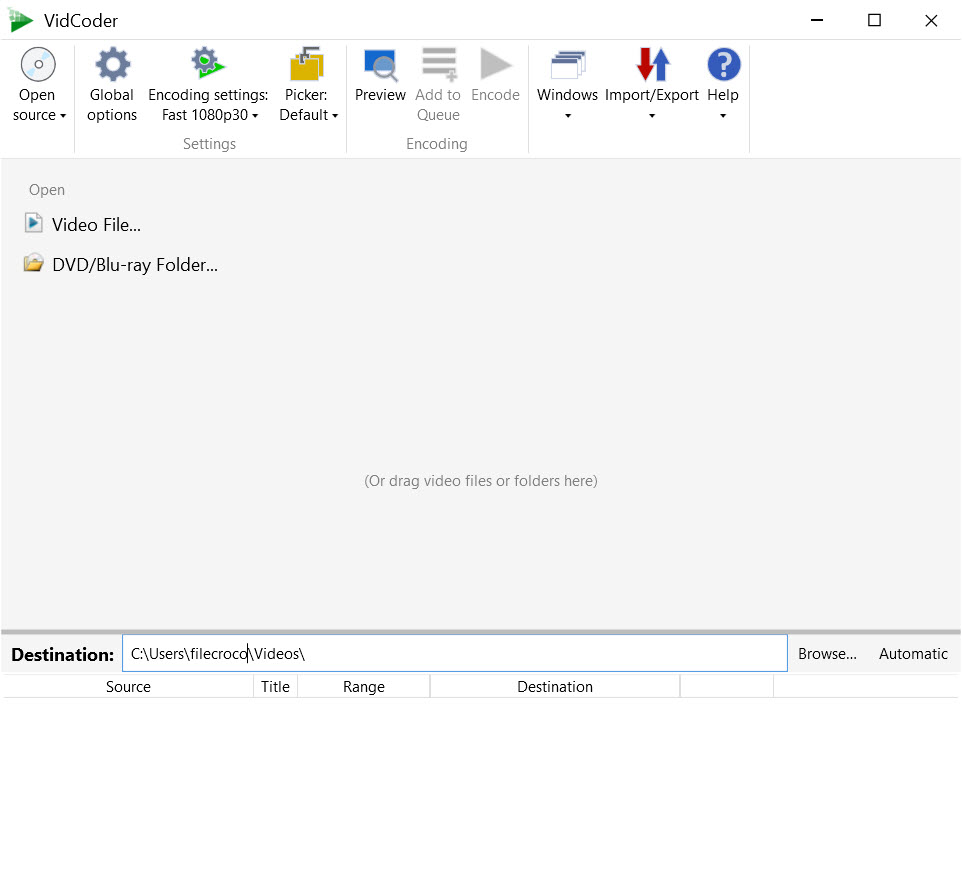
The difference is presentation and workflow. The interface calls directly into the library, which gives it room for a richer layout than HandBrake’s own front end. For some people that clean, approachable presentation is the deciding factor.
If you have tried HandBrake and found its window a little austere, this is the same power with a friendlier face. If you already love HandBrake’s interface, you may not need to switch. The two are close cousins, and which you prefer often comes down to taste.
Batch encoding is the standout feature
Where VidCoder pulls its weight is volume. You are not stuck converting one file at a time. You build a queue, adding as many videos as you like, and the program works through them one after another while you walk away. For someone digitizing a stack of discs or converting a folder full of clips, this turns an all-day chore into a set-and-forget operation.
It goes further than just queuing files. You can add multiple titles from a single disc at once, useful when a DVD holds several episodes, and you can save, export, and import entire queues.
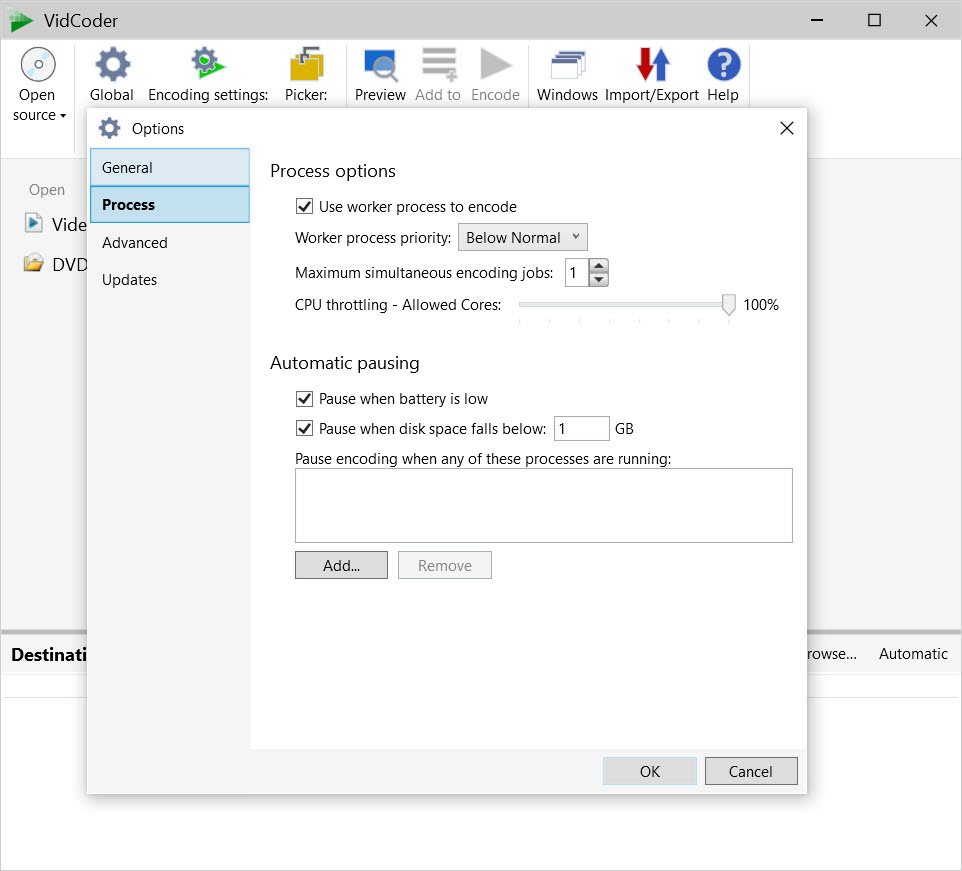
The multi-threaded encoding makes full use of a modern processor, so each conversion runs as fast as your hardware allows.
Real control over how your video turns out
The VidCoder output options run deep. On the video side you can encode with H.264 or the more efficient H.265 for smaller files at the same quality, along with older codecs like MPEG-4 and MPEG-2 when you need them. You choose whether to target a specific quality level, a file size, or a bitrate, and you can run a two-pass encode when squeezing the best quality out of a tight size budget matters.
There is hardware-accelerated encoding too, tapping the dedicated video engines in AMD, Nvidia, and Intel chips to speed things up dramatically when your machine supports it. On the audio side you get encoding to AAC, MP3, AC3, FLAC, and more, plus passthrough that keeps the original high-quality track, including formats like DTS-HD, untouched when you would rather not re-encode it.
Filters round it out. You can deinterlace footage from older sources, apply decomb and detelecine for film-sourced video, denoise, deblock, crop away black bars, and rotate. Subtitles are well handled, whether you pull them from the source, import an external SRT file, or burn them permanently into the picture.
Previews that save you from wasted encodes
A small VidCoder feature that earns a lot of goodwill is the preview system. Before committing to a full conversion that might take an hour, you can generate a short encoded clip using your current settings and watch exactly how it will look. If the quality is off or the file is bigger than you hoped, you adjust and try again in seconds rather than discovering the problem after a long encode. You can also pause and resume encodes, which is handy when you need your processor back for something else.
Presets tie all this together. The settings live in named presets you can save, export, and share, so once you have dialed in a configuration for, say, your tablet or your media server, you apply it with a single click every time.
The one limitation to know about
Be clear on this before you start. VidCoder can rip DVDs and Blu-rays, but it does not break the copy protection found on most commercial discs. For unprotected discs, your own home recordings, or video files you already have, it works directly. For a store-bought movie with encryption, the program alone will not get past that protection, and that is a deliberate boundary rather than a bug. Going in expecting it to crack a commercial disc on its own will only lead to frustration.
Compared to a broader converter like Any Video Converter or a deeply technical tool like Hybrid, this sits in a focused middle ground. It is more powerful and quality-focused than the simple converters, and far more approachable than the intimidating professional encoders.
Conclusion
VidCoder is for the person who converts video regularly and wants real control without a steep climb. The home-theater builder digitizing discs, the collector compressing a video library, anyone tired of files that will not play on the device in their hand. Built on a proven engine and wrapped in a cleaner interface, it delivers professional-grade encoding with a workflow that does not fight you.
It will not crack a protected commercial disc, and if you are already comfortable with HandBrake you may not feel the need to move. But for quality-conscious transcoding, especially in batches, it is one of the most capable and pleasant options you can reach for. Set up a queue, dial in a preset, and let it run. That simple loop is where it shines.
Pros & Cons
- Uses the trusted HandBrake engine, so output quality is excellent
- Cleaner, more approachable interface than HandBrake's own front end
- Strong batch queue handles many files and disc titles unattended
- Deep control over codecs, quality, bitrate, two-pass, and filters
- Hardware-accelerated encoding on AMD, Nvidia, and Intel chips
- Preview clips let you test settings before committing to a full encode
- Self-contained, with no need to install HandBrake separately
- Does not defeat the copy protection on commercial DVDs and Blu-rays
- Output is limited to MP4, MKV, and WebM containers
- Shares so much with HandBrake that switching may feel redundant to its fans
- The depth of settings can intimidate a first-time user
Frequently asked questions
It converts video files and ripped DVD or Blu-ray folders into MP4, MKV, or WebM, using the HandBrake encoding engine, with batch processing and detailed control over quality and format.
No. It calls directly into the encoding library and runs as a single self-contained application, so HandBrake does not need to be installed separately.
It can read unprotected discs, but it does not remove the copy protection on most commercial DVDs and Blu-rays, so a store-bought encrypted disc will not work with the program on its own.
It uses the same encoding engine, so output quality is identical, but it wraps that engine in a different, often friendlier interface. The choice between them usually comes down to which layout you prefer.
Yes. You build a queue of files, or even multiple titles from one disc, and the program encodes them in sequence unattended, making good use of a multi-core processor.
Yes. It can use the dedicated video encoders in AMD, Nvidia, and Intel hardware to speed up conversions significantly when your machine supports them.


VidCoder is really, really good! Tried “all” free DVD apps and programs, and VidCoder is the best by far!