

RawDump


 (45 votes, average: 3.42 out of 5)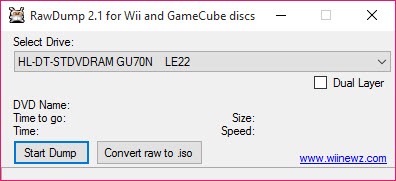
About RawDump
The GameCube and Wii used a custom optical disc format that standard DVD drives can’t read. Nintendo’s design choice put a one-letter difference between their game discs and a normal DVD-9, and that small detail means a regular PC DVD drive plugged into any current Windows machine simply refuses to recognize a GameCube or Wii disc when you insert it.
RawDump is the open-source utility that works around that limitation by using specific drive models capable of raw-mode reading to dump the disc contents into ISO files that emulators can use.
The application is narrowly purpose-built. It does one thing, which is reading GameCube and Wii discs through compatible DVD drives and writing the resulting images to disk. There’s no library management, no metadata fetching, no playback capability of its own.
The output is a raw image file ready to be loaded into the Dolphin emulator, mounted with virtual drive software, or stored as a backup of media you legally own.
The compatible drive requirement
This is the part that determines whether the application is useful for any specific user before you even download it. Not every DVD drive can read GameCube and Wii discs. The application’s compatibility list focuses on specific Hitachi-LG, Samsung, and a handful of other drive models from a particular era of consumer DVD hardware that happen to expose the raw-read commands needed to access Nintendo’s modified disc format.
If your PC has a current drive (or no DVD drive at all), the application can’t help you regardless of how well it’s configured. The realistic path for users without a compatible drive is to find one second-hand, since the specific models needed are no longer being manufactured. Common compatible drives include the LG GDR-8163B, LG GDR-8164B, LG GDR-8161B, certain Hitachi-LG slim drives, and a few BenQ models. The community-maintained compatibility list is the practical reference before purchasing.
That hardware dependency is by far the largest friction point in the application’s workflow. Once you have the right drive connected, the rest is straightforward. Without one, no amount of software configuration changes the situation.
The dump process and what it produces
Connecting a compatible drive, inserting a GameCube or Wii disc, and running the application gives you a straightforward dump workflow. The application detects the drive, identifies the disc type (GameCube discs and Wii discs use different sizes and structures), and reads the content through the drive’s raw mode interface.
GameCube discs are 1.4 GB capacity, which dumps relatively quickly. Wii single-layer discs are around 4.7 GB, and dual-layer Wii discs (used for some larger releases) are around 8.5 GB. The dump speed depends on the drive’s read performance and the condition of the disc itself, but typical dump times run from twenty minutes for a clean GameCube disc to over an hour for a dual-layer Wii title with surface wear.
The output is a raw ISO file containing the full disc image, including the regions of the disc most consumer drives skip over. That completeness is what makes the dumps usable in emulators that need to access the original disc structure rather than a stripped-down file copy.
For loading the resulting images into emulation, Cemu handles Wii U content while Dolphin (the standard GameCube and Wii emulator) reads the application’s output directly.
Verification and integrity
Each dump goes through a verification step that compares the read data against the disc’s internal checksums to confirm the read completed without errors. Successful verification means the resulting ISO matches what the disc actually contains, which matters for two practical reasons.
First, scratched or damaged discs sometimes produce dumps with read errors that aren’t immediately obvious from looking at the file. The verification step catches those, letting you know whether the dump is reliable before you delete the source disc or commit storage space to it. Second, for preservation purposes, knowing whether a dump represents a clean copy of a specific disc revision matters for users contributing to community ROM databases that track which dumps verify against known-good checksums.
The verification doesn’t fix damage, only reports it. For discs with read errors that can’t be resolved through multiple read attempts, the dump is still produced but flagged as incomplete. Sometimes those flagged dumps still work in emulators, sometimes they don’t, depending on which part of the disc had errors.
Where the application fits in the broader workflow
The application produces image files. What you do with them is determined by other tools. Dolphin emulator loads GameCube and Wii ISOs directly, with no conversion needed. For storage on real Wii hardware running homebrew, the WBFS format is preferred over raw ISO, and WBFS Manager handles the conversion from ISO to WBFS for users moving dumps onto external drives connected to a Wii system.
For users wanting more comprehensive Wii backup management with format conversion, Wii Backup Manager covers the broader workflow of organizing, converting, and verifying Wii backups across formats. These tools sit downstream of the dumping process the application handles, and they assume you already have ISO files to work with.
Mounting the resulting ISOs as virtual drives for use in software that expects physical media is possible through tools like DAEMON Tools Lite, though this use case is less common for Nintendo content than for PC software backups.
For users with extensive ripped game libraries who want a unified launcher across PC and emulated content, Playnite integrates with Dolphin and other emulators to provide a single browsing experience.
Settings and dump quality options
The application’s configuration is minimal by design. You can choose between reading the full disc raw (the standard option, which produces the most complete dump) or skipping certain sectors that some users don’t need preserved. The full raw dump is the default and is what the community generally recommends, since the size difference is negligible and the completeness matters for emulator compatibility.
Speed settings let you reduce the read speed below the drive’s maximum, which sometimes helps with discs that have minor surface damage. A slower read gives the drive more time to handle marginal sectors and reduces the error rate on borderline media. The trade-off is dump time, but for valuable or hard-to-replace discs the slower setting is worth using.
Logging captures the read activity, including any sectors that required retries or returned errors. The log files are useful for diagnosing dumping issues with specific discs and for documenting the condition of media being preserved.
Where the application falls short
The hardware dependency is the biggest limitation, and it’s not something the application can address. Compatible drives are out of production, and the specific models needed are harder to find than they used to be. Users entering the GameCube and Wii preservation hobby for the first time often spend more time sourcing a drive than they spend actually dumping discs.
The application is also not actively developed in any visible way. It works, but updates are infrequent, and changes to current Windows versions can sometimes break compatibility with the application’s hardware interaction layer. Running it on older Windows versions or in compatibility mode is sometimes necessary, depending on the specific configuration.
There’s also no graphical polish. The interface is utilitarian to the point of stark: drive selection, output path, start button. For an application doing one specific job that takes a known amount of time, the lack of visual flourish is appropriate, but users expecting a modern application experience will find the design startlingly basic.
Dual-layer Wii discs sometimes produce dumps that aren’t quite right on the first attempt, requiring multiple tries to get a verified read. The cause is usually marginal data on the layer transition area of the disc, which is the hardest part of any optical media to read reliably.
The application reports the failure and lets you retry, but multiple attempts on stubborn discs are common.
Conclusion
RawDump is the niche tool for a niche purpose, sitting at the intersection of game preservation, emulation enthusiasm, and personal backup of legally owned media. The application does its job well within the constraints set by the hardware requirements, and for users in the GameCube and Wii preservation community it remains one of the standard utilities for getting disc content off the original media and into a digital form that can survive past the eventual death of the original discs.
The audience is collectors with original GameCube and Wii libraries who want to preserve their physical media as digital backups, emulation enthusiasts who own the source games and want to play them on modern hardware, and contributors to community ROM databases who care about producing verified clean dumps.
Users without compatible DVD drives or without original Nintendo discs have nothing the application can offer them. For everyone else with the right hardware and a stack of original media, the application is the practical answer to a specific question that no general-purpose disc tool can address, and it earns its place in the optical preservation toolkit by being the right answer rather than the only one available.
Pros & Cons
- Reads GameCube and Wii discs that standard DVD drives can't access
- Open source with no licensing restrictions on use
- Verification step catches incomplete or error-affected dumps before they're committed
- Configurable read speed helps with discs that have minor surface damage
- Output format directly compatible with Dolphin and downstream Wii backup tools
- Minimal interface focused on the specific task without unnecessary complexity
- Requires specific compatible DVD drive models, most of which are out of production
- Not actively developed, with compatibility issues possible on newer Windows versions
- Dual-layer Wii discs sometimes require multiple dump attempts to verify clean
- Interface is utilitarian without modern design conventions
- No built-in conversion to alternative formats like WBFS, requires separate tools
- Hardware dependency is the main entry barrier for new users
Frequently asked questions
It reads GameCube and Wii game discs through compatible DVD drives and writes the contents to ISO files. The application uses raw-mode read commands that only specific drive models support, which is how it can access discs that standard DVD drives refuse to recognize.
The application requires specific Hitachi-LG, Samsung, BenQ, and a handful of other DVD drive models that expose raw-read commands. Common compatible models include the LG GDR-8163B, GDR-8164B, and GDR-8161B. The community-maintained compatibility list is the reference for confirming whether a specific drive will work.
Nintendo's GameCube and Wii used a modified disc format with a small but critical difference from standard DVDs. The change prevents standard DVD drives from recognizing the discs at the firmware level, which is intentional copy protection that the application's compatible drives bypass through raw-read modes.
GameCube discs typically dump in fifteen to thirty minutes. Single-layer Wii discs take thirty minutes to an hour. Dual-layer Wii discs can take over an hour, especially if the disc has surface wear that triggers retry attempts during reading.
Load them into Dolphin emulator to play on PC, convert them to WBFS format for use with real Wii hardware running homebrew loaders, or store them as preservation backups of media you legally own. The ISO format is the standard input for most GameCube and Wii emulation workflows.
Yes, the application includes a verification step that compares the dumped data against the disc's internal checksums to confirm the read completed correctly. Verification doesn't fix damaged discs, but it tells you whether the dump represents a clean copy.
Dual-layer discs are physically harder to read at the layer transition, and even minor surface damage in that area can cause read errors. Reducing the read speed, trying multiple times, and cleaning the disc all help. Discs with persistent failures at the transition usually need professional cleaning or replacement to dump reliably.
No. The application is specifically designed for the GameCube and Wii disc format. Other consoles use different optical formats with different copy protection that require separate tools and sometimes separate hardware.


