

BurnAware
About BurnAware
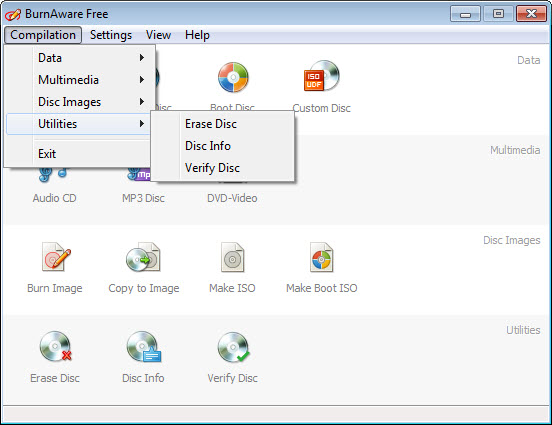
BurnAware is a disc burning suite that treats optical media with a seriousness the category mostly abandoned. The launcher presents a grid of task tiles, data disc, audio CD, video disc, ISO tools, and each job opens in its own small focused window, so burning never feels like operating a cockpit.
Underneath the friendliness sits full coverage, CDs, DVDs, and Blu-ray including the high-capacity BDXL and archival M-Disc types, with multisession, verification, and image tools throughout.
The field it lives in has two famous poles. ImgBurn offers total control through an interface only its longtime users love.
At the other pole, Nero Burning ROM buries burning inside a suite of everything else. BurnAware claims the sensible middle, more approachable than the first, immeasurably leaner than the second, and for the discs most people actually burn, that middle is exactly right.
Data discs, spanning, and the archival case
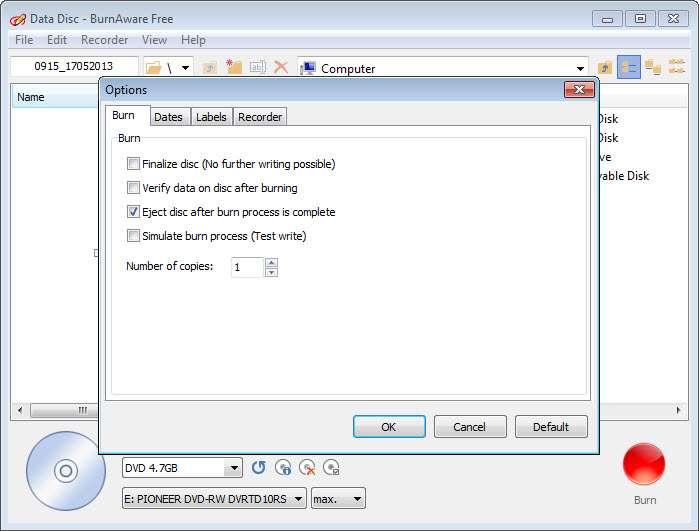
The data disc job covers the bread and butter, drag files in, watch the capacity bar, burn, and optionally verify the result against the source, a checkbox worth ticking every time since a disc that burned with errors is worth less than no disc at all. Multisession support appends more files to a disc later, useful for the gradually filling backup disc that lives in a drawer.
Disc spanning handles the collection that exceeds one disc, splitting a large file set across several discs automatically instead of leaving the arithmetic to you. And the M-Disc support deserves attention from anyone burning discs as archives rather than transport, since those write to a rock-like data layer rated for decades, and family photo archives are exactly the payload that justifies them.
Optical media has faded as daily storage, but as cheap, offline, ransomware-proof cold storage, a verified disc in a drawer still earns its place.
Audio, video, and the ISO toolbox
Audio CD burning produces proper players-anywhere discs from your files, complete with CD-Text so car stereos show titles, and the MP3 disc option packs hours of compressed audio for players that read data discs. Gapless burning matters for live albums, and the option is where it should be.
Video discs burn from prepared DVD folder structures, which pairs this tool with an authoring step, a converter like DVD Flick turns video files into the disc structure, and BurnAware commits it to a disc a living-room player accepts.
The ISO section rounds out the everyday toolkit, building images from files, burning existing images to disc, and copying a disc to an ISO for safekeeping, with the higher editions adding extraction of individual files from images and a recovery tool that salvages readable data from scratched or aging discs, the feature people discover the day an old backup disc starts refusing.
Editions, and what this tool is not
The free edition carries an unusually complete share of all this, the burning of every disc and image type, verification, erasing of rewritables, and it stays uncrippled where rivals nag. The paid tiers add the copying tools, the audio grabber that rips CDs to files, disc spanning, and the damaged-disc recovery, a split that leaves casual burners fully served at no cost and archivists with a reason to upgrade.
Just as important is the boundary. BurnAware burns optical discs, and writing a bootable ISO to a USB stick is a different job for a different tool, with Rufus being the standing answer there. People arrive at burning software with USB intentions often enough that the distinction saves an evening.
The other honest note is hardware, since the software can only be as healthy as the aging drives it drives, and a disc that fails verification on an old burner often succeeds on a newer one.
Conclusion
BurnAware suits the people optical media still serves, families archiving photos to M-Disc, musicians handing out audio CDs, offices with a disc-based procedure that isn’t changing, and anyone maintaining a drawer of verified backups. The tile design makes every one of those jobs quick, and the free edition covers most of them outright.
USB-first users need a different tool entirely, and archivists wanting the recovery and spanning features are the paid tiers’ honest audience. For putting data on a disc correctly in the present day, this is the cleanest way left to do it.
Features & benefits
Pros & Cons
- Covers CD, DVD, and Blu-ray including BDXL and archival M-Disc types
- Task-tile design keeps every burning job simple and separate
- Verification after burning catches bad discs before you rely on them
- Disc spanning splits oversized file sets across multiple discs automatically
- The free edition stays fully usable rather than a crippled teaser
- No USB stick writing, discs only
- Ripping, copying, spanning, and recovery sit in the paid tiers
- Video discs require a separately authored DVD folder structure
- Usefulness ultimately depends on ever-rarer optical drives
Frequently asked questions
No, it burns optical discs only. Use a dedicated USB imaging tool for sticks, and keep this for CDs, DVDs, and Blu-ray.
It splits a file collection larger than one disc across several discs automatically, numbering the set. Restoring means feeding the discs back in order.
Always, especially for backups. The burn takes longer, but verification reads the disc back against the source and catches errors while you can still reburn.
The paid editions copy discs directly and save discs as ISO images. The free edition burns images it's given but doesn't create them from existing discs.
The disc must contain an authored DVD structure, not plain video files. Convert the video with an authoring tool first, then burn the resulting folder as a video disc.


