

DeadPix
About DeadPix
A single bright dot stuck glowing red in the corner of your screen is maddening, and the instinct is to assume you are stuck with it or facing a warranty claim. Often you are not. DeadPix is a small utility built on a simple premise: many pixels that look broken are merely stuck, and a stuck pixel can frequently be coaxed back to life by bombarding it with rapidly changing colors. The tool does two things, it helps you find the bad pixel, and then it tries to revive it.
That second part is what sets DeadPix apart from the many tools that only diagnose. A detection-only utility like Dead Pixel Buddy will show you the defect in crisp detail and then leave you to deal with it. DeadPix carries the process one step further by actually attempting the repair, which for a stuck pixel is a genuine, non-invasive fix with a real chance of working.
Locate first, then fix
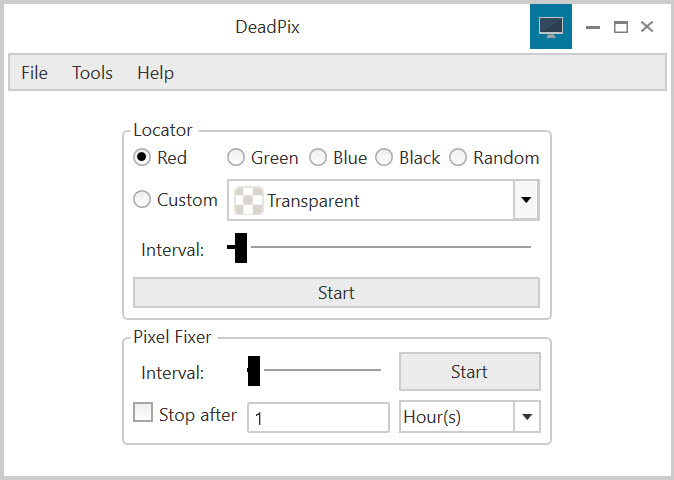
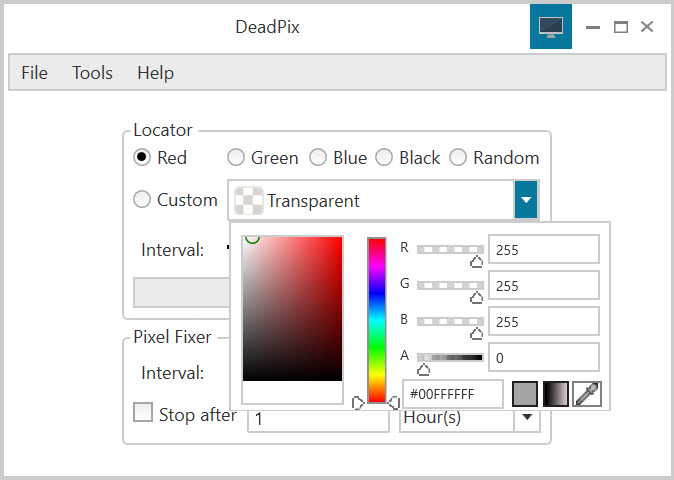
The application splits its job into two clear stages, and they live on separate tabs. The Locate side floods your screen with a solid color so the defect becomes obvious, the same flat-background trick every pixel tester uses. You can flash Red, Green, Blue, or Black, run a Random rotation, or pick any shade you like from a built-in color picker.
The point of cycling through them is that different defects hide on different colors, a dead-looking black dot pops against white, while a stuck sub-pixel betrays itself against a contrasting background. Once you have spotted exactly where the troublemaker sits, you switch to the repair stage.
The Fix side is where the actual work happens. You define a target area on the screen, position it over the offending pixel, and the tool begins rapidly flashing a sequence of colors inside that region. This concentrated, high-frequency color cycling is the whole mechanism. There is no mystery to it beyond patience and placement.
What the rapid flashing actually does
It helps to understand why this works, because it explains both the successes and the failures. Each pixel is made of red, green, and blue sub-pixels, each driven by a tiny transistor. A stuck pixel happens when one of those transistors gets jammed in a fixed state, leaving the sub-pixel locked on or off.
By forcing that pixel through hundreds of rapid color changes, DeadPix essentially exercises the stuck transistor over and over, and the repeated electrical stimulation can shake it loose and restore normal switching.
This is also why the tool is upfront that it cannot promise results. The flashing method works on stuck pixels, where the transistor is jammed but intact. It does little for a truly dead pixel, where the transistor has physically failed and stays black no matter what.
The application makes no grand claims here, the honest framing is that you should not expect miracles, and that candor is to its credit. It is offering you a free attempt at a fix that costs nothing but time, not a guaranteed cure.
How long it takes and what to expect
Reviving a stuck pixel is not instant. The recommended approach is to leave the flashing window running over the defect for at least ten minutes, and stubborn pixels may need a much longer session, sometimes an hour or more. You can leave it running in the background while you do other things, as long as the target area stays parked over the bad pixel. If the first run does nothing, a common tactic is to give the screen a rest and try again later, since some pixels respond on a second or third attempt.
Realistically, the odds are decent for a genuinely stuck pixel and poor for a dead one, so the outcome depends entirely on which you are dealing with. If you are unsure, a dedicated diagnostic such as Dead Pixel Tester can help you classify the defect before you spend an hour trying to fix something that was never fixable.
And if your monitor is brand new, it is worth attempting the repair within your return window, so that if the flashing fails you can still fall back on a warranty replacement.
A word on the flashing itself
One practical caution that applies to every tool of this kind. The repair process produces rapid, high-frequency flashing of bright colors, and that can be a trigger for anyone with photosensitive epilepsy. If you or someone nearby is sensitive to flashing lights, do not stare at the active repair window, and position it and then look away while it runs. The work does not require you to watch it.
It is also a good idea to gently clean the screen before you start, because a fleck of dust or a smudge can masquerade as a stuck pixel and send you chasing a defect that wipes away with a microfiber cloth.
Conclusion
DeadPix is for the person staring at one irritating bright dot who wants to try fixing it before accepting it or hauling the monitor back to the store. Its value is in pairing a straightforward locator with an actual repair attempt, and in being honest that the attempt may not work. For a stuck pixel, that free, low-effort shot at recovery is well worth taking.
Temper expectations according to what you are actually facing. On a stuck pixel the flashing method has a fair success rate and costs you nothing but a little patience. On a genuinely dead one it is more of a long shot, and a warranty claim becomes the realistic path. Either way, spending ten minutes letting this tool flash away at the problem is a sensible first move before you give up on the pixel for good.
Pros & Cons
- Goes beyond detection to actually attempt repairs on stuck pixels
- Separate locate and fix stages make the workflow clear and easy to follow
- Multiple flash colors plus a custom color picker help pinpoint different defect types
- Repair is non-invasive, with no risk of physically harming the screen
- Can run in the background while you work, as long as the target stays in place
- Cannot fix truly dead pixels, only stuck ones, and never guarantees success
- Repairs can take from ten minutes to over an hour, sometimes across multiple attempts
- The rapid flashing is a photosensitivity risk that demands caution
- No logging or measurement, just the visual locate-and-flash process
Frequently asked questions
It flashes a rapid sequence of colors over the affected area, which repeatedly exercises the stuck sub-pixel's transistor. That stimulation can unstick a transistor jammed in one state and restore the pixel's normal switching.
Not reliably. A stuck pixel has a working but jammed transistor that the flashing can often free. A dead pixel has a physically failed transistor and usually stays black regardless, so the tool is far more likely to succeed on stuck pixels.
At least ten minutes as a starting point, and potentially an hour or more for stubborn pixels. If nothing changes, resting the screen and running another session later sometimes works when the first attempt does not.
Yes, the color-flashing method is non-invasive and will not physically harm the display. The only real caution is the rapid flashing itself, which can affect people sensitive to flashing lights, so avoid staring directly at the active repair window.
Use the locate stage to flash solid colors across the screen, including red, green, blue, black, or a custom shade. Different defects show up best on different colors, so cycling through them helps you pinpoint the bad pixel before positioning the repair window over it.


