

Awake
About Awake
Awake keeps your computer from falling asleep, locking, or hibernating, and it does so from the system tray without touching a single power setting. That last detail is the entire reason it exists. Click the tray icon, tell it to keep the machine awake, and it quietly holds the system in an active state for as long as you want. No menus to dig through in Control Panel, no admin rights, no permanent changes to undo later.
The case it was built for is the locked-down office machine. If your power and screen-lock timings are enforced by a group policy you can’t edit, the usual advice (just change your sleep settings) is useless because the option is greyed out or reverts on you. Awake sidesteps that entirely. It doesn’t fight the policy or alter it.
It just tells the system “activity is happening” often enough that the idle timers never trip. If you have full control over your own PC and no policy in your way, you frankly don’t need this. It’s aimed squarely at the people who can’t get there through the normal route.
How it keeps the machine awake without changing settings
The mechanism is worth understanding because it’s what makes the tool trustworthy. Awake doesn’t modify your power plan, registry, or any system configuration. It calls a Windows API function that resets the idle timer, the same approach a well-behaved video player uses so your screen doesn’t dim or lock in the middle of a movie. The system simply thinks someone is active.
Because it works this way, it needs no administrative privileges to run. That matters on a managed machine where you wouldn’t have admin rights anyway. Nothing is installed deep in the system, and when you close the application or switch it off, the normal idle behavior returns immediately with nothing left behind to clean up.
Tray control and timed sessions
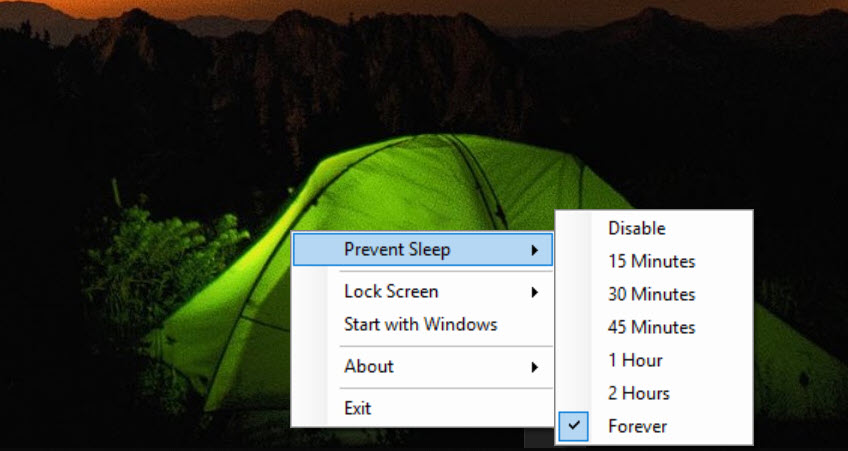
The whole interface lives in the tray. Right-click the icon and you get the controls: keep the machine awake indefinitely, or for a set duration, then let it lapse back to normal. The timed option is the sensible one for most situations, like keeping the PC up through a long download, a render, or a presentation, then letting it sleep on its own afterward so you’re not burning power overnight by accident.
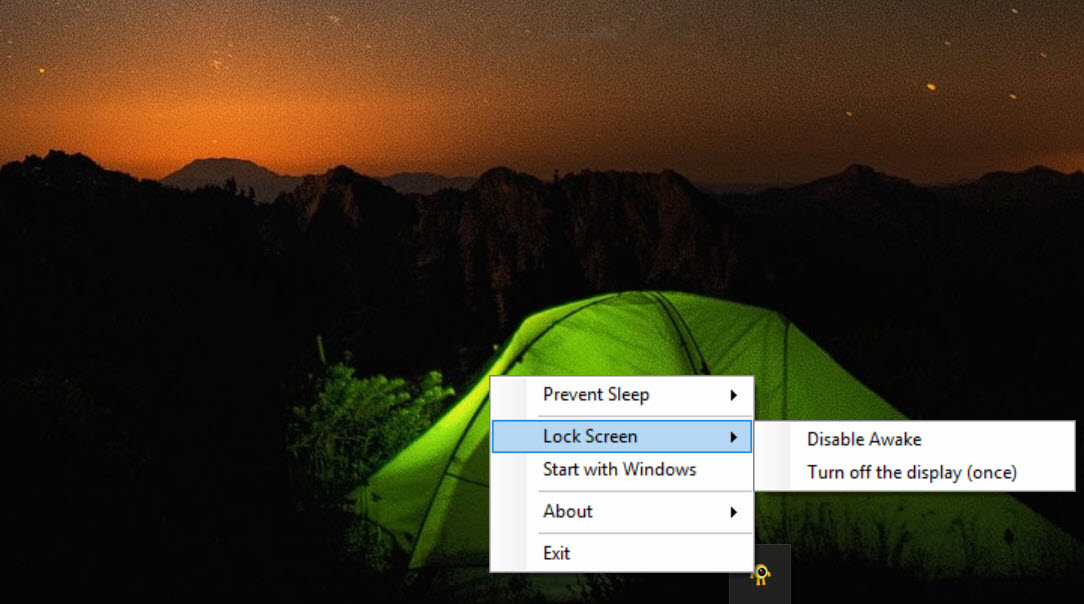
There’s also a menu for defining what should happen when you manually lock the screen with the Windows lock shortcut, which gives you a bit of control over behavior around that specific action rather than just blanket-blocking everything.
Awake versus the mouse-movement trick
The common workaround for this problem is a tool that jiggles the mouse cursor every so often to fake activity. Something like Mouse Jiggler does exactly that, and it works, but it’s a blunter instrument. A moving cursor can interfere with whatever you’re doing, nudge you out of a fullscreen app, or look obviously artificial if someone’s watching the screen.
Awake takes the cleaner route. It tells the system you’re active at the API level instead of physically moving anything, so your cursor stays put and nothing on screen twitches. For keeping a machine awake quietly, that’s the better behavior. The mouse-jiggle approach still has its place when a remote-access or monitoring tool specifically watches for input device movement rather than idle state, but for plain “don’t let it sleep,” the idle-timer reset is tidier.
If your actual goal is the opposite, getting a machine to sleep more aggressively to save power, that’s a different tool entirely, something like WinSleep handles forcing sleep on idle rather than preventing it.
What it deliberately doesn’t do
This is a single-purpose tool, and it’s honest about that. It won’t schedule complex wake and sleep cycles, it won’t manage power profiles, and it won’t do anything clever with multiple monitors or peripherals. It keeps the machine awake. That’s the feature list, and stretching expectations beyond it will only disappoint.
It also can’t override a hard policy that forces a lock at a specific clock time regardless of activity, since that’s not an idle timeout. Awake works against inactivity-based sleep and lock, which covers the overwhelming majority of cases, but a few aggressive enterprise setups lock on a fixed schedule that no idle-reset trick can touch.
Conclusion
Awake solves one specific, annoying problem well: keeping a computer from sleeping or locking when you can’t or don’t want to change the power settings yourself. The API-level approach means no admin rights, no permanent changes, and no twitching cursor, which makes it a cleaner fit than the mouse-jiggling workarounds for anyone stuck behind an enforced policy.
It’s not for everyone. If you control your own power settings, the built-in options do the job and you don’t need a separate tool. And if you want scheduling, power profiles, or anything beyond simply staying awake, this isn’t built for that. But for the office worker fighting a machine that locks every few minutes, or anyone who needs the screen to stay on through a long task without altering system settings, it’s a small, focused utility that does exactly what it promises.
Pros & Cons
- Keeps the system awake without changing any power settings or needing admin rights
- Works on managed machines where sleep and lock timings are enforced by policy
- Resets the idle timer at the API level, so the cursor never moves and nothing flickers
- Timed sessions let you keep the PC up for a task, then return to normal automatically
- Leaves nothing behind: switch it off and standard idle behavior resumes instantly
- Strictly single-purpose, with no power-profile or scheduling features
- Can't defeat policies that force a lock on a fixed schedule rather than on idle
- The tray-only interface is minimal, with no dashboard or status detail
- Unnecessary for anyone who can already edit their own power settings freely
Frequently asked questions
It calls a Windows API function that resets the system's idle timer, the same technique video players use to stop the screen from dimming during playback. The system reads this as ongoing activity, so it never reaches the timeout that would trigger sleep, hibernation, or the lock screen.
No. Because it only resets the idle timer rather than changing any system settings, it runs without admin privileges. That's deliberate, since it's meant for managed machines where you wouldn't have those rights in the first place.
For inactivity-based sleep and lock, yes. It doesn't change or fight the policy, it just signals activity so the idle timers never fire. The exception is a policy that locks the screen on a fixed schedule regardless of activity, which no idle-reset tool can override.
A mouse jiggler physically moves the cursor to fake activity, which can interrupt what you're doing and looks artificial. This tool signals activity at the system level instead, so the cursor stays still and nothing on screen moves. It's the cleaner approach for simply keeping a machine awake.
Yes. You can keep the machine awake indefinitely or for a set duration, after which it lapses back to normal idle behavior. The timed option is useful for getting through a long download or render without leaving the PC awake all night.
No. It makes no lasting changes. When you turn it off or close it, your normal sleep and lock behavior returns immediately, with nothing to undo or clean up.


