

Mouse Jiggler
About Mouse Jiggler
A long install runs unattended, the screen saver kicks in, the session locks, and something that needed an interactive desktop quietly fails. Mouse Jiggler exists for exactly that, and for the dozen variations on it. It fakes pointer input on a timer so the machine never registers as idle, without you touching power settings, screen saver timeouts or group policy.
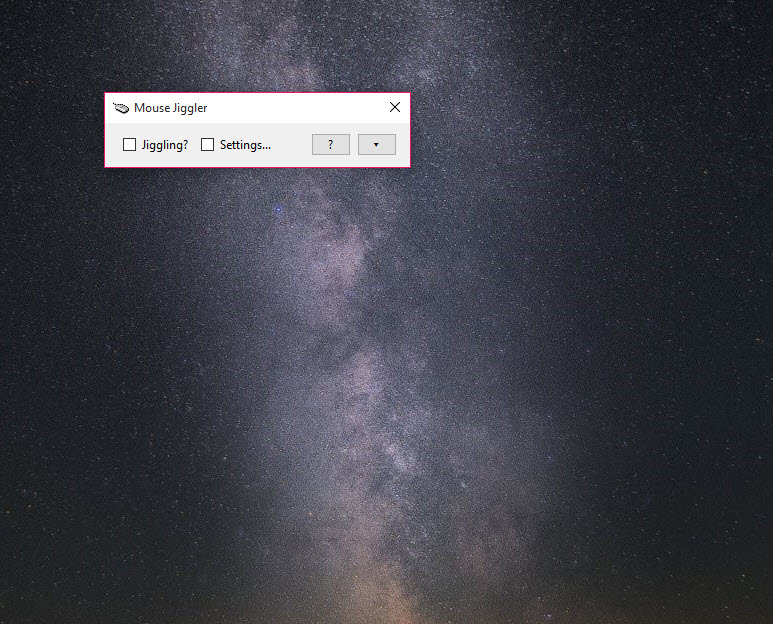
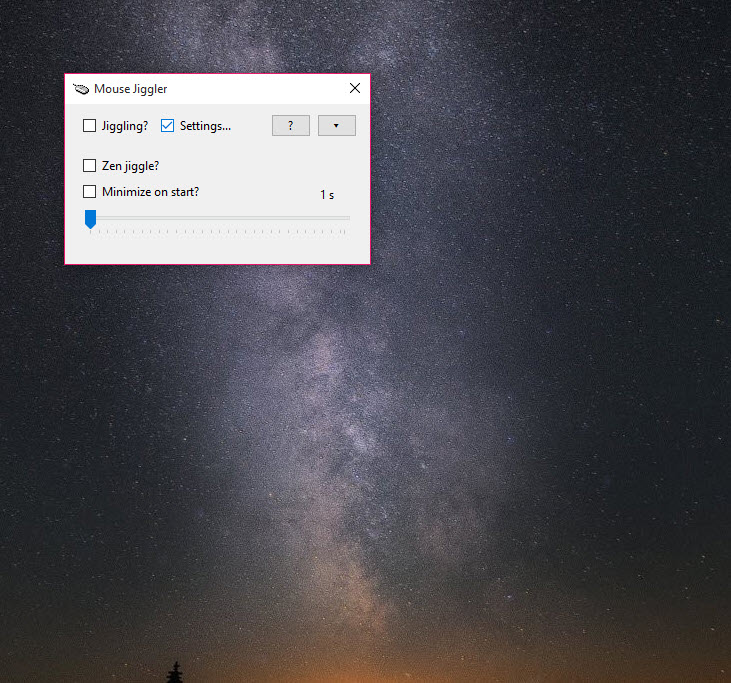
The window is about as plain as software gets. Two checkboxes, an interval spinner, a distance control and a button to send it to the notification area. That is the entire program, and the whole appeal is that it does one job with no configuration ceremony around it.
Two checkboxes, and the one that catches everyone
The first is Enable jiggle. Tick it and the pointer visibly twitches back and forth on your chosen interval, which works perfectly and is maddening if you are trying to use the machine at the same time.
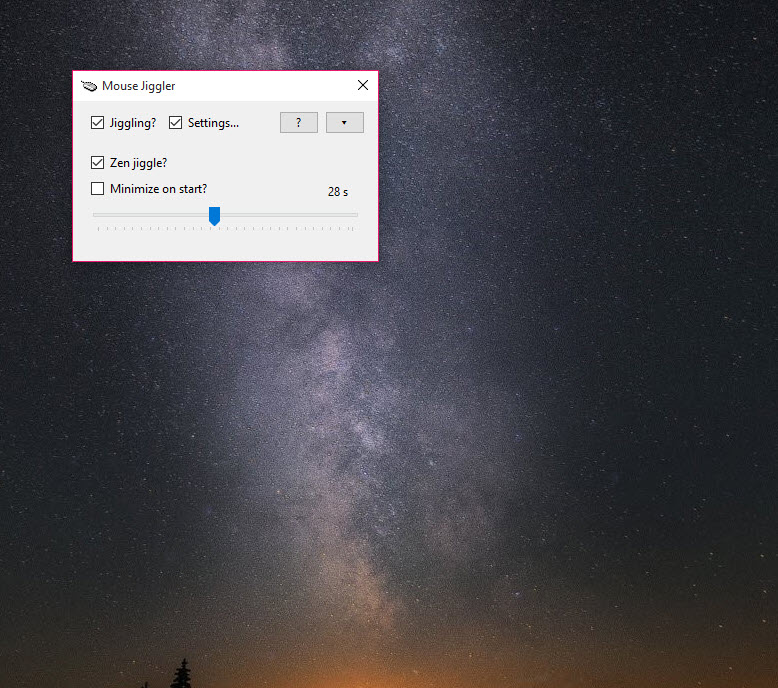
The second is Zen jiggle. With it on, the movement is sent to the system without the visible pointer going anywhere, so idle detection resets while your cursor stays where you left it. Here is the trap that generates most of the confusion.
Zen jiggle does nothing on its own. Both boxes have to be ticked, because the zen setting changes how the jiggle behaves rather than replacing it, and plenty of people have sat watching a screen saver appear with only the second box checked.
Interval, distance and randomisation
The interval is set with a spinner rather than a slider, which sounds trivial until you have tried to hit an exact value on a badly scaled slider. Alongside it sits a randomise option, and it does something more specific than the name suggests. Rather than jiggling at a fixed gap, the wait becomes a random value between one second and whatever interval you chose, so the pattern is irregular instead of metronomic.
Distance is a multiplier rather than a pixel count, scalable up to 120. Small values are what you want. Crank it high and the pointer flies far enough that grabbing the mouse to untick the box becomes a genuine wrestling match, which is a failure mode you only experience once.
One small mercy is that Mouse Jiggler notices when you take over. Move the mouse yourself and jiggling suspends until you stop, so the program is not fighting your hand for control of the pointer.
Faking input and staying awake are different problems
This is the part worth understanding about Mouse Jiggler. Screen savers, session locks and away statuses all watch for input, so faked movement addresses them directly. Sleep and display timeouts are handled by the power subsystem, and on some configurations that subsystem does not care how recently the pointer moved.
The program covers both now, because as well as sending movement it sets the execution state that tells the system not to sleep while jiggling is active. That closes a gap which used to make older builds unreliable for long unattended jobs.
If sleep prevention is the whole of your problem and you have no interest in input at all, Awake does it through the proper interface without pretending anything is moving, and it needs no administrator rights or power plan edits to do so.
Cleaner in principle, and it will not keep a chat client from marking you away.
Tray, command line and what it remembers
A down-arrow button sends Mouse Jiggler to the notification area, where a tray menu now handles the basics and hovering reports the current state. Settings persist between sessions, so the interval and mode you chose are still there next time.
Two command-line switches make it usable from a script or a shortcut. One starts the program already minimised, the other opens the settings panel directly. That is enough to drop into a batch file ahead of a long process, though there is nothing here for scheduling it.
Which brings us to the honest comparison. This program has no operating hours, no battery awareness, no ability to press a key instead of moving the pointer, and no conditions based on what is running.
A jiggler with scheduling, battery rules and a stealth mode covers all of that, and if your requirement is anything beyond keep this machine awake right now, it is the better fit.
Where it will not help
Software that fakes input is running on the machine, which means the machine can see it. Monitoring and endpoint protection tools are perfectly capable of noticing a process generating synthetic pointer events, and scripted approaches built with AutoHotkey tend to attract even more attention from that kind of software. If the point of the exercise is to look present to something that is actively watching, this is a poor bet rather than a clever one.
Locked-down environments are the other wall. A managed machine can block the executable outright, and policy-enforced lock timers do not always yield to input at all, faked or otherwise.
And the reverse problem deserves a mention, because plenty of people install a jiggler and then forget it is running. If the actual goal is a machine that sleeps sensibly when nobody is there, a tool that manages idle sleep properly is the opposite half of this equation and stops the electricity bill quietly absorbing your convenience.
Conclusion
Mouse Jiggler is the right tool for a narrow and very common problem. If a long install, a render, a download or a monitoring session keeps getting interrupted by a lock screen you are not allowed to disable, this fixes it in about four seconds of setup, and the zen mode means you can keep working while it does.
Look elsewhere if you want conditions around it. Scheduling, battery rules and keystroke output all live in more capable alternatives, and pure sleep prevention is better served by something that asks the system politely instead of faking input.
For everything else, the fact that Mouse Jiggler has barely changed shape in all this time is the point rather than a criticism.
Pros & Cons
- Zen mode resets idle detection without the visible pointer moving at all
- Randomised intervals vary the gap between one second and the value you set
- Jiggling suspends automatically while you are using the mouse yourself
- Sets the system execution state as well as faking input, so sleep is prevented too
- Settings persist between sessions and two command-line switches make it scriptable
- No administrator rights, no power plan edits and no screen saver settings to change
- Zen jiggle requires the main jiggle box ticked as well, which is not signposted anywhere
- The distance multiplier goes high enough to make the pointer difficult to catch
- No scheduling, no battery awareness and no per-application conditions
- Cannot send a keystroke instead of pointer movement, which some idle timers respond to better
- Needs the runtime framework installed, which catches out anyone expecting a single file
- Detectable by monitoring software, so it is unreliable for looking present to anything watching
Frequently asked questions
Because the Enable jiggle box also has to be ticked. Zen jiggle modifies how the movement is delivered rather than replacing the jiggle itself, so on its own it does nothing at all and the screen saver arrives on schedule.
Yes. It fakes pointer input for idle detection and separately tells the system not to enter sleep while jiggling is active, which covers both mechanisms rather than only the first.
In zen mode, no, since the visible pointer never moves. In normal mode it does, though jiggling pauses automatically whenever you move the mouse yourself, so it gets out of the way rather than fighting you.
Yes. One command-line switch launches it already minimised to the notification area, which is enough to put it at the front of a batch file before a long unattended process.
Yes. It is a process on the machine generating synthetic input, and both security tools and activity monitors can identify that pattern. Treat it as a convenience for your own machine rather than something that hides anything.


