

DisableWinTracking
About DisableWinTracking
Every telemetry setting this program touches can be changed by hand, through the registry, the services console, a text editor and the firewall. DisableWinTracking exists because doing that across eight separate places is an afternoon, and doing it on six machines is a week.
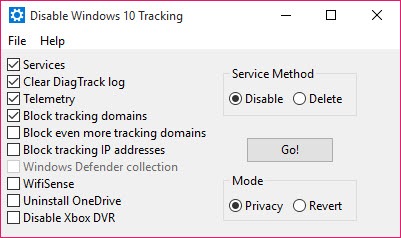
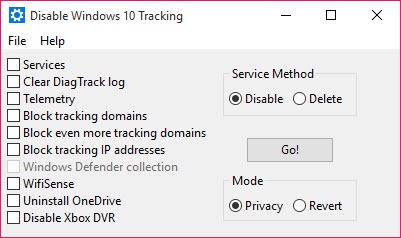
The interface is a list of checkboxes and a button. Each box maps to a specific, documented change rather than to a vague promise, and the program writes a log of everything it did, which is the detail that separates it from the tools in this category that ask you to trust them.
It sits alongside ShutUp10 and a crowd of similar utilities. What distinguishes this one is how mechanical it is, and how willing it is to do things the others avoid.
What each checkbox actually changes
The telemetry option writes a policy value telling the system to collect nothing. The log option clears the diagnostics log file and blocks further writing to it. The services option handles the two background services responsible for collecting and pushing diagnostic data.
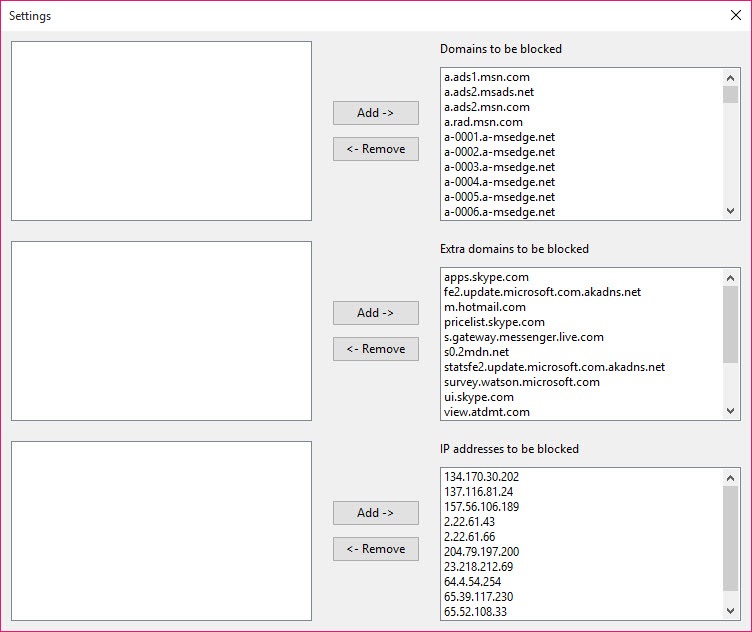
Beyond those, DisableWinTracking appends a list of known telemetry domains to the hosts file, creates firewall rules blocking known telemetry addresses, switches off the data collection built into the security and wireless components, and can uninstall the bundled cloud storage client along with the shell entry that keeps it pinned in the file browser.
Delete or disable, and why the choice matters
The services option offers both, and the difference is larger than the wording suggests. Disabling sets a registry value that stops the service starting, and it can be undone in seconds. Deleting removes the service registration outright.
Choose disable. A deleted service confuses later servicing operations that expect to find it, and restoring one means recreating registry structures rather than flipping a value back.
The end result for privacy purposes is identical, since a disabled service collects exactly as much as a deleted one.
Blocking by domain and by address
Two options in DisableWinTracking work at the network layer, and they carry different amounts of risk. Adding tracking domains to the hosts file is the gentler of the two, and there is a second, more aggressive list for anyone who wants to go further.
Address blocking through firewall rules is where things break. Telemetry endpoints share infrastructure with content delivery networks, so an address blocked today may be serving something you actually wanted tomorrow. The store failing, updates stalling and unrelated applications losing connectivity all trace back to this option more often than to anything else here.
Whichever you use, the hosts file becomes something you now maintain. HostsMan makes reading and editing that file manageable if you keep your own entries there too.
What it cannot achieve
Here is the part the download pages skip. On consumer editions of the system there is a floor beneath which diagnostic collection does not go. Writing the policy value to zero is honoured properly on business editions, and on a home machine it reduces collection to the required minimum rather than to nothing. DisableWinTracking cannot change that, and no tool in this category can.
Feature updates are the other reality. A major update restores a good number of these settings, reinstates services and rewrites the hosts file, so this is a task you repeat rather than complete.
Every option can be reverted through the same interface, which is the safety net that makes experimenting reasonable. For finer control, where each change is recorded individually and reverted one at a time, a privacy utility built around tracked and reversible changes goes further.
And a panel of individual toggles suits anyone who would rather pick settings one by one than run a checklist.
Conclusion
DisableWinTracking suits somebody who already knows what telemetry services do and simply wants them handled quickly across one machine or several. The transparency is its best feature, since every checkbox corresponds to a change you could look up, and the log means nothing happens that you cannot examine afterwards.
Leave the address blocking alone unless you enjoy troubleshooting, pick disable over delete, and accept that a home machine has a floor you cannot get under. Run it, note what it changed, and expect to run it again after the next big update.
Pros & Cons
- Each option maps to a specific documented change rather than an unexplained tweak
- Writes a log of everything it did, so the changes can be audited afterwards
- Every option can be reverted from the same interface
- Offers both disabling and deleting for the telemetry services
- Handles registry values, services, the hosts file and firewall rules in one pass
- Address-based blocking breaks unrelated services because endpoints share infrastructure
- Deleting services rather than disabling them complicates later system servicing
- Cannot reduce collection below the floor built into consumer editions
- Feature updates undo much of the work, so the job has to be repeated
- Domain and address lists age, and nothing refreshes them for you
Frequently asked questions
No. It removes the optional layers and blocks known endpoints, but consumer editions keep a required minimum that no third-party tool can switch off. Treat the result as substantially reduced rather than eliminated.
Disable. It achieves the same privacy outcome by preventing the service from starting, and it reverses in one step. Deleting the service registration causes problems later during system servicing.
Yes, every option has a revert path in the same interface, and the log written on the first run tells you which options were applied. Deleted services are the awkward exception.
Frequently not. Large updates reinstate services, reset policy values and rewrite the hosts file, so running the tool again afterwards is part of the routine rather than a sign something went wrong.


