

SyncToy
About SyncToy
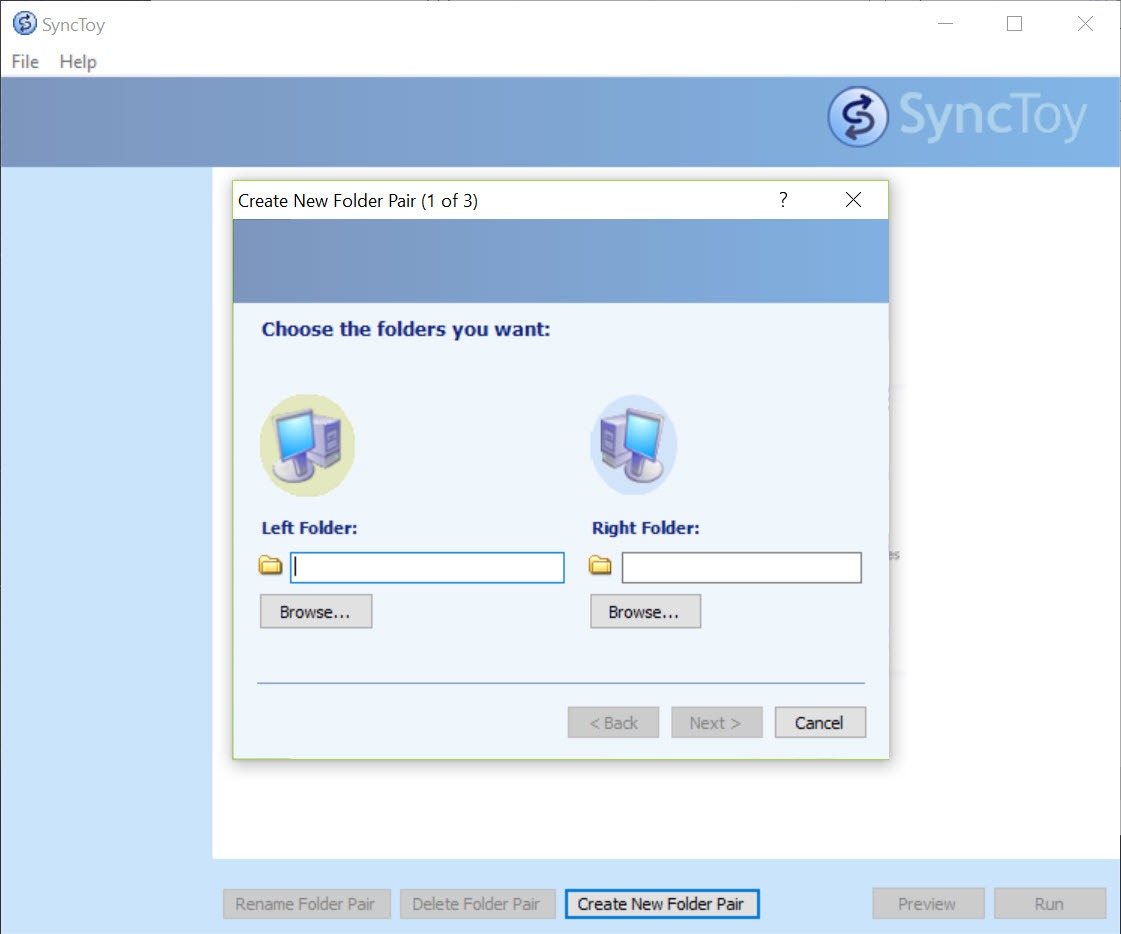
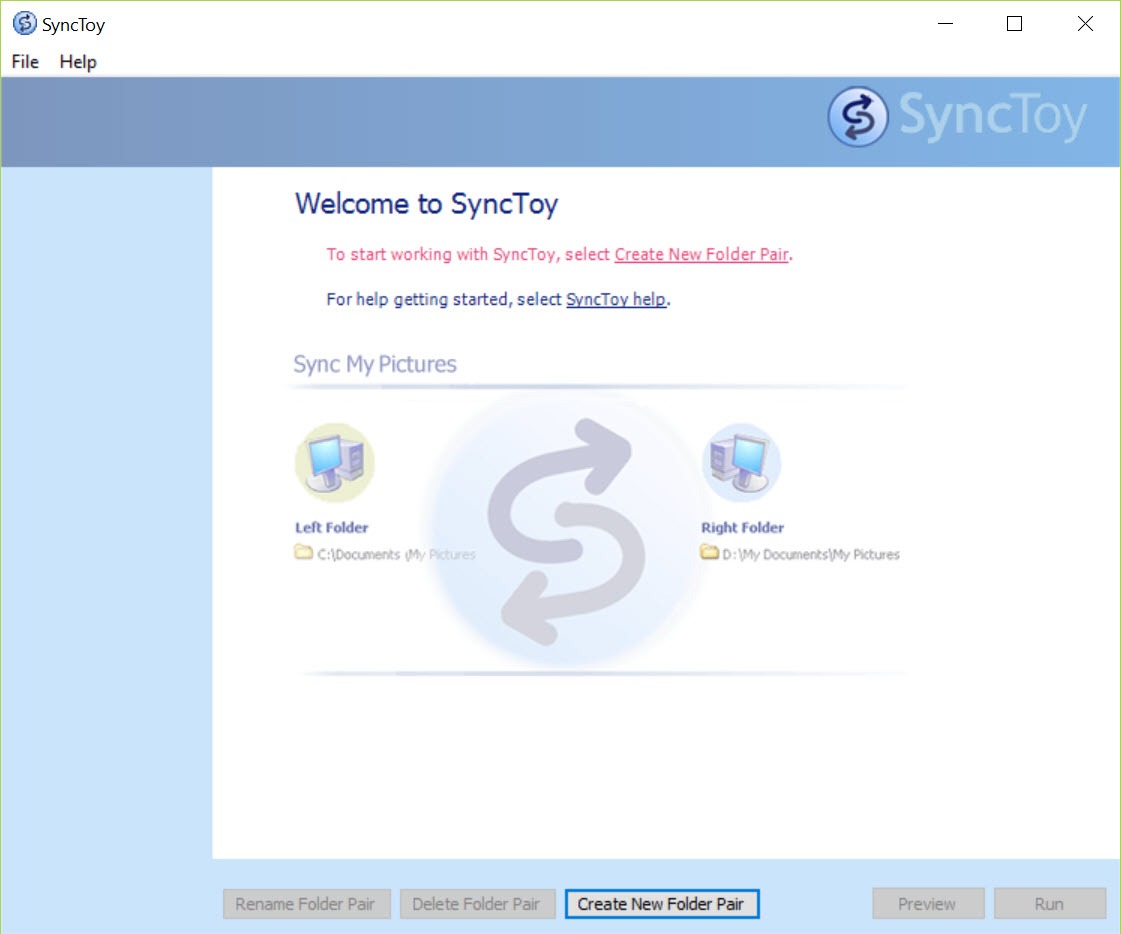
SyncToy keeps two folders alike. You name a left folder and a right folder, pick one of three rules for how changes travel between them, press Preview to see what would happen and Run to make it happen. That is the entire design. It handles a laptop folder and a backup drive, a photo library and its copy on a second disk, or a working folder and its twin on a network share.
The program was retired by its maker and is no longer offered by them, and it still runs on current systems without complaint. That puts it in an odd position beside FreeFileSync, which does everything here and a great deal more and is actively maintained.
SyncToy survives because its three rules are easy to understand and its preview is honest.
Folder pairs and the three rules
A SyncToy folder pair is a left folder, a right folder and a name. The rule decides direction. Synchronize copies new and changed files both ways, and a file renamed or deleted on either side is renamed or deleted on the other, so the two folders end up identical.
Echo copies new and changed files from left to right only, and deletions and renames on the left are repeated on the right, which makes the right side an exact copy of the left. Contribute is Echo without the deletions. New and changed files go left to right, and nothing on the right is ever removed, so the right side only grows.
Contribute is the one for a backup you never want to lose anything from. Echo is the one for a backup that should match exactly. Synchronize is for two machines you work on in turn.
Choosing the wrong one is the commonest mistake, and the commonest consequence is a Synchronize pair that faithfully deletes from the backup a file you deleted at home by accident.
Preview, then run
Preview scans both folders and lists every action the rule would take, new, overwrite, rename, delete, with the file names and sizes. Any line can be unticked before Run. Nothing moves until you press the second button. That two-step habit, look and then act, is what keeps a badly chosen rule from doing damage.
Renames are tracked rather than treated as a delete and a copy. SyncToy keeps a small database file in each folder of the pair to remember what it saw last time, so a renamed 4 GB video is renamed on the other side rather than copied again. Delete that database and the next run treats every file as new.
The files are hidden and they belong there.
Exclusions and options
Each SyncToy pair has options. Files can be excluded by name pattern, by attribute, hidden or read-only or system, and subfolders can be ticked or unticked individually in a tree. Deleted files can go to the recycle bin rather than vanish, which is the setting to turn on before the first Echo run. Overwritten files can be saved to a backup folder as well.
Run All runs every pair in order. The command-line version runs one or all from a scheduled task, which is how the overnight backup gets done without anyone at the keyboard. There is no scheduler inside the program itself.
You point the system’s task scheduler at the command line and set the time.
What retirement means
Nothing here has stopped working, and nothing will be fixed. Very long file paths are a problem. There is no versioning, so an overwritten file has one previous copy at most, and no encryption or cloud target. And there will be no update when a future system release changes something underneath it. For a plain two-folder job it remains dependable.
For anything more, a copy utility built into the system does the same one-way copying from a script, and the maintained sync tools do the rest.
Conclusion
SyncToy is for the person with a laptop folder and an external drive who wants them kept alike by a program whose three rules fit on an index card. They are content with a tool that will never change. Set up with Contribute or Echo and scheduled, it quietly does its job.
Anyone who needs versioning, a cloud destination or a tool that will be supported in five years should choose a maintained sync program now rather than later. This one still does its one job. It just does it for the last time, every time.
Pros & Cons
- Three rules that are easy to understand and predict
- Preview lists every action before anything is copied or deleted
- Renames tracked, so a renamed large file is not copied again
- Exclusions by pattern, attribute and subfolder per pair
- Command-line runner for scheduled tasks
- Retired, with no further updates or fixes
- No versioning, encryption or cloud targets
- Synchronize deletes on both sides, which surprises people
- Long file paths and very large pairs can fail
Frequently asked questions
Yes. It installs and runs on current releases and behaves as it always did. It is no longer maintained, so anything that stops working in future will stay broken.
Contribute if the backup should never lose a file, Echo if it should match the source exactly including deletions. Avoid Synchronize for a backup, since it copies your deletions to the backup.
They record what each folder looked like at the last run so renames and deletions can be told apart from new files. Leave them in place. Deleting them makes the next run treat everything as new.


