

SharpKeys
About SharpKeys
Most people never think about which physical key on their keyboard sends which signal to the operating system. The mapping is what it is, the keys do what they’re labeled, and the topic doesn’t come up. But certain situations make this mapping suddenly important. Maybe the Caps Lock key keeps activating accidentally and you’d rather it did nothing. Maybe you have a keyboard from Korea or Japan with extra keys you’d like to repurpose.
Maybe a specific key has stopped working and you want to remap its function to a key that still operates. Maybe you just hate the layout decisions of whoever designed your particular keyboard. SharpKeys is the small utility that solves all these problems through Windows registry-level key remapping, no drivers, no background processes, just a clean way to tell Windows that one key should behave like another.
This software has been around for many years and has earned a permanent spot in the toolkit of users who care about keyboard customization. The premise is dead simple: you launch the application, tell it which key you want to remap and what you want it to do instead, save the mapping, and reboot. After that, the remapping just works at the operating system level, surviving across logins, applications, and any other context where a key press might be interpreted.
Registry-based remapping that doesn’t run in the background
The defining technical feature of SharpKeys is that it doesn’t actually run while your remapped keys are working. The application is purely a configuration tool that writes appropriate values to the Windows registry, where Windows itself reads them during keyboard input processing. After you’ve configured your remapping and rebooted, the application can be closed (or even uninstalled) and your remapping continues to function exactly as configured.
This approach has real advantages over alternatives that run as background services or use keyboard hooks. There’s no process consuming memory, no service that might fail to start, no compatibility issues with applications that don’t like keyboard hooks.
The remapping operates at a level below most software, which means it works consistently in games, full-screen applications, terminal sessions, and anywhere else that other remapping approaches sometimes break.
The flip side is that registry-based remapping has limitations the alternatives don’t share. You can’t have different remappings for different applications, you can’t remap based on modifier states (like making Shift+A do something different), and you can’t create complex macros that produce sequences of keystrokes.
For those scenarios, tools like AutoHotkey or PowerToys Keyboard Manager serve better. For simple “key X should now be key Y” scenarios, the registry approach is more reliable than anything else.
Common remapping scenarios that come up regularly
The most popular use case for this software is disabling the Caps Lock key, which a substantial fraction of users find more annoying than useful. Mapping Caps Lock to “Turn Key Off” effectively eliminates the key from your keyboard’s function, ending the problem of accidental activation interrupting your typing.
Another common scenario is dealing with broken or stuck keys. When a single key on your keyboard fails (a common occurrence on laptops where individual key replacement isn’t practical), you can remap that key’s function to a key you don’t use much. The broken physical key gets effectively removed from operation while another working key picks up its functionality.
Users dealing with foreign-layout keyboards or keyboards with unusual extra keys frequently use the tool to bring those keys into compliance with standard expectations. Korean keyboards with Hangul/English toggle keys, Japanese keyboards with kanji-related keys, or specialty gaming keyboards with macro keys can all be remapped to produce standard inputs that applications actually understand.
Power users often remap keys for ergonomic reasons. Swapping Ctrl and Caps Lock is a popular configuration for users coming from Unix backgrounds where Caps Lock used to be the Ctrl key on older keyboards. Remapping the Windows key to function as a different modifier suits some power user workflows. The registry-level approach handles all these scenarios cleanly.
The interface and how it actually works
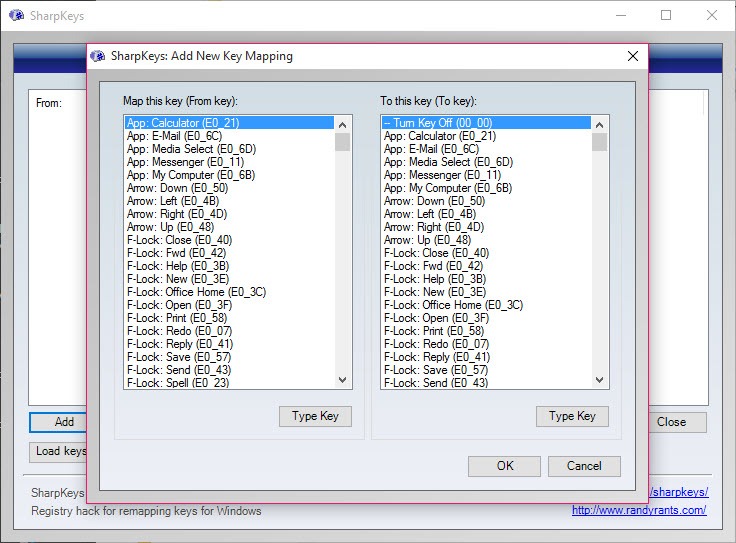
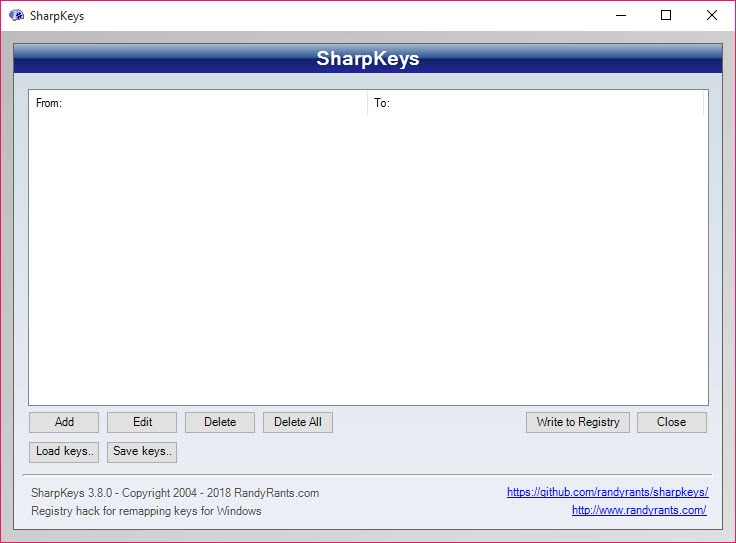
Launching SharpKeys presents a simple list view showing your current remappings, with buttons to add, edit, or remove individual mappings. Adding a new mapping opens a dialog with two columns: the key you want to remap on the left, and the key it should behave as on the right. You can either select keys from a list or click “Type Key” and physically press the key you want to identify, which is particularly useful for unusual keys that don’t appear in the standard list.
The “Turn Key Off” option in the right column is what you select when you want a key to do nothing rather than function as a different key. This is the standard way to disable problematic keys like Caps Lock, the Insert key, or whatever else you’d rather not have an effect when accidentally pressed.
After configuring your remappings, clicking “Write to Registry” saves them and prompts you to reboot. The reboot is essential because Windows reads the keyboard mapping registry values during boot and doesn’t reread them dynamically. Without the reboot, your changes don’t take effect.
Comprehensive key support across keyboard generations
The application handles standard PC keys (letters, numbers, function keys, modifiers, navigation), media keys (volume, playback controls, browser shortcuts), application keys (calculator, mail, search), and various specialty keys that appear on different keyboard models. The supported list is extensive enough to cover essentially any key you might want to remap.
For keyboards with vendor-specific keys that don’t appear in the standard list, the “Type Key” feature handles identification through actual key press detection. Press the unusual key, the application captures whatever scan code it sends, and you can then remap that to whatever standard function makes sense. This handles even the most unusual keyboards as long as the keys send consistent scan codes that Windows can recognize.
Limitations of the registry approach
The Windows registry-based remapping mechanism has limits that this software inherits. Keys that aren’t part of the standard scan code set (some media keys on certain keyboards, vendor-specific buttons that go through proprietary drivers) can’t be remapped through this approach because Windows doesn’t process them through the keyboard mapping registry values. For these keys, vendor-specific software or AutoHotkey-style alternatives become necessary.
Modifier-aware remapping isn’t possible. You can map A to B, but you can’t make Shift+A produce something different from regular A. The registry mapping operates at a level before modifier processing, so the same remapping applies regardless of which modifier keys are held. For users who want this kind of context-sensitive behavior, the registry approach simply can’t provide it.
The remapping affects all users on the machine, not just the user who configured it. The registry values written by this software live in the system-wide registry section, applying to anyone who logs into Windows on that computer. For shared family computers or corporate machines with multiple users, this might or might not be desirable depending on the situation.
Comparison with PowerToys Keyboard Manager and AutoHotkey
Microsoft’s PowerToys suite includes Keyboard Manager, which provides similar key remapping capability through a different technical approach. PowerToys runs as a background process and intercepts keyboard input before it reaches applications, which gives it more flexibility (modifier-aware remapping, application-specific mappings) but introduces the runtime overhead and potential compatibility issues that this software avoids by working at the registry level.
AutoHotkey provides essentially unlimited keyboard customization through a scripting language, supporting complex macros, modifier combinations, application-specific behaviors, and any other automation need. The flexibility comes with substantial complexity, though, requiring users to learn the scripting language and maintain their scripts as ongoing artifacts.
SharpKeys sits at the simple end of this spectrum, offering basic key remapping with maximum reliability and zero runtime cost in exchange for limited flexibility. For users whose needs fit within the simple “key A should now be key B” pattern, this software is the most reliable choice. For users who need more sophisticated capabilities, the alternatives serve those needs at the cost of additional complexity.
Reverting changes when you’re done
Removing remappings is straightforward through the application’s interface. You select the unwanted mapping from the list, click Delete, save changes to the registry, and reboot. After the reboot, the affected key returns to its original function with no lingering effects.
For users who want to remove all remappings at once (perhaps because they’re reconfiguring everything or selling the computer), clicking Delete All in the interface clears every mapping in one operation. The registry values get cleaned up appropriately, leaving no residue beyond what existed before the software was first used.
This clean reversibility matters because experimental remapping sometimes produces unexpected results, and being able to easily revert provides confidence to try configurations that might not work out. The application’s straightforward addition and removal of mappings encourages experimentation rather than treating remapping as a permanent commitment.
Considerations and limitations
The mandatory reboot after each change is the most common complaint from users. Configuring remappings becomes a slower process when each iteration requires waiting for Windows to fully restart. For users testing different configurations to find what they like, this overhead adds up across multiple cycles of try-and-revert.
Documentation is sparse, with the application assuming users will figure out the interface largely on their own. The basic operation is simple enough that this isn’t a major problem, but users encountering edge cases or unusual keyboards may need to consult external resources rather than finding answers in built-in help.
The application’s appearance is functional but visibly dated. The interface design hasn’t been substantially updated for many years, and the layout looks like older Windows applications from a previous era. For users who care about polish, this is unattractive. For users who just want a tool that works, the appearance matters less than the functionality.
Conclusion
SharpKeys has earned its long-running place in the keyboard customization landscape by doing one specific thing well rather than trying to be a comprehensive automation platform. For users whose remapping needs fit within the simple “this key should behave like that key” pattern, the registry-based approach delivers reliability and consistency that more sophisticated alternatives can’t quite match.
It’s not the right tool for users who need complex macros, modifier-aware behavior, or application-specific configurations, with PowerToys Keyboard Manager or AutoHotkey serving those needs better.
But for the substantial audience that just wants Caps Lock to stop being annoying, a broken key to be replaced with a working one, or a foreign keyboard layout brought into line with expectations, SharpKeys delivers exactly that, with the kind of simple effectiveness that has kept it relevant across many years and Windows generations.
Pros & Cons
- Free and open-source with no licensing restrictions
- Registry-based remapping persists across reboots and applications
- No background process, service, or runtime overhead
- Comprehensive key support including media keys and unusual keyboard buttons
- "Type Key" detection identifies keys not in the standard list
- Portable executable runs without installation
- Simple interface for basic remapping needs
- Clean reversibility through the same interface used to add mappings
- Mandatory reboot required after each configuration change
- No support for modifier-aware or context-sensitive remappings
- System-wide remapping affects all users on the computer
- Some specialty keys outside standard scan codes can't be remapped
- Interface design feels visibly dated compared to modern utilities
Frequently asked questions
This software remaps keyboard keys by writing values to the Windows registry that the operating system reads during keyboard input processing. After configuration and a reboot, designated keys behave as different keys (or as no key at all). The remapping happens at the operating system level rather than through a running application, which means it works consistently across all software without any background process.
No, the application is purely a configuration tool. After saving your remappings and rebooting, the application can be closed or even uninstalled and the remapping continues to function. Windows itself handles the actual key remapping based on the registry values, which means there's no process consuming memory or CPU during normal operation.
Windows reads the keyboard mapping registry values during boot and doesn't reread them dynamically. Without a reboot, the system continues using whatever mapping was active when it started, ignoring any changes made to the registry afterward. The reboot loads the new configuration and makes your remapping take effect.
Yes, this is one of the most common use cases. Open the application, click Add, select Caps Lock as the key to remap, select "Turn Key Off" as the destination, save the change, and reboot. After the restart, Caps Lock no longer activates regardless of how many times you press it accidentally.
For keys that send standard scan codes (which includes the vast majority of keyboard keys), yes. For specialty keys that go through proprietary vendor drivers rather than standard keyboard input, the remapping may not affect them since Windows processes those keys through different paths that don't consult the standard mapping registry values. The "Type Key" feature in the application can identify whether a particular key is remappable.
PowerToys Keyboard Manager runs as a background process that intercepts keyboard input, providing more flexibility (modifier-aware remapping, application-specific configurations) but with runtime overhead. This software writes to the registry and doesn't run continuously, providing simpler and more reliable remapping for basic scenarios at the cost of advanced features. The right choice depends on whether your needs fit the simple "key A becomes key B" pattern.


