

JoyToKey
About JoyToKey
JoyToKey turns a gamepad into a keyboard and mouse. Every button, stick direction and trigger on the controller gets a row in a table, and each row holds the keyboard key, key combination or mouse action that the input should produce. Press the button and the system sees a keystroke. Move the stick and the cursor moves. Any program that accepts a keyboard accepts the pad, which is how older games without controller support, emulators with awkward input settings and ordinary desktop programs end up playable from a sofa.
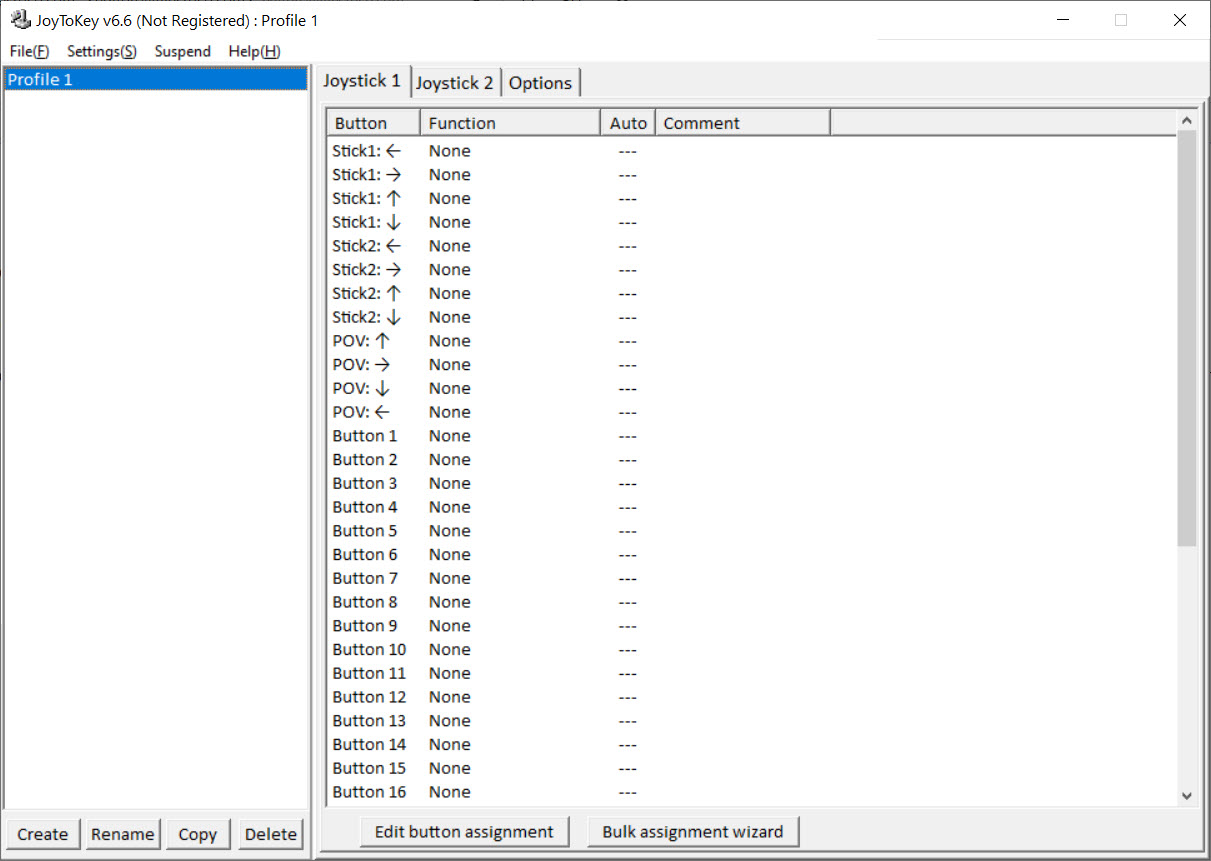
The interface is a table rather than a picture, and that choice defines the tool. Where a rival draws a controller image and lets you click a button on it, JoyToKey lists Button 1 through Button 32 with two stick axes and a point-of-view hat beside them, each with its assignment printed in the column.
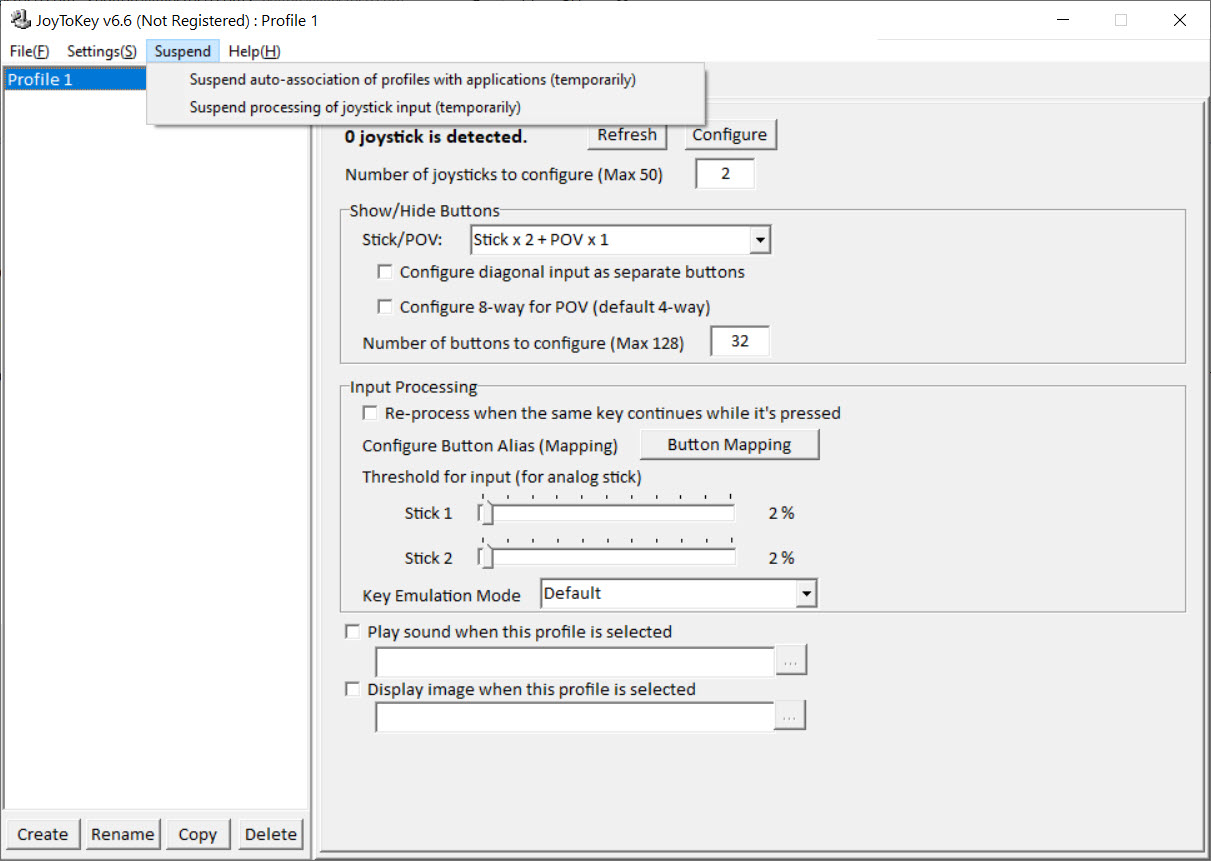
It is uglier and it is faster to audit, because a whole profile reads at a glance, and it supports up to sixteen controllers at once, each with its own table.
Assigning keys, combinations and mouse actions
Double-click a row in JoyToKey and the assignment window offers a keyboard tab and a mouse tab. On the keyboard side, press the key you want or build a combination up to four keys deep, so Alt+F4, Ctrl+Shift+S or a modifier plus a letter all fit on one button. Special keys are listed for the ones you cannot type, including print screen, volume and media transport keys. Auto-repeat can be set per assignment, so a held button fires the key at an interval of your choosing.
The mouse tab covers cursor movement in any direction with adjustable speed, wheel rotation, and the three clicks, and a click can carry a modifier so Shift+click or Ctrl+click is one button. A button can also jump the cursor to a preset screen position and click there, which turns a controller button into a shortcut for a fixed on-screen control.
An auto-setting wizard maps a standard layout in under a minute for anyone who wants a starting point rather than an empty table.
Analog sticks, and the input level trick
In JoyToKey, sticks can drive the mouse with continuous acceleration, so a small tilt creeps the cursor and a full push sends it across the screen, with the acceleration curve adjustable. Or they can fire keys in four or eight directions, with the threshold that separates a slight lean from a full push set per axis, and the dead zone adjustable down to zero for controllers with tight sticks.
The unusual part is that a stick direction can send a different key depending on how far it is pushed. A gentle lean walks and a hard push runs, mapped to two different keys, in a game whose keyboard controls know nothing about analog input.
The same idea applies to buttons by duration, where a short press sends one key and a hold sends another, with the boundary in milliseconds under your control.
Shift buttons and virtual joysticks
A controller with twelve buttons runs out quickly, and JoyToKey has a layered answer. The answer here is to designate one button as a Shift key that switches the pad to a second table of assignments while held. The second table is called a virtual joystick, it has its own full set of rows, and up to several can be chained, so one pad carries two or three complete layouts. Combined with the duration trick, a button can send a normal key on a short press and act as Shift on a long one.
Button mapping goes further, creating a virtual button that fires when two physical buttons are pressed together, so two buttons yield three distinct actions. Rotation assigns two or three keys to one button and cycles through them on each press.
None of this is discoverable from the main table, and the advanced pages of the documentation are where these features live. Anyone who prefers to see this drawn on a picture of the controller will find Xpadder covers similar ground with a visual editor and shallower advanced options.
Profiles that follow the active window
Each game or program gets its own JoyToKey profile, a plain text file in the application folder, and profiles switch from the list on the left. The useful part is automatic switching. Associate a profile with a program’s window title or executable and the mapping changes the moment that window takes focus, so the browser profile loads when you alt-tab to the browser and the game profile returns when you go back.
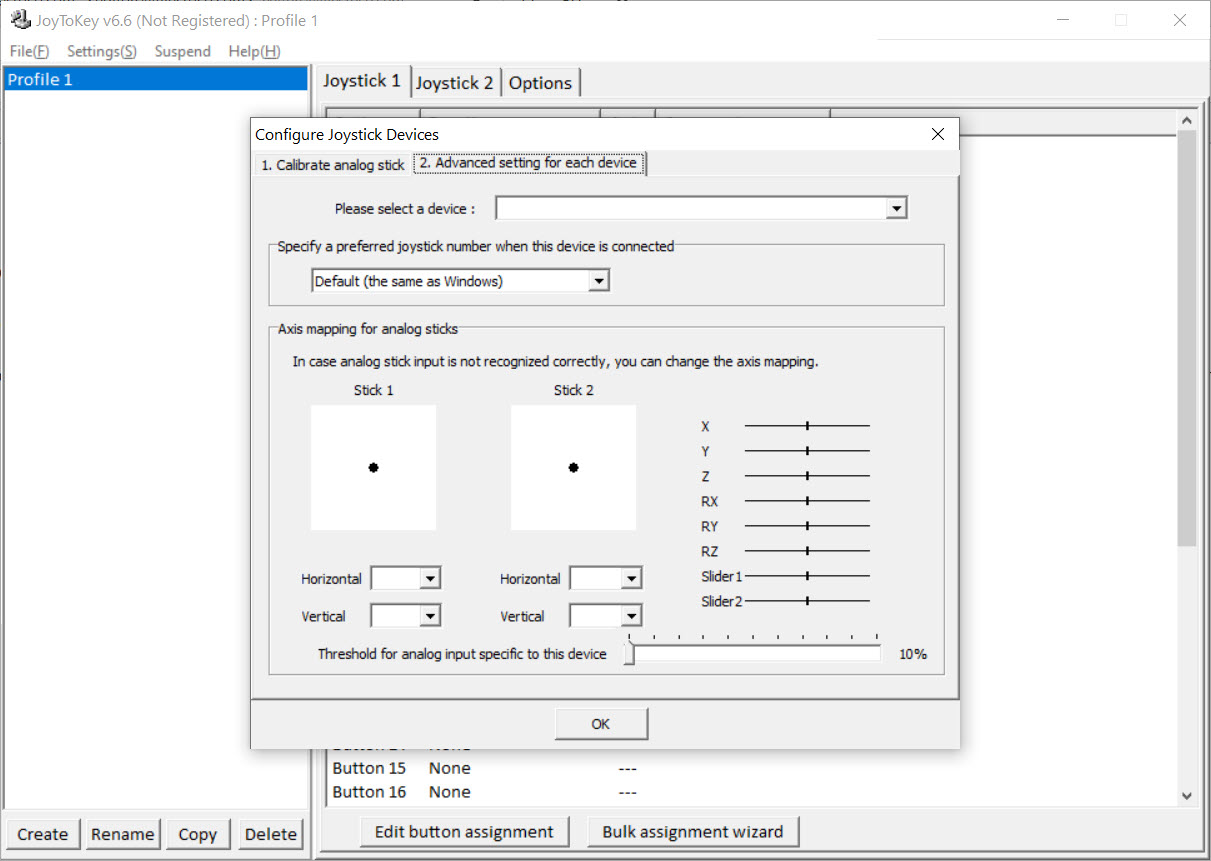
Because profiles are text files, they travel. Copy the folder to another machine or hand a file to a friend and the mapping arrives intact, and the community shares them for popular games. A priority setting pins a particular controller to a particular joystick number, so a machine with a flight stick and a gamepad always sees each as the same device, and the same numbering is what a virtual gamepad driver relies on when the two are chained for the reverse job.
Where it needs care
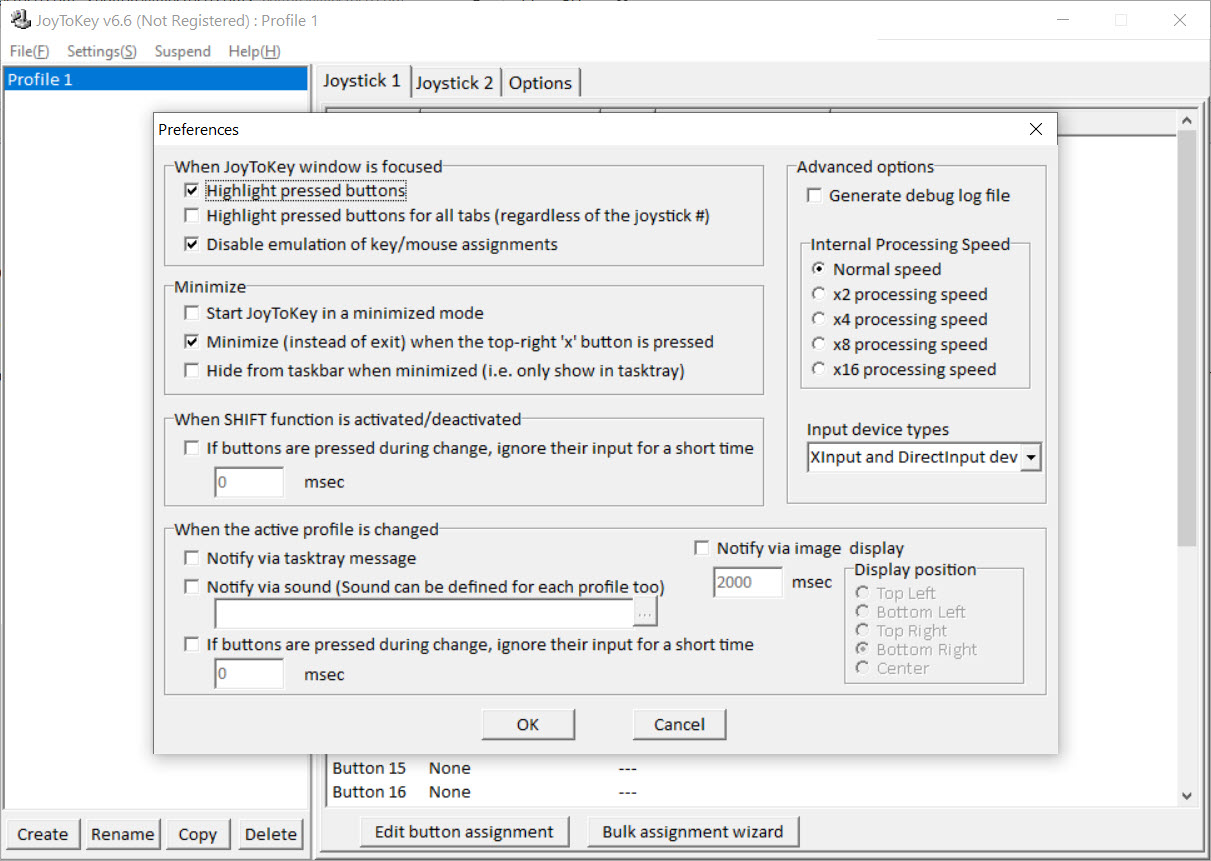
Some programs ignore emulated input unless JoyToKey runs as administrator, since a program with elevated rights will not accept keystrokes from one without them, and the tool says so in its own notes. Games with anti-cheat may treat any input emulation with suspicion, which is a concern for competitive titles rather than the single-player and emulator use it was built for. The interface itself is plain to the point of austerity, and the advanced features hide behind menus rather than presenting themselves.
For controllers the system does not recognise natively, a wrapper that presents them as a standard pad comes first, and this tool maps the result.
Conclusion
JoyToKey suits people who want a controller working in something that never expected one and who prefer a table they can read to a picture they can click. Emulator users, players of older games and anyone driving a media centre from the sofa will find the profiles, the automatic switching and the Shift tables cover every ordinary case, and the input-level and hold-duration tricks cover several extraordinary ones.
It is not pretty, and its best features hide. Read the advanced documentation once, set up automatic profile switching, and it becomes the sort of tool that runs in the tray for years without being noticed.
Pros & Cons
- Key combinations up to four deep, mouse actions and special keys on any button
- Stick input level and button hold duration can each send different keys
- Shift buttons switch to full secondary tables for more assignments than physical buttons
- Profiles switch automatically by active program
- Supports up to sixteen controllers with separate tables
- Plain-text profiles that copy between machines
- Table interface with no controller picture
- Advanced features are hidden in menus and documentation
- Needs to run as administrator to control some programs
- Anti-cheat in competitive games may object to input emulation
Frequently asked questions
Yes. Combinations up to four keys, such as Ctrl+Shift+S or Alt+F4, go on a single button, and mouse clicks can carry a modifier too.
Designate one button as Shift. While held, the pad switches to a second table of assignments called a virtual joystick, and several can be chained.
Yes. Associate a profile with a program's window or executable and it loads whenever that window takes focus.
The target program runs with elevated rights and ignores input from a tool without them. Run the mapper as administrator.


