

Nexus Root Toolkit


 (120 votes, average: 3.68 out of 5)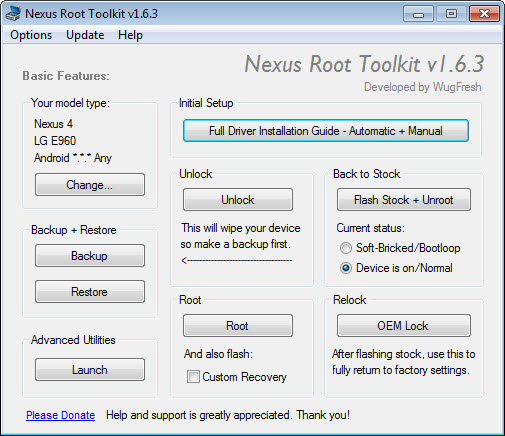
About Nexus Root Toolkit
Rooting a Nexus device used to mean opening a terminal, knowing the right fastboot syntax, hunting down the matching factory image, and praying nothing went sideways halfway through. Nexus Root Toolkit is the response to that headache. It wraps the whole flashing and rooting workflow into a desktop GUI that handles ADB, fastboot, drivers, custom recoveries, and stock image management without making you touch the command line unless you actually want to.
The application is built strictly around the Nexus line, which is both its strength and its limit. By focusing on Google’s reference devices instead of trying to support every Android phone in existence, the workflow becomes predictable.
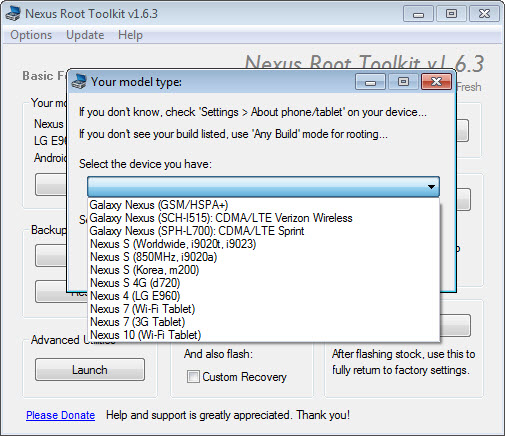
Pick your model and build, click a button, follow the on-screen prompts, and the toolkit does the orchestration in the background.
What the toolkit actually does
The core job is to unlock the bootloader, push a custom recovery, and flash SuperSU so root access becomes available across the system. You can also do the opposite, locking the bootloader, returning to a clean factory image, and erasing all traces that the device was ever modified. That return-to-stock workflow is the reason a lot of people install it in the first place, since RMA returns and OTA updates both depend on the device looking untouched.
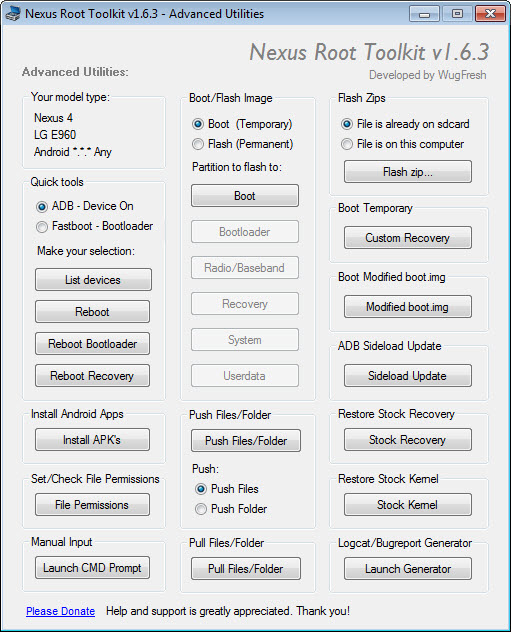
Beyond root, the toolkit handles factory image flashing for OTA fixes, soft-brick restoration, and bootloop recovery. There’s also a separate workflow for users who want only the bootloader unlocked without root, which is useful if you just want a custom recovery for backups or sideloading ROM packages without committing to a rooted system.
Driver setup that mostly works
USB driver headaches kill a lot of Android modding projects before they start. The toolkit ships with a built-in driver installer that walks through Universal Naked Drivers and the necessary fastboot bindings. You select your driver state, follow the prompts, and the application restarts ADB to confirm the connection.
Granted, the driver installer is not magic. If you have leftover OEM drivers from a previous install, you can still hit conflicts that require manual cleanup in Device Manager.
The toolkit at least tells you when the device is recognized in ADB, fastboot, or recovery mode, which removes a lot of the guesswork you’d otherwise get from raw command-line output.
Custom recovery and SuperSU handling
TWRP and CWM are both supported as flashable recoveries. You pick the one you want, the toolkit fetches the matching image for your specific Nexus model, and the flash happens in fastboot mode. Once the recovery is in place, SuperSU flashes through that recovery to actually establish root.
A practical detail worth mentioning. The toolkit verifies that the recovery you’re trying to flash matches your device codename before it touches anything. If you select a build that doesn’t line up, you get a warning instead of a brick.
That sounds basic but plenty of older rooting tools skip the check entirely.
Backup options for the paranoid
Before you do anything destructive, the application offers a full nandroid-style backup through the custom recovery, plus a separate user data backup that pulls APKs and app data to your PC. The two work in tandem. The nandroid covers the system partition, the user data backup covers everything that would normally vanish during a factory reset.
The PC-side backup is useful even for non-rooted devices, since it lets you preserve app state before flashing a different build. For deeper, more granular Android backups outside the toolkit’s flow, something like Helium Desktop covers the per-app backup angle more thoroughly.
Stock image flashing and OTA repair
The “Flash Stock + Unroot” workflow is where the toolkit shines for recovery scenarios. It downloads the matching factory image from Google’s servers, verifies the build number against your device, and flashes it cleanly. If your device is stuck on a botched OTA, this is often the fastest way back to a working state without sideloading anything manually.
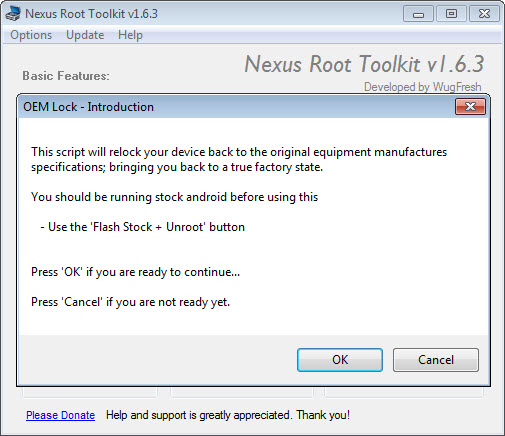
The workflow also re-locks the bootloader and removes custom recoveries on request, which is important for users planning to trade in or return the device. It’s a more thorough cleanup than what most users would manage by hand.
For Samsung devices, a different tool like Odin3 handles a similar role, and for LG hardware LG Flash Tool covers KDZ images. Nexus Root Toolkit stays in its lane, which is part of why it works as well as it does.
Logging and live status feedback
The interface shows what’s happening in real time, listing the fastboot or ADB command being executed and the device’s current response. That visibility matters more than it sounds. If something fails partway through, you can scroll back through the log and see exactly which step broke, instead of staring at a generic “operation failed” message.
You can also enable verbose output for the full command stream. Most users won’t need it. But if you’re trying to debug a stubborn unlock failure or a driver mismatch, it gives you something concrete to work with.
The toolkit is also bundle compatible with one-click rooters like KingRoot PC or Root Genius for users who want to compare approaches, though those tools target a wider, less curated device list.
Where things get messy
The flip side of being Nexus-specific is that it does nothing for Pixel devices or anything outside Google’s reference line. The application also depends on Google continuing to host factory images at the same URLs. When those links shift, certain workflows can fail until the toolkit’s image database is refreshed.
The interface is dense. There’s a lot going on visually, and the layout assumes you already know roughly what each option does. First-time users tend to click the wrong button and end up rolling back. The included help tooltips soften that, but the learning curve is real.
Conclusion
Nexus Root Toolkit is built for one job and does it carefully. If you own a Nexus device and want a guided path to root, custom recovery, or a clean factory restore, the application removes most of the friction you’d otherwise meet at the command line. The combination of pre-flash verification, integrated backups, and a working driver installer is what separates it from the long tail of one-click rooters that work until they don’t.
It’s not the tool to reach for if you’re hoping to root anything outside the Nexus line, and the interface won’t hold your hand the way a more modern rooting app might. But for the audience it’s aimed at, owners of Google reference devices who want predictable, reversible modifications, the toolkit is about as good a starting point as exists.
Features & benefits
Pros & Cons
- Handles the full rooting workflow without forcing manual ADB and fastboot commands
- Driver installer reduces the most common point of failure for new users
- Verifies device codename before flashing recoveries or factory images
- Full nandroid and per-app data backup before any destructive operation
- Return-to-stock workflow is genuinely clean, suitable for RMA and OTA restoration
- Live log output makes failures easier to diagnose
- Works only with Nexus devices, nothing newer or outside Google's reference lineup
- Interface is dense and assumes prior knowledge of Android modding terminology
- Factory image flashing depends on external links staying available
- Driver installer can struggle when conflicting OEM drivers are already present
- No protection if you select the wrong build target during a manual flash
Frequently asked questions
It works with the Nexus product line, covering phones and tablets released by Google as reference devices. Pixel hardware and non-Nexus Android devices fall outside what this tool was built to handle.
Most operations that touch the bootloader, including the initial unlock, perform a factory reset on the device. The application includes a backup feature that pulls app data to your PC before the wipe, which you should run before unlocking.
Yes. The "Flash Stock + Unroot" workflow downloads the matching factory image, removes root, restores the original recovery, and optionally re-locks the bootloader. The result looks indistinguishable from a brand-new device on most checks.
Yes. Both TWRP and CWM are supported, and the toolkit pulls the version that matches your specific Nexus codename rather than letting you flash an arbitrary image.
In most soft-brick cases yes, since flashing the matching stock factory image through fastboot brings the device back to a bootable state. Hard bricks where fastboot mode is unreachable are outside what any PC-side tool can resolve.
The application detects whether the device shows up in ADB, fastboot, or recovery mode and reports back. If detection fails, the usual cause is conflicting OEM drivers left behind from a previous install, which need to be removed from Device Manager before re-running the driver setup.


