

HiBit Uninstaller

 (53 votes, average: 4.36 out of 5)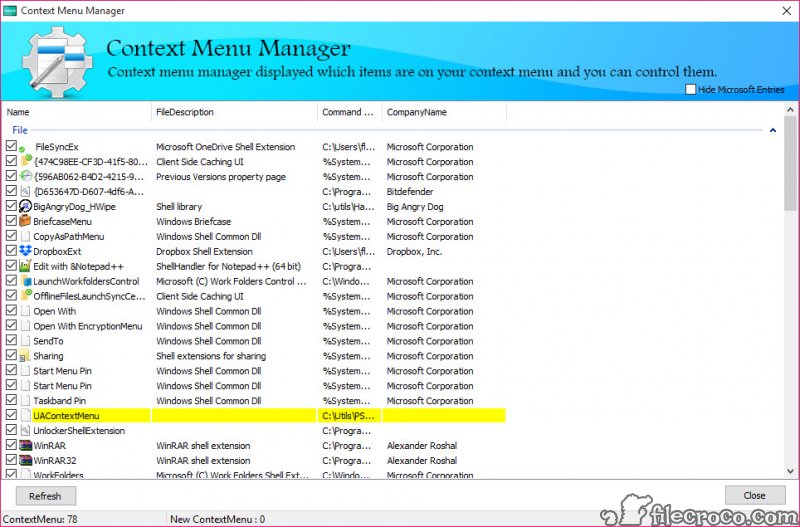
About HiBit Uninstaller
Most users have, at one point or another, tried to uninstall a program through the standard Programs and Features control panel only to discover that the application’s own uninstaller leaves behind a mess of leftover files, registry entries, and folder remnants.
Years of installing and uninstalling software accumulates clutter that gradually slows the system, fills the registry with orphaned entries, and takes up disk space that nobody asked it to take. HiBit Uninstaller is one of the more capable free utilities built specifically to handle this problem properly, going well beyond what Windows offers natively.
Developed as a focused tool for serious cleanup work, this software has built a steady reputation among power users and IT professionals who appreciate having a thorough uninstaller without paying for commercial alternatives like Revo Uninstaller Pro or IObit Uninstaller Pro.
The feature set is genuinely competitive with paid tools, and the interface stays approachable even though the underlying capabilities are substantial.
Deep cleanup that actually catches leftovers
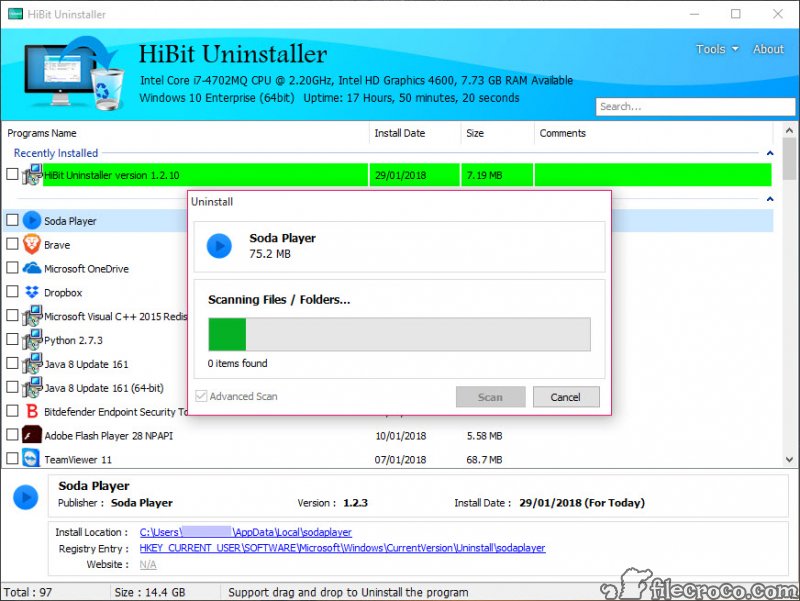
The defining feature of HiBit Uninstaller is its thorough scanning approach after running an application’s standard uninstaller. Most programs leave behind various fragments when they uninstall themselves, like configuration files, registry entries, scheduled tasks, browser extensions, or leftover folders in AppData and Program Files.
Standard Windows uninstall doesn’t touch any of that, while this software actively scans for it and offers to clean up everything it finds.
In practice, this turns what would otherwise be a half-finished uninstall into something genuinely complete. After removing a program you used briefly, you can be confident that very little of it remains scattered across your system, which is the kind of detail that adds up significantly over years of software experimentation.
Forced uninstall for stubborn applications
A particularly useful capability is the ability to forcibly remove programs whose uninstallers are broken, missing, or simply ineffective. When you encounter applications that refuse to uninstall through normal means, this tool can scan the system for everything related to that program and remove it directly, bypassing the broken official uninstall logic entirely.
This is genuinely valuable for situations where applications have become corrupted, where uninstall registry entries have been damaged, or where the original installer has been deleted leaving the program orphaned with no way to remove it cleanly.
For users who have ever been stuck with a program they can’t remove through standard methods, this forced uninstall feature alone justifies installing the tool.
Bulk uninstall for cleaning up multiple programs
When you want to clean up many programs at once, the bulk uninstall feature handles them in sequence rather than forcing you to repeat the same steps for each one. Select a group of applications, start the bulk operation, and the tool processes them one after another, prompting you only when each one needs interaction.
For users setting up new computers, decommissioning old systems, or just doing a major cleanup of accumulated software, this batch approach saves significant time. It’s the kind of feature that sounds minor until you’re facing the prospect of uninstalling thirty programs manually.
Built-in cleanup tools beyond uninstalling
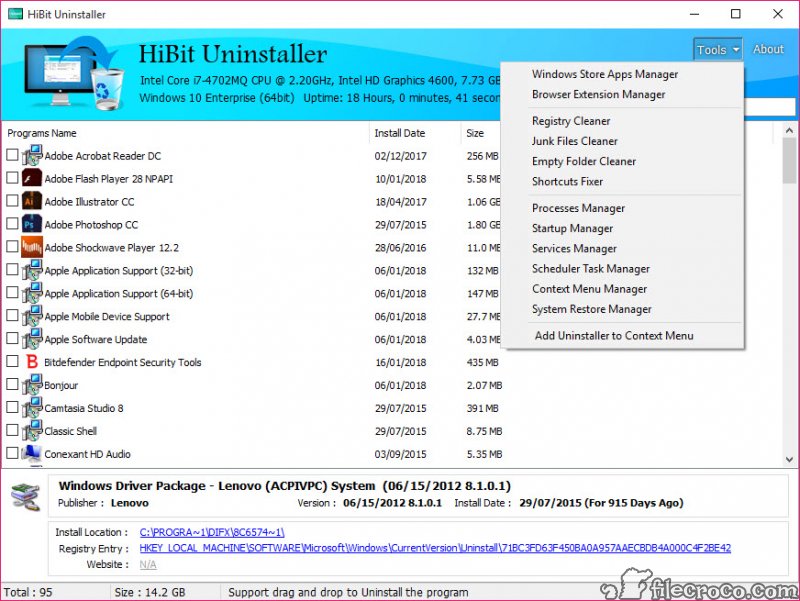
Beyond the core uninstall functionality, HiBit Uninstaller bundles several useful system cleanup utilities. The startup manager lets you enable or disable programs that launch with the system, the scheduled task manager handles automated tasks created by various installers, and the file shredder securely deletes files beyond simple recovery.
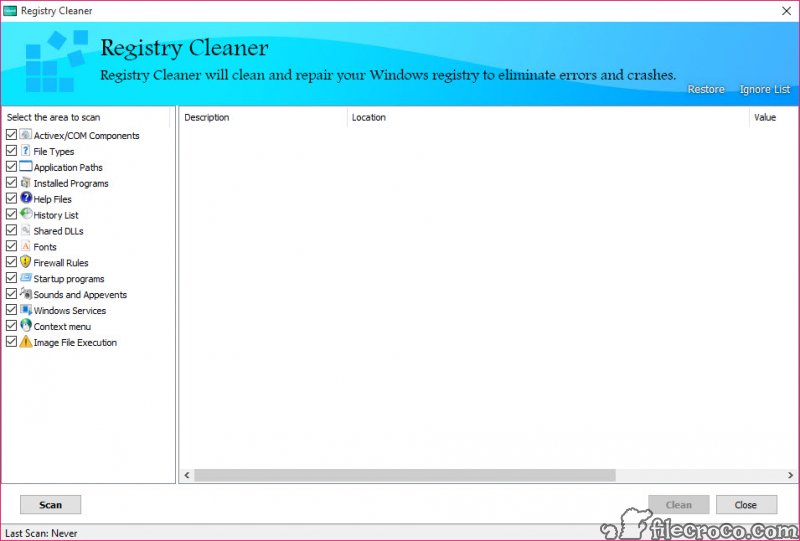
There’s also a registry cleaner, an empty folder finder, a junk file cleaner, a system restore point manager, and a few other utilities that round out the application into something closer to a small system maintenance suite. Some users will find these extras genuinely useful, while others might prefer dedicated tools for each task.
Either way, having them included rather than scattered across multiple separate downloads is convenient.
Browser extension and plugin removal
A particularly thoughtful detail is the ability to inspect and remove browser extensions across multiple browsers from a single interface. Browser extensions often install through unrelated software bundles or persist after their parent application has been removed, and tracking them down individually in each browser’s settings is tedious.
This software lists extensions across Chrome, Firefox, Edge, and other supported browsers in one place, letting you remove unwanted ones efficiently. For users dealing with browser hijackers or simply auditing what’s installed across their browsers, this consolidation is genuinely useful.
Real-time installation monitoring
For users who want maximum cleanup precision, the installation monitor feature watches what files and registry entries an installer creates while it’s running. The recording can later be used to reverse exactly the changes that installation made, even if the program itself never had a proper uninstaller.
This kind of forensic-level tracking is overkill for casual use but invaluable for testing software, evaluating new applications before keeping them long-term, or maintaining systems where complete cleanup is essential. For technical users, it’s the kind of feature that turns the application into something genuinely powerful rather than just convenient.
Restore point creation before changes
Before making significant changes, this software can automatically create a Windows system restore point. If something goes wrong during cleanup, you have a safety net that lets you roll back to the previous state without manual reconstruction.
For users who have ever accidentally removed something important during an aggressive cleanup session, this safety mechanism is genuinely reassuring. The restore point creation is automatic enough that it doesn’t add friction to the workflow but provides real protection when things go wrong.
Conclusion
HiBit Uninstaller delivers serious uninstall capability without the cost of commercial alternatives, which makes it an easy recommendation for users who want a thorough cleanup tool. The combination of leftover scanning, forced uninstall, bulk operations, and bundled cleanup utilities covers essentially everything users need from this category of software, all in a single application.
It’s not the only good option in this space, but for users who appreciate getting capable tools without paid licenses, HiBit Uninstaller stands out as one of the better free choices currently available.
Whether you’re cleaning up after years of software experimentation or maintaining a system where regular uninstalls happen, the tool handles the job with the kind of thoroughness that the standard Windows uninstaller has never managed.
Pros & Cons
- Thorough leftover scanning catches files and registry entries other uninstallers miss
- Forced uninstall handles stubborn programs that resist normal removal
- Bulk uninstall processes multiple programs efficiently in sequence
- Browser extension removal across multiple browsers from one interface
- Installation monitoring tracks changes for precise reversal later
- Bundled cleanup tools cover startup management, junk files, and other utilities
- Automatic restore point creation provides safety net during aggressive cleanup
- Genuinely competitive with paid commercial uninstallers despite being free
- Bundled extra tools may be unnecessary for users wanting just an uninstaller
- Forced uninstall requires careful use to avoid removing shared components
- Interface, while functional, feels less polished than some commercial alternatives
- Documentation is sparse for advanced features like installation monitoring
- Limited support for non-standard installation methods like portable applications
Frequently asked questions
This software runs the program's official uninstaller first, then scans the system for any leftover files, folders, and registry entries the application failed to remove. The standard Windows uninstall doesn't touch these leftovers at all, which means residual data accumulates over time and gradually slows the system.
Yes, the forced uninstall feature scans for all components related to a stubborn program and removes them directly, bypassing broken or missing uninstall logic. This is particularly useful for corrupted applications, programs whose installers have been deleted, or anything else that resists standard removal methods.
The registry cleaner included in this software is generally safe and conservative in what it removes, but as with any registry cleaner, occasional false positives can occur. The application's automatic restore point creation provides a safety net, and reviewing findings before applying changes is always recommended for users wanting to be careful.
Installation monitoring records every file and registry change made by an installer while it runs. Later, this recording can be used to precisely reverse those changes, which is useful for testing software you're not sure you want to keep, or for ensuring complete cleanup of programs that don't have proper uninstallers.
Yes, the application includes a feature for managing browser extensions across multiple browsers from a single interface, including Chrome, Firefox, and Edge. This makes it useful for cleaning up extensions that persist after their parent applications have been removed, or for general browser hygiene.
Both tools tackle similar problems with overlapping feature sets. Revo Uninstaller has a longer track record and a more polished interface, while this software offers competitive functionality at no cost and includes some features (like the bundled cleanup utilities) that Revo charges extra for. Many users find this tool covers their needs without paying for the commercial alternative.
Yes, this software can automatically create Windows system restore points before significant operations, providing a safety net if something goes wrong during cleanup. This automatic protection is particularly valuable during forced uninstalls or bulk operations affecting many programs at once.
Yes, the bulk uninstall feature processes multiple programs in sequence, prompting you only when each one needs attention. For users setting up new computers, decommissioning old systems, or doing major cleanup, this saves significant time compared to uninstalling each program individually.


