

WinSnap
About WinSnap
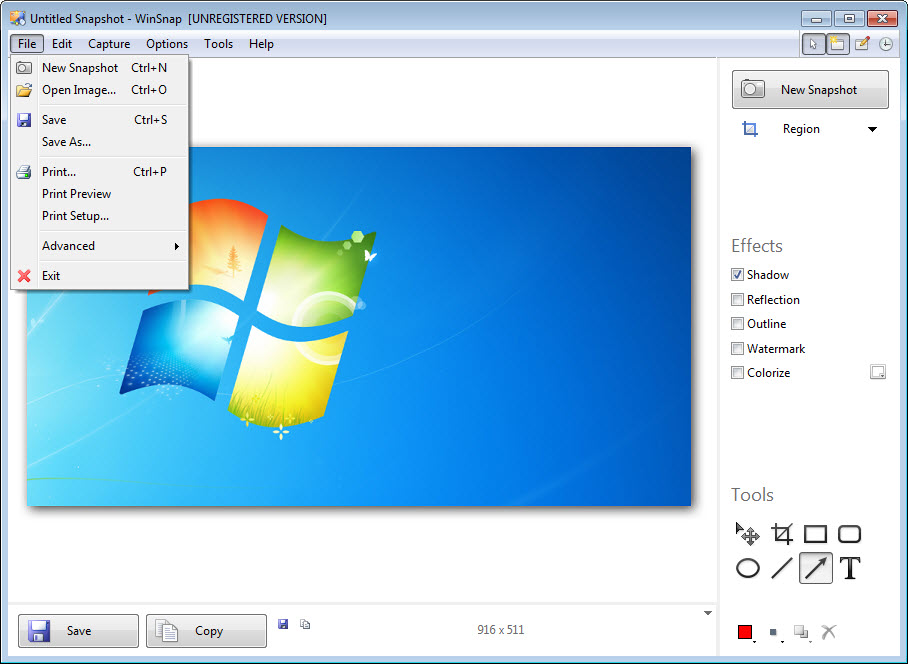
WinSnap is a screenshot tool built for people who care how their captures look, not just what they show. Where most capture utilities hand you a flat rectangle, this one grabs a window with its transparency and rounded corners intact, then dresses it automatically with a drop shadow, an outline, or a reflection, so the image that lands on your disk already looks like something you would put in documentation or a presentation. The polish that usually takes a detour through an image editor happens at the moment of capture.
That is the core idea, and it changes the workflow more than you might expect. If you produce software guides, write tutorials, publish comparison posts, or assemble slide decks, you normally capture first and beautify second. WinSnap collapses those two steps into one. Set up your effects once, and every capture comes out consistent, shadowed, and clean, with no editing pass needed.
Around that signature trick sits a full capture toolkit, with multiple capture modes, annotation tools, hotkeys, and auto-saving, so it works as your everyday screenshot tool and not just the fancy-output one.
Capturing windows the way they actually look
Modern application windows are not plain rectangles. They have rounded corners, soft transparent edges, and shadows of their own, and a naive capture flattens all of that against whatever happened to be behind the window, leaving ragged corners and bits of your wallpaper baked into the image. WinSnap captures the window as an object, preserving the transparency, so the corners stay genuinely rounded and the edges stay clean no matter what was behind them.
This sounds like a small thing until you have spent ten minutes in an editor cutting desktop fragments out of a window’s corners. For anyone producing screenshots at volume, it eliminates an entire category of cleanup.
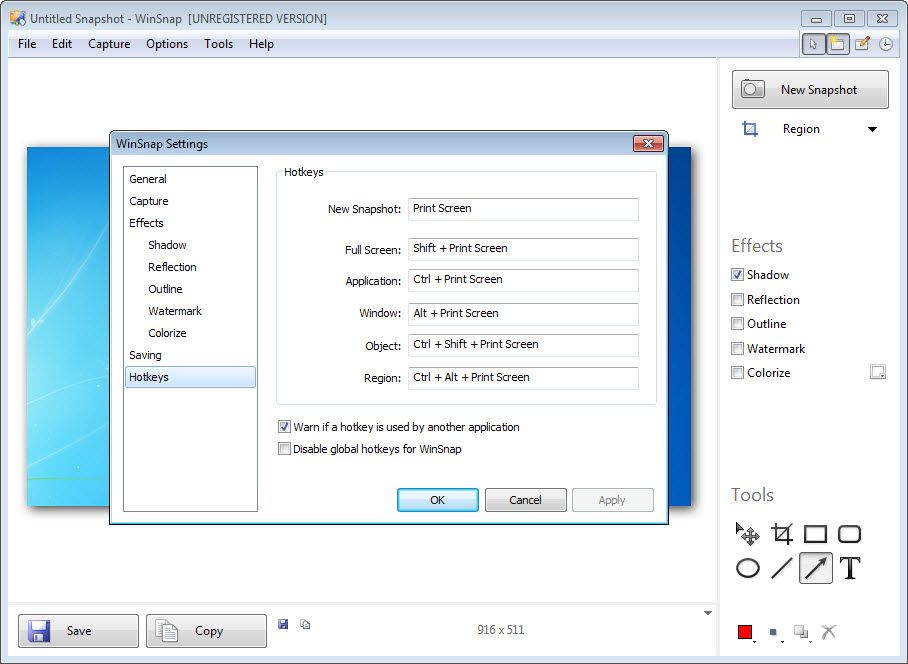
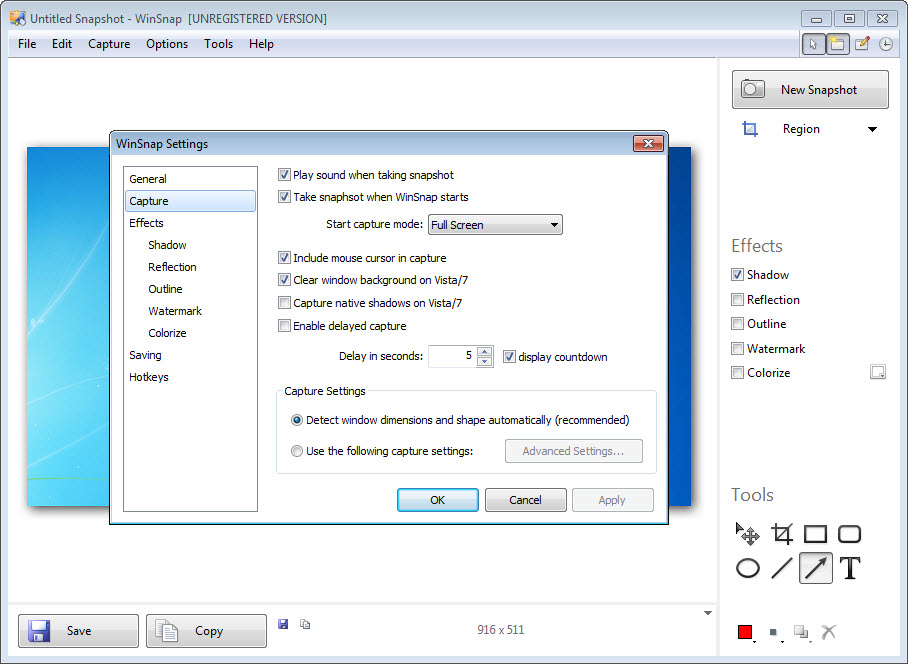
The capture modes cover the rest of the territory too, full screen, individual windows, specific interface objects, and freely selected regions, so the same tool handles the precise grab and the big sweep.
Effects applied at the moment of capture
Here is where the tool separates itself from the crowd. WinSnap can apply drop shadows, reflections, outlines, watermarks, and color adjustments automatically as part of the capture itself. You configure the look you want once, and from then on every screenshot comes out wearing it. A consistent shadow style across fifty screenshots in a manual, applied by hand, is an afternoon of tedium. Here it is simply the default.
The watermarking matters for anyone publishing captures publicly, since your mark goes on at capture time rather than as a step you might forget. And the coloring effects let you do things like convert to grayscale or tweak tones for a unified visual style across a document.
If your priority is quick capture-and-share with basic markup rather than presentation polish, a tool like LightShot covers that simpler flow, but it will not hand you gallery-ready images straight off the hotkey the way this does.
Annotation and the everyday workflow
Looks aside, it holds up as a daily driver. WinSnap includes annotation tools for the practical side of screenshots, arrows, shapes, text, and highlights for pointing at the thing you want the reader to see. The drawing tools are vector-like in feel, so you can adjust an arrow after placing it rather than undoing and redrawing.
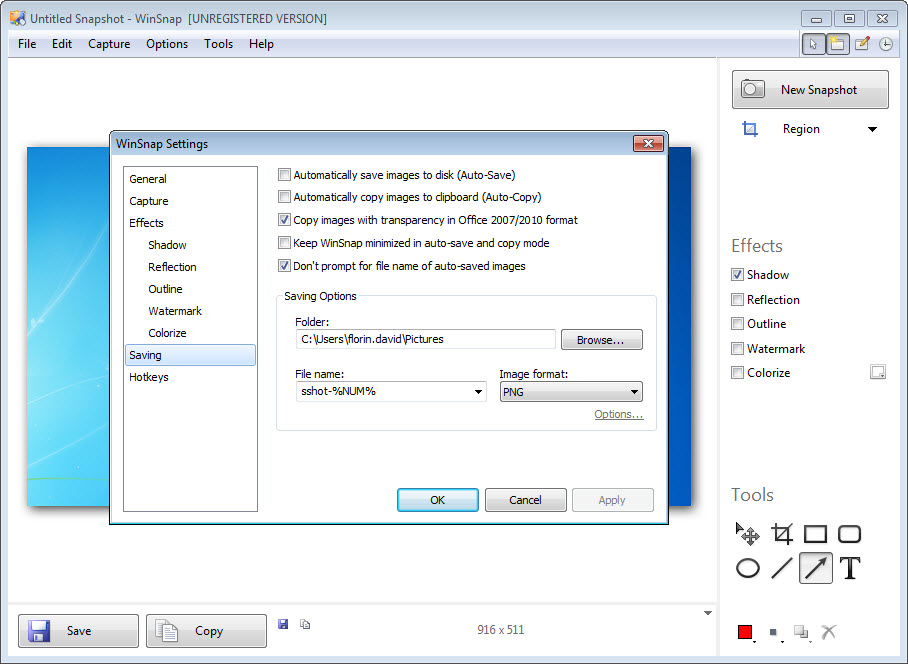
Hotkeys cover all the capture modes, so a grab is a keystroke away, and auto-saving can file every capture into a folder with a naming pattern, which quietly builds an organized archive instead of a desktop full of “untitled” images.
For a different balance of features, the editor-heavy PicPick bundles a fuller image editor and design rulers, and Greenshot takes the lean open-source angle, so the choice in this crowded category really comes down to where you want the depth. This one puts it in output quality.
Who actually benefits
Let us be honest about the audience, because not everyone needs this. If your screenshots are throwaway, sent once in a chat and never seen again, the presentation effects are wasted on you and a simpler tool will do. The people who benefit are the ones whose screenshots are a product. Technical writers, course creators, bloggers, support teams building knowledge bases, anyone assembling documents where dozens of captures need to look like they belong together.
For that crowd, the time saved compounds. Every capture that skips the editor is a few minutes back, and the visual consistency across a long document is something readers notice even if they cannot name it.
The tool is light enough to leave running in the tray, and it stays out of the way until the hotkey calls it. That combination of low friction and high-quality output is precisely the niche it was built to fill.
Conclusion
WinSnap is the screenshot tool for people whose captures end up in front of an audience. The transparency-aware window grabs and the capture-time effects mean the polish is built into the act of taking the screenshot, and across a long manual or a content pipeline that adds up to hours not spent in an image editor and a visual consistency that hand-editing rarely matches.
If you only ever screenshot to paste into a chat, it is more tool than you need, and the editor-heavy alternatives suit some workflows better. But for documentation, tutorials, and publishing, where every image needs to look deliberate, this hits a sweet spot few capture tools even aim for. Set the style once, hit the hotkey, and the finished image is already done.
Pros & Cons
- Captures windows with transparency and rounded corners preserved cleanly
- Applies shadows, reflections, outlines, and watermarks automatically at capture time
- Consistent, configured-once styling across every screenshot you take
- Multiple capture modes covering full screen, windows, objects, and regions
- Adjustable annotations plus hotkeys and auto-saving for a fast daily workflow
- Presentation effects are overkill for quick, throwaway screenshots
- Built-in editing is lighter than dedicated editor-centric capture suites
- No screen recording, so video captures need a separate tool
- Effect settings take some initial tuning to land on a style you like
Frequently asked questions
It captures windows with their transparency and rounded corners intact and applies effects like drop shadows, reflections, and watermarks automatically at capture time, so images come out presentation-ready without an editing pass.
Yes. It includes arrows, shapes, text, and highlights, and the annotations stay adjustable after you place them, so you can fine-tune a callout instead of redrawing it.
Yes. It handles full-screen grabs, individual windows, specific interface objects, and freely selected regions, with hotkeys assigned to each mode for quick access.
It can, and it does so automatically as part of the capture, which means published screenshots carry your mark without a separate step you might forget.
No. It is focused on still captures and their presentation. For screen recording you would pair it with a dedicated recording tool.


