

Windows Admin Tools
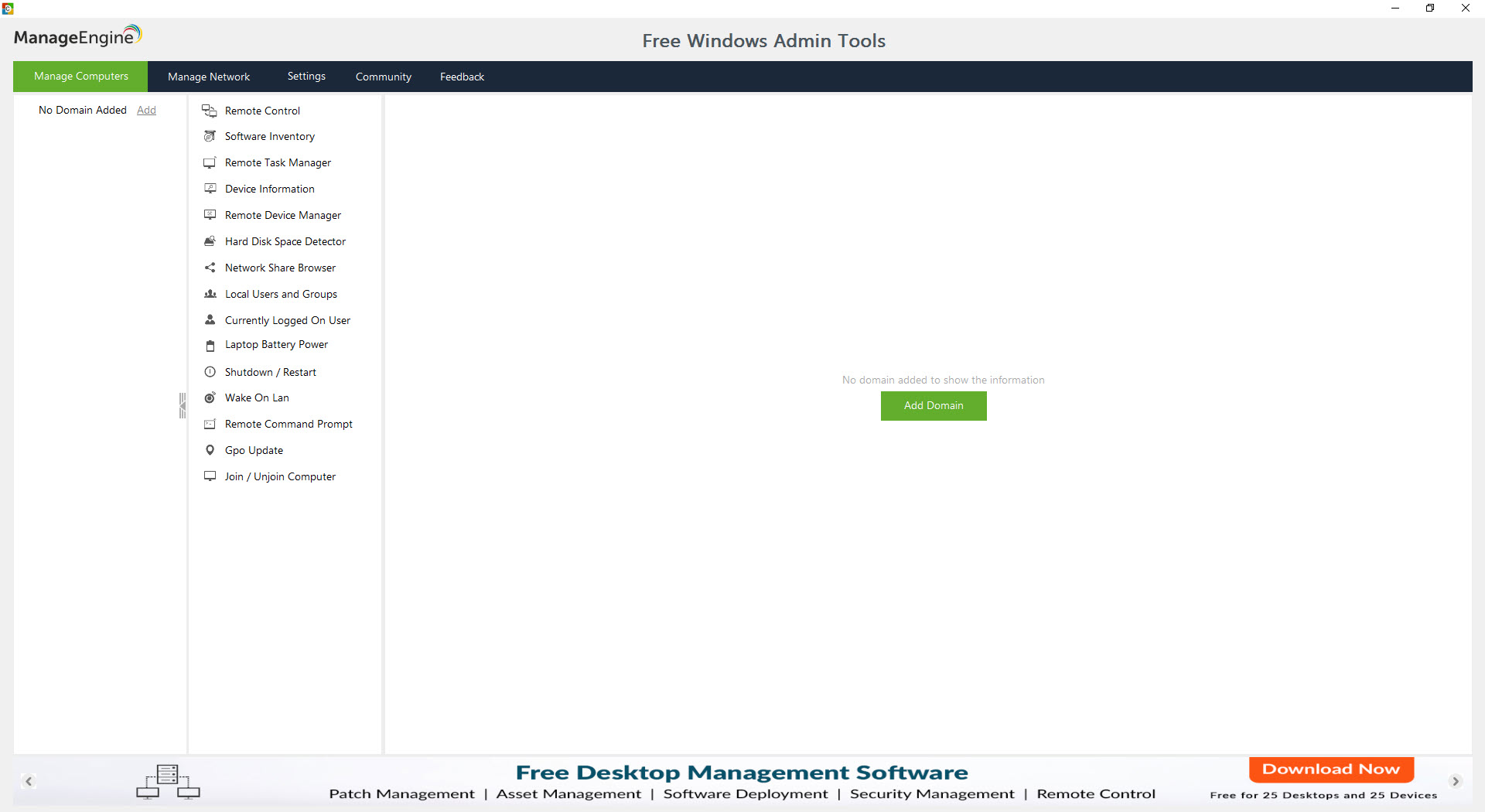
About Windows Admin Tools
Windows Admin Tools is a bundle of seventeen small utilities for doing things to other people’s computers across an office network without walking to them. See who is logged on, list what is installed, kill a stuck process or restart a service.
Run a command, check the free disk space, shut a lab of forty machines down at six o’clock and wake them up at eight. Pull an inventory of hardware and updates into a spreadsheet. Each tool is a tab with a machine list, a credential box and a result grid. Each works on one computer or on every computer in a domain at once.
The category it belongs to is the one PsTools has occupied for decades from the command line. Windows Admin Tools does a similar set of jobs from a window, with a computer picker instead of a hostname argument and a CSV export instead of a redirect.
It is a giveaway from the maker of a larger endpoint management suite. The promotional links towards that suite are the one thing you put up with, since the tools themselves have no limits on machines or time.
Picking computers and supplying credentials
Every tool in Windows Admin Tools begins the same way. Choose the target machines by typing names, importing a list or browsing the domain through its controller. Then supply an administrator credential that applies to all of them. The operation runs against each machine in parallel and the results land in a grid that sorts and filters and exports to CSV. That common frame is why the seventeen tools feel like one program rather than a folder of executables.
The dependency is what the remote machines allow. The tools talk over the standard management channels, remote procedure calls and the management instrumentation service. Each target needs those services running and its firewall open to them, and the credential needs local administrator rights on the target.
A machine that is off the domain, behind a stricter firewall or running with those services disabled shows as unreachable. The tool cannot help until the network is fixed. On a managed domain that is the default state and everything just works.
Seeing what is running and stopping it
Remote Task Manager in Windows Admin Tools lists every process on the chosen machine with its identifier and the user it runs as, plus processor and memory use and its parent. A kill button ends the one you pick. It is the tool for the frozen application that a user cannot close and the unfamiliar executable running as a system account.
It does both without touching the user’s screen. A dedicated tool does the same for services, with start and stop and restart. A Remote Command Prompt runs a command line on the target and returns the output.
Currently Logged On User answers the question that precedes half of all support calls, and Remote Device Manager opens the target’s hardware tree to see what has a warning mark. None of these give you a live view the way a process viewer on the machine itself does.
Each is a query and a result rather than a continuous display, and for a fleet the query is the right shape.
Inventory in a spreadsheet
Software Inventory in Windows Admin Tools pulls the installed programs list from every selected machine with versions and install dates. That is how a licence count or a search for a vulnerable version gets done in one afternoon. System Inventory goes wider.
Hardware, drives, services, local accounts and installed updates come back per machine and export together. Hard Disk Space Detector reports every volume’s size and free space, so the machines about to run out can be found before they do.
Local Users and Groups lists accounts on each machine, which is where forgotten local administrators turn up. Network Share Browser lists shares across the selected machines, which is where forgotten open folders turn up. Laptop Battery Power Monitor reports charge and health for the portable fleet.
Each of these is a report that you export and are finished with. The value is in running them across two hundred machines rather than one.
Shutdown and restart, wake and join
Remote Shutdown and Restart is the tool most people install Windows Admin Tools for. Select the machines, choose shutdown or restart, set a delay or a scheduled time. Add a warning message with a countdown so anyone still working can save. The operation runs in parallel across the list, which is what makes a lab or a patch-night reboot a single action. Wake on LAN sends the magic packet to the same list so the machines can be started before the day begins. GPO Update forces a policy refresh so a change lands now rather than at the next interval.
Join and Unjoin move a computer into or out of the domain from the console. It is the fiddliest of the set, because the target has to be reachable under its current identity first. Remote Desktop Connection opens a full session to a machine when a query is not enough.
For a stack of saved sessions with credentials and tabs, a connection manager with tabbed remote sessions does that job better. This bundle’s version is a convenience beside the query tools.
What it does not do
There is no agent, no schedule beyond the shutdown timer and no history. Every tool in Windows Admin Tools is a query you run now against machines that are on now. A machine that is switched off is simply absent from the results, and nothing is recorded for later comparison.
The reports are snapshots. There is no deployment of software, no patching and no alerting, because those are the jobs the paid suite from the same maker exists to sell. The bundle’s interface reminds you of that with a banner and links.
The other limit is the network itself. On a domain with management channels open it works out of the box. On a workgroup, or across firewalls, each machine needs configuring before the tools can reach it. At that point a scripted alternative may be less effort.
Conclusion
Windows Admin Tools is for the administrator of a small or medium domain who does not have an endpoint management suite. They spend too much of the day walking to machines or opening remote sessions to answer simple questions. The task manager, the shutdown tool and the inventories cover most of those questions from one window.
Anyone who needs history, alerting or software deployment is being sold the larger product. They should decide whether they want it rather than drift into it. As a set of free queries against a working domain, this bundle earns its place on the console.
Pros & Cons
- Seventeen remote administration tasks from one window with a shared machine list and credential
- Parallel operation across a domain with CSV export of every result
- Remote process and service control without disturbing the user
- Bulk shutdown and restart with scheduling and a warning countdown
- Inventory of software, hardware, updates, accounts, shares per machine
- No limit on the number of machines
- Requires management channels and administrator rights on every target
- Snapshots only, with no history, alerting or scheduling beyond shutdown
- Banners and links promote the maker's paid suite
- Workgroup and firewalled machines need manual preparation
Frequently asked questions
The target is off, its firewall blocks the management channels, the remote management services are stopped or the credential lacks local administrator rights there. Check those four in that order.
Yes. Select the machines, choose shutdown or restart, set a time or delay and a warning message, and the operation runs against all of them in parallel.
No. It queries them over the standard management channels and installs no agent. That is why it needs those channels open and why it cannot reach a machine that is switched off.
Yes. Every result grid exports to CSV, so software, hardware, disk space and user lists can be opened in a spreadsheet.


