

Typora
About Typora
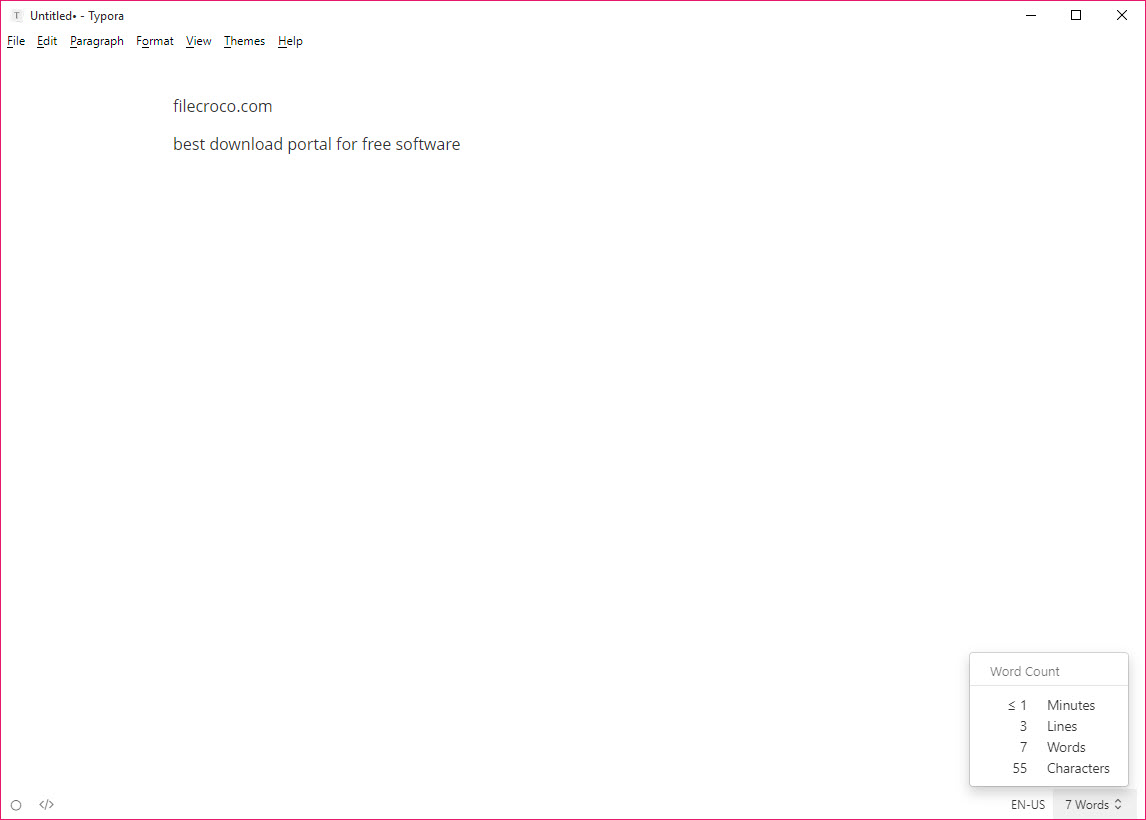
Typora is a Markdown editor with no preview pane. You type two asterisks and a word and the asterisks vanish, leaving bold text. You type a pipe-delimited row and a real table appears with cells you can tab through. A fenced code block becomes a highlighted box, a dollar-signed formula becomes typeset maths, and a Mermaid block turns into a diagram, all in the same window you are writing in.
The file on disk stays plain Markdown throughout, and a keystroke shows you the raw source whenever you doubt it.
That single design decision separates it from the split-screen editors and from code editors such as Notepad++ with a Markdown plugin bolted on. Typora reads like a word processor and saves like a text file.
The people who love it write long documents in Markdown and never wanted to see the syntax. The people who bounce off it want tabs and sync and a plugin system, and none of those are here.
Writing with the syntax hidden
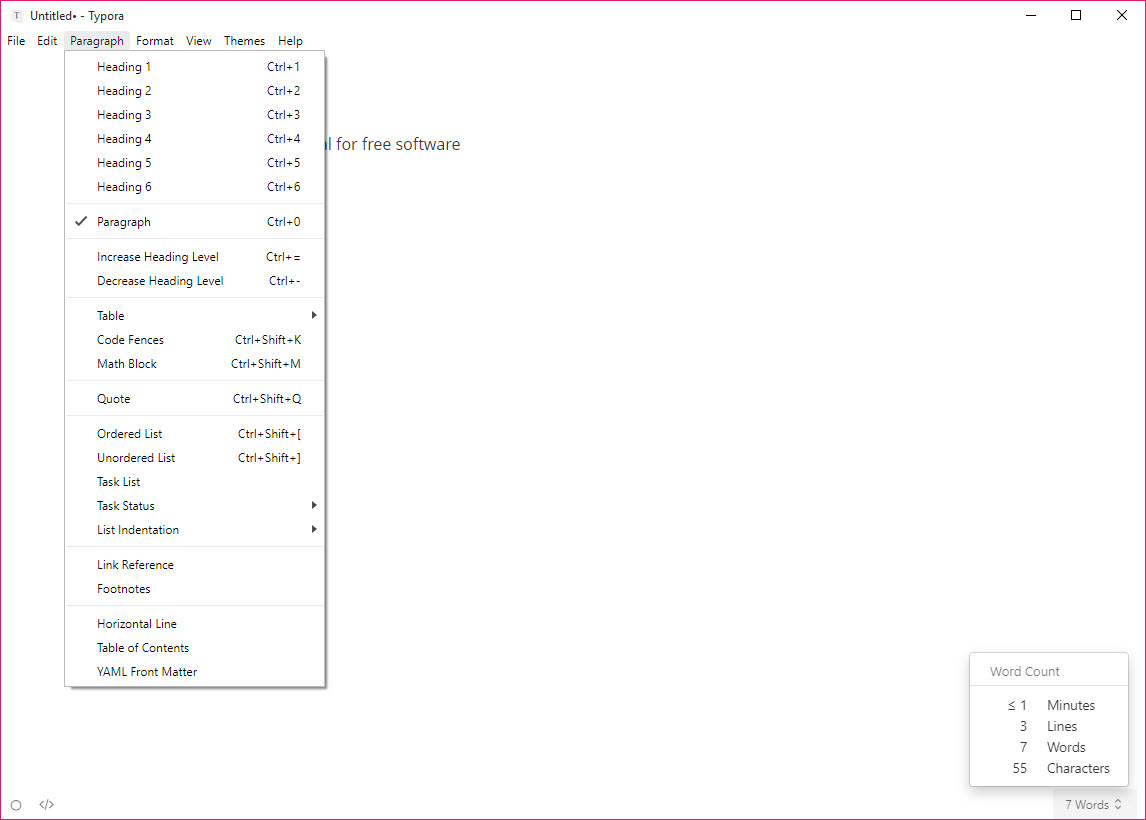
In Typora the live rendering covers the whole of the common Markdown dialect and a fair bit beyond. Headings and lists render as you type, task lists included, and so do blockquotes, footnotes that show on hover, inline code, links, images and horizontal rules.
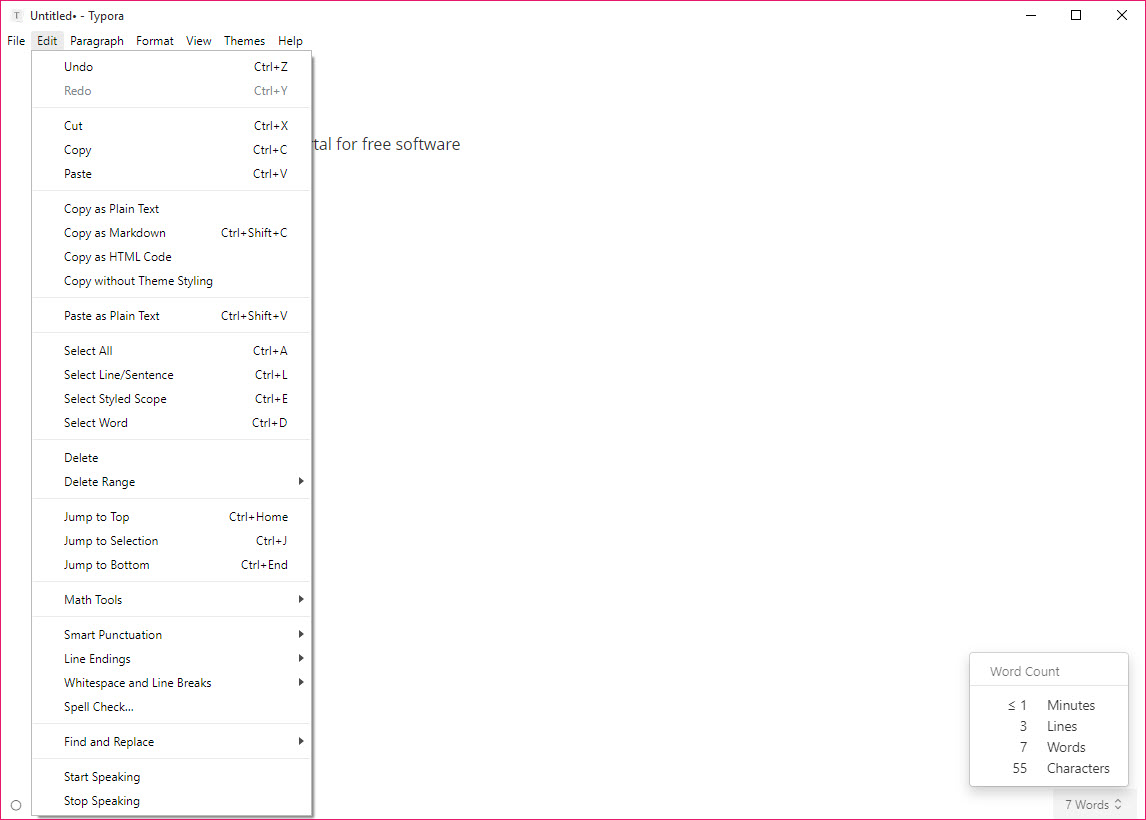
Each keeps a shortcut, so a heading is one keystroke rather than a row of hashes. Brackets and quotes pair themselves like a code editor, and there is an option to pair Markdown symbols too, so a single asterisk immediately gets its closing twin.
Put the cursor on a rendered element and the syntax reappears around it for editing, then hides again when you move on. That is the trick the whole program rests on. It is smooth enough that after an hour you forget the markup exists, which is both the selling point and the reason some people distrust it.
If you need to see exactly what is in the file, View has a Source Code Mode that shows the raw text, with highlighting, until you switch back.
Tables, maths, diagrams
Tables are where Typora earns its keep against plainer editors. Insert one from the menu with a row and column count, then click into any cell to type, tab between cells, add rows with Enter and drag columns to reorder them. Alignment is a click. The Markdown written underneath is kept tidy, which matters when the file will be read by other tools.
Maths uses LaTeX syntax inside dollar signs, rendered by MathJax with most of its extensions, including chemistry notation, and there is an option to number display equations automatically. Diagrams come from three engines. Mermaid handles flowcharts, sequence diagrams, Gantt charts and more from a text description, and the two older flowchart and sequence syntaxes are still supported. Errors in a diagram show as a live hint rather than a blank box.
For technical notes, this combination replaces a separate diagram tool for most of what you would draw.
Images and the folder they land in
Drag an image into the document and it appears inline, but where the file went depends on a setting, and this is the question that fills the support forum. Typora can leave the image where it is and link to it by absolute path. It can copy it to a folder beside the document or to a folder you name.
Or it can hand it to an upload tool that returns a web address. The right choice depends on where the document will be read, and the wrong choice produces a file full of broken images the moment it moves.
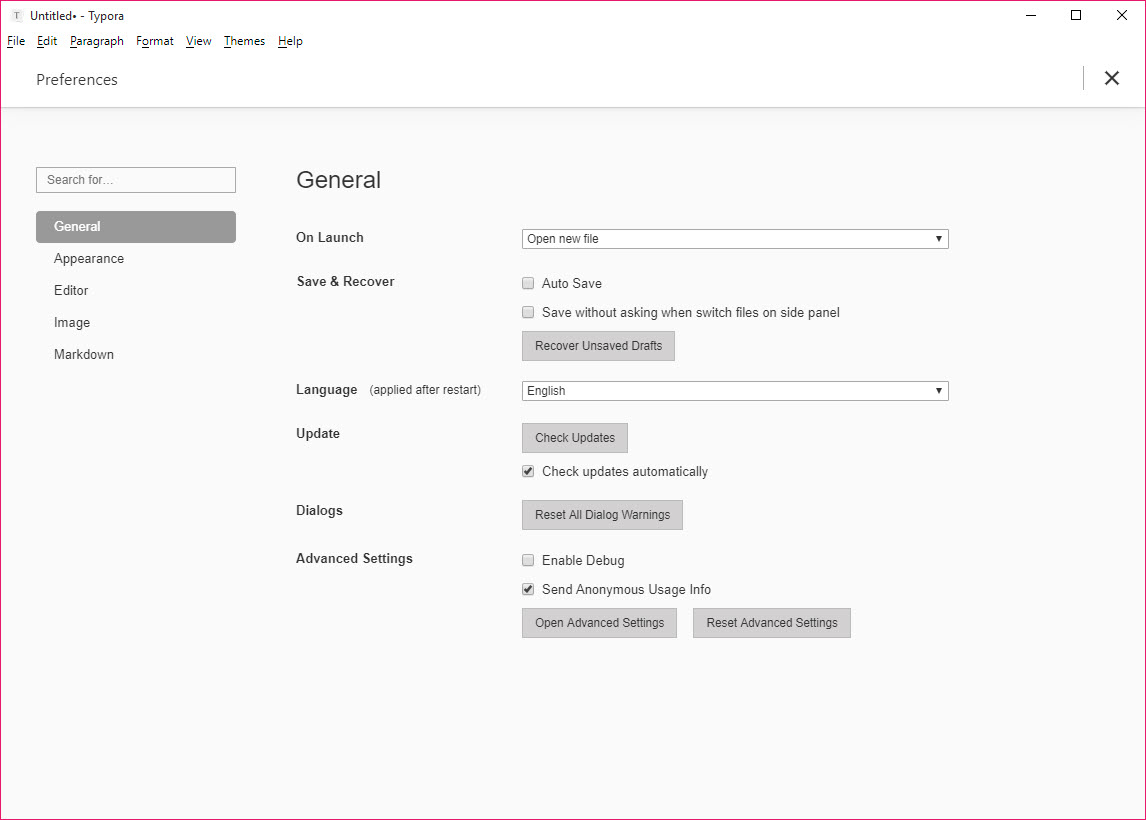
Set the rule once in Preferences under Image and every drop follows it. A per-document root path can also be declared at the top of the file for static site generators that expect paths from the site root. Image size and zoom can be set on an HTML tag when the plain syntax is not enough.
None of this is hard, but it has to be decided before the first drag, not after the fiftieth.
Themes written in CSS
The Typora editor is a rendered page, so its look is a stylesheet. Six or so themes ship in the box, in light and dark variants, and a community gallery holds hundreds more, from academic paper layouts to a code-hosting lookalike. Install one by dropping its CSS into the themes folder. Write your own by copying one and changing fonts and widths and colours in a text editor, which is a lower bar than any word processor’s template system.
The same stylesheet governs export to PDF and HTML, so a theme built for the screen prints the same way. That is a rare property, and a useful one for anyone producing documents that have to look consistent.
Export through Pandoc, and what it needs
File, Export offers PDF, HTML with or without styles, and image, all handled internally. Word, OpenDocument, RTF, LaTeX, EPUB and several others go through Pandoc, which is installed separately and pointed to once. Without it those entries are greyed out, and installing it is the first thing to do after a fresh setup. With it, the conversions are as good as Pandoc’s, which is to say very good for structured text and indifferent about fine layout.
PDF output honours the theme and page size, adds a table of contents if the document has one, and handles maths and diagrams as images. For a thesis that has to end up in LaTeX, the export gets the structure across and a LaTeX distribution finishes the typesetting.
For an EPUB, the result opens cleanly in any reader for checking before it goes anywhere.
Working on more than one file
The Typora sidebar shows either the file tree of the current folder or a flat article list, and an outline panel lists the headings of the open document for jumping around a long piece. Search runs across the folder. What the program does not do is tabs.
Each file opens in its own window, and a project of twenty documents means twenty windows or a lot of switching in the sidebar. It is a deliberate choice, and it is the single complaint that comes up most from people arriving from code editors.
Focus mode dims every paragraph but the current one, Typewriter mode holds the active line at a fixed height, and a word count with reading time sits in the corner. Spell check runs inline with a right-click to correct. Custom shortcuts live in a JSON file, which is less friendly than a preferences pane but does the job.
Syntax preferences and the file on disk
Because the syntax is hidden, Typora decides how to write it, and that alarms people who share Markdown with other tools. Preferences under Markdown let you pin the choices. Unordered lists always use hyphens, or always asterisks. Headings always use hashes.
Blank lines between paragraphs are preserved or normalised. Enable strict mode and the editor stops guessing at loosely formatted input and demands the standard form.
It also escapes characters it considers ambiguous, and it will sometimes reformat a list you pasted in. For a private notebook that is invisible. For a repository where colleagues review diffs, it needs the strict settings, and a quick look in Source Code Mode before committing.
The file remains Markdown that any other editor can open, which is the promise, and the promise holds.
Conclusion
Typora is for the writer who has chosen Markdown for its portability and would rather never look at it, which describes a lot of technical writers and documentation authors, and plenty of students. Long documents with tables, maths and diagrams sit in one clean window, and the CSS themes make the output look like a designed page rather than a text dump.
It is not a notes database, not a team tool and not a code editor, and people who need any of those should pair it with one or skip it. Set up Pandoc, decide where images go, pin the syntax preferences, and it is the most comfortable place to write Markdown that exists.
Pros & Cons
- Live rendering with no preview pane, syntax shown only where the cursor sits
- Table editing with tab, Enter and drag, writing tidy Markdown underneath
- MathJax equations and Mermaid diagrams render inline as you type
- Themes are plain CSS and govern export as well as the screen
- Pandoc export to Word, LaTeX, EPUB and more
- Focus and Typewriter modes with an outline panel for long documents
- No tabs, one window per file
- Word and LaTeX export depend on a separate Pandoc install
- Image storage must be configured before the first drag or links break
- Reformats loosely written Markdown unless strict preferences are set
- No sync or mobile client, and the desktop licence is paid after a trial
Frequently asked questions
Pandoc is not installed or not found. Install it, then open Preferences, Export, and confirm the path. The Word, LaTeX and EPUB entries become active once it is detected.
Wherever the Image preference says. The options are leave in place with an absolute path, copy next to the document, copy to a named folder or upload through a configured service. Set this before adding images, since links written under one rule break when the file moves.
No. Each document opens in its own window. Use the sidebar's file tree to switch between files in a folder, or the article list for a flat view.
Choose Source Code Mode from the View menu, or use its shortcut. The document shows as plain highlighted text until you switch back.
It normalises list markers, escaping, spacing to its own preferences. Open Preferences, Markdown and set the syntax options to match how the file was written, and turn on strict mode to stop it interpreting loose input.


