

Stykz
About Stykz
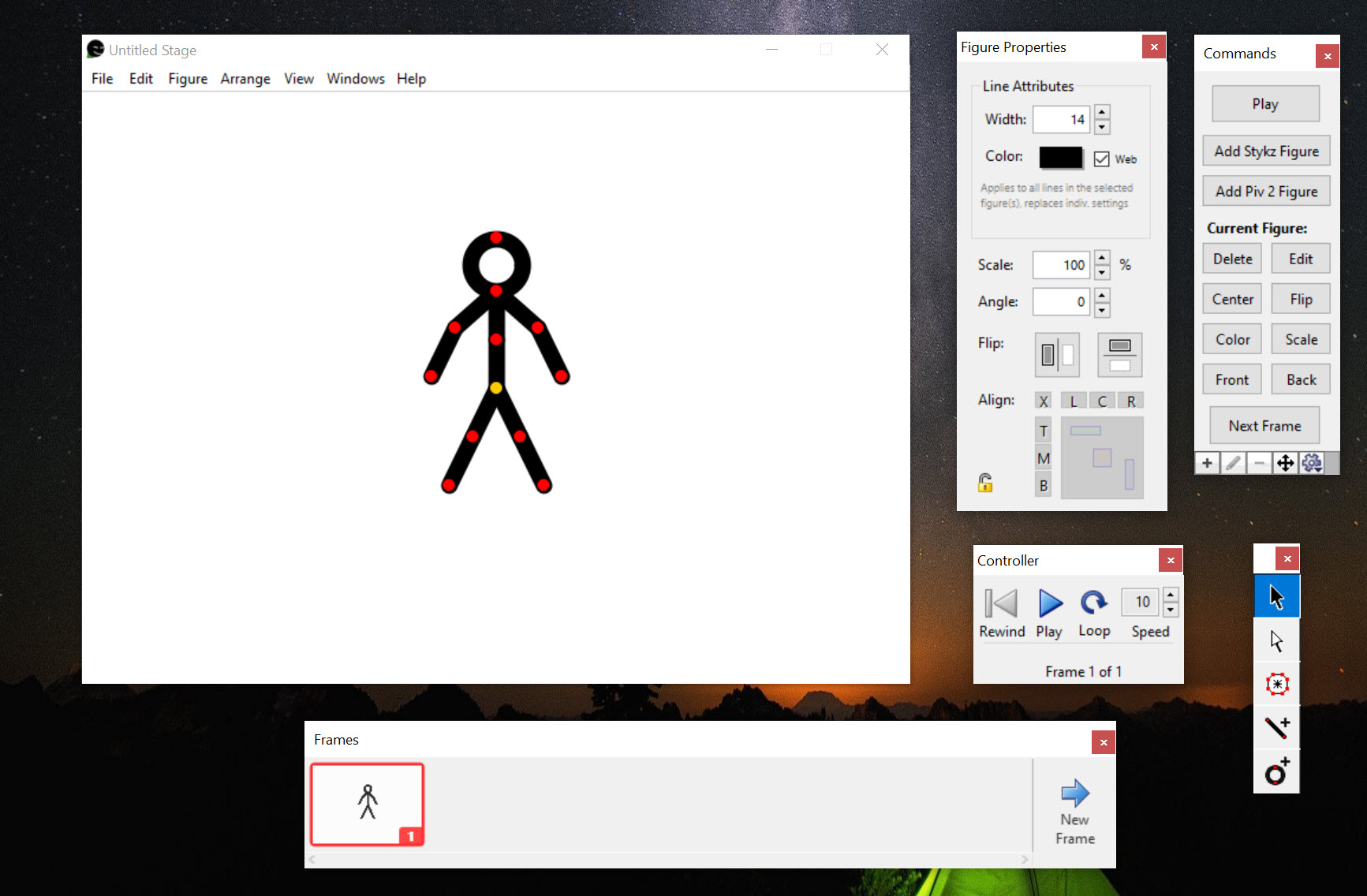
Stykz animates stick figures one frame at a time. Build a figure from jointed segments, pose it on the stage, add a frame, move the joints a little, and repeat until the figure walks, jumps or throws a punch. Onion skinning shows the previous frame as a ghost under the current one so the motion stays smooth.
The finished sequence exports to an animated GIF, a video file or a folder of still images, and it opens the figures made in Pivot Animator, the program most stick-figure animators started on.
That last point defines its audience. Pivot is the classroom standard for the genre, and Stykz was built as a superset of it. It adds in-scene editing and layers, copy and paste between documents, and a figure format that stretches and distorts where Pivot’s does not. It has not changed in a long time and it looks its age.
The thing it does has not changed either, and children and hobbyists still make short cartoons in it. For hand-drawn frames rather than jointed figures, Pencil2D is the neighbouring tool.
Building a figure
A Stykz figure is a set of segments joined at nodes. Right-click and drag on the stage or from an existing node and a new segment appears, joined to the last, so a body grows outwards from a torso in a few strokes. Segments can be lines or circles, thick or thin, coloured individually, and each joint bends when the figure is posed.
Figures can be edited in place on the stage rather than in a separate builder, which is the change Pivot users notice first. Any element can be stretched or distorted rather than held to a fixed length.
An internal library stores figures for reuse across documents, and the Pivot import brings existing .stk figures in with their joints intact. The default figure is the familiar stickman, and a set of tutorials walks a beginner from posing it to a finished walk cycle in an afternoon.
Frames, onion skin and layers
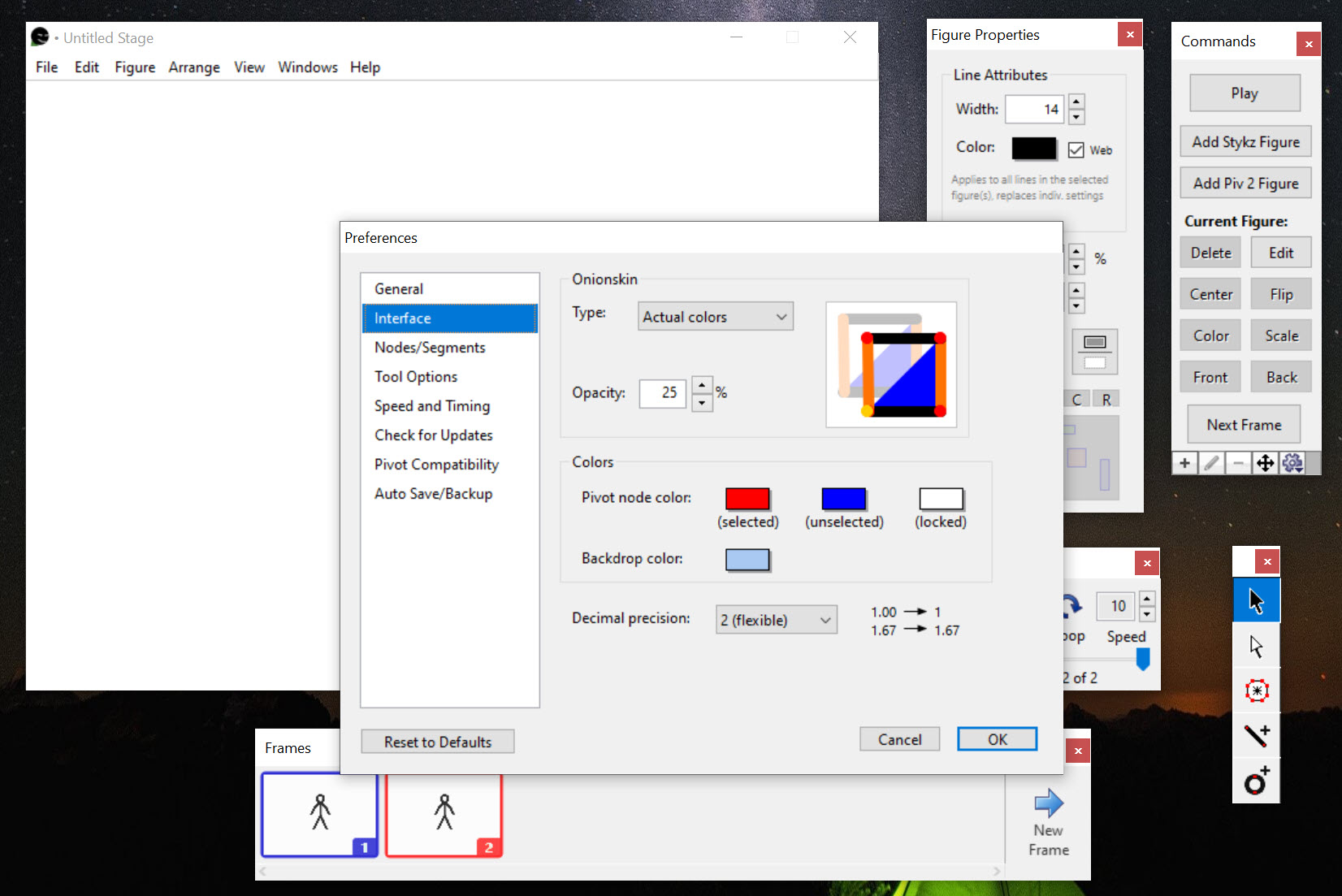
The Stykz stage shows one frame. Add a frame and the figures copy across, so the work of each frame is nudging joints a little further along. Onion skinning draws the previous frame in a lighter colour underneath.
The distance between the ghost and the live pose is the speed of the motion, which is how newcomers learn timing without being told. A frames panel lists the sequence for jumping around and for duplicating or deleting frames. A preview window plays the animation at the set frame rate before anything is exported.
Figures and even single segments sit on layers, so an arm can pass in front of a body and behind it in the next frame, and one figure can walk in front of another. Copy and paste moves figures between frames and between documents, and several documents can be open at once.
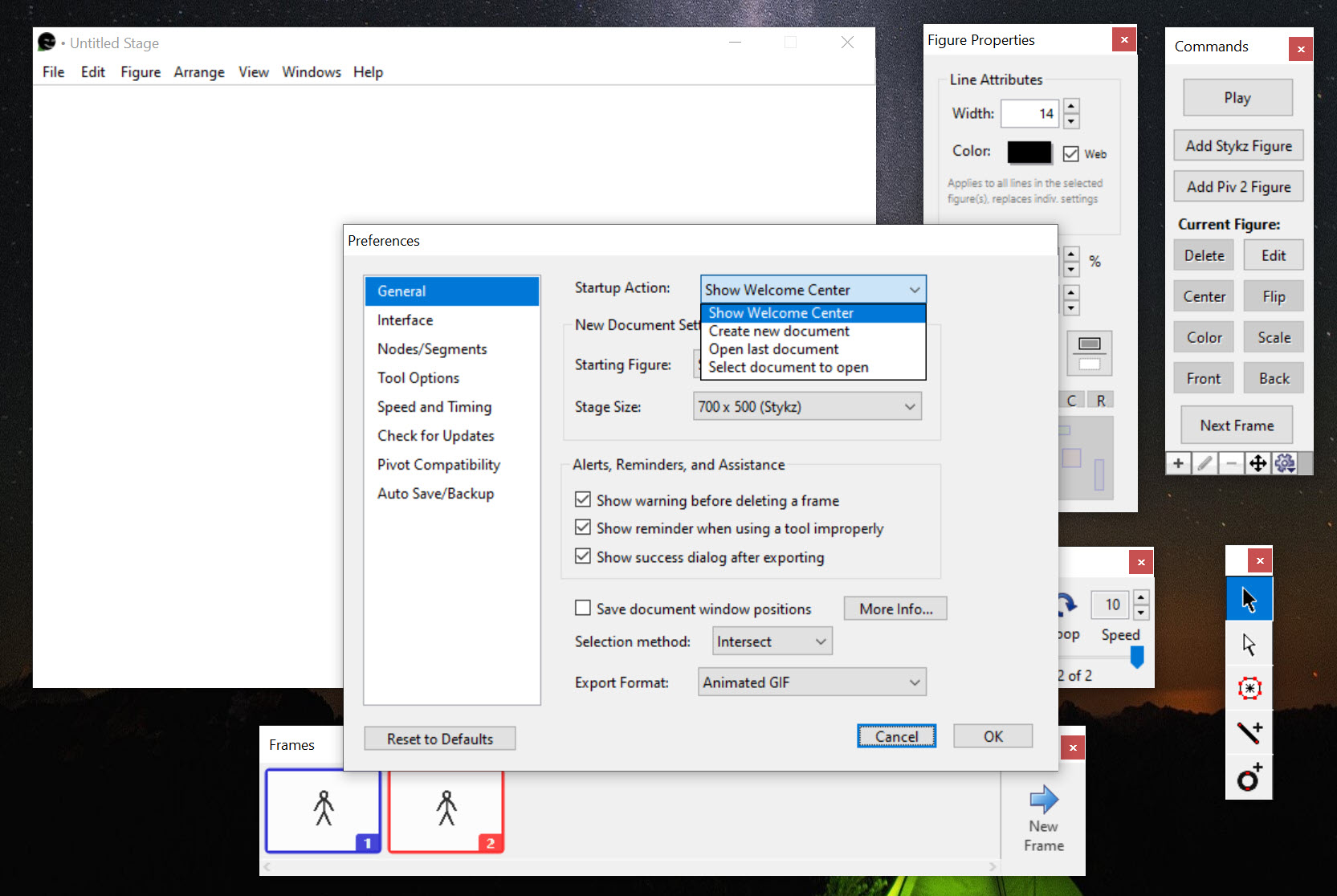
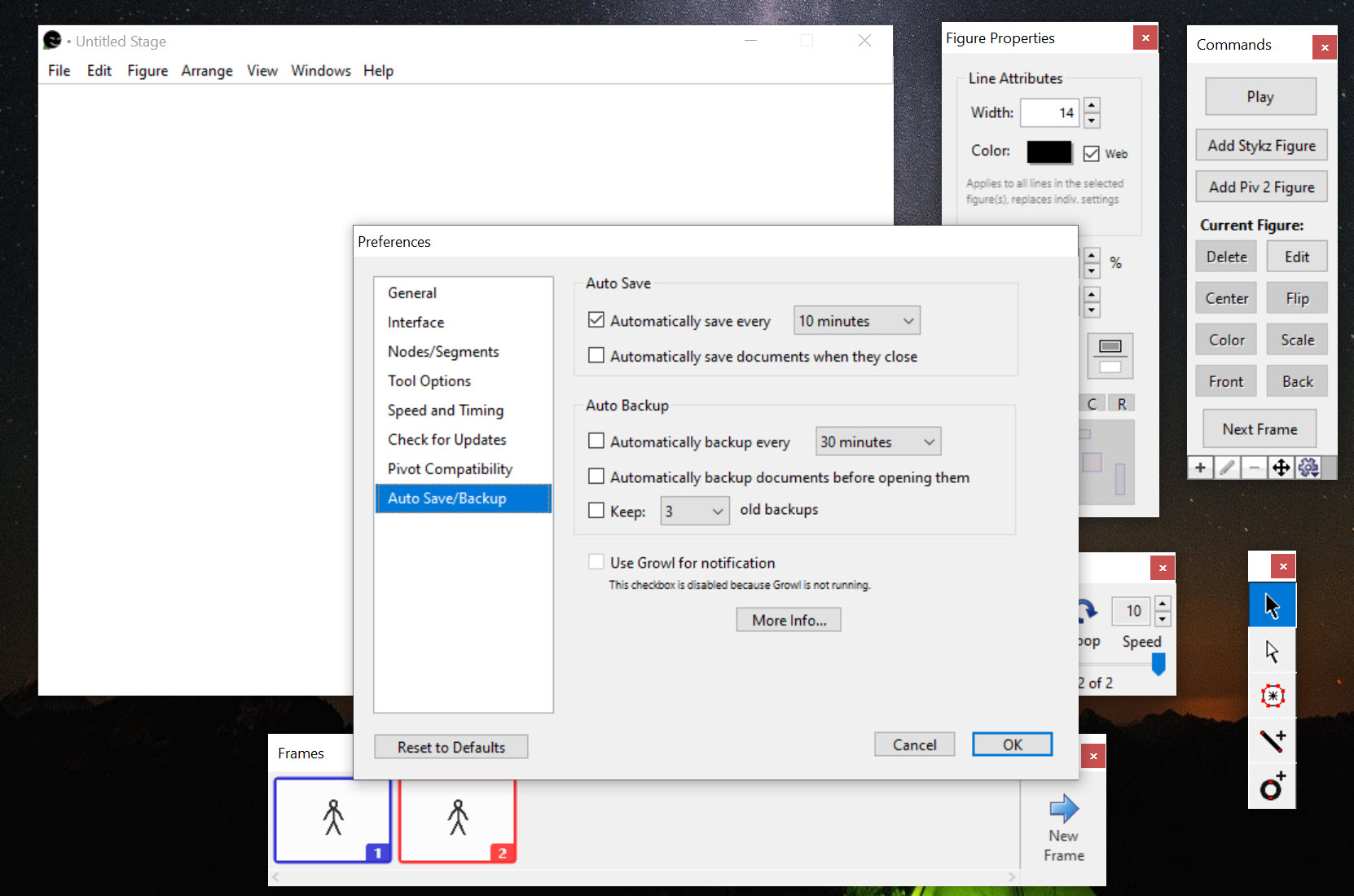
Auto-save and an automatic backup file guard against the crash that every long animation session eventually meets.
Exporting and sharing
Stykz export offers an animated GIF, a video through the QuickTime format and a numbered sequence of PNG or JPEG images, and the current frame alone can be saved as a still. The GIF is the one most people use, since it plays anywhere. The project file itself can carry the author’s name, a modification date and usage notes, which was meant for sharing figures and scenes on the forums where this hobby lives.
What is missing is the rest of a cartoon. There is no sound, no imported background image and no camera movement, so a scene is figures on a plain stage. Anyone who outgrows that moves to a frame-by-frame drawing program or a proper animation studio, and brings the timing they learned here.
Where age shows
The interface is a set of floating panels in the style of another era. The video export leans on an old media framework that may not be present on a current machine, and there will be no further updates. It runs, and it runs as it did.
For a child’s first animation or a hobbyist’s stick-figure fight scene, none of that matters. For anything more ambitious it was never the right tool.
Conclusion
Stykz is for the child, the student and the hobbyist who wants to make a stick figure move and learn how timing works while doing it, especially anyone arriving with a folder of Pivot figures. The in-scene editing and the layers make it a step up from the program it was modelled on.
Anyone who wants sound, backgrounds or drawn characters should start in a fuller animation tool, because this one stops at the stick figure and always will. Within that line it remains a pleasant place to learn.
Pros & Cons
- Frame-by-frame stick-figure animation with onion skinning and a live preview
- In-scene figure editing with stretching and per-segment colour
- Imports Pivot .stk figures and keeps their joints
- Layers for figures and segments, plus copy and paste between documents
- Exports animated GIF, video and image sequences
- No sound, backgrounds or camera movement
- Dated floating-window interface
- Video export depends on an old media framework
- No longer updated
Frequently asked questions
Yes. Import the .stk file and the figure arrives with its segments and joints intact, ready to pose. Pivot animation files themselves are not imported, only the figures.
Turn on onion skinning and keep the gap between the ghost of the previous frame and the new pose small. More frames with smaller changes produce smoother motion, and the preview shows the result at the chosen frame rate.
No. Scenes are figures on a plain stage. Export the GIF or image sequence and add sound or a background in a video editor.


