

Raw Disk Copier
About Raw Disk Copier
Backup software is clever about what it copies. It reads the file system, works out which parts are in use, and skips the rest. That intelligence is exactly wrong when a drive is failing, because the file system is often the first thing to become unreadable. Raw Disk Copier takes the opposite approach and copies every sector in order, without knowing or caring what any of them contain.
The result is a duplicate holding the partition table, the file systems, the free space, whatever deleted files left behind, and any partition the machine cannot mount. If the source was bootable, so is the copy.
Copying below the file system
Sector-level work has one obvious consequence. Copy time follows the size of the disk rather than the data on it, so an almost empty two terabyte drive takes as long as a full one.
That is poor for routine backups and correct for rescue work. A backup tool that copies only the space in use is faster and scheduled, and it depends on reading the file system to know what to skip. When that structure is damaged, the clever approach fails and the blunt one keeps going.
The option that separates it from other copiers
Here is the detail that justifies choosing this over any other copying tool.
Copy programs read many sectors at a time because it is far faster. The problem appears when one bad sector sits inside such a block. The drive fails the whole read, and the program, unable to tell which sector was at fault, skips the entire block. One unreadable sector therefore takes all of its neighbours with it.
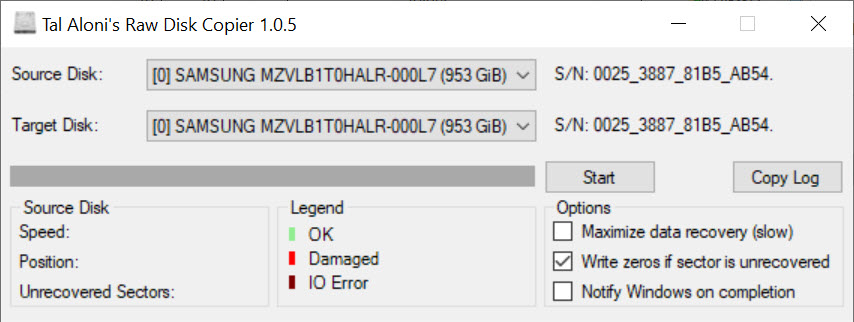
The maximise data recovery option changes that behaviour. When a block read fails, Raw Disk Copier goes back and reads each sector in that block individually, so only the truly unreadable ones are lost and everything around them survives.
Two notes come with it. On a healthy drive the option adds no time, because no block fails and no re-reading happens. On a damaged one it is slow, and the slowness compounds, since each bad sector triggers the drive’s own error handling before it reports failure.
Copy first, then experiment
Check the drive’s condition first, and CrystalDiskInfo reports the reallocated and pending sector counts that tell you how much trouble it is in.
Then copy, then experiment. Repair attempts write to the disk and put it under load, which is what a deteriorating drive least needs. HDD Regenerator may rescue data from marginal sectors, and may equally be the operation that finishes the drive off. Running it once a complete copy exists turns that risk into an experiment rather than a gamble.
What to do with the copy, and what this is not
Once the Raw Disk Copier duplicate exists, the recovery work happens there. A copy with holes where the bad sectors were is still a copy, and its file system can often be repaired when the original could not. TestDisk rebuilds partition tables and recovers file systems from exactly that situation.
Be clear about the boundaries though. There is no compression, so the copy occupies the full size of the source, nothing incremental, so a second copy repeats the whole job, and no scheduling or verification report.
And the destination is overwritten completely, so it must be at least as large as the source and hold nothing you want to keep.
Conclusion
Raw Disk Copier does one thing that professional recovery software also does and most copying tools do not, which is refusing to give up an entire block of sectors because one of them failed. On a drive that is dying rather than dead, that behaviour is the difference between recovering most of a disk and recovering a patchy fraction.
Use it in the right order. It is not a backup tool, it is slow on damaged hardware by necessity, and it repairs nothing. Take the copy before anything else touches the drive, keep the original untouched afterwards, and do the actual recovery work on the duplicate where mistakes are reversible.
Pros & Cons
- Copies every sector regardless of file system, so damaged structures come across intact
- Per-sector re-reading keeps the neighbours of a bad sector intact
- The recovery option adds no time when the source drive is healthy
- Duplicates partition tables, free space and unmountable partitions along with the data
- A copy of a bootable drive boots
- Copy time depends on disk size rather than how much data is present
- Very slow on a damaged drive, since each failure triggers the drive's error handling
- No compression, no incremental copying, no scheduling and no verification report
- The destination is entirely overwritten and must be at least as large as the source
- Nothing here repairs anything, so recovery happens in other tools afterwards
Frequently asked questions
It changes how the program reacts to a failed read. Instead of skipping the whole block of sectors the drive refused, it re-reads that block one sector at a time, so only the truly unreadable sectors are lost rather than everything alongside them.
That is its purpose. It continues past unreadable sectors rather than stopping, leaving gaps only where data could not be read at all, which is why it works when ordinary copying tools give up.
At least as large as the source, since every sector is duplicated including empty ones. Anything already there is destroyed, so check twice which disk you selected.
No, the other way round. Repair attempts write to the disk and stress it, and a drive that is deteriorating may not survive them. Take the copy first, then attempt repairs knowing a duplicate already exists.


