

HDD Regenerator
About HDD Regenerator
A drive that has started throwing read errors puts you in an awkward spot. Copying files off it stalls, the system hangs for seconds at a time, and eventually it will not boot. HDD Regenerator offers to fix the underlying problem rather than work around it, by scanning the platter surface sector by sector and attempting to restore the ones that no longer read back correctly.
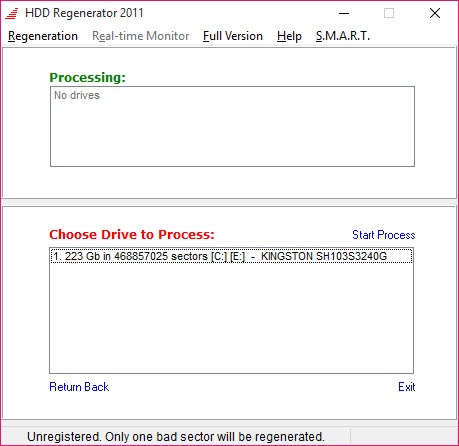
It works below the file system entirely. Partitions, formats and directory structures are irrelevant to it, which means an unpartitioned or unformatted drive can be scanned exactly like a working one. The readout counts sectors scanned, sectors that responded slowly, sectors found bad, and sectors it claims to have recovered.
That last count is where this review is going to spend most of its time, because “recovered” is doing a lot of work in that sentence, and understanding what actually happened to those sectors changes what you should do next.
The scan, and the prescan that saves hours
A full pass reads every sector on the drive, which on anything modern is measured in hours rather than minutes. Prescan mode exists for that reason. It samples the surface to locate where bad sectors cluster, and it runs faster on a badly damaged drive than on a healthy one, since a drive full of errors gives up its results quickly.
You can also restrict the run to a sector range, which is how you go back to a known bad region without repeating the whole surface. Interrupted runs resume where they stopped, at least when working from the installed program or a bootable flash drive.
For testing a drive without writing anything to it at all, a surface scanner that only reads is the safer first step.
The regeneration claim, examined
The product’s explanation is that a majority of bad sectors are caused by incorrect magnetisation rather than physical damage, and that writing the correct signal pattern back restores them. There is something to that. A sector holding a weak or corrupted write can often be rewritten successfully, and low-level formatting does not always achieve the same thing.
What the word “regenerated” hides is the second mechanism. When a sector really is damaged, the write causes the drive’s own firmware to retire it and substitute one from the spare pool it keeps in reserve. The sector count stays the same and the drive reports itself healthy again, but a spare has been consumed and the damage is still there, just no longer addressable.
This matters because CrystalDiskInfo will show you the reallocated sector count before and after. If that number climbed during the run, HDD Regenerator did not repair anything. It moved the problem, and the pool it drew from is finite.
Image the drive before letting it write
Here is the advice that should come with the download. A drive producing read errors is a drive in the process of failing, and a full-surface pass that reads and writes across every sector is one of the heaviest workloads you can give it. Sometimes that pass is the last thing the drive ever does.
So clone it first. Get a sector-level copy onto a healthy disk with something like Raw Disk Copier, verify the copy, and only then experiment on the original. Doing it in that order takes an afternoon. Doing it the other way round occasionally takes everything on the drive.
Repairing the drive the system boots from
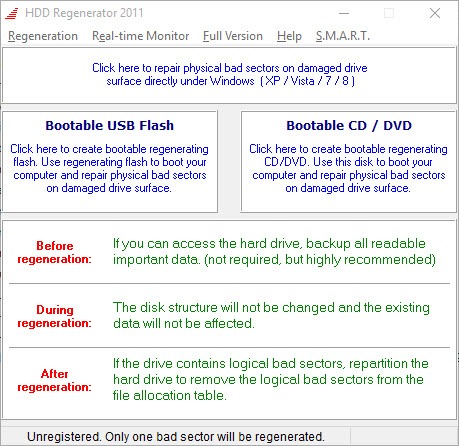
HDD Regenerator cannot work on a drive that is in use by the running system, so it builds bootable media instead. Create a bootable flash drive or optical disc from the main window, reboot onto it, and you get a text-mode menu with numbered options for prescan, scan with repair, and statistics.
Two practical notes. Creating the bootable flash wipes whatever was on that stick, and the warning is easy to click past. And resume after interruption works from flash but not from optical media, which on a multi-hour run is reason enough to prefer the former.
The monitor and the indicators
Alongside the scanner sits a background monitor for drive state, with a drive life indicator, a temperature readout, an overheating warning and a flag for when the drive’s own SMART status has gone bad. It will tell you a drive is in trouble before you notice it yourself.
The indicators are opaque, though. A drive life percentage that no documentation explains is less useful than the raw attributes underneath it, and when the question is whether a drive qualifies for replacement, SeaTools and the equivalent diagnostics from other drive brands produce the result a warranty claim actually needs.
What it is not
It is not a data recovery tool. It makes previously unreadable sectors readable, which can rescue files that were sitting on those sectors, but nothing deleted, nothing from a lost partition, and nothing from a formatted volume comes back. That job wants a recovery tool built for finding lost files.
It also leaves the logical layer alone, which produces a confusing result. Sectors that the file system marked bad earlier stay marked, so chkdsk keeps reporting bad sectors on a drive HDD Regenerator says is clean.
Clearing those marks means repartitioning, and until you do, the two tools will disagree with each other permanently.
Conclusion
HDD Regenerator does something real, and it is not the thing the name promises. On a drive with a handful of soft errors it can bring sectors back and buy you a working disk again. On a drive that is physically deteriorating it converts bad sectors into consumed spares and hands you a clean bill of health that will not last.
Use it as a diagnostic and a stopgap. Technicians recovering access to a client’s data before migrating it, and anyone trying to keep a secondary drive alive a little longer, will get value here. Anyone hoping to avoid replacing a failing drive is reading the results wrong, and the reallocated sector count in a SMART tool will tell them so.
Pros & Cons
- Works below the file system, so unformatted and unpartitioned drives scan normally
- Prescan locates clusters of bad sectors quickly instead of forcing a full surface pass
- Sector range selection lets you retest a known bad region without starting over
- Interrupted runs resume from where they stopped when working from flash
- Bootable media allows the system drive itself to be scanned and repaired
- Background monitor flags overheating and a failing SMART status before symptoms appear
- A successful repair often just means the firmware consumed a spare sector, which the interface never says
- Full-surface passes take hours and put heavy load on a drive that is already failing
- The drive life indicator gives a number with no explanation of how it was reached
- The file system keeps its old bad-sector marks, so chkdsk continues to disagree
- Repair beyond a single demonstration sector sits behind a paid tier
- Nothing here recovers deleted files or lost partitions, despite the recovery language
Frequently asked questions
Partly. Sectors that were merely written badly can be rewritten and will work again. Sectors with physical damage get retired by the drive's firmware and replaced from its spare pool, which reads as a repair but consumes a finite reserve.
The scan and repair pass does not delete files. Creating the bootable flash drive does wipe that stick, and any heavy write activity on a failing disk carries risk, so clone the drive before starting.
Yes, but not from inside the running system. Build the bootable media, restart onto it, and run the scan from there with the drive offline.
Because the logical marks recorded by the file system are untouched by a physical-level repair. They persist until the partition is recreated, even when the sectors underneath read perfectly.
The SMART monitoring works, but the magnetic rewrite premise does not apply to flash memory at all. Wear levelling and block retirement on an SSD are handled by its controller, and no external tool improves on that.


