

Lenovo System Update


About Lenovo System Update
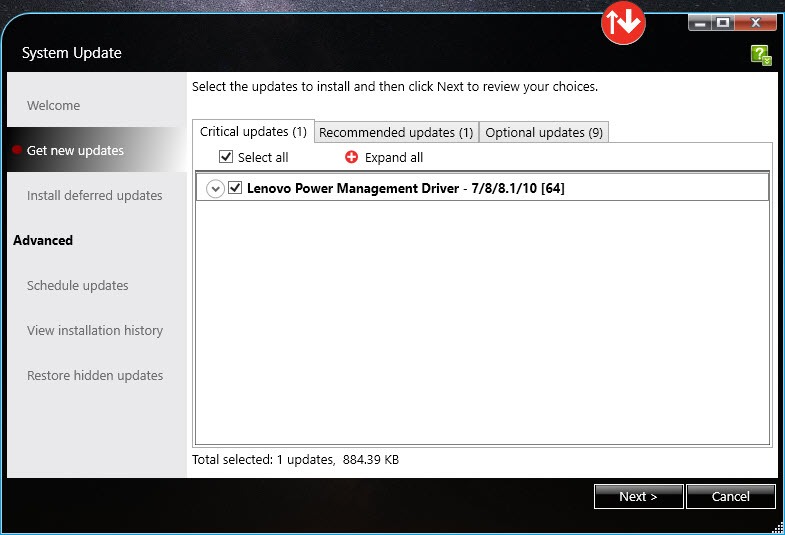
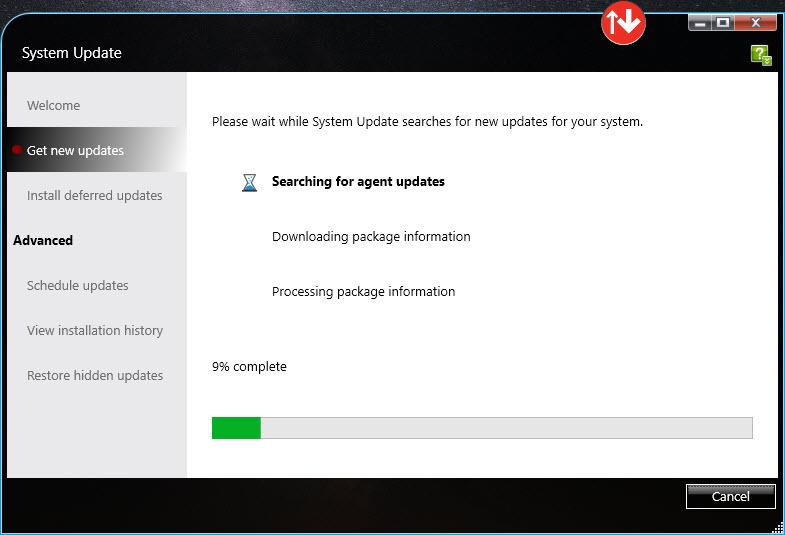
Lenovo System Update finds and installs the drivers, BIOS releases and support utilities that match one specific Think-branded computer. It reads the machine type and serial number, asks the manufacturer’s update catalogue what applies to exactly that model, and presents the result sorted into critical, recommended and optional packages. Tick what you want, click Next, and the installer handles downloads, installation order and any reboots.
The audience is anyone who maintains ThinkPad, ThinkCentre or ThinkStation machines, from a single laptop owner to an IT department with hundreds of them.
Consumer models from the same brand are not covered and use Lenovo Vantage instead, which draws on the same catalogue but wraps it in a broader app.
Updates sorted by how much they matter
The main screen groups packages into tabs. Critical updates fix security problems or stability faults and should simply be installed. Recommended and optional updates deserve a glance first, since they include things like a newer touchpad driver you may not need or a utility you may not want. An Extras tab lists accessories and additional software, which you can ignore entirely.
Each package shows its version and a short description, with a link to the full release notes. That transparency is the difference between this tool and generic driver updaters. You see exactly which component is changing and why.
Every package is built for your model, so the risk of an incompatible driver is far lower than with a general driver updater that guesses from hardware IDs.
Deferred downloads and scheduled checks
Updates do not have to install immediately. Tick Defer installation, and Lenovo System Update only downloads the packages, which you then apply later from the Install deferred updates link. That suits a laptop you are using for work right now but want to update at the end of the day.
A scheduler checks for updates automatically at an interval you choose, filtered by severity, so it can install only critical packages on its own and merely notify you about the rest. An installation history lists everything applied and when, and updates you have hidden can be brought back from a separate view. Two practical habits help here.
Install BIOS updates on their own, not in a batch with drivers, and run a second check after a large round of updates, because some packages only appear once their prerequisites are in place.
BIOS updates without a boot disk
Lenovo System Update flashes BIOS packages from within the running system. You click install, the tool writes the firmware and asks for a restart, and the machine comes back on the new release with no bootable media and no manual download of the right file. It also shows the current BIOS level next to the available one, which answers the “do I even need this” question before you start.
Treat these packages with the respect any firmware update deserves. Keep a laptop on mains power, close other programs, and do nothing else until the reboot completes. For locating warranty details and the exact model while you are at it, a small support helper identifies the machine for the manufacturer’s support pages.
Built for fleets as well as single machines
The same program scales up to managed environments. Administrators can point Lenovo System Update at a local repository instead of the online catalogue, built with the companion Update Retriever tool. Hundreds of machines then pull tested updates from a server on the LAN rather than each downloading from the internet. Package Builder adds custom packages to that repository, allowing in-house software to ride along with official drivers.
Command-line switches run searches and installations silently, with return codes that scripts can check, and scheduler settings can be enforced through group policy.
Home users will never touch any of this, but it explains why the tool has stayed in use for so long. Lenovo Vantage handles the same updates for consumer models and for people who prefer a modern interface.
Conclusion
Lenovo System Update suits owners and administrators of Think-branded machines who want drivers and BIOS releases from the manufacturer’s own catalogue, matched to the exact model, with the option to defer or schedule them. Its local repository and scripting support make it a long-standing favourite in business.
It covers only one brand’s business lines and shows its age in the interface. For the machines it serves, though, it remains the most dependable way to keep them current.
Pros & Cons
- Only offers packages built for the exact machine type
- Critical, recommended and optional tabs make choices clear
- Deferred downloads and severity-filtered scheduling
- BIOS updates flash from within the running system
- Local repositories, custom packages and scripting for IT departments
- Think-branded machines only
- Sometimes needs several runs before all updates appear
- The wizard interface looks dated
Frequently asked questions
ThinkPad, ThinkCentre and ThinkStation machines, along with a few business lines. Consumer models use Lenovo Vantage, which draws on the same update catalogue.
No. Install the BIOS package on its own with the laptop on mains power, let it reboot, and then install the remaining drivers in a separate pass.
Some packages depend on others being present first. Run the check again after a large batch and install whatever appears.


