

grepWin
About grepWin
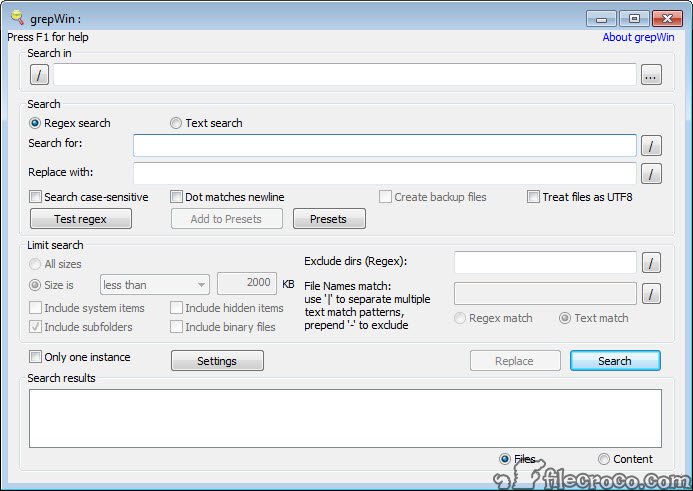
grepWin searches inside files across entire folder trees and, when you ask it to, replaces what it finds. Type a word or a regular expression, point it at a folder, and it lists every file that matches, with the line number and a preview of each hit. Fill in the Replace field and the same pattern rewrites all those files in one pass.
It brings the spirit of the classic grep command to a single window with checkboxes. Right-click a folder in Explorer, choose the search entry, and the dialog opens with that path filled in.
Programmers renaming a function across a project, admins editing hundreds of config files and writers fixing a term across a manuscript folder all land here for the same reason.
Text or regex, contents or names
Two switches set the basic behaviour. The first chooses between plain text and regular expression search. Text mode suits a simple word, while regex mode unlocks patterns like phone numbers, email addresses or version strings. Pressing F1 opens a help page with the full regex syntax, which is handy when you forget how lookaheads are written.
Smaller options fine-tune the match. A case-sensitive toggle separates Error from error, and a setting to treat files as UTF-8 fixes searches that miss accented text because a file’s encoding was guessed wrong. The Search in field also accepts several folders at once, separated by a pipe character, so two project trees can be scanned in one run.
The second switch decides what gets searched. File contents mode looks inside each file and reports every match with its line. File names mode treats the regex as a filename pattern instead, which turns grepWin into a precise file finder.
That is useful when you need every file named like an invoice number pattern, something ordinary wildcard search cannot express.
Filters that keep the search fast
There is no index, so the tool reads files from disk every time. On a big drive that takes a while, which makes the Limit Search options more than decoration. You can cap the file size, restrict by creation or modification date, skip hidden and system items, ignore binary files and turn off subfolder recursion.
File masks narrow things further. Wildcard masks such as *.cs or *.config include only the types you care about, and a minus sign in front of a mask excludes a type. The Exclude dirs box takes a regex such as ^(node_modules|\.git)$, which keeps dependency folders out of a code search and can cut search time from minutes to seconds.
For finding a file purely by name in an instant, Everything reads the drive’s index instead and answers before you finish typing.
Replace with capture groups and a safety net
Replacement is where grepWin separates itself from most search tools. Regex capture groups carry over into the replace field as numbered backreferences, so whatever the first group matched can be reused wherever you put \1. A pattern can therefore match a date written as 31-12-2024 and rewrite it as 2024-12-31 in every file at once, rather than just finding it.
Mistakes at that scale hurt, so the safety options deserve a minute. Tick Create backup files and every modified file gets a copy before it changes. Another option keeps each file’s original modification date, which matters when a build system or sync tool decides what to process based on timestamps.
Always run the search first, review the match list, and only then press Replace. Afterwards, a side-by-side file comparison tool shows exactly what changed between a backup and the edited file.
One limitation shows up on forums. Patterns that span several lines are awkward, and replacing a single line with a multi-line block has caused trouble. If multi-line work is your daily routine, a heavier search tool may suit you better.
Results you can act on
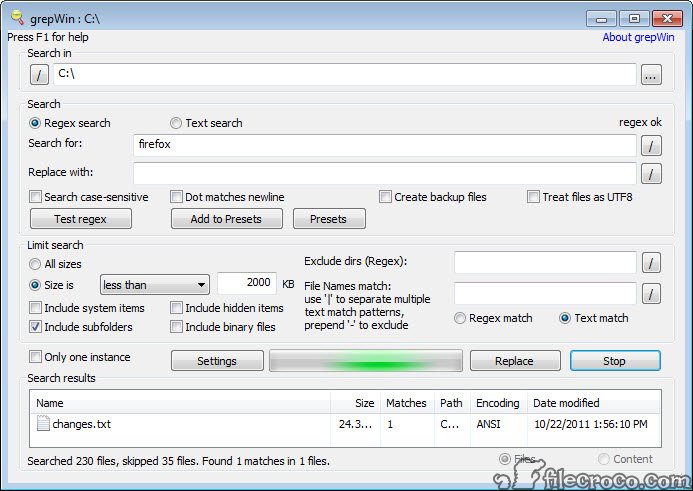
The result list has sortable columns for the file name and path. Further columns show size and encoding, plus the modification date. In content mode, each match appears with its line number and a short preview of the surrounding text, so you can judge relevance without opening anything.
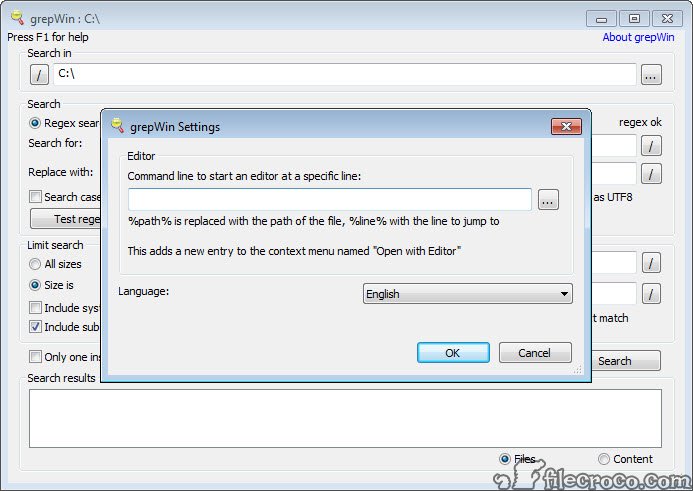
Double-clicking a result opens the file in your default editor. Pointing that setting at Notepad++ lets it jump straight to the matching line, so you can inspect the context or make a one-off manual fix before running a bulk replace on the rest.
Presets and command-line launches
Patterns you use often can be saved as presets with a name. That spares you from retyping a long email regex or a log-parsing expression and from fixing the inevitable typo. Presets also store the exclude settings, so a “search my code” preset can carry its folder blacklist with it.
grepWin comes as an installer or a portable build that keeps settings in an INI file next to the executable. Command-line parameters can launch a search with predefined values, or load a preset, which fits it into scripts and file manager toolbars. A dark mode is included for long sessions.
Conclusion
grepWin suits anyone who regularly edits text across many files. Programmers and system administrators get the most from it, but writers with large document folders benefit just as much. Regex replace with capture groups, backed by file backups, turns hours of manual editing into one careful pass.
It asks for some regex fluency and patience on unfiltered searches, and multi-line work is its weak spot. For single-line search and replace at scale, though, few tools are this direct.
Pros & Cons
- Regex search and replace across whole folder trees
- Capture groups in the replace field turn search into restructuring
- Backup files and preserved modification dates protect against mistakes
- File masks and folder exclusions keep searches focused
- Presets store complex patterns and their exclusions
- Portable build with command-line control
- No index, so large unfiltered searches are slow
- Multi-line patterns and multi-line replacements are unreliable
- Regex knowledge is needed to use its real power
Frequently asked questions
Type a regex in the Exclude dirs box, for example ^(node_modules|\.git)$. Every folder whose name matches is skipped, including its subfolders.
There is no undo button, but the Create backup files option saves a copy of each modified file first. Restore those copies if the result is wrong.
Yes. Switch the search to file names and the pattern, text or regex, is matched against names rather than file contents.
It reads every file live because it keeps no index. Narrow the search with file masks, size or date limits, and excluded folders to speed it up.


