

GiMeSpace
About GiMeSpace
GiMeSpace makes the desktop bigger than the screen. Push the mouse against the right edge of the display and the whole desktop slides left, revealing more space where more windows can live. Push against the left edge and it slides back.
Windows parked out of sight stay open and running, a flick of the mouse away, as if a second and third monitor stood beside the first without the hardware. The wallpaper stays put, so it is the windows that move, and a small overview panel shows the whole extended desktop at a glance for jumping straight to a window that is far off screen.
It is a different idea from the virtual desktop managers that switch between separate workspaces with a hotkey. GiMeSpace keeps one continuous desktop and lets you pan across it, which suits people who arrange windows spatially and want them side by side rather than in stacks. The basic edition scrolls horizontally and does the job with almost nothing running in the background.
The paid editions add vertical scrolling, windows larger than the screen, saved layouts, zooming out to see everything, and hotkeys to jump about. The sections below cover the scrolling, the overview, the controls that keep it from getting in the way, and where a workspace switcher is the better fit.
Scrolling past the edge
Move the mouse to the edge and the GiMeSpace desktop scrolls. That is the whole gesture, and it is as intuitive as it sounds, because dragging a window off the right edge simply puts it on the next screen’s worth of space. It is the opposite of the hotkey-driven switching in a lighter virtual desktop manager, where each workspace is a separate room.
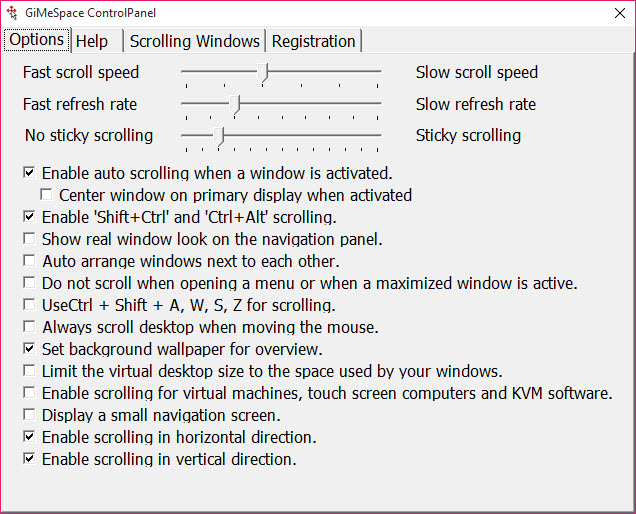
Scrolling continues as long as the pointer stays at the edge and stops when it leaves. A sticky option stops a short touch of the edge from scrolling, so a quick visit to a corner button does not send the desktop sliding. A page option scrolls one full screen at a time instead of continuously.
Keyboard scrolling and the toggle
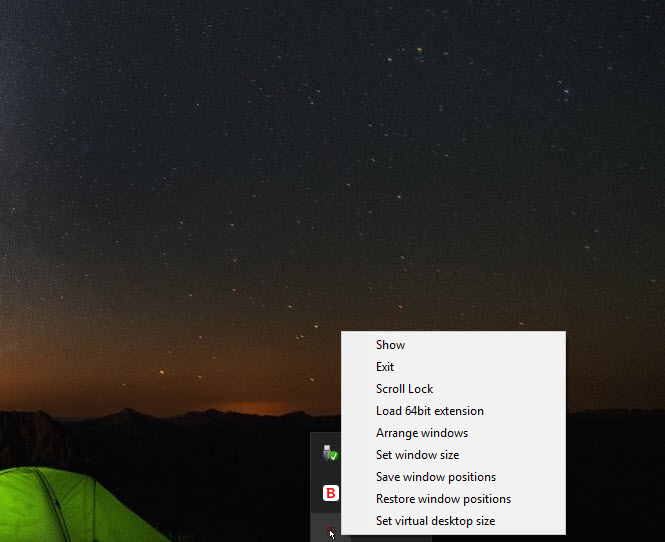
The keyboard scrolls too, for anyone who prefers it, and the Scroll Lock key switches the whole effect on and off, so a game or a full-screen program is left alone. Reverse scrolling flips the direction for people used to swiping on a touchpad. In the basic edition the desktop extends left and right only.
The paid editions add up and down, so the space grows in a grid rather than a strip.
The overview panel
A GiMeSpace navigator panel pops up to show the entire extended desktop in miniature, with every window drawn in place. Click a spot and the view jumps there. Drag a window in the miniature and it moves across the big desktop without the trip. The panel’s background can be changed, and the extended desktop can be limited to the area your windows actually occupy, so it does not stretch into empty space.
That panel is what keeps a very wide desktop usable, since scrolling blindly past four screens of space to find a window would defeat the purpose. The panel shows where everything is, and the mouse takes you there in one move.
Keeping toolbars and icons in place
Not everything in GiMeSpace should scroll. A tab in the settings lists the windows to leave fixed, which is where toolbars and floating palettes go, so they stay on screen while the rest of the desktop slides underneath them. The taskbar stays put by nature. Desktop icons stay fixed as well, which the program’s own reviewers noted as a small break in the illusion, since the shortcuts do not travel with the rest of the surface.
Those exceptions are the difference between a trick and a working tool. A palette that scrolled away with the window it serves would be useless, and the fixed list keeps it where the hand expects it.
For capturing the whole extended desktop as one image, a screenshot tool with a region capture does the job on the visible part, and the paid editions add their own full-size capture.
Where a workspace switcher is the better fit
The GiMeSpace scrolling model suits a spatial thinker and a laptop with a single small screen, where two documents side by side are otherwise impossible. It suits less well a person who wants separate, named workspaces for separate tasks, since one continuous desktop has no walls.
The basic edition’s horizontal-only scrolling is a real limit, and the paid editions are where the grid, the zoom and the saved layouts live. A reviewer’s note that it occasionally stops working until restarted matches a program that sits between the mouse and the desktop.
For switching between numbered workspaces with their own window sets, Dexpot is the full virtual desktop manager. This program does something it does not, and does only that.
Conclusion
GiMeSpace suits anyone on a single screen who wants to spread windows out side by side rather than stack them. That covers a laptop user with two documents to compare and a spatial thinker who likes to know where everything is. The edge-scrolling gesture and the overview panel make the extra space feel like extra monitors.
It scrolls one way in the basic edition and leaves the icons behind, and it is not a workspace switcher. Set the fixed-window list first, learn the Scroll Lock toggle, and the single screen stops feeling small.
Pros & Cons
- Extends the desktop past the screen edges with a mouse gesture, no hardware needed
- Overview panel shows the whole extended desktop and moves windows across it
- Sticky and page scrolling options plus keyboard control, with Scroll Lock to switch off
- Fixed-window list keeps toolbars and palettes on screen
- Tiny footprint, with almost nothing running in the background
- Basic edition scrolls horizontally only
- Vertical scrolling, zoom, saved layouts and oversized windows need the paid editions
- Desktop icons do not scroll with the rest
- Occasionally stops working until restarted
Frequently asked questions
It keeps one continuous desktop and scrolls across it when the mouse reaches the edge, rather than switching between separate workspaces with a hotkey.
Yes. The Scroll Lock key switches the scrolling on and off, and a sticky option stops a brief touch of the edge from scrolling.
Only in the paid editions. The basic edition extends the desktop left and right.
Yes. A settings tab lists windows to leave fixed, so toolbars and palettes stay on screen while the rest of the desktop slides.


