

FlashBoot
About FlashBoot
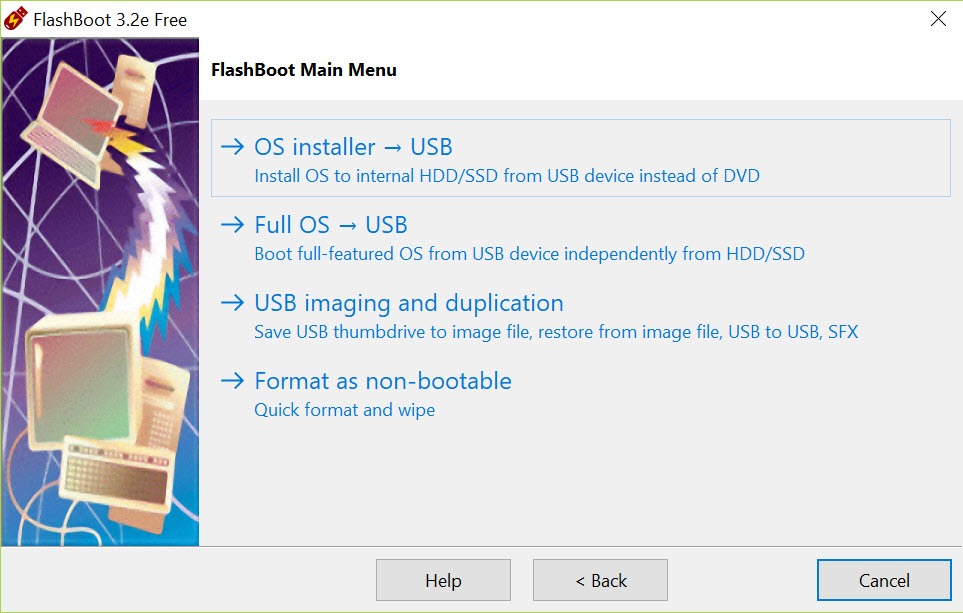
FlashBoot puts an operating system on a USB stick, and it does so in more ways than any other tool in its category. The obvious one is converting an installation ISO into a bootable installer stick. The less obvious ones are what set it apart.
It can install a full working copy of the operating system onto the stick itself, so the stick boots any computer into a complete desktop with your applications and files, independent of whatever is on the hard drive. And it can clone the installation you already use, with its applications and settings, into a package that installs itself on a different machine with different hardware.
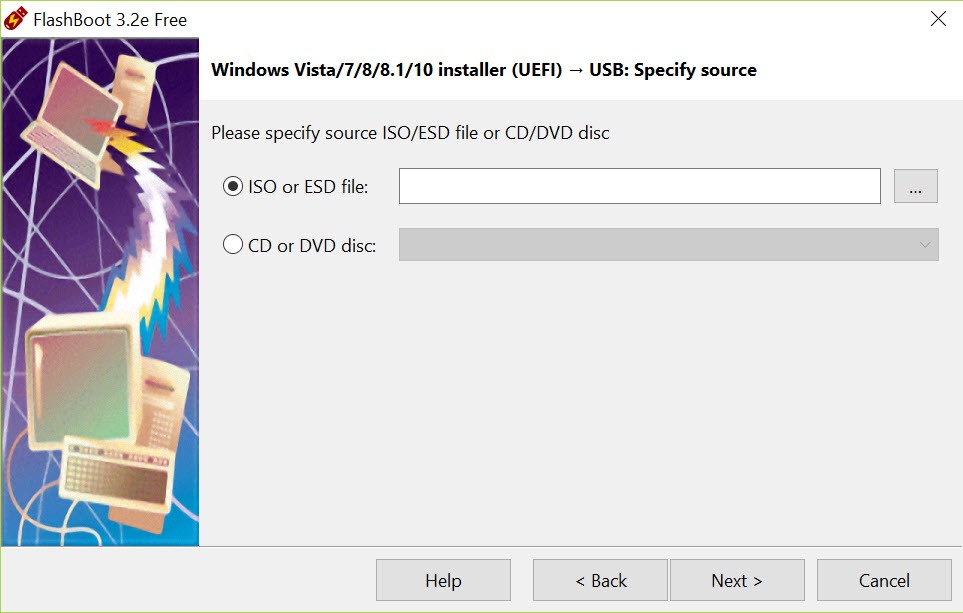
Every job runs through a wizard. Pick the task, point it at an ISO or a source drive, pick the target USB device, and wait. That structure hides a good deal of complexity, from bootloader choice and partition layout to splitting an installation image that exceeds the 4GB limit of FAT32, which the wizard does on its own.
FlashBoot is one of the few tools where the person who has never made a bootable stick and the technician who does it weekly both find the defaults right.
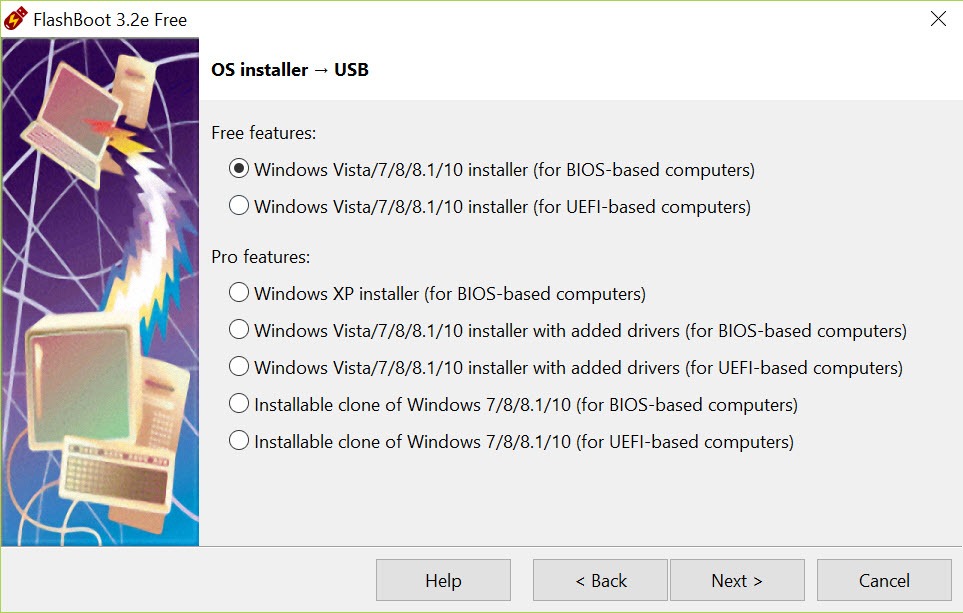
The unregistered build handles the ISO-to-installer conversion, the full system install to a stick and USB imaging, while cloning, driver integration and a few specialist modes sit in the paid tier.
Installer sticks from an ISO
The everyday FlashBoot task is turning a setup ISO or DVD into a bootable USB installer, and it works for current releases and for older ones that other tools have dropped. The wizard formats the stick, copies the files and installs a bootloader that works on both UEFI and legacy machines without asking you to choose. When the installation image inside the ISO is larger than 4GB, it is split automatically into parts the FAT32 file system accepts, which is the failure point most people hit with simpler tools.
For a plain installer stick, Rufus does the same job faster and with more control over partition scheme and file system. The reason to use this one instead is what comes next.
A full operating system that lives on the stick
Choose the full install option in FlashBoot, point it at an ISO, and the wizard installs the operating system onto the USB device as though it were an internal drive. Boot from that stick on any computer and you get a complete desktop that keeps its applications and documents, settings included, between machines and never touches the host’s drive.
It is the portable workstation idea, and it suits people who move between desks, technicians who want a known-good environment for diagnosis, and anyone who needs to use a borrowed computer without leaving traces on it.
The paid tier extends this to cloning. Instead of a fresh install from an ISO, it copies the installation you are running now, with everything installed, onto the stick as a bootable clone. Performance depends entirely on the stick. A slow flash drive makes for a painful desktop, and an external SSD over a fast port feels close to normal.
Installable clones for moving to a new machine
The FlashBoot clone module in the paid tier also produces what it calls an installable clone, a self-extracting backup of the whole installation that can be applied to another computer. That covers moving to a new machine with different hardware, migrating from a hard drive to an SSD, moving between a virtual machine and real hardware, and switching a machine between UEFI and legacy boot without reinstalling. It is also a full backup that restores itself, which is a useful thing to have when an update or ransomware takes a machine down.
Driver integration is what makes the dissimilar-hardware case work. Storage and USB controller drivers for modern hardware are folded into the image, along with any drivers you supply, so an older release boots on a machine whose controllers it never knew.
DiskGenius handles the SSD migration case and the boot mode switch as well, but does not produce a portable, self-installing package.
Imaging, duplicating and self-extracting sticks
The imaging module saves an entire USB device to an image file and restores it later, or copies one stick directly to another while preserving bootability. That is how a technician keeps a library of prepared sticks and reproduces one when it fails. It is the same idea as a raw USB image writer, with the wizard wrapped around it.
The paid tier adds self-extracting archives, single executables that format a stick and fill it with predefined content when run. Hand one to a colleague, they run it, plug in a stick, and get exactly the drive you built. Small disk utilities round out the set, with quick format, secure wipe, partition management and the creation of DOS or UEFI shell sticks for firmware work.
Privacy options and the older-release cases
Two specialist features live in the paid tier. Installations can be prepared with privacy improvements switched on, blocking telemetry, unwanted network traffic, built-in advertising and the forced online account during setup, with a control panel applet afterwards showing how many requests have been blocked. And older releases can be installed on modern UEFI-only hardware through bundled drivers and loader patches, which is a job almost nothing else attempts anymore.
A minimal preinstallation environment based on an old release can also be put on a stick for repair work.
Conclusion
FlashBoot suits technicians and anyone who wants their desktop in their pocket. The portable system install is the standout, the imaging keeps a library of sticks alive, and the clone tools in the paid tier solve the new-machine migration that otherwise eats an afternoon of reinstalling.
For a one-off installer stick, a lighter tool is quicker. This one earns its place when the stick has to do more than install, and its wizards make the difficult cases, oversized images, mixed boot modes and old releases on new hardware, look ordinary.
Pros & Cons
- Installs a full, portable operating system onto a USB stick from an ISO
- Splits oversized installation images for FAT32 automatically
- Bootloader works on UEFI and legacy machines without a choice to make
- Installable clones move a whole system to dissimilar hardware
- USB imaging and stick-to-stick copies preserve bootability
- Self-extracting sticks reproduce a prepared drive with one executable
- Cloning, driver integration and privacy options sit in the paid tier
- Portable system performance depends heavily on the stick
- Wizards offer little control compared with expert tools
- Older-release support matters to a shrinking audience
Frequently asked questions
Yes. The full install option installs the system onto the stick so it boots any computer into a complete desktop that keeps applications and files between machines.
Yes. It splits the image into parts the FAT32 file system accepts, so the stick still boots on UEFI machines.
The paid tier can. Its installable clone packages the current system with integrated drivers and applies it on the new machine.
ISO-to-installer conversion, full system installation onto a USB stick, and USB device imaging. Cloning and driver integration are paid.


