

Dead Pixel Buddy


 (31 votes, average: 3.52 out of 5)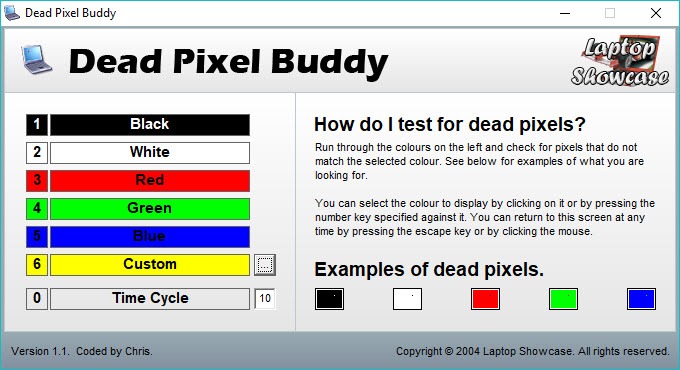
About Dead Pixel Buddy
When you buy a new monitor, the last thing you want to discover a month later is a tiny black speck in the middle of the screen that your eye now refuses to ignore. Dead Pixel Buddy exists to catch that speck while you can still do something about it. It is a small, portable utility that floods your entire display with solid blocks of color, one at a time, so any pixel that is not behaving stands out immediately against the flat background.
That is the entire job, and the simplicity is the point. Dead Pixel Buddy does not need installing, so you can drop it on a USB stick and test any monitor you sit down at, a genuinely useful trait if you are checking a display in a shop, inspecting a secondhand purchase, or vetting a fleet of office screens. You pick a color, the screen fills edge to edge, and you look for anything that breaks the uniformity.
Why solid colors reveal what normal use hides
A defective pixel is sneaky. During everyday use, with windows, text, and images constantly changing what each pixel displays, a single bad one is almost impossible to spot. The defect only becomes obvious when the surrounding pixels are all doing the exact same thing and the broken one cannot keep up. That is what Dead Pixel Buddy engineers on purpose.
The reason it offers several colors rather than just one is that different defects hide on different backgrounds. A truly dead pixel shows up as a black dot, and it is easiest to catch against a full white screen. A stuck pixel, one locked on red, green, or blue, practically disappears on a matching background but glows obviously against black or a contrasting color. So the discipline is to cycle through black, white, red, green, and blue in turn, scanning the panel slowly each time, because skipping colors is exactly how people miss the defect they were looking for.
The application gives you buttons for each color plus an automatic time-cycle mode that rotates through them on its own, handy if you want to step back and watch the whole panel without clicking.
Reading what you actually find
Spotting the dot is only half of it. Knowing what kind of dot it is determines what you can do next, and this is where understanding the difference pays off. A dead pixel is one where all three sub-pixels have failed, leaving it permanently black on every color you throw at it. That usually means a physically broken transistor, and software cannot revive it. A stuck pixel is only partly broken, with one sub-pixel jammed on, which is why it displays a fixed color, and those can sometimes be coaxed back to life.
Dead Pixel Buddy is strictly a detection tool, and it is honest about that. It will show you the defect with crystal clarity, but it does not attempt any repair. If your test turns up a stuck pixel rather than a dead one, you will want a separate tool that rapidly flashes colors at the spot to try to unstick it, like the repair-focused DeadPix. And if you want a second opinion with a slightly different feature set for the detection itself, Dead Pixel Tester covers similar ground.
For people whose real goal is color accuracy rather than dead pixels, a calibration tool such as DisplayCAL is a different job entirely, but it often gets mentioned in the same breath because both involve staring critically at a fresh display.
The warranty window is the real reason to bother
Here is the practical payoff that makes a tool this simple worth keeping around. Manufacturers and retailers generally honor pixel-defect returns only within a short window after purchase, commonly around thirty days. Run a full color cycle the day you unbox a monitor, and again after a week of use (some defects only surface after the panel goes through its first heating cycles), and you catch problems while the screen is still eligible for a refund or replacement.
There is a wrinkle worth knowing. Most consumer displays are sold under a defect standard that tolerates a small number of bad pixels before the manufacturer considers a panel faulty, so a single dead pixel may not automatically qualify for a free replacement. That makes location and severity part of the argument.
A defect dead center on an expensive display is far more worth challenging than a single dot in the corner of a budget secondary screen. Either way, documenting it early with a clear solid-color test gives you the evidence to make your case, which is something the utility quietly enables even though it never claims to.
Conclusion
Dead Pixel Buddy is for anyone who has just bought a display, new or used, and wants a fast, no-nonsense way to confirm the panel is clean before the return window closes. It does one narrow thing and does it without fuss, which is exactly what you want from a diagnostic you reach for occasionally rather than daily.
Just set your expectations correctly. This is a magnifying glass, not a repair kit. It will tell you with total clarity whether a pixel has failed and help you figure out which kind of failure it is, but fixing a stuck pixel or replacing a dead panel is a separate step. As the first move in checking a screen’s health, though, it is hard to fault something this direct.
Pros & Cons
- Fills the screen with pure solid colors so dead and stuck pixels stand out instantly
- Offers individual color buttons plus an automatic cycling mode to run through them hands-free
- Portable and install-free, so you can test any display from a USB stick
- Dead simple interface that anyone can use without instructions
- Ideal for checking a new or secondhand monitor inside the return window
- Detects defects only, with no built-in attempt to repair stuck pixels
- Offers no measurement or logging, just the visual test itself
- A single dead pixel may fall within a manufacturer's accepted defect limit
- Spotting defects on very high-density panels takes a careful, patient eye
Frequently asked questions
It fills your screen with solid blocks of color, one at a time or on an automatic cycle, so any pixel that is dead or stuck becomes visible against the uniform background. It is a detection tool, not a repair tool.
Run through black, white, red, green, and blue at minimum. Dead pixels show up best as black dots on white, while stuck pixels are easiest to catch as colored dots against black or a contrasting color, which is why testing several colors matters.
No. The application only reveals defects. A genuinely dead pixel (permanently black) is usually a hardware failure that software cannot fix, while a stuck pixel sometimes responds to a separate color-flashing repair tool.
A dead pixel has all its sub-pixels failed, so it stays black on every color and is typically permanent. A stuck pixel has one sub-pixel locked on, showing a fixed red, green, or blue, and it can sometimes be revived. This tool helps you tell which one you have.
As soon as you unbox it, then again after a week of use. Testing early catches both factory defects and pixels that fail in their first days, while the display is still within the return or warranty window.


