

ImageUSB
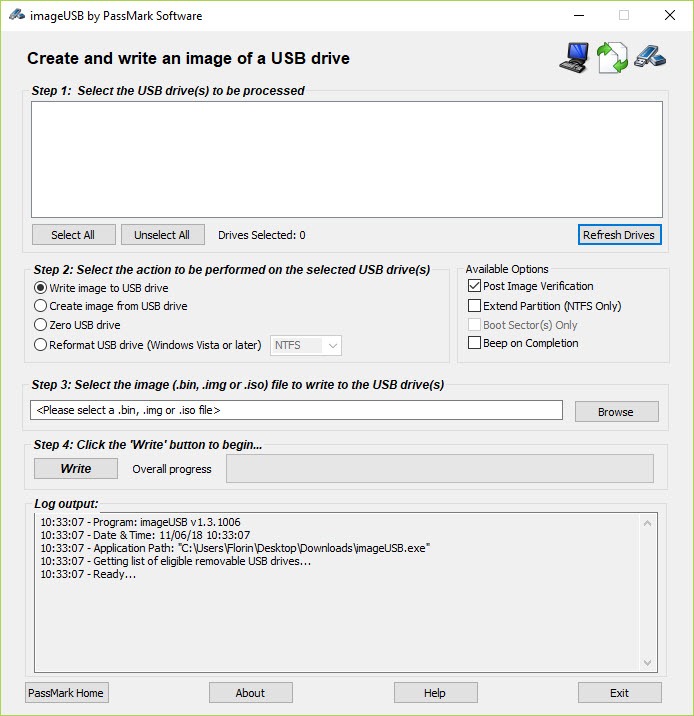
About ImageUSB
Preparing one USB drive is a five minute job. Preparing twenty identical ones, for a classroom, an event or a fleet of machines, is the same job twenty times unless something does them together. ImageUSB writes the same image to many drives at once.
ImageUSB takes as many drives as the machine has ports for, select them all, choose the image and write. The drives receive it in parallel rather than one after another, so twenty takes roughly as long as one.
It also works in the other direction, capturing a drive you have already prepared into an image file, along with wiping and reformatting drives that need clearing first.
The copy is byte for byte
Understanding what kind of copy ImageUSB makes explains both its strength and its main constraint.
The image is a complete record of the drive rather than a copy of the files on it. Partition layout, boot sectors, file system structure and even the unused space are all captured exactly as they were.
That is what makes the duplicates exactly identical, including anything that would be lost by copying files. A prepared bootable drive reproduces perfectly because the parts that make it bootable are part of the image rather than something to recreate.
The constraint follows directly. An image taken from a sixteen gigabyte drive is a sixteen gigabyte image, and it will not write to a drive that is even slightly smaller. Buying duplicates from one batch, rather than assorted drives of nominally the same size, avoids an afternoon of confusion.
Where the drives need a particular file system rather than a cloned layout, a formatter that creates large FAT32 volumes the built-in tool refuses handles that side instead.
It duplicates rather than creates
Here is the ImageUSB distinction people most often get wrong, and it saves a wasted attempt.
Turning an installer image into a bootable drive is a preparation job with decisions in it, meaning partition scheme, boot mode and how the contents are laid out. Rufus exists for exactly that and handles the variations properly.
This tool copies a drive that is already correct. So the working sequence is preparing one drive properly with the right tool, checking it boots, then imaging that drive and duplicating the image as many times as needed.
Attempting to skip the first step by pointing this at an arbitrary installer image produces a drive that may or may not start, depending entirely on how that image was built.
Verification is worth the extra minutes
ImageUSB compares what was written against the source, and on a batch that pass is worth enabling.
Flash drives fail quietly, particularly the cheap ones bought in quantity, and a drive that accepted the write without complaint can still contain something different from what you sent. Discovering that in a room full of people is worse than waiting.
The time cost is roughly a second write’s worth. For twenty drives destined for other people, that is a good trade.
Checking what you are writing before you write it is the related habit, and ISO Workshop opens an image to confirm its contents.
The other use is preservation
Byte-for-byte imaging gives ImageUSB a second application that has nothing to do with duplication.
Capturing a drive exactly, including deleted content still present in unused space, produces a record of that drive as it was at a moment in time. That matters for anything where the drive itself is evidence, or where an old device holds something worth keeping before it fails.
The image sits on a hard drive as an ordinary file afterwards, which is a considerably safer place for it than a flash drive in a box.
Conclusion
ImageUSB does one job that becomes valuable the moment the count goes above two. Twenty drives written together, byte for byte, with a verification pass, turns an afternoon of repetition into a single operation.
Get the order right and it behaves perfectly. Prepare one drive with the tool meant for that, confirm it works, image it, then duplicate. Trying to make it do the first step is where people conclude the software is unreliable, when it was simply being asked to do somebody else’s job.
Pros & Cons
- Writes to many drives simultaneously rather than one after another
- Byte-for-byte copy, so bootable drives reproduce exactly
- Captures an existing drive into an image file
- Verification pass confirms what was written matches the source
- Wiping and reformatting included for drives that need clearing first
- Portable, with nothing installed
- An image will not fit a drive even slightly smaller than the original
- Image size matches the whole drive, including its unused space
- Duplicates a prepared drive rather than preparing one from an installer image
- Parallel writing is limited by how many ports the machine has
Frequently asked questions
Not reliably. That is a preparation job with decisions about partition scheme and boot mode, and it needs a tool built for it. This duplicates a drive that already works.
Because the copy is byte for byte, so the image is the size of the whole original drive and needs a destination at least as large. Drives sold as the same size frequently differ slightly.
Yes, since it captures the whole drive including unused space. That is why it suits preservation as well as duplication, and it is also why images are large.
On a batch, yes. Flash drives fail quietly, and checking costs roughly the time of a second write, which is cheap compared with handing out drives that do not work.


