

GadgetPack
About GadgetPack
GadgetPack is the unofficial revival of Windows desktop gadgets, the small floating widgets that lived on the Windows Vista and Windows 7 sidebar and got quietly killed off by Microsoft in 2012.
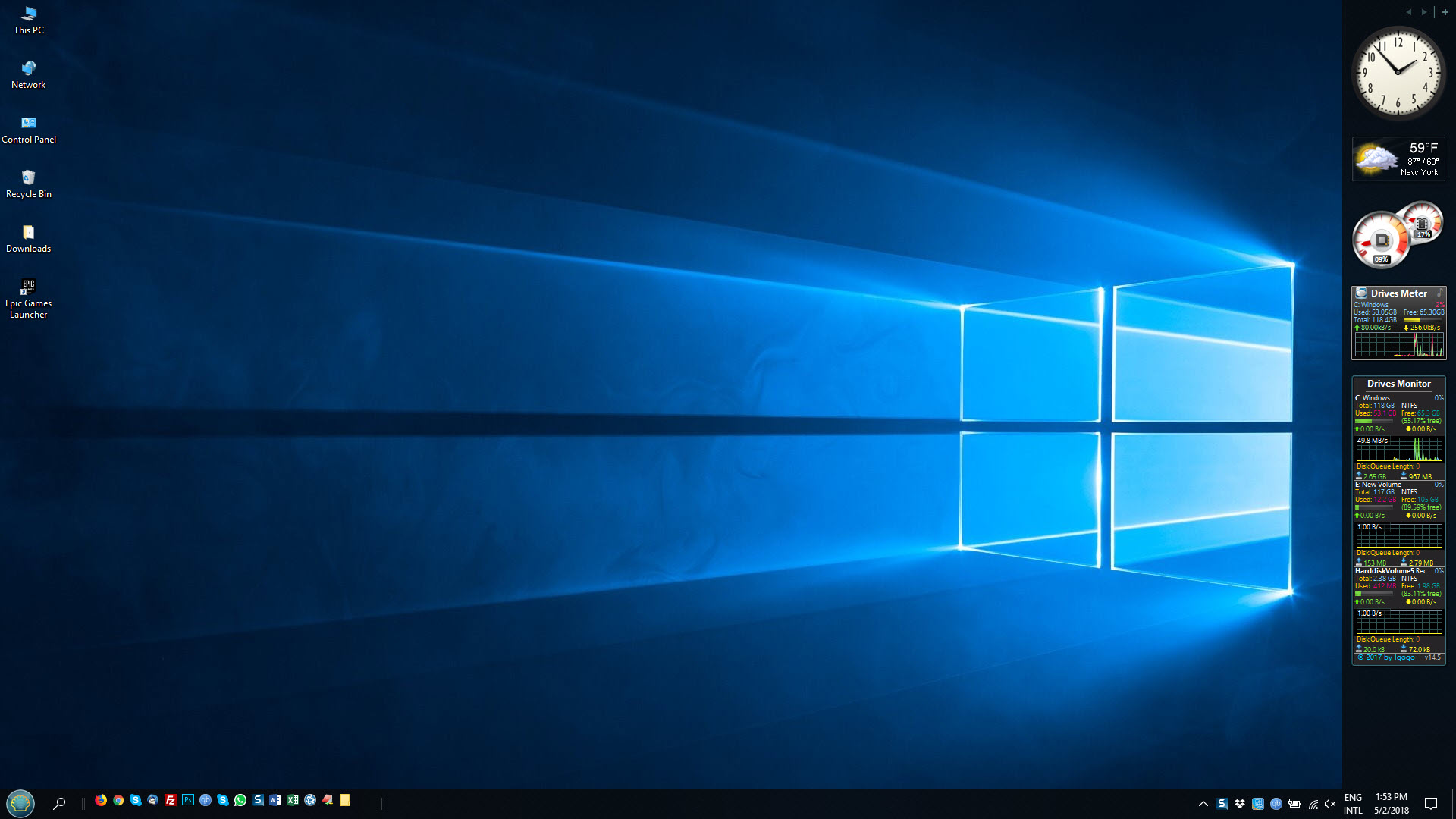
The application reintroduces the sidebar host, brings back the entire library of clock, weather, calendar, CPU meter, and similar tiles, and lets them run on Windows 10 and Windows 11 the way they used to on older versions.
Helmut Buhler, a German developer, has been maintaining the project under the 8GadgetPack name since the Windows 8 era and rolled the brand into the simpler GadgetPack label as Windows versions moved on.
Out of the box you get more than fifty pre-bundled gadgets, plus the ability to install old .gadget files you’ve kept from your Vista or 7 days. It scratches a specific itch for users who liked the original sidebar and never warmed up to the modern Windows widgets panel.
Why this exists and who actually wants it
Microsoft pulled the sidebar feature in 2012 after a security advisory flagged the gadget format as exploitable. The official replacement (the modern Widgets panel introduced in Windows 11) lives in a separate flyout, isn’t customizable in the same way, and only hosts Microsoft-approved cards from the company’s ecosystem.
For users who used to keep a CPU meter glued to the side of their monitor, a real analog clock floating in the corner, or a custom currency converter ticking away in the background, the new system doesn’t replace what was removed.
This is where GadgetPack comes in. The point isn’t novelty, it’s restoration. It rebuilds the sidebar host process, hooks it into the desktop the way the original did, and gives you back the same gadget API that thousands of third-party developers wrote for during the Vista and 7 years. If you have a folder of .gadget files from a decade ago, they install and run.
The bundled gadget collection
Fresh installs come with a sizeable default library, somewhere north of fifty pre-installed gadgets including the classics most people remember. A multi-time-zone clock, a weather widget tied to your location, a CPU and RAM meter, a network monitor showing real-time bandwidth, a calendar, a slideshow that cycles through a folder of pictures, sticky notes, a battery indicator for laptops, a currency converter, and stock tickers are all in the default set.
The quality varies. The system monitors, clocks, and calendar are solid and feel like they belong on a modern desktop. The weather and stock gadgets rely on third-party APIs and occasionally break when the data sources change their endpoints, which leads to gadgets showing dashes instead of values until the developer updates them. The slideshow gadget is genuinely useful and one of the more reliable picks for a permanent desktop fixture.
For users who want a focused desktop sticky note experience rather than a full gadget panel, 7 Sticky Notes handles that one job better than the bundled sticky note gadget does, while BGInfo covers system info baked into the wallpaper for users who want the same information without floating widgets.
The sidebar versus floating placement
One thing that catches new users off guard. The sidebar in modern Windows isn’t on by default in the way Vista’s was. GadgetPack installs a sidebar bar on the right edge of the screen, but you can turn it off entirely and let individual gadgets float anywhere on the desktop instead. Most people end up doing exactly this, with two or three gadgets pinned to corners of their monitor rather than a full vertical sidebar.
Each gadget remembers its position, opacity, and size between reboots. You can right-click any gadget for options, set it to always stay on top, change its transparency, or drop it onto a specific monitor in a multi-display setup.
Multi-monitor support is one of the genuine improvements over the original Vista implementation, since the early sidebar was awkward about secondary displays.
Installing third-party gadgets
The bundled set covers a lot of common cases, but the real appeal for some users is being able to run gadgets that were written years ago and never replaced. The application registers the .gadget file association on install, so double-clicking any gadget file (whether you downloaded it ten years ago or just unearthed it) prompts the same install dialog that Vista showed.
This is also where the honesty matters. Gadgets are essentially HTML and JavaScript packages that run with desktop privileges. The format is old, the security model is dated, and arbitrary gadgets from the wild internet are not a safe install in 2026. Stick to the bundled library or to gadgets from sources you actually trust.
Don’t run random .gadget files from forums or download sites that haven’t been audited. Microsoft killed the platform for a reason, and that reason hasn’t gone away just because a third-party tool brought it back.
Customization and the right-click menu
Each gadget has its own settings dialog, accessed by hovering over it and clicking the small wrench icon that appears. Weather gadgets ask for a location code, system monitors ask which sensors to display, clocks ask for time zone and analog versus digital style. The settings are saved per-gadget and per-position, so you can run two CPU meters showing different things if you want.
The application itself has a configuration tool that sits in the system tray. From there you can show or hide the sidebar, control whether gadgets start with Windows, set the default opacity, and reset the entire layout. There’s also a gallery view that displays all installed gadgets in a grid for adding new ones to the desktop.
Theme adaptation is partial. Some bundled gadgets respect the Windows accent color and follow dark or light mode. Others are stuck with their original styling from the Vista era, which means glassy translucent panels in a corner of an otherwise modern desktop. For users who want a more unified look, this can feel inconsistent. For users who actually want the Vista look back, it’s exactly what they came for.
Performance and resource use
The host process is light. Idle, a few gadgets running together use maybe 30 to 80 MB of RAM total and negligible CPU. The system monitor gadgets do consume a small amount of CPU continuously because they poll hardware, but it’s the kind of overhead you can’t measure without a profiler.
The real performance concern is gadgets that fetch network data on a timer. A weather gadget pulling new conditions every fifteen minutes is nothing, but a poorly written stock ticker that polls every five seconds can add up to noticeable network chatter.
The Network Meter gadget is useful here, since it shows you which processes are talking and how much, similar in spirit to what Battery Monitor does for power state.
Where the limits show
The biggest functional limitation is that gadgets can’t really do anything the API didn’t support in 2007. You can’t have a gadget that integrates with modern cloud services in a clean way, that uses Windows 11 fluent design properly, or that talks to anything on the system through current APIs. Everything runs through the old gadget API surface, which is HTML, JavaScript, and a handful of system bindings that haven’t been updated.
Visual fidelity on high-DPI displays is occasional. Some gadgets scale cleanly, others render slightly blurry because they were drawn for 96 DPI monitors and never updated. You can usually fix this by adjusting the gadget’s size manually, but the per-monitor DPI awareness of modern Windows isn’t fully respected.
The application is also Windows-specific. There’s no Mac or Linux version because the sidebar concept is tied to the Windows shell. For other operating systems, equivalent tools exist in their own ecosystems and are unrelated to this one.
Conclusion
GadgetPack exists for a narrow but real audience, which is users who actively liked the Windows 7 desktop gadget experience and never accepted the modern Widgets panel as a replacement. If that’s you, the application gives back what Microsoft took away, with reasonable bundled content and the option to revive old .gadget files you’ve kept around.
If you’ve never used desktop gadgets and you’re curious about the concept, this is a fine entry point but be aware you’re working with platform that hasn’t fundamentally evolved since 2007. The security concerns that motivated the removal are still valid, the visual style won’t fully match modern Windows, and the API doesn’t support newer integrations. Used carefully with the curated bundled library, it’s a pleasant addition to the desktop.
Used carelessly with random third-party gadget files, it can introduce real risk. Knowing the difference is the whole game.
Pros & Cons
- Restores the classic Windows 7 sidebar gadget experience that Microsoft removed
- Comes with more than fifty pre-bundled gadgets covering most everyday use cases
- Supports installing legacy .gadget files from the Vista and 7 era
- Multi-monitor handling is better than the original sidebar implementation
- Resource use is light enough to run continuously without measurable impact
- Per-gadget settings persist across reboots without configuration hassle
- Active maintenance by a single developer who has kept the project alive for over a decade
- Gadget format has known security limitations that Microsoft cited when removing it
- Visual style is mixed, with some bundled gadgets stuck in Vista-era glass styling
- High-DPI scaling is inconsistent across the bundled library
- Third-party gadgets from untrusted sources are a real risk to install
- Stock and weather gadgets occasionally break when external data sources change
- No theme integration that fully matches modern Windows accent colors
Frequently asked questions
A security advisory in 2012 flagged the gadget format as potentially exploitable through crafted .gadget files that could run arbitrary code with user privileges. Microsoft disabled the sidebar feature in subsequent Windows versions rather than rewriting the security model.
The modern Widgets panel is a separate flyout that hosts Microsoft-approved cards and isn't customizable the way the old sidebar was. Gadgets in this revival run as floating desktop elements you can place anywhere, and you can install any gadget that follows the original format.
Yes. The application registers the .gadget file association, so double-clicking any compatible gadget file from the Vista or 7 era launches the same install dialog the original system used. Only do this with files from sources you trust.
The bundled gadget library is curated by the developer and reasonably safe. The general risk concern is third-party .gadget files from unverified sources, which can contain arbitrary code. Treat random gadgets from the internet the way you'd treat random executables.
Yes. The application supports modern Windows versions including Windows 11, and the host process integrates with the current shell rather than relying on Vista-era components.
Open the gadget gallery from the system tray icon, right-click the gadget you want to remove, and choose Uninstall. Bundled gadgets can be hidden but not fully removed without reinstalling the application.
Yes. Drag any gadget to the monitor you want it on, and the position is remembered between reboots. Multi-monitor support is improved over the original Vista sidebar.


