

Image Eye
About Image Eye
Most image viewers these days have lost the plot. They want to be photo libraries, RAW editors, cloud sync hubs, and AI-powered organizers, all wrapped around the simple act of showing a JPEG on your screen. By the time you actually see the picture, you’ve sat through a splash screen, watched a sidebar populate with thumbnails you didn’t ask for, and waited while the application decides whether it wants to scan your entire Pictures folder for “memories”.
Image Eye comes from a completely different school of thought. This tool is what you get when somebody decides an image viewer should view images. Nothing else. Double-click a file, see the file. Move to the next one with an arrow key. Close the window. The whole experience is so unremarkable in the best possible way that you stop noticing it, which, for a utility that you might use fifty times a day, is exactly the point.
Speed that actually feels instant
The real selling point of Image Eye is the launch time. There’s no measurable wait between double-clicking a file and seeing it on screen. No splash, no loading bar, no “preparing your library”. On any reasonably modern computer, the application appears to be already open by the time your finger has lifted off the mouse button.
This matters more than it sounds like it does. If you spend any part of your day flipping through screenshots, reference images, or downloaded photos, the cumulative time saved over hundreds of openings adds up fast.
More importantly, the cognitive overhead drops to zero. You stop bracing yourself before opening an image, because there’s nothing to brace for.
Format support without the codec dance
The supported format list covers pretty much everything you’d realistically encounter: JPEG, PNG, GIF, BMP, TIFF, WebP, HEIC, ICO, TGA, PCX, and a long tail of less common formats including various RAW types from major camera manufacturers. Animated GIFs and APNGs play natively, with frame-by-frame controls if you need to inspect individual frames.
What’s missing is the codec headache. You don’t have to install plugins, hunt down decoders, or tell the application which formats you’d like it to handle. Drop a file on it, the file opens.
Even relatively recent additions like WebP and HEIC are first-class citizens rather than afterthought support added through a third-party module.
Folder navigation that gets out of your way
When you open one image from a folder, you almost always want to see the others. Image Eye handles this through simple keyboard navigation, with left and right arrow keys moving through files in alphabetical order. There’s no dedicated browser pane stealing screen space, no thumbnail strip you have to dismiss, no library view to navigate around.
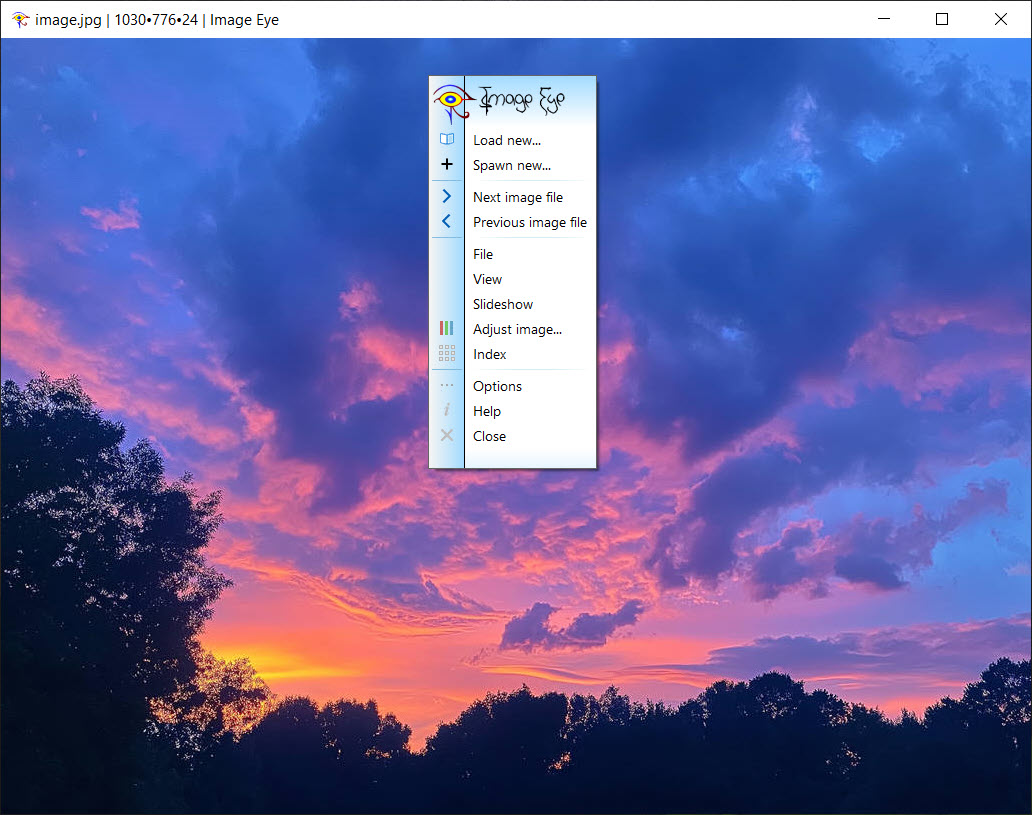
If you want a slideshow, there’s one, with configurable timing. If you want to sort by date instead of name, you can. But none of this is shoved in your face. The default behavior is “show the picture, let me move through the folder”, which is what most people want most of the time.
Basic editing without pretending to be Photoshop
There are some image manipulation features tucked into the menus: rotate, flip, crop, resize, and basic color adjustments. They’re functional and they work, but the application clearly knows it’s not a photo editor. You won’t find layers, adjustment masks, or any of the heavy machinery that real editing tools provide.
This is the right call. If you actually need to edit a photo, you’re going to open Photoshop, GIMP, or Affinity Photo. Image Eye offers just enough lightweight tweaking to handle the everyday “I need to crop this and save it” scenario without dragging the user into a full editing environment they didn’t ask for. It’s a viewer that can edit a little, not an editor that also views.
Multi-window comparison and full-screen mode
You can open multiple instances of the application at the same time, which is genuinely useful when comparing two or three images side by side. Each window keeps its own zoom level, position, and navigation state, so you can have one window zoomed into a detail while another shows the wider context.
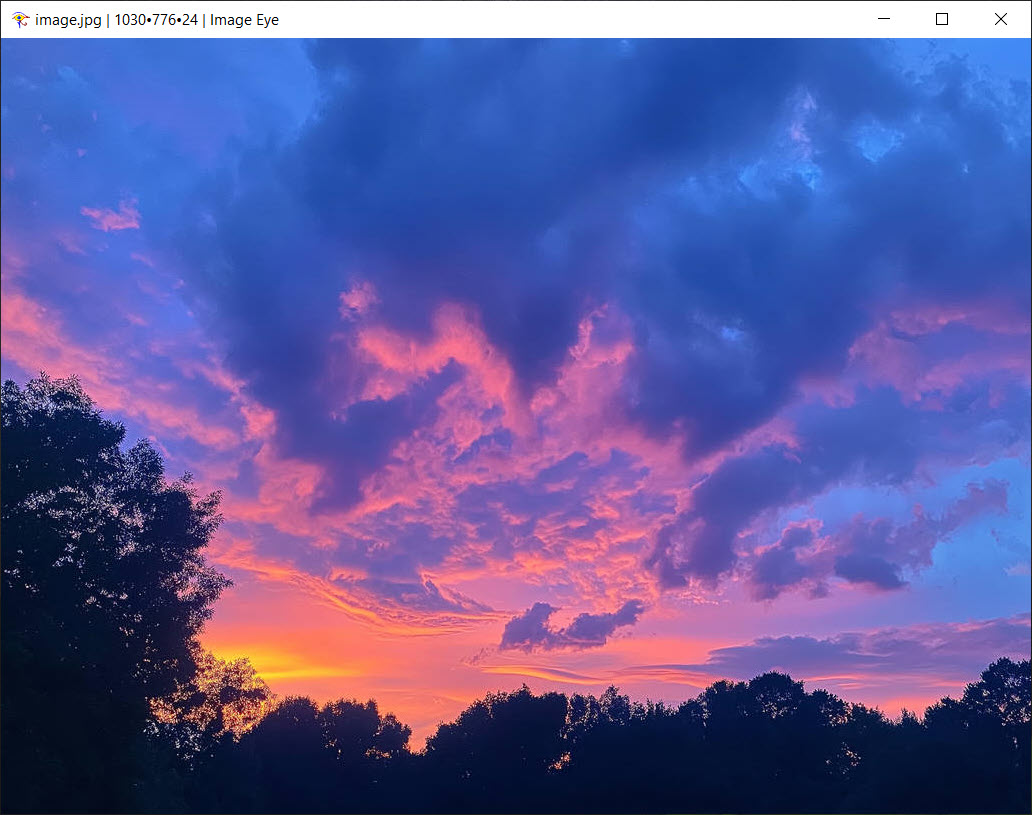
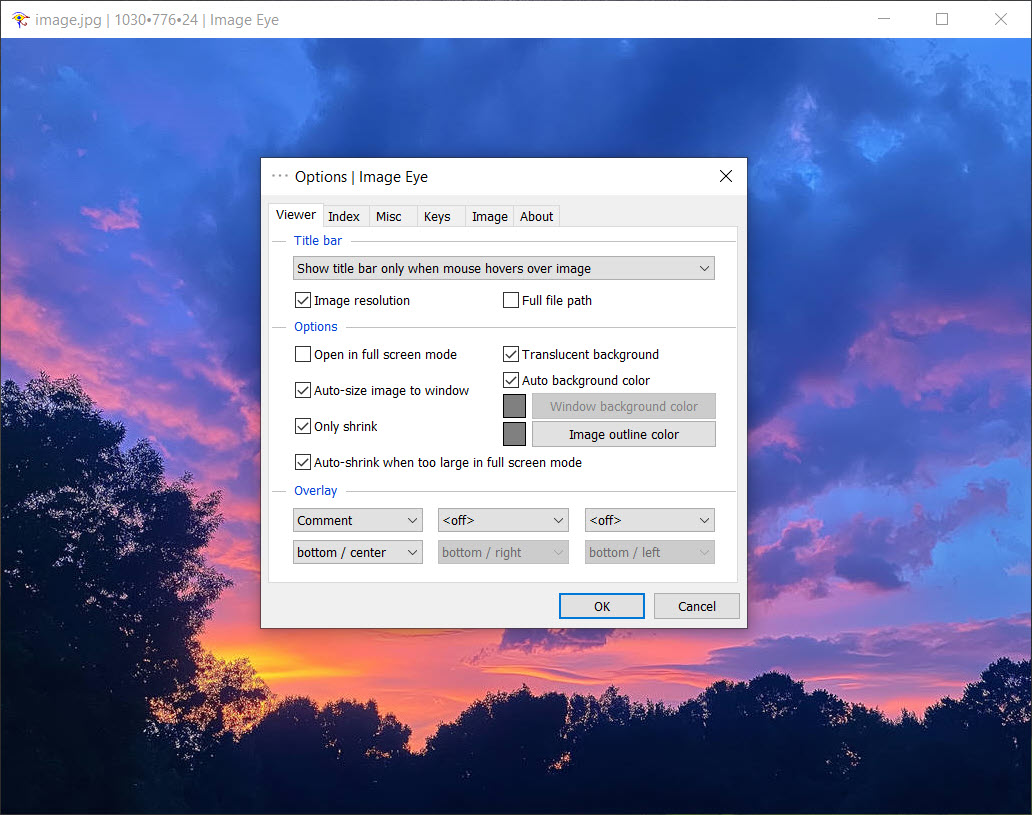
Full-screen mode strips away even the title bar, leaving the image filling the entire display. For reviewing photography, presenting work to someone leaning over your shoulder, or just enjoying high-resolution images without distraction, the clean full-screen view is closer to what a viewer should look like than what most heavyweight applications offer.
EXIF and metadata when you want them
For photographers, the application reads EXIF metadata from camera files and displays it on demand. Camera model, lens, exposure settings, ISO, GPS coordinates if present, all surfaced through a simple info panel.
It’s not a substitute for a metadata-focused tool like ExifTool, but for casual reference while reviewing photos, it covers the basics without making you launch a separate utility.
Limitations worth knowing about
The interface is genuinely dated. The menus, dialog boxes, and overall styling feel like they were last seriously updated a long time ago, and the application makes no attempt to look modern. Function over form, basically. Some users will find this charming, others will find it ugly. Both reactions are valid.
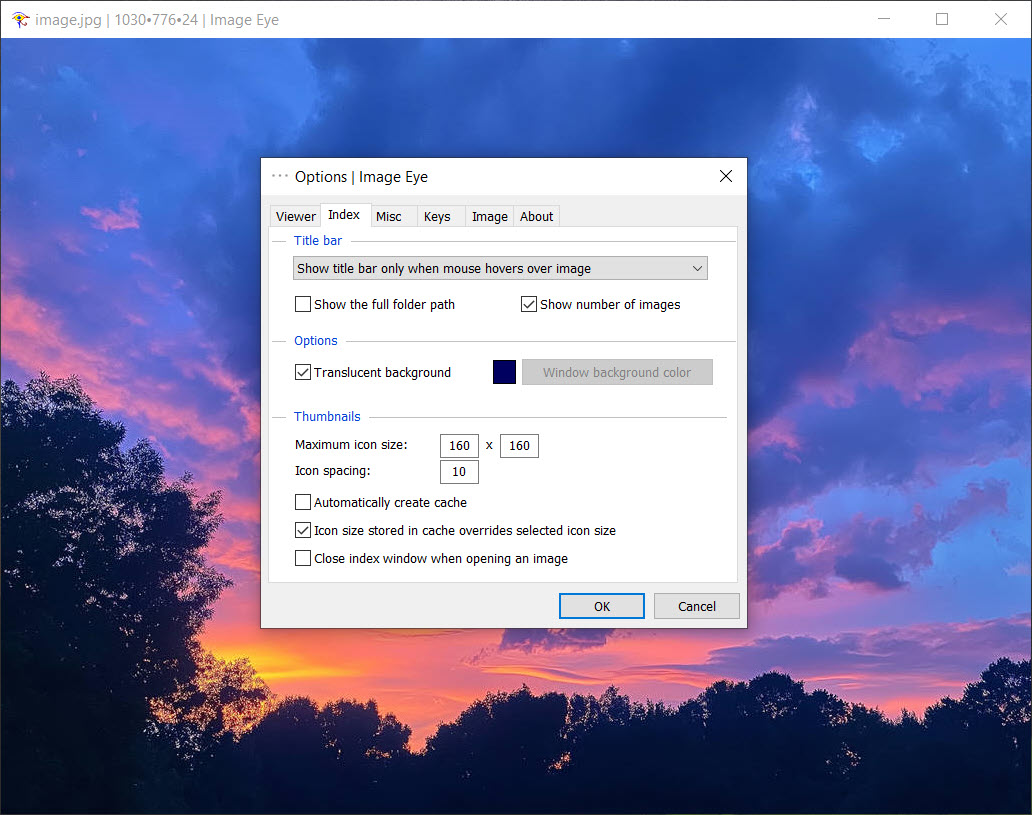
There’s also no library or catalog feature, which is intentional but means this tool isn’t the right choice if you want to manage and tag a large photo collection.
For that purpose, applications like digiKam or commercial alternatives serve a fundamentally different need. Image Eye is for opening and viewing images, not for organizing them.
Conclusion
Image Eye is a quietly excellent example of a tool that knows exactly what it is and refuses to drift outside that scope. In a category where most applications keep adding features until they barely qualify as viewers anymore, this one stays focused on the simple act of showing pictures fast and getting out of your way.
It’s not for everyone. Users who want a unified library with face recognition, cloud backup, and editing depth will find it too sparse. But for the considerable audience that just wants to open an image and see it without ceremony, Image Eye delivers exactly that, and the speed of doing so is the kind of small daily improvement that you stop noticing only because it works so well.
Pros & Cons
- Launches almost instantly with no startup ceremony
- Broad format support including modern types like WebP and HEIC
- Animated GIF and APNG playback with frame-by-frame controls
- Lightweight resource usage that runs comfortably on older hardware
- Multiple instances enable side-by-side image comparison
- Full-screen mode for distraction-free viewing
- Folder-aware navigation through arrow keys
- Basic editing tools cover quick adjustments without launching a full editor
- EXIF metadata display for photography work
- Interface design feels visibly dated compared to modern viewers
- No library or catalog features for managing large collections
- Editing tools are deliberately minimal and not a replacement for proper photo editors
- Documentation is sparse and assumes you'll figure things out on your own
- Free version has commercial-use limitations that may matter for some users
Frequently asked questions
The application is deliberately small and skips the heavy initialization that bloated viewers go through. There's no library scanning, no thumbnail caching, no extension system loading on startup. The result is that the program is essentially ready before you've finished clicking, which on modern hardware feels indistinguishable from instant.
Yes, this software handles HEIC files natively along with WebP, AVIF, and most other modern image formats you're likely to encounter. There's no need to install separate codec packages or extensions to view files that newer phones and cameras produce.
RAW format support covers the common types from major camera manufacturers including Canon CR2, Nikon NEF, Sony ARW, and several others. For demanding RAW workflows that require detailed processing, dedicated tools like Lightroom or Capture One are more appropriate, but for quick previews and basic viewing, this software handles RAW files without issue.
Left and right arrow keys navigate through files in the current folder in alphabetical order by default. You can change the sort order through the menu if you prefer date-based or other sorting. The navigation is smooth and immediate, with no perceptible delay between images even when scrolling through hundreds of files.
Yes, launching multiple instances of the application gives you separate windows that you can position however you want. Each window remembers its own zoom level and position independently, which works well for comparing photos, reviewing design variations, or any scenario where seeing two images at once helps.
The application keeps track of the last viewed image in each folder and remembers zoom and position settings between sessions. Reopening a folder picks up roughly where you left off, which is useful when reviewing large photo sets across multiple sessions.
For light tasks like cropping a screenshot, rotating a phone photo, or resizing an image for email, the built-in tools handle the job without having to launch a heavier editor. For anything beyond basic adjustments, including layered work, advanced color correction, or compositing, dedicated editing software remains the appropriate choice.


