

Defender Exclusion Tool
About Defender Exclusion Tool
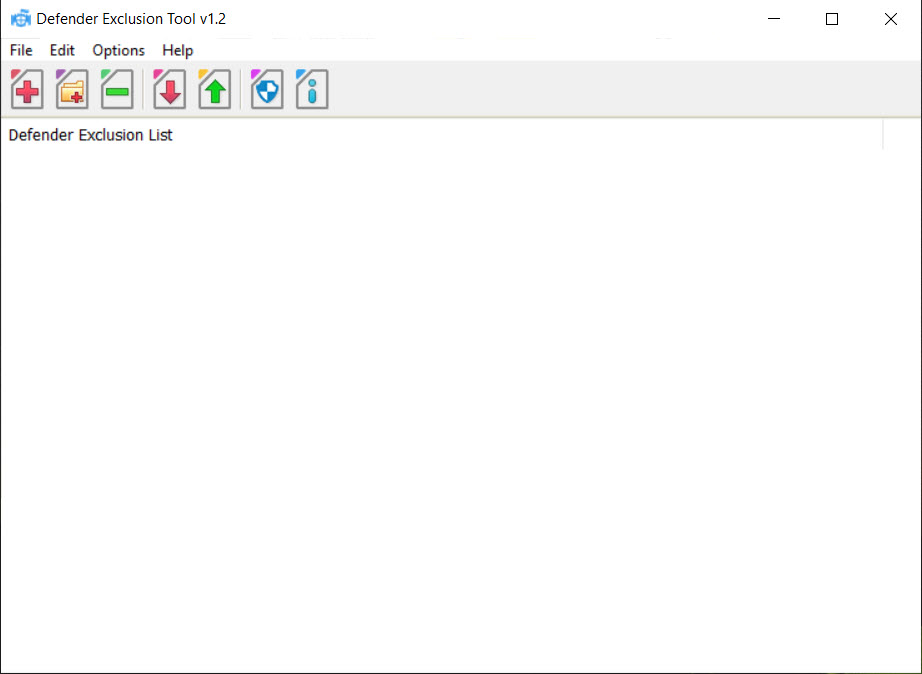
Adding an exclusion to Defender the official way means opening settings, the security panel, virus and threat protection, its settings, scrolling to exclusions, clicking add, then browsing to the folder. Six steps for one path. Defender Exclusion Tool replaces all of that with dragging the folder onto a window.
That is the whole pitch, and for anyone who maintains machines or compiles code it is enough. Files, folders, paths, extensions, processes, IP addresses can all be excluded, by dragging them in or typing an entry directly.
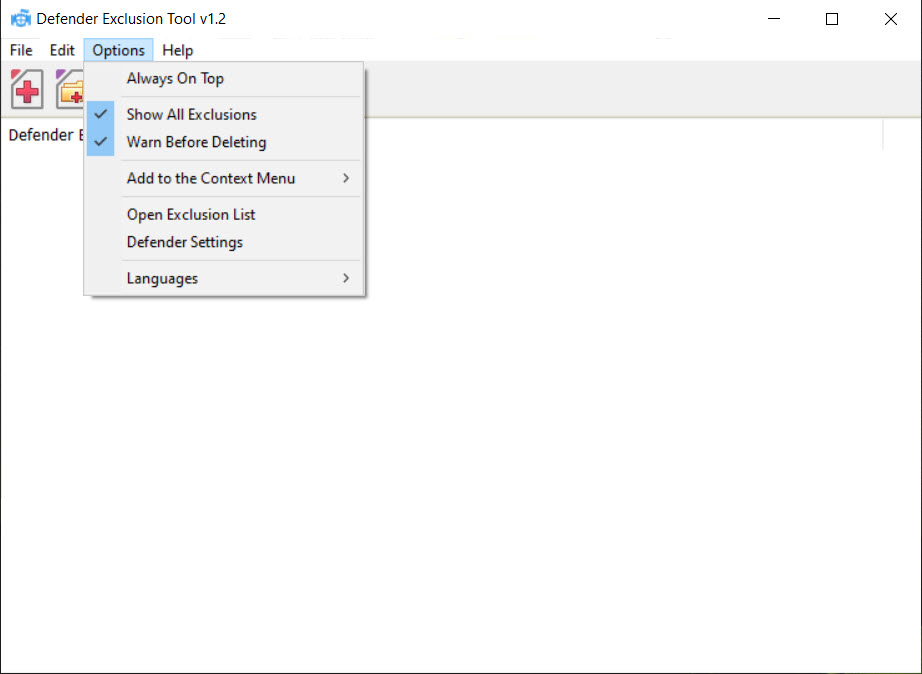
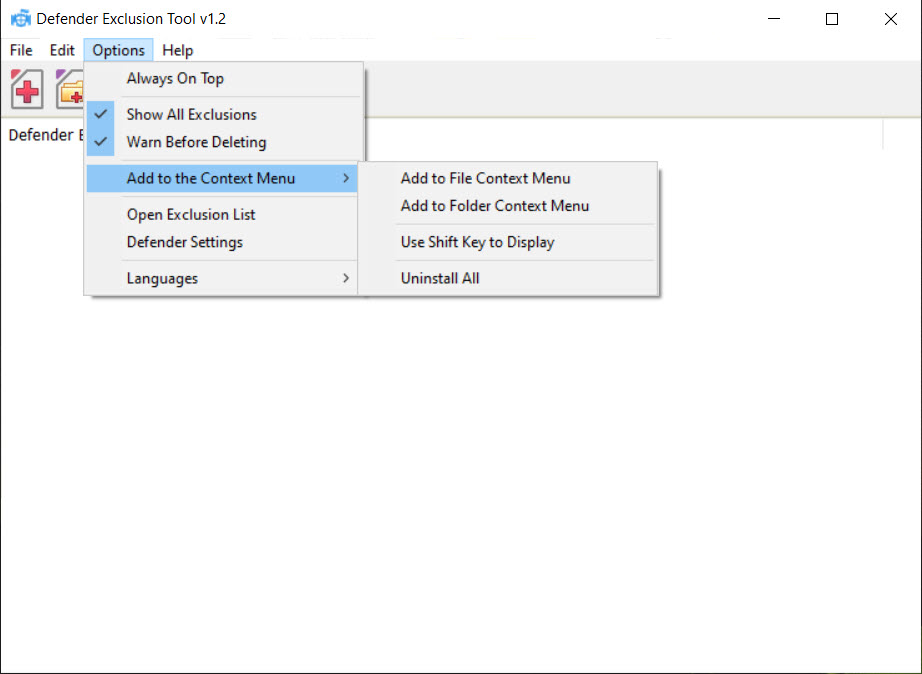
Optional context menu integration puts the same action on the right-click menu of any file.
Seeing the exclusions you never added
The more interesting function is reading rather than writing. Defender Exclusion Tool displays every exclusion currently in force, including those applied by group policy, which the ordinary settings panel does not show you at all.
Two reasons that matters. Coding tools add their own exclusions quietly during installation, so a machine with a couple of editors on it often has folders excluded that nobody chose. And exclusion lists are a known hiding place, since an attacker who can write to that list has a protected directory to work from. An entry you cannot account for is worth investigating rather than ignoring.
Nothing here scans anything, so if an entry looks wrong, a second-opinion scanner that ignores the exclusion list is what tells you whether that folder holds something it should not.
Process exclusions do not do what you expect
This trips up almost everybody, and the confusion is not the fault of Defender Exclusion Tool. Adding a process to the exclusion list excludes the files that process opens. It does not exclude the process itself.
So if a program keeps getting quarantined, adding it as a process exclusion will not help. That case needs a file exclusion pointing at the executable. The process option is for the opposite situation, where a trusted program touches thousands of files and the scanning slows it to a crawl.
Getting the path right matters more than the name, and Process Explorer tells you exactly which executable is running from where before you exclude the wrong one.
Export, import, and the missing command line
Defender Exclusion Tool exports and imports exclusion lists, and a saved list is restored by dragging the backup file onto the window. On a machine you rebuild regularly, or across several machines that need the same development folders excluded, that saves repeating the work.
What is deliberately absent is command-line support. It was removed on security grounds, which is defensible. A scriptable way to add exclusions silently is precisely the capability malware wants, and its absence trades administrator convenience for a closed hole.
Anyone needing automation has the built-in scripting interface for it.
Every exclusion is a hole
The uncomfortable part deserves stating plainly. Each entry on that list is a place the scanner no longer looks, and the usual mistakes are large ones. Excluding an entire drive, a user profile, or a downloads folder removes protection from exactly where unfamiliar files arrive.
Keep exclusions narrow and specific. A build output directory, a virtual machine disk, a database file being written to constantly, all reasonable. Anything broader deserves a second thought. If the real problem is that scanning is too aggressive rather than that a specific path needs skipping, ConfigureDefender adjusts the protection levels themselves, which is a better answer than carving out territory.
Conclusion
Defender Exclusion Tool earns its place with people who add exclusions often and want to see the whole list at once. Programmers whose build folders get scanned mid-compile, technicians configuring a batch of machines, and anyone auditing a system to find out what has already been excluded will find it faster and more honest than the interface it replaces.
Use it with the understanding that the tool is neutral and the decisions are not. It makes carving holes in your protection trivially easy, which is useful when the hole is a build directory and reckless when it is a whole drive. Keep the list short and specific, and read it occasionally rather than only writing to it.
Pros & Cons
- Dragging a folder onto the window replaces a six-step trip through the settings panel
- Files, folders, extensions, processes and IP addresses are all handled in one place
- Displays exclusions applied by group policy, which the built-in interface hides
- Export and import make an exclusion set repeatable across machines
- Optional context menu entry adds an exclusion without opening the program
- Command-line support was removed on purpose, closing an obvious abuse route
- No scanning or verification, so it tells you nothing about what an excluded folder contains
- Process exclusions are widely misunderstood and the interface does not explain them
- No command line, so scripted workflows are out
- Makes it easy to exclude far too much, with no warning about overly broad entries
- Needs administrator rights every time, since it writes to protected settings
Frequently asked questions
Speed and visibility. Adding a path by dragging it in takes a second rather than six clicks, and the program also shows exclusions applied through group policy that the standard interface leaves invisible.
No. A process exclusion covers files the process opens, not the executable. To stop a specific program being flagged, add it as a file exclusion pointing at the executable itself.
Yes. The list exports to a file and imports again, and a saved backup can be restored by dragging it onto the window, which suits a machine you rebuild or a set of workstations needing identical settings.
Not any more. Parameter support was deliberately removed for security reasons, since a silent scripted way to add exclusions is something malware would happily use.


